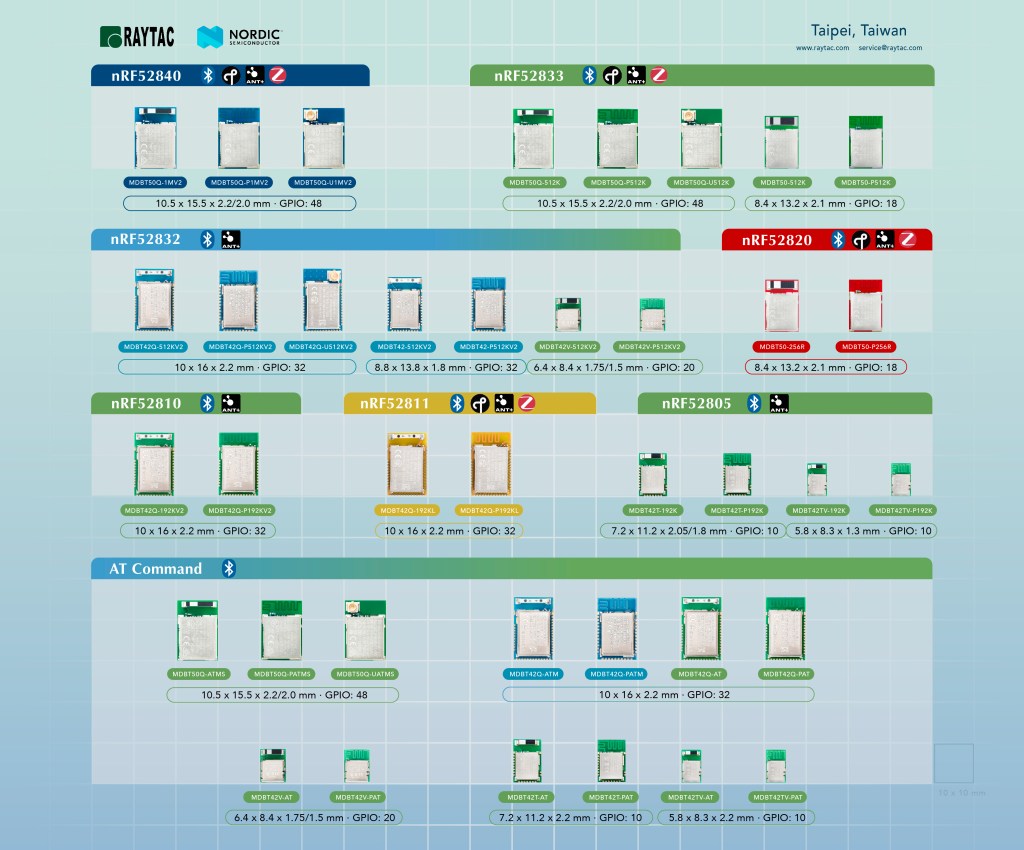
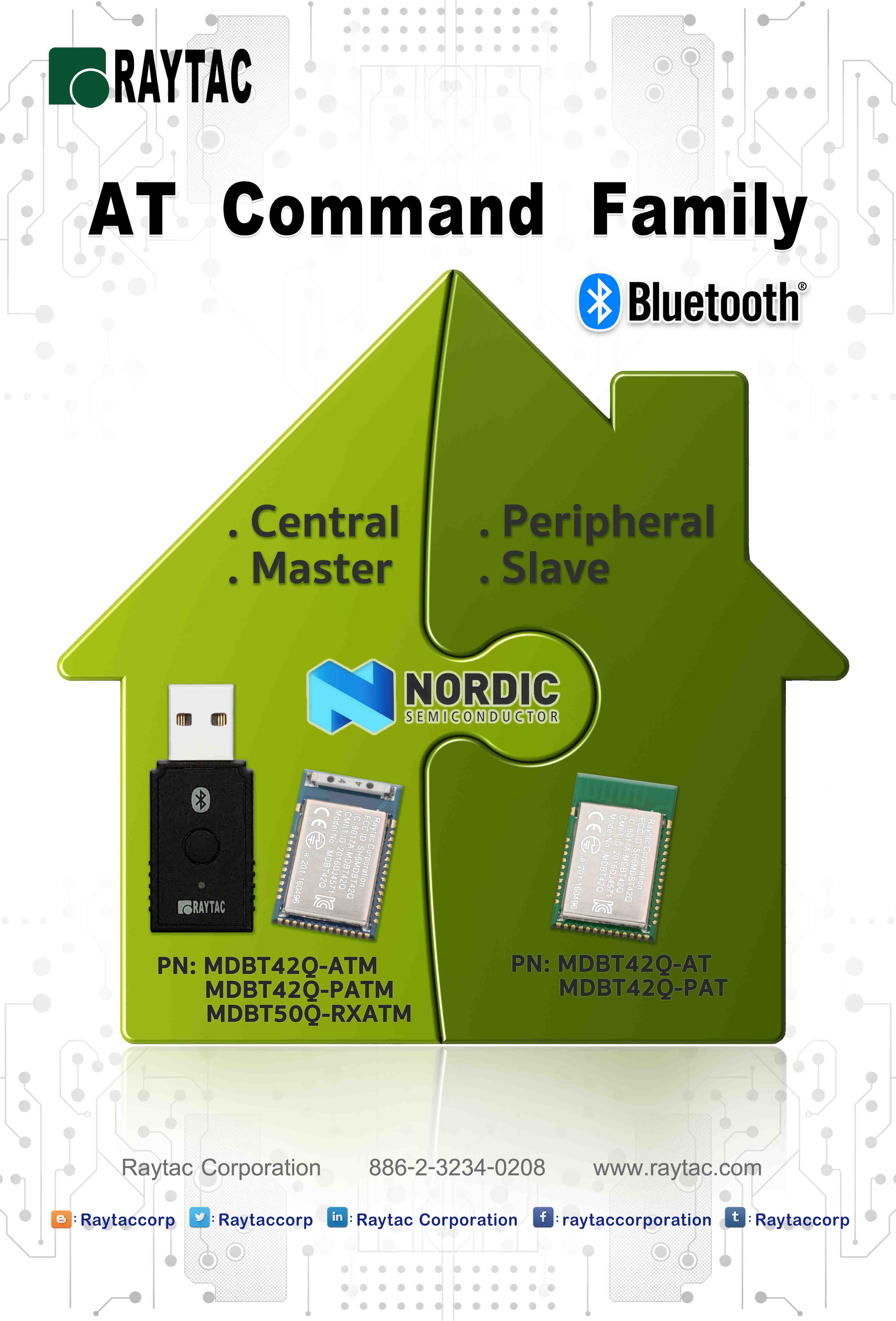
Raytac is glad to announce a brand new AT command module line released today.
Highlight

Raytac is glad to announce a brand new AT command module line released today.
Highlight

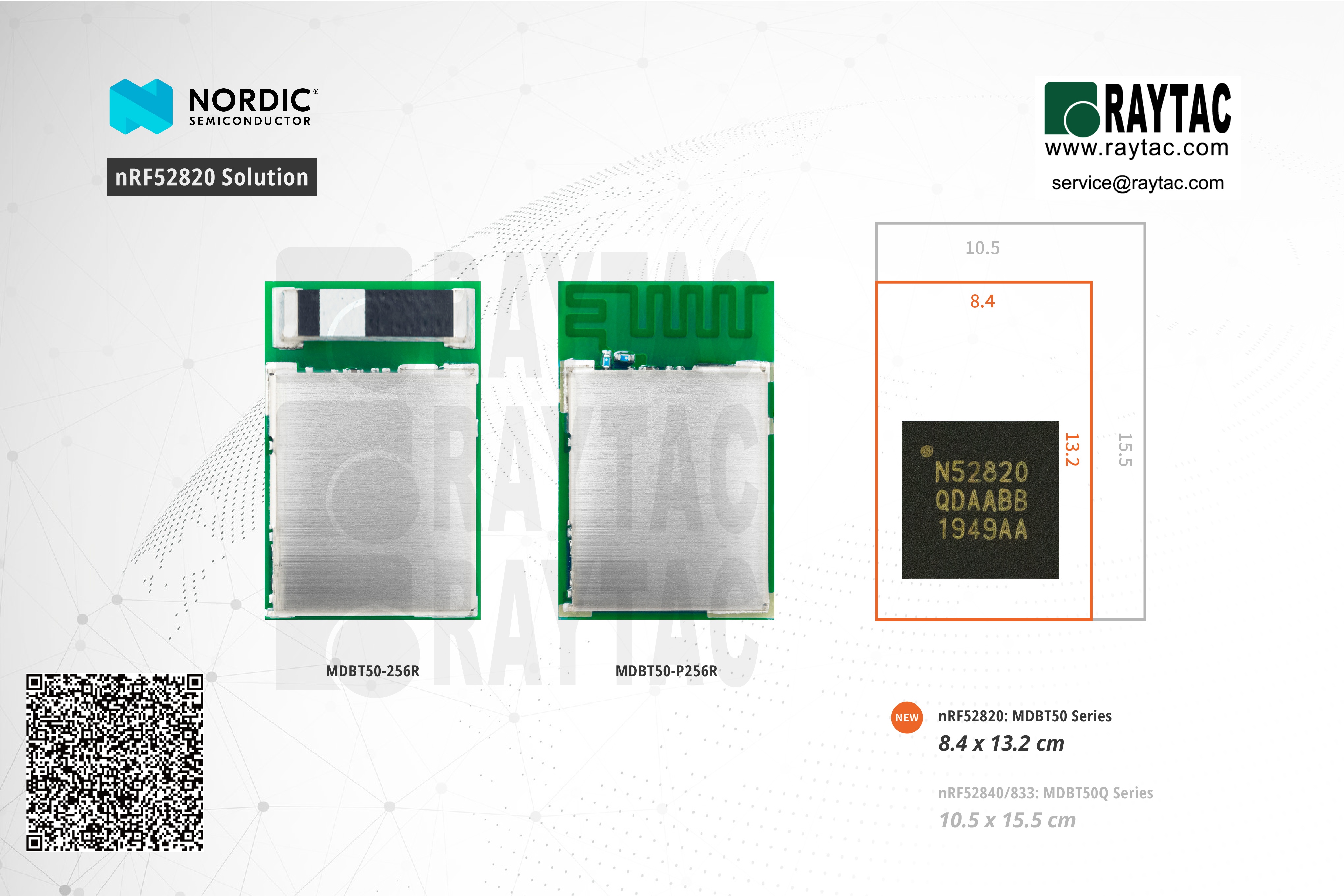
Nordic announced their 6th multi-protocol solution of nRF52 series with nRF52820, which supports Bluetooth Low Energy (BLE), Bluetooth mesh, Thread, Zigbee and 2.4GHz proprietary wireless connectivity.
Like other nRF52 siblings, nRF52820 highlights a powerful 64MHz 32bit Arm Cortex-M4 processor, includes 256Kb Flash Memory and 32Kb RAM, features of Bluetooth 5.2, 5.1 and 5 including long range and high-throughput of 2Mbits per second, as well as direction finding, low energy power control and low energy isochronous channels.
A full speed (12Mbits per second) USB 2.0 interface and 1.7~5.5V operation voltage bring a wide range of commercial and industrial wireless applications to nRF52820. To support nRF52820’s development, Nordic released SoftDevice S112, a new memory-optimized central stack. S112 now released as a alpha and will have full SDK (SDK V16.0.0) support coming in Q2 2020.

Hi there,
Here introduce the firmware perspective about how to program your code onto MDBT50Q-RX dongle.
Believed all readers have done the hardware setting and now has well prepared to load the code onto the dongle. (If not yet done the hardware setting, pls find it here)
In this blog, we will introduce the procedure based on below 2 scenarios
To be really sure that you can connect to the device thus making you able to pair with it, you will have to make sure that the device name setting in the AT Command list is set to the name you want or need.
For example, if you have a device set to have the name “I_love_Bluetooth" and you haven’t changed the settings in the AT Command, you will not be able to pair your MDBT50Q-RX-ATM with this device.
As you can see in the picture below, the default setting for this device’s name is “Raytac AT-UART".

When editing this name, you get a smaller window like this popping up:

Make sure that the name set on your device that you wish to connect with the dongle AND this name in the AT-Command device’s list are the same.
This is a trickier part – especially when you don’t know what it is.
RSSI stands for Received Signal Strength Indicator and, just like the name implies, is a value of strength of which the incoming signal has to be in order to even be considered by the scanning device.
In other words, the lower the value is set to, the weaker signals the scanning device will show.
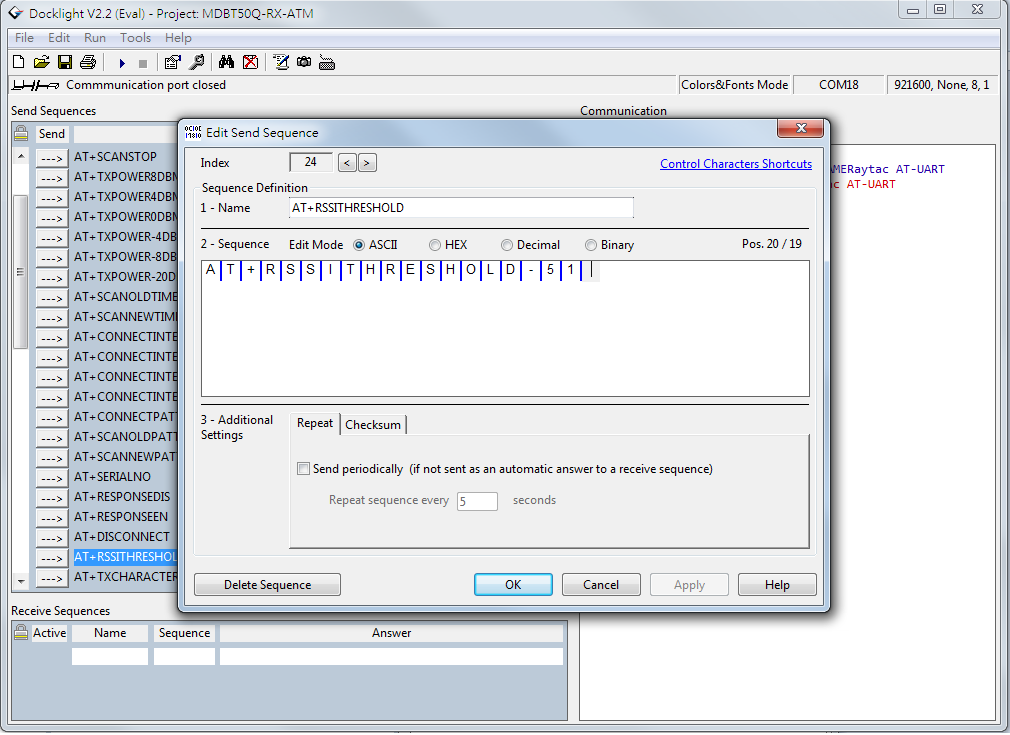
The standard value of Raytac’s AT-Command modules/dongle is -51 and the setting screen looks like this:

What many new customers seem to believe is that if you use our AT-Command modules/dongles, you won’t need to do anything – they will just magically communicate with each other somehow.
I hate to break it to you, but no… that’s not how it works. You will have to at least make sure that the two devices “speak the same language". As for our AT-Command modules/dongles, or in this case MDBT50Q-RX-ATM, it is through a “language" (a.k.a. protocol) called UART.
First of all, “UART" is not “U-ART" although it’s kind of pronounced that way, but it’s an abbreviation that stands for Universal Asynchronous Receiver/Transmitter. You can read about it here.
I will spare you all the details about the UART protocol itself, but one thing that we will need to make sure of is that you have it installed onto your slave device.
Hopefully, you’ve downloaded Nordic’s latest SDK and you have it ready on your computer. You can download them directly HERE.
Note: This file is quite big (~130MB), so DO NOT click on the last link if you don’t want to download this on your current device.
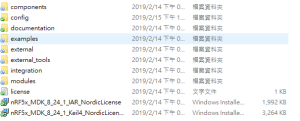
Inside this file, you will find a lot of stuff. However, for this particular case, we only really need to care about the “examples" folder.

In this folder, we will have (surprise surprise!) even more folders 😀
As per usual, we don’t have to check them all out. In this case, we specifically only want to check the “ble_peripheral" and the “peripheral" folders.

Go into the former folder and you’ll find see the following folders in which you will want to enter the “ble_app_uart" folder.:

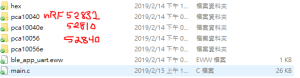
In this folder, you will see five more folders and two files, but we only want to check out one of them depending on which chip type you’re using in your slave device. Let’s say you’re using a nRF52832 chip (or module such as MDBT42Q-P512KV2), then you’d want to enter the first folder called pca10040. Check the picture below to see which folder you’d want to enter:

Assuming you entered the folder that I mentioned above, you will then want to enter the “s132″ folder.

Once you’re in here, I am pretty sure you developers out there know what to pick 🙂
In the beginning of this section, however, I also mentioned another folder called “peripheral" which we will guide you through now – even if it’s very similar to what we just did.

As you can see, there are a TON of folders in here, but we will cherry-pick our folders here too.
Let’s say that you’d like to be able to make your slave device to read and transmit information from a sensor. Supposedly, most sensors use either the I2C or the SPI interface. In each respective folder, you will find the same folder layout as in the previous picture – folders representing what chip/module you have.
The main point of showing you this is simply because from these two folders, you can snatch the small amount of code that you need to edit the main code of your UART main-code so that you can both read and send the data from the sensor you might have.
Hopefully, you’ve now started to realize how these things come together and we can finally start to connect these devices. This takes us to the next step:
Once that’s done, you will need to use your AT-Command module/dongle (here MDBT50Q-RX-ATM) to scan for the slave device that you want to pair. To do this, you first have to make sure your slave device is broadcasting, then execute a command called ATSCANNEW.
Once you’ve done so, your MDBT50Q-RX-ATM’s blue LED will hopefully go from fast blinking to a slower blinking. This means that your two devices, master and slave, have now paired successfully. Wohoo! 🙂
We hope that this makes our AT-Command modules/dongles even easier to use!
Raytac wishes you all happy tinkering 🙂
Raytac Corporation 勁達國際電子有限公司 A BT 5.1 & BT 5 & BT 4.2 module maker based on Nordic nRF53 & nRF52 solution (nRF5340 & nRF52840 & nRF52832 & nRF52811 & nRF52810 & nRF51822)
| www.raytac.com | email:service@raytac.com | Tel: +886.2.3234.0208 |

Raytac AT command is built based on Nordic UART service, aka NUS, which is similar to SPP (Serial Port Profile) applied in Classic Bluetooth (BT2 and BT3)
To service the Bluetooth bridging works, AT command modules or dongle comes with both Central/Master & Peripheral/ Slave role available.
Latest released MDBT50Q-RX-ATM is a USB dongle designated to connect to PC or Machine acted as the Central / Mater role supporting below commands.
List of supported commands

(nRF51822 & nRF52832 & nRF52810 & nRF52811 & nRF52840)
| www.raytac.com | email: cs@raytac.com | Tel: +886.2.3234.0208 |
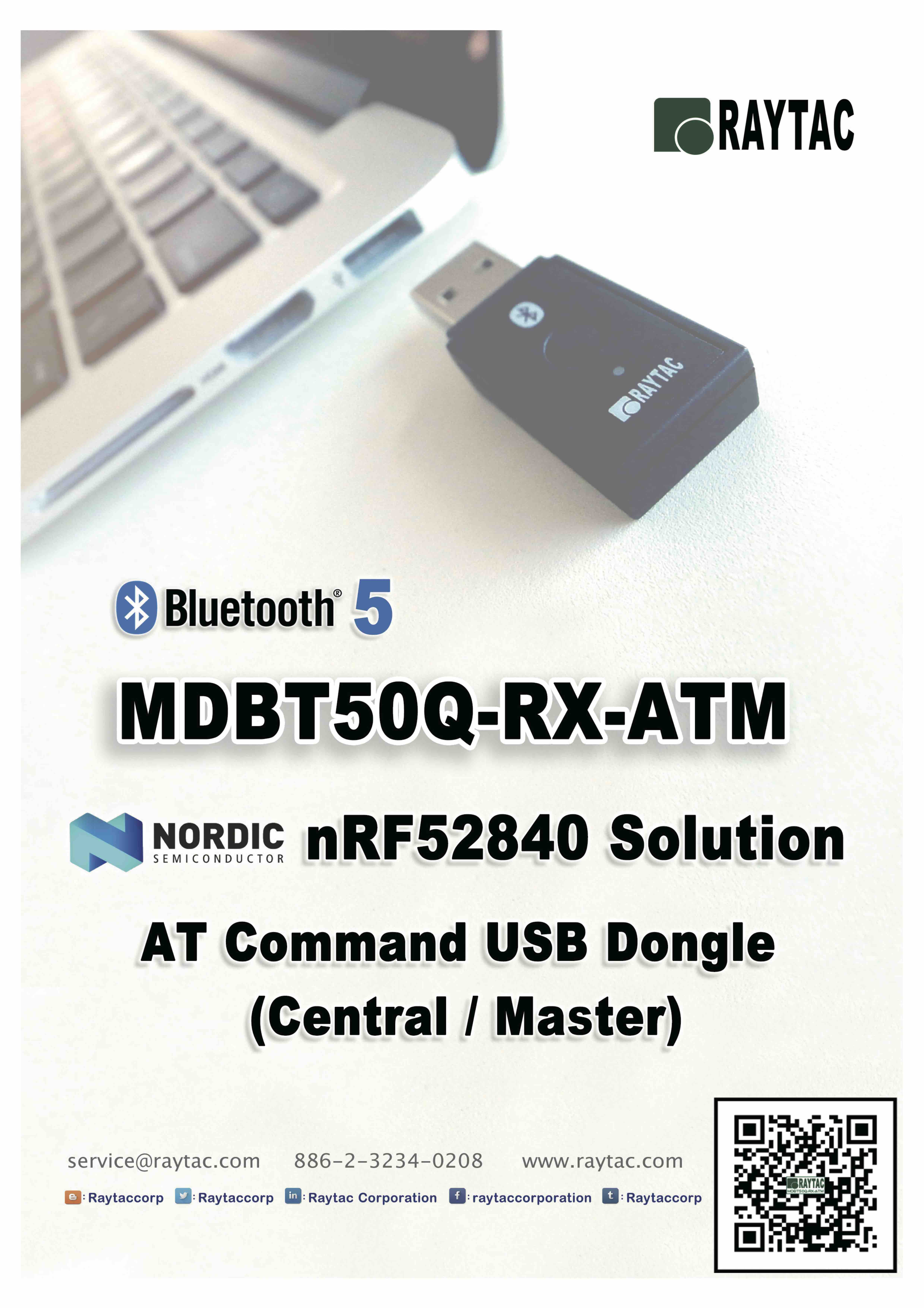
Raytac today announced (Central / Master) AT command dongle released.
Part No.:

nRF52840 is Nordic’s latest and advanced solution, which brings a new interface “USB" from other lines, has drawn the attention among developers.
Raytac developed AT Command (Master / Central ) solution based on nRF52840 solution, fulfilled the demand of USB interface, missioned to deliver a full coverage of AT Command product line.
Raytac’s nRF52840 USB AT Command dongle, MDBT50Q-RX-ATM is a BT5, FCC/IC/CE/Telec/KC/SRRC/NCC/RCM/WPC pre-certified dongle which is eliminating the need for RF design expertise, and speeding time to market for complex M2M IoT applications.
AT command module is an easy solution provides developers a quick breakthrough to Bluetooth connection. Without firmware effort needed, simply have commands setting on MCU and the start to enjoy the implement of bridging connectivity between devices through Bluetooth.
After Raytac’s completed both Central (Master) & Peripheral (Salve) role AT command module projects, the USB interface has brought up the strongest demand by developers.
| www.raytac.com | email: cs@raytac.com | Tel: +886.2.3234.0208 |

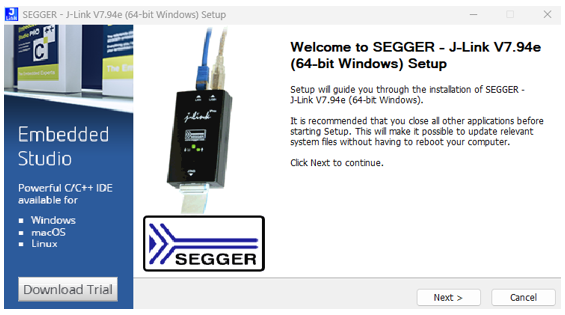
Now we know what to look for and where they are, so now we have only got to tell you how to use them.Some people might not know this, but for developing these things, you need to get something called J-Link to connect your MDBT50Q-RX to your desktop. However, since this J-Link, when buying the official one from SEGGER, is very expensive, we strongly recommend you to just buy the nRF52840-DK from Nordic Semiconductor as it can be used as a J-Link through their software development kit (SDK) called nRFgo Studio and is MUCH CHEAPER than the official J-Link from SEGGER is.
Here you will have to pay attention to the fact that you have to connect J-Link pins 3, 5 & 9 to GND. Otherwise, you won’t be able to burn anything onto your dear MDBT50Q-RX.
The physical connection should look like this:

Pay attention to the direction of the cable, because that will also matter. The direction we mean in this case is which way the slim strip of red is facing.
As we have just revised our MDBT50Q-RX, our customers who have been developing firmware for our USB dongle should take a look at our previous blog post in which we explain about the changes made or contact us directly at service@raytac.com
Have a good day and we at Raytac wish you smooth and happy tinkering 🙂
Preface:
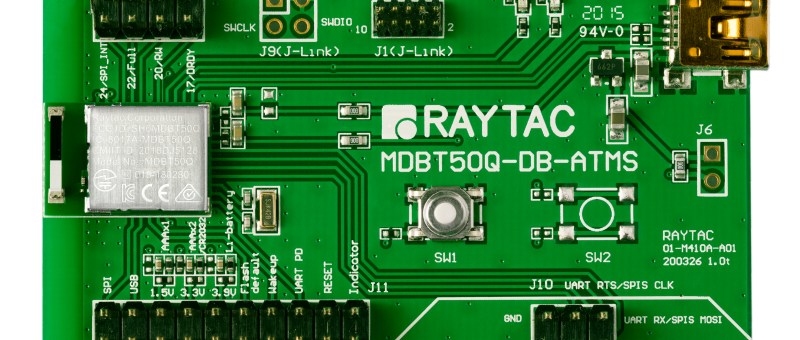
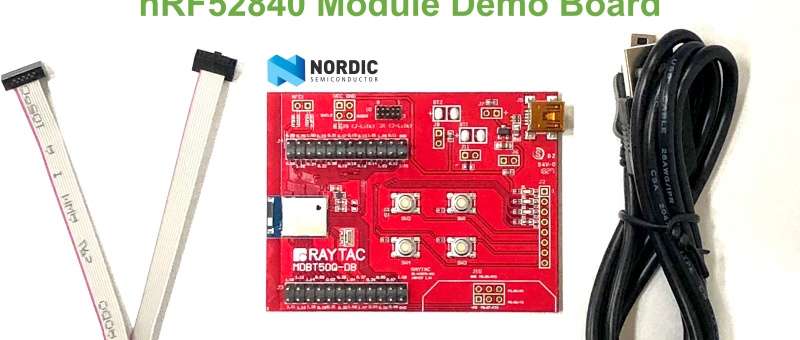
Here provides an easy introduction of How to set up of nRF52840 & nRF52833 Module Demo board MDBT50Q-DB-40 (for nRF52840) & MDBT50Q-DB-33 (for nRF52833)
Table of contents:
1.1 Hardware Set Up
1.2 Software Kits resources & preparations
1.3 Flash the ready firmware into Raytac’s module
1.4 DFU to MDBT50Q-DB-XX through USB interface
Where to buy MDBT50Q-DB-XX?
MDBT50Q-DB-40 (nRF52840 Solution)
MDBT50Q-DB-33 (nRF52833 Solution)
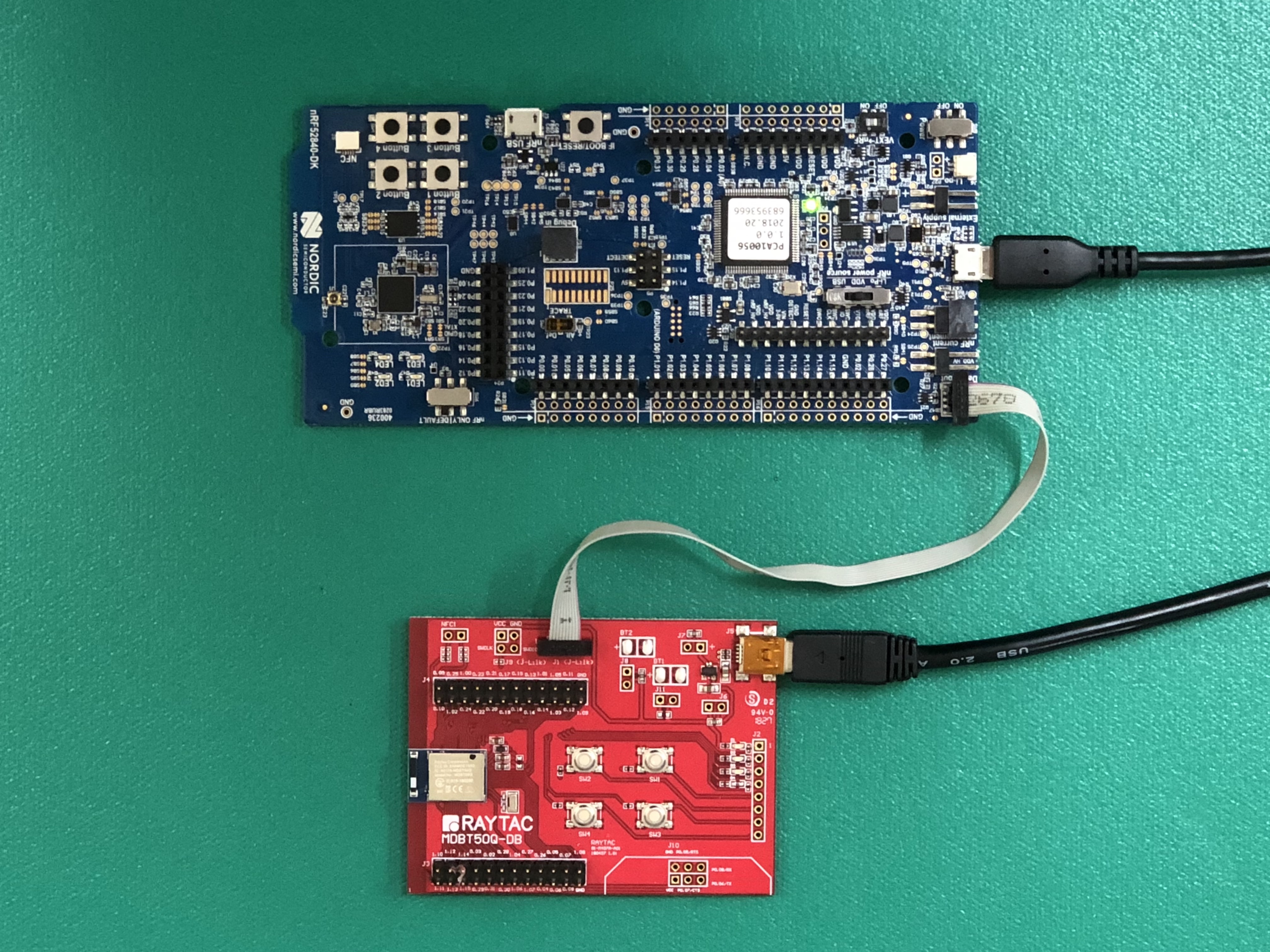
→ Connect Nordic NRF52-DK/NRF52840-DK Connect with MDBT50Q-DB-40 by IDC Wire
※Note: PCA10056 (NRF52840-DK) / PCA10040 (NRF52832-DK) / PCA10100(NRF52833-DK)
→ Power up MDBT50Q-DB-XX using Mini USB

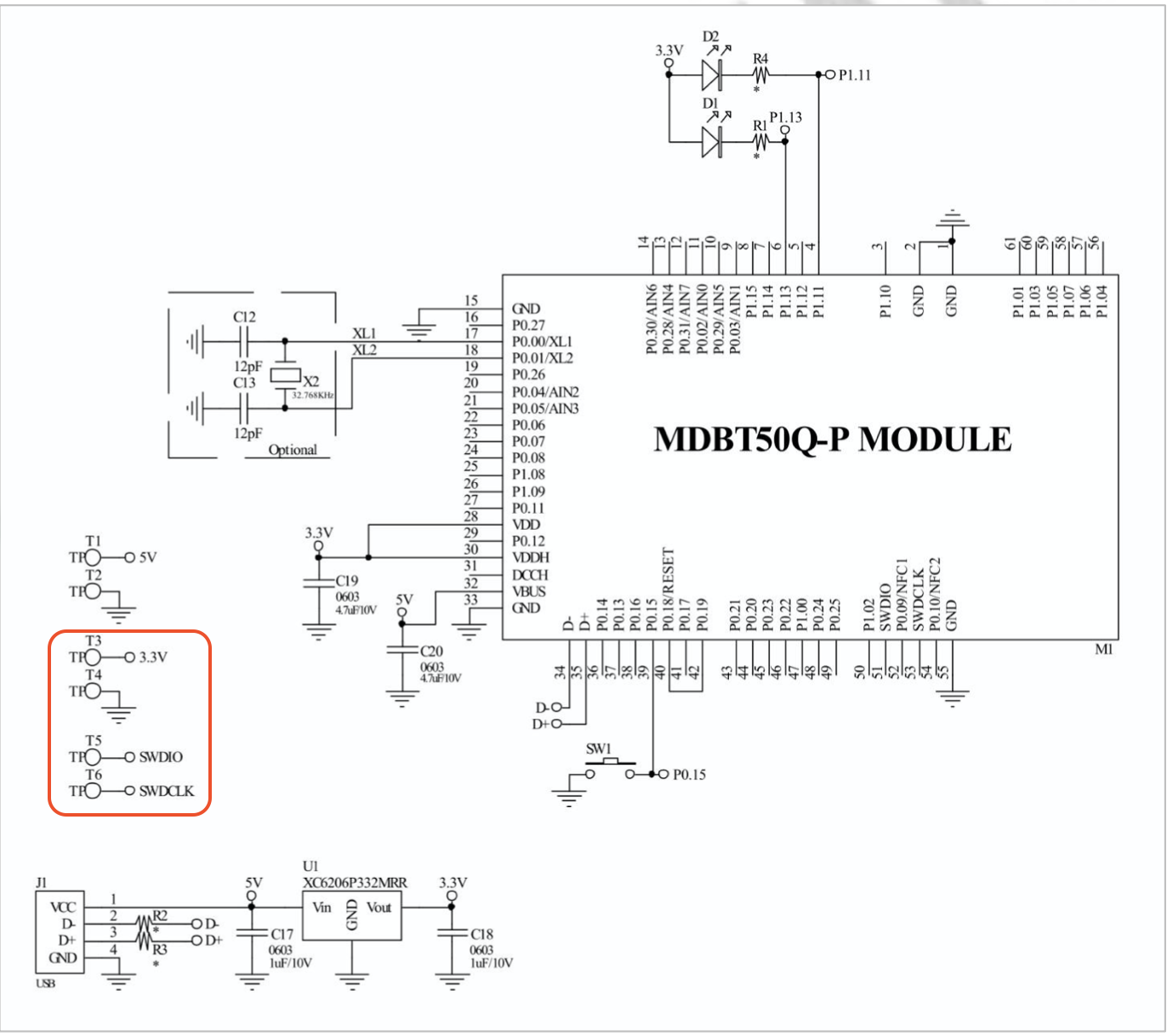
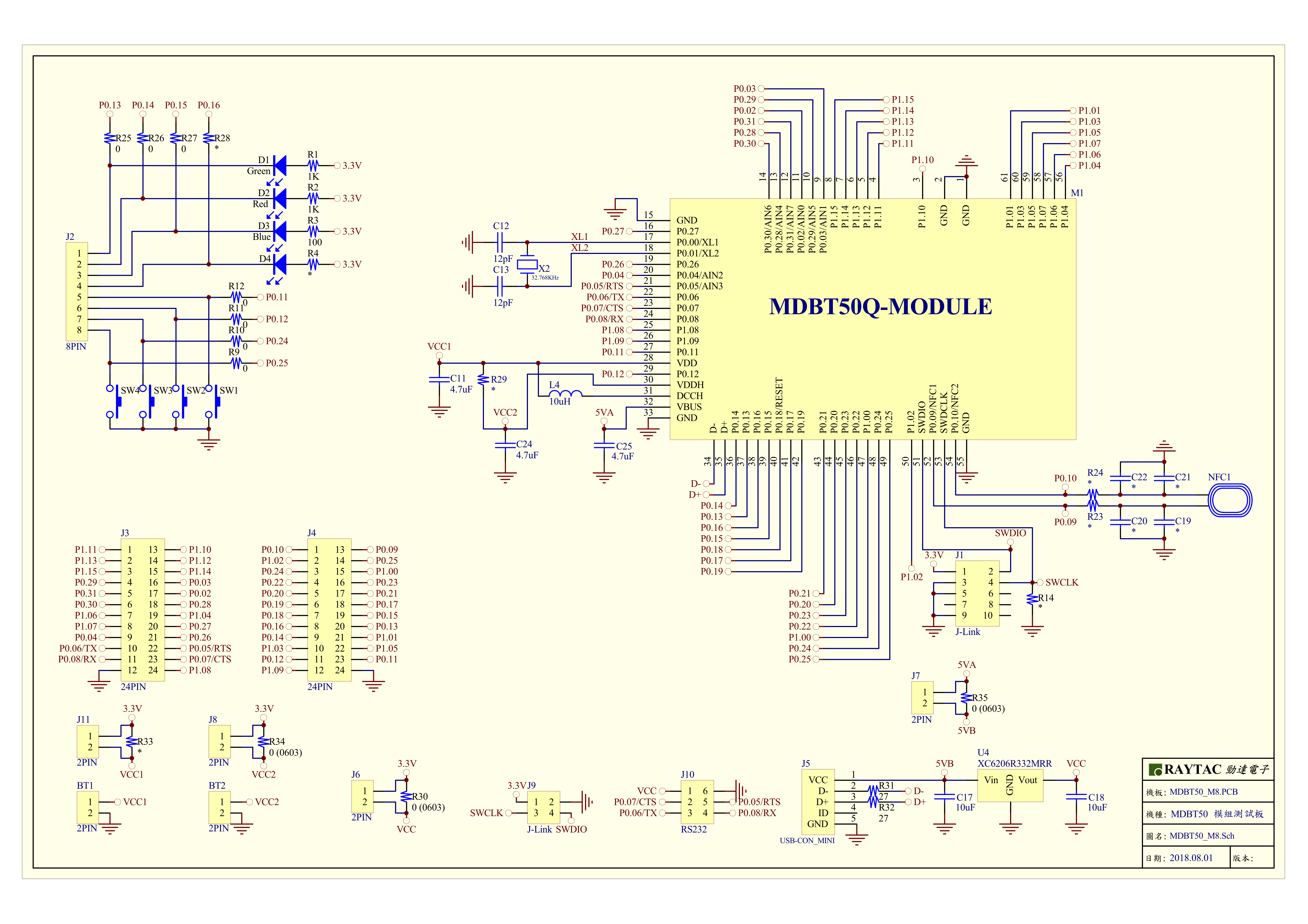
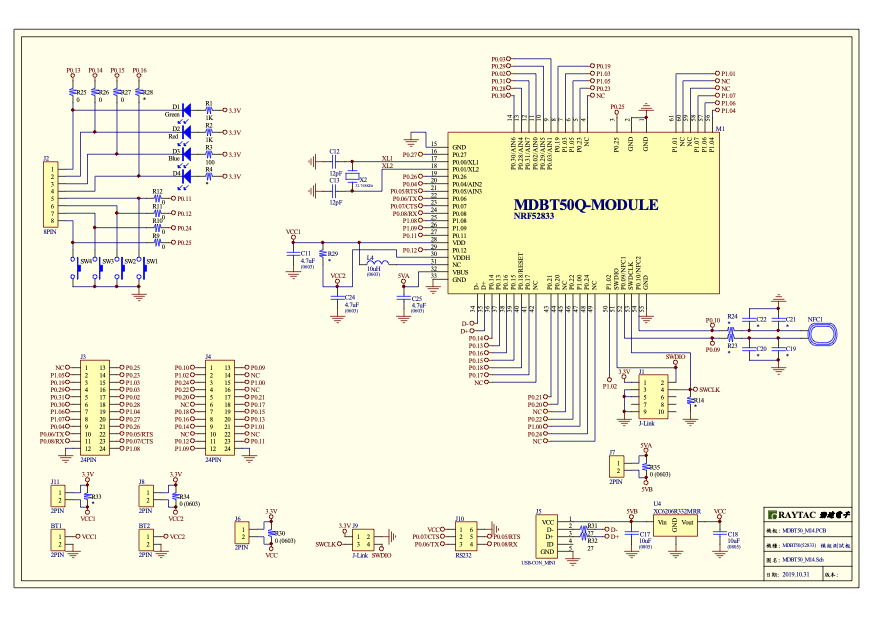
MDBT50Q-DB-40 Schematic:

MDBT50Q-DB-33 Schematic:

1.2 Software kits resources & preparations
Resources:
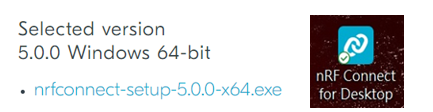
Download nRF Connect For Desktop (Please Click Me)
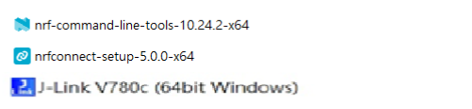
Download nRF Command Line Tools (Please Click Me)
Download NRF5 SDK (The latest V17.1.0) (Please Click Me)
Download Visal Studio Code(Please Click Me)
Preparations:
Option 1. NRF5 SDK (The latest version V17.1.0)
*Tips: If you go with nRF5 SDK option, please consider to add a bootloader hex file if you’re going to make DFU requests in the future.
Option 2. NCS (Recommended version V2.6.0)

2A. Find “Toolchain Manager” in app nRFConnect for Desktop
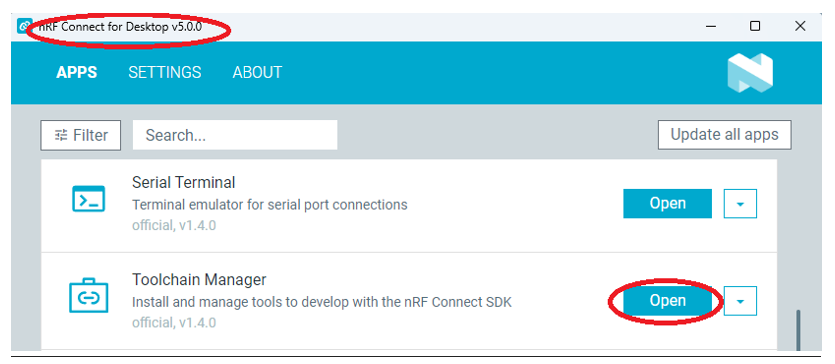
2B. Install nRFConnect SDK V2.6.0 to your working site.


1.3 Flash the ready firmware into Raytac’s module
Intro:
With the ready built code of zephyr.hex (Made through NCS) or nrf52840_xxaa.hex & s140_nrf52_7.2.0_softdevice.hex (Made through nRF5-SDK) file for application, we would like to move onto flashing code into the MDBT50Q BLE module(mounted on MDBT50Q-DB-XX demo board).
Step1.
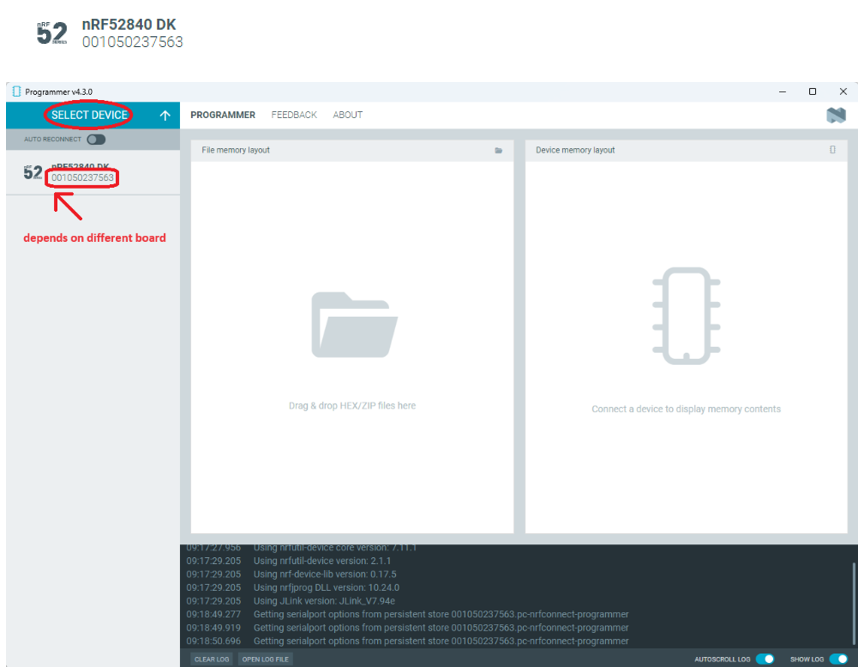
Execute nRF Connect >> Programmer > > Open

Step2.
Click “SELECT DEVICE” >> Find icon “nRF52840 DK” which is detected by the programmer app
Step3.
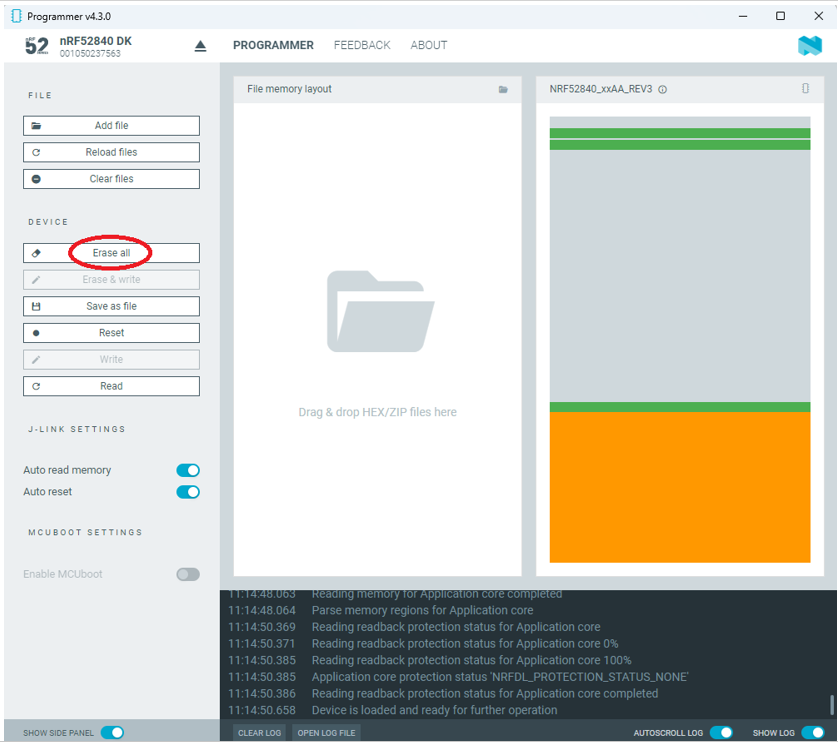
Click “nRF52840 DK”>> “Erase All” to remove flash memory inside MDBT50Q BLE Module
Step4.
Click “Add File” to load application zephyr.hex into programmer
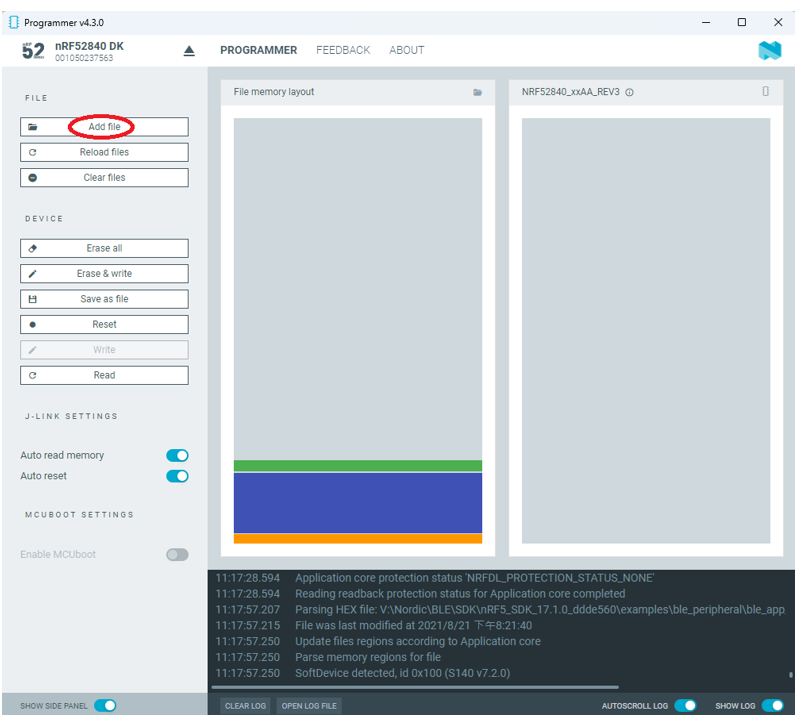
!! Important Tips:!!
(1) bootloader.hex
(2) bootloader_setting_file.hex
(3) s140_nrf52_7.2.0_softdevice.hex
(4) nrf52840_xxaa.hex
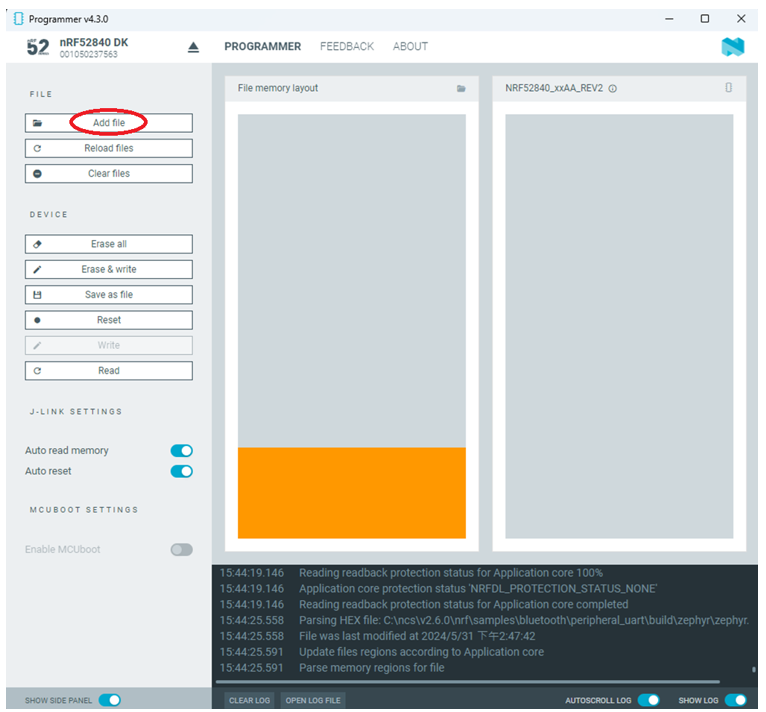
1.4 DFU to MDBT50Q-DB-XX through USB interface
Intro : Before DFU implement , Please make sure the bootloader file has been installed in your MDBT50Q BLE module.
※Note: NRF52840 SoC supports USB interface to utilize Device Firmware Update (DFU).
How do I prepare the software??

How do I setup the hardware??

How do I prepare the firmware??
**USB DFU works only in DOS mode.
**USB DFU only works when USB Bootloader installed in current loaded firmware (inside BLE Module)
A single, merged 4-in-1 hex file is required, which includes:
Bootloader, Bootloader setting, Softdevice, and Application.
Firmware DFU requires a .zip file.
USB DFU Execution Steps:
Step 1. When Blue LED Lights on with MDBT50Q-DB (Ready to enter USB DFU Mode)
Step 2. Find out Com Port No. “nRF52 SDFU USB(COMxx)”
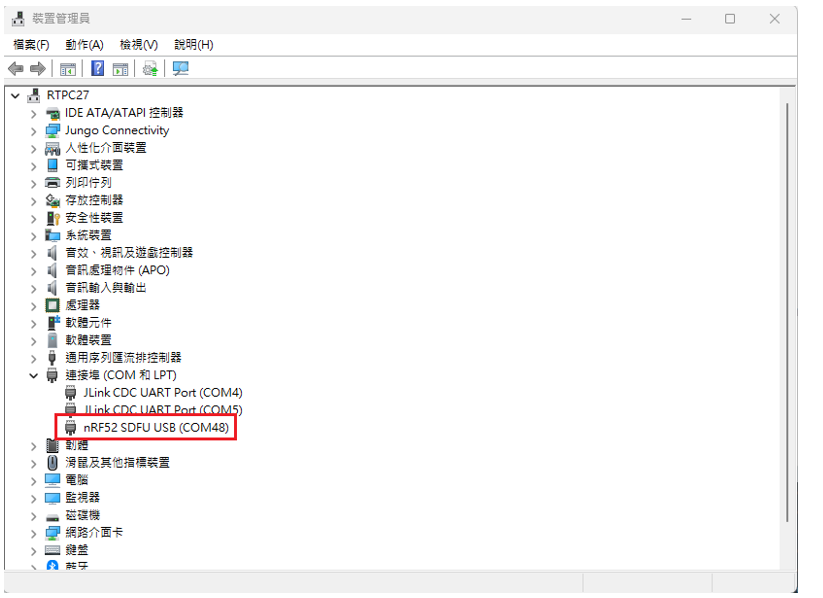
Step 3. Execute USB DFU
Option 1. Using device program command:
(1) List the devices with a DFU trigger interface by running:
nrfutil device list –traits nordicDfu
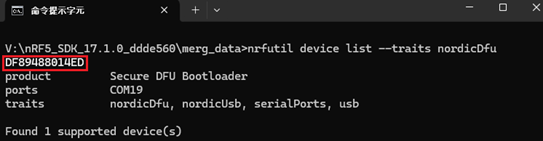
(2) Program new firmware to a device identified by its serial number by running:
nrfutil device program –firmware .zip nrf52840_xxaa.zip –serial-number XXXXXXXXXXXX

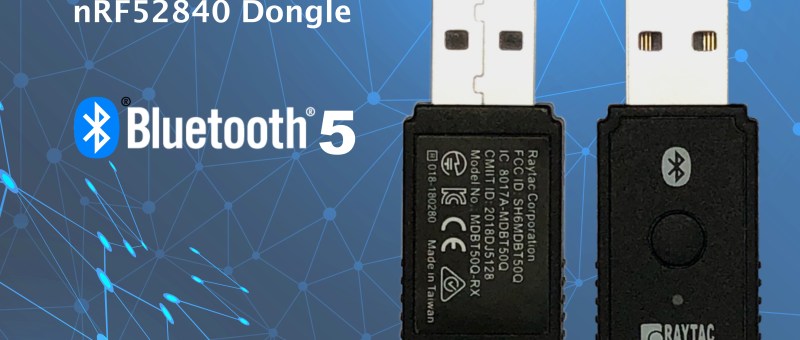
Raytac released nRF52840 USB Dongle which deployed MDBT50Q-P1M module offers a Bluetooth 5 specification granted, FCC/IC/Telec(MIC)/KC/SRRC/NCC/WPC pre-certified, and CE/RCM compliant solution.

MDBT50Q Module Series Mass Production has completed, customers who are interested in nRF52840 solution may contact with service@raytac.com for further information.
Raytac’s MDBT50Q module deploy Nordic nRF52840 is a Bluetooth 5 (BLE), Zigbee and Thread (802.15.4) modular solution and is an advanced multi-protocol SoM with an ARM® Cortex™-M4F CPU and featured built-in USB and 5.5V compatible DC/DC supply.
The compact size 10.5 x 15.5 x 2.0 (2.2)mm incorporates 48 GPIO, integrated various antenna types option (Chip Antenna, PCB antenna, u.FL connector) provides developers flexibility to meet most IoT Application Demanding, Connectivity Range Requirement, BOM Cost Saving, Designs Simplifying, and Time-TO-Market Efficiency.