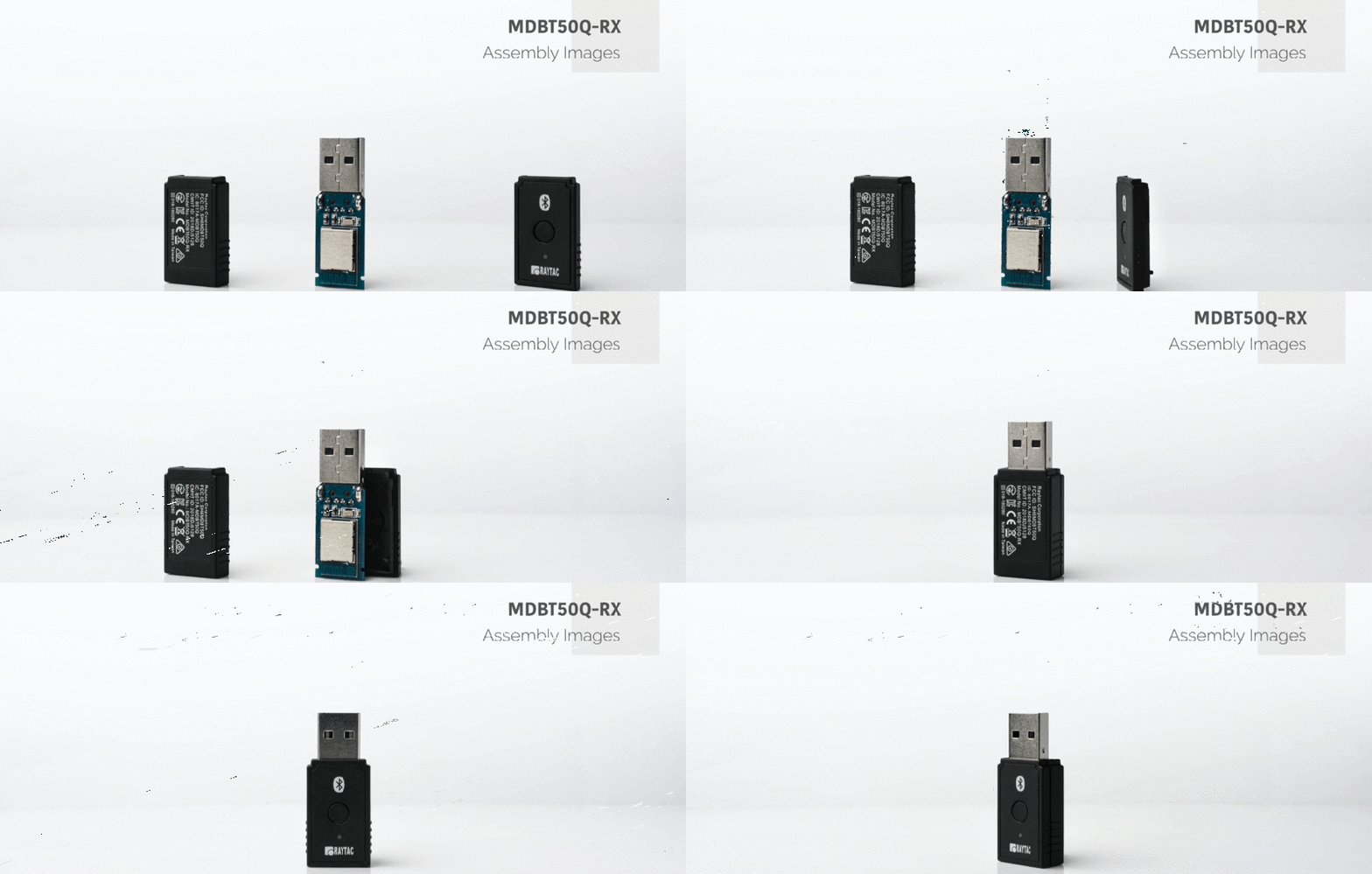
Raytac Product Change Notice(PCN) Announcement for Nordic SoC USB-A Dongle – MDBT50Q-RX Series

Raytac Corporation would like to inform all customers and partners of an official Product Change Notice: PCN-25100801 regarding the following product series:

Affected Series
MDBT50Q-RX Series (nRF52840/833 based USB-A dongles)

Affected Models
MDBT50Q-RX (Product Link)
MDBT50Q-RX-33
MDBT50Q-RX-ATM (Product Link)
MDBT50Q-RX-ATMS

Reminder
This PCN involves:

  1. Update of Raytac’s company logo on the nameplate, and
  2. Addition of NCC logo on the back label.

There are no changes to product function, performance, quality, form factor, or safety compliances. All existing certifications and technical documentations remain valid.

We kindly invite our customers, distributors, and partners to update your records accordingly. For any questions or support regarding this update, feel free to reach out via: service@raytac.com.

Full details of the PCN please see below(Click on the images to zoom in).
Remark: Please take note of the final shipment date.


Edited by Business Development Manager: Tony Yin

Raytac Corporation 勁達國際電子股份有限公司 / Raytac Corporation (USA) / abietec Inc.
A Bluetooth, Wi-Fi, and LoRa Module Maker/ODM & OEM Manufacturer based on
Nordic nRF54; nRF53: nRF52; nRF51; nRF7002
Semtech Specification: SX1262


Bluetooth Specification: BT6 ; BT5.4 ; BT5.3 ; BT5.2.
Wi-Fi Specification: Wi-Fi 6
LoRa Specification: LoRaWAN


All products are FCC/IC/CE/Telec/KC/RCM/SRRC/NCC/WPC/RoHS/Reach Pre-Certified.
http://www.raytac.com
https://www.raytac.com/contact/
email: sales@raytac.com
Tel: +886-2-3234-0208(TW)/+1-626-217-3139(USA)
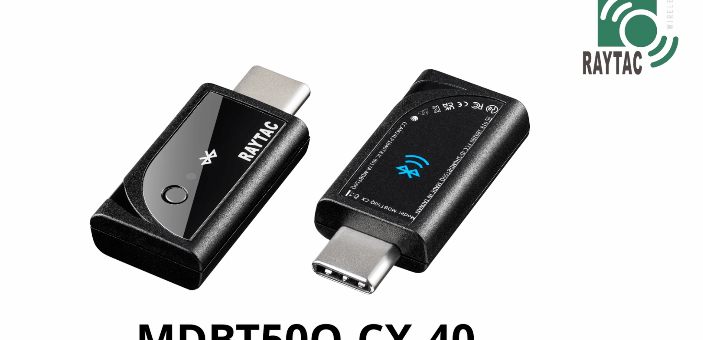
nRF52840 Nordic SoC USB Dongle – MDBT50Q-CX-40, Now Supports Zephyr RTOS

Zephyr RTOS hosted in Linux system has become a leading IoT ecosystem and it has been widely adopted as an open-source , real-time operation system for embedded devices, making it easier for developers to integrate the project smoothly.

Nordic Semiconductor , a main contributor to Zephyr, from the Bluetooth LE controller and USB stack to test tools, DFU frameworks.. and more, is making great effort and strategic decisions to adopt the Zephyr open-source into its nRFConnect(NCS) SDK program.

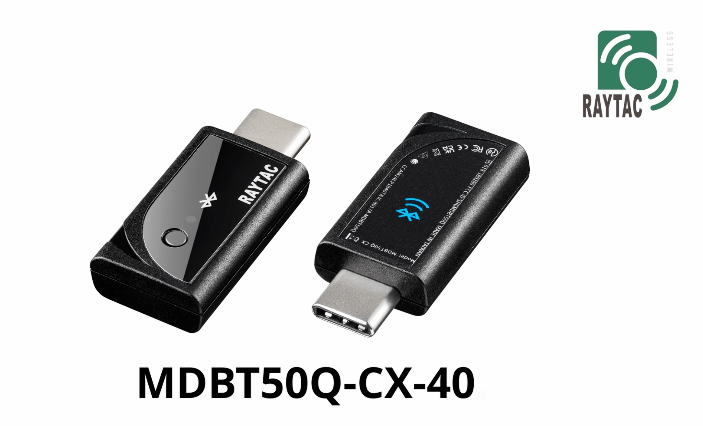
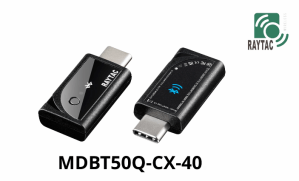
Raytac Corporation , a hardware-based manufacturer and a comprehensive solution developer with Nordic SoC development for multi-protocol complied wireless modules, now expands support for Zephyr RTOS ecosystem with its nRF52840 USB-C dongle – MDBT50Q-CX-40.

Zephyr support package for MDBT50Q-CX-40: https://docs.zephyrproject.org/latest/boards/raytac/mdbt50q_cx_40_dongle/doc/index.html


Reminder: The current Nordic released NCS SDK may NOT upgrade with Zephyr package at the same pace ; It is recommended to get the latest NCS SDK version to access the complete Zephyr support package.

If you’re interested in how Zephyr becomes powerful for a developer to start a project design easier and how the Nordic nRFConnect SDK community brings you to the world of Zephyr RTOS system, never hesitate to save the spot in the upcoming webinar on July 2nd, 2025. How Zephyr became the leading open-source RTOS for IoT (Click on the link to know more)

Resources:
– Begin your journey with Nordic nRFConnect SDK community – nRF Connect SDK Fundamentals
User Manual of MDBT50Q-CX (nRF52840/nRF52833-based USB-C Dongle)


Edited by Business Development Manager: Ms. Jocelyn Tsai


Raytac Corporation 勁達國際電子股份有限公司 / Raytac Corporation (USA)
A Bluetooth, Wi-Fi, and LoRa Module Maker/ODM & OEM Manufacturer based on
Nordic nRF54; nRF53: nRF52; nRF51; nRF7002
Semtech Specification: SX1262


Bluetooth Specification: BT6.1 ; BT6 ; BT5.4 ; BT5.3 ; BT5.2.
Wi-Fi Specification: Wi-Fi 6
LoRa Specification: LoRaWAN


All products are FCC/IC/CE/Telec/KC/RCM/SRRC/NCC/WPC Pre-Certified.
http://www.raytac.com
https://www.raytac.com/contact/
email: sales@raytac.com
Tel: +886-2-3234-0208(TW)/+1-626-217-3139(USA)

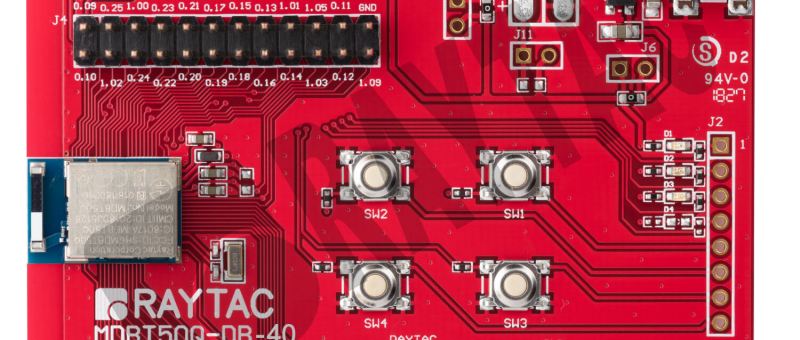
MCUboot DFU Guide For Raytac MDBT50Q-DB-40 (Using NCS V2.9.1)

This guide teaches you how to use MCUboot for DFU (Device Firmware Update),
Combined with nRF Connect SDK (NCS) V2.9.1 to upgrade firmware on Raytac’s MDBT50Q series modules.


Table of contents:

  1. Hardware Set Up
  2. Software Kits resource download & install
  3. Compile and load the program
    a. Open VS Code
    b. Project setup
    c. Setup the situation for DFU over UART or DFU over USB
    d. Start compiling your project
    e. Load your compiled program into the MDBT50Q-DB-40 demo board
  4. DFU to MDBT50Q-DB-40 over UART / USB
  5. Execute USB DFU using AuTerm
  6. DFU using your custom keys

1. Hardware setup
– Equip Raytac’s MDBT50Q-DB-40 development board
– Ensure the board is connected via USB to your PC


2.Software Kits resources download & install
– Resources download:
nRF Connect for Desktop – Download nRF Connect for Desktop (Please Click Me)
nRF Command Line Tools – Download nRF Command Line Tools (Please Click Me)
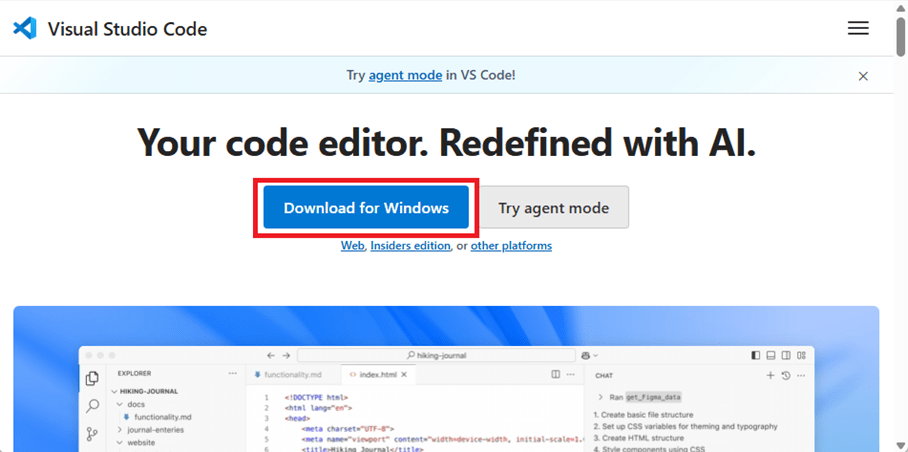
Visual Studio Code – Download Visual Studio Code(Please Click Me)

Install nRF Connect for Desktop ➔ install Programmer and Toolchain Manager.


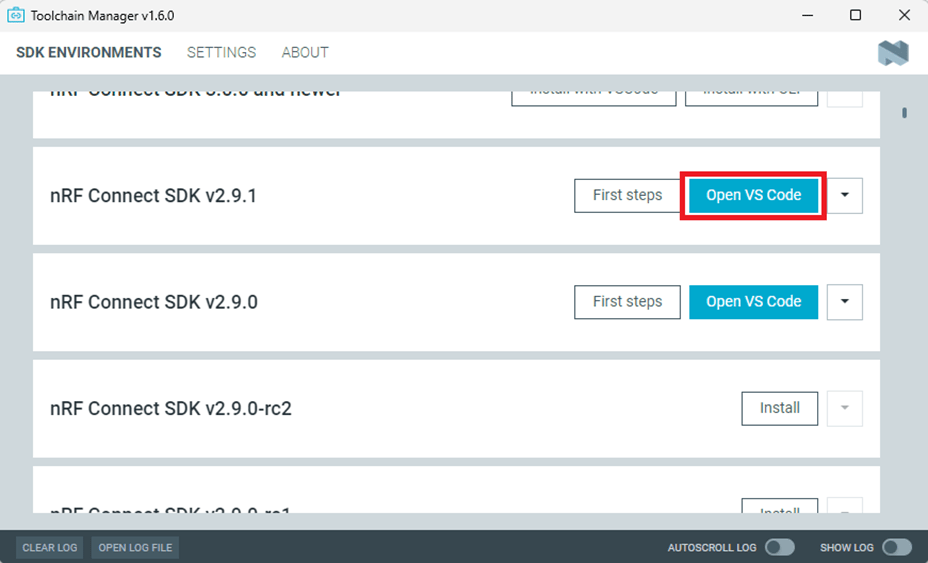
Open Toolchain Manager and install SDK V2.9.1.


Install Visual Studio Code


3. Compile and load the program
a. Open VS Code(Visual Studio Code)


Note:
If it’s your first time using the software: after installing all the extensions, you should see the same on your screen.


b. Project setup
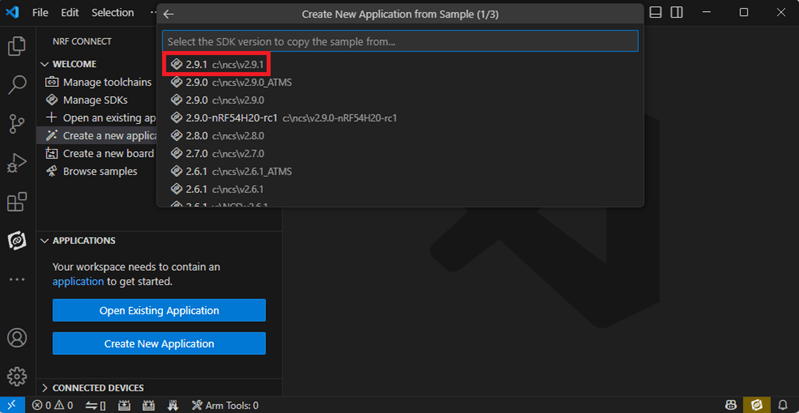
b.1 Create an example code(In this article: peripheral_uart)
Please refer to the following steps:
Create a new application ➔ Copy a sample ➔ NCS V2.9.1


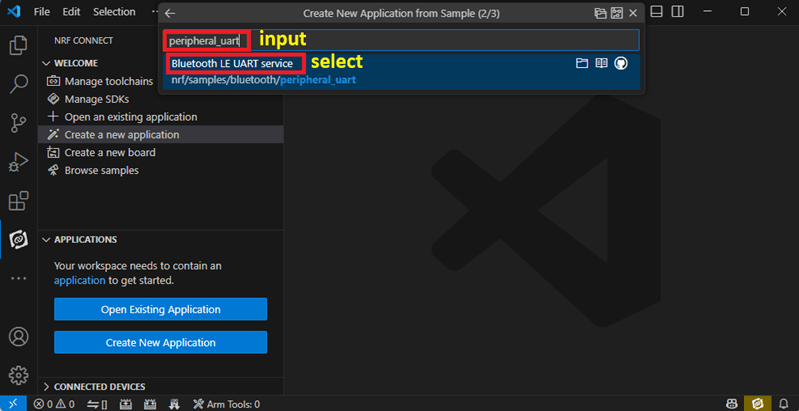
b.2 Name the Project: peripheral_uart
Input peripheral_uart and the corresponding example program will appear in the options section below.


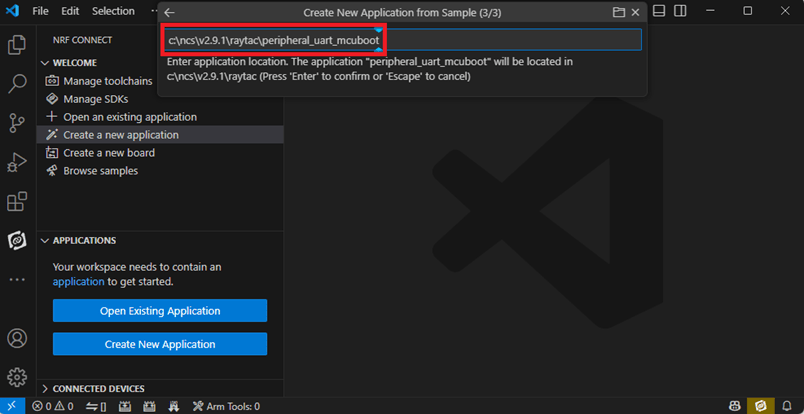
Note: We named the project peripheral_uart_mcuboot to distinguish it.
This project will create a directory named peripheral_uart_mcuboot.

c. Build an environment for DFU over UART or DFU over USB
– Create a new application ➔ Open

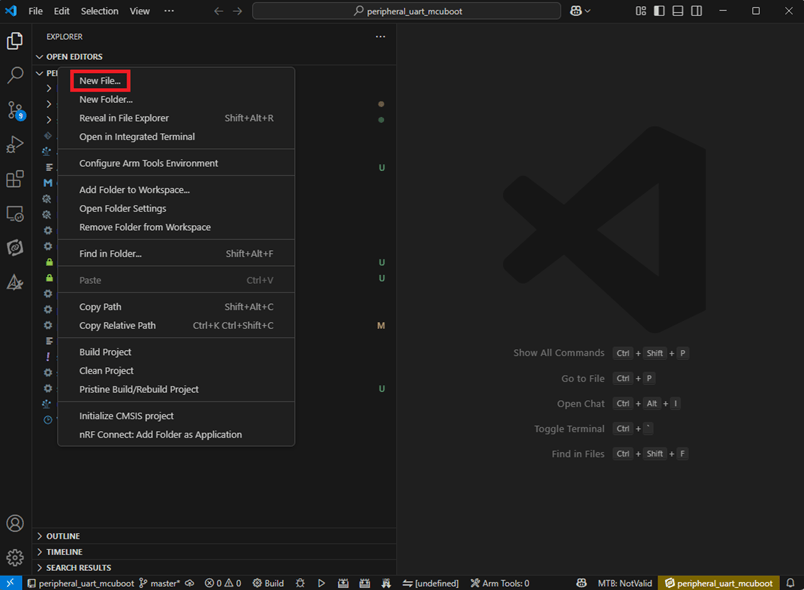
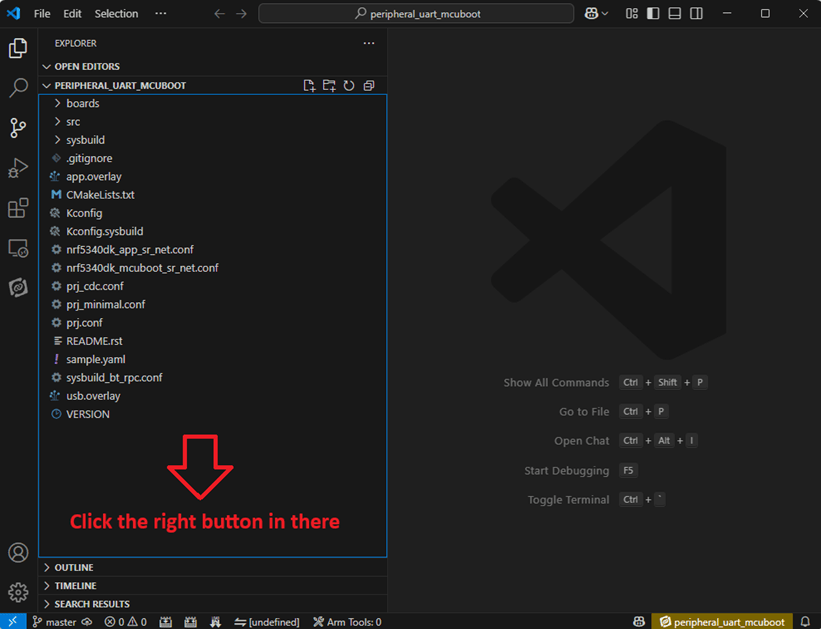
Right click on the project name you just created (peripheral_uart_mcuboot), a pop-up menu will appear. Select the first option “Show in Explorer" from the pop-up menu to display all project files.


Then select New File to create a sysbuild.conf file.


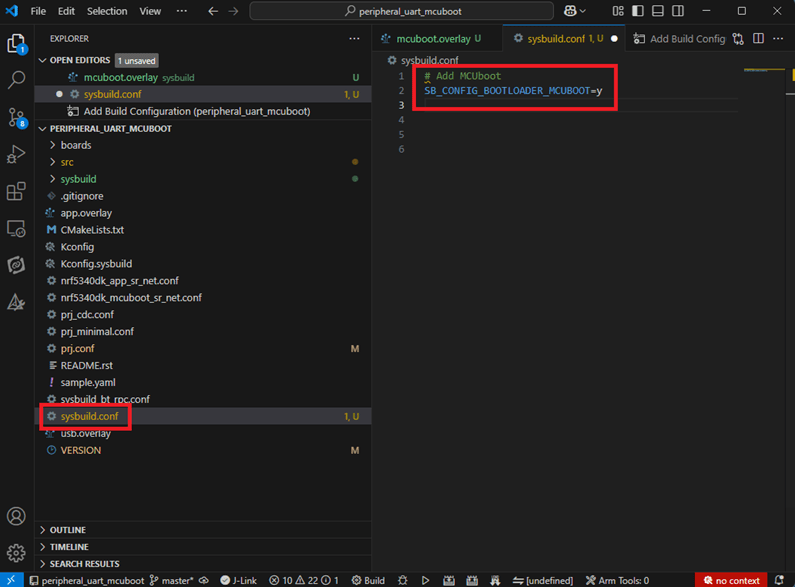
select sysbuild.conf, left-click on it, and a blank box will show.


Input the file name and write: SB_CONFIG_BOOTLOADER_MCUBOOT=y


Parameters and instructions
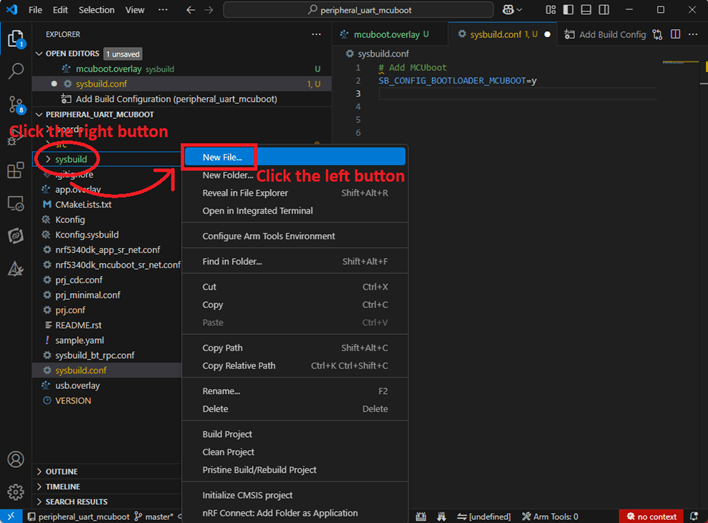
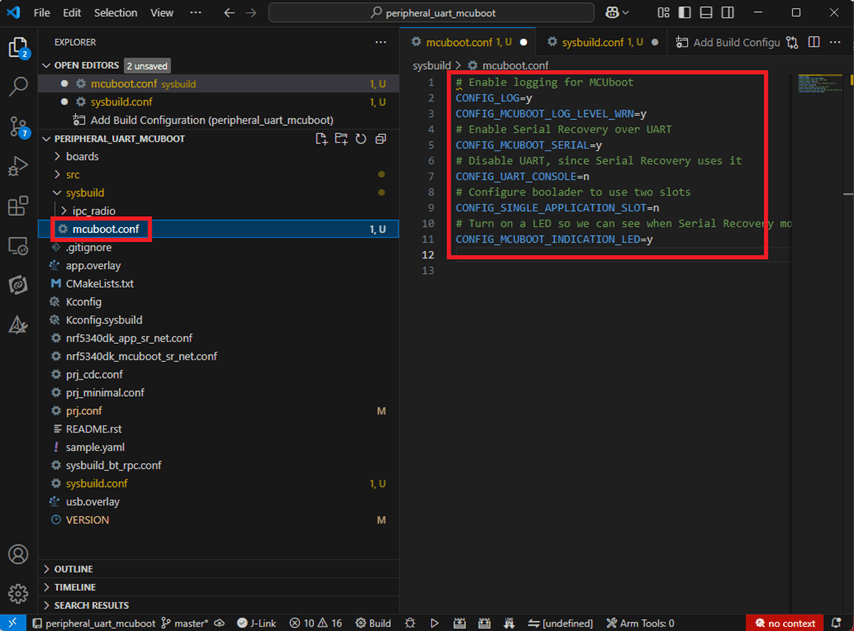
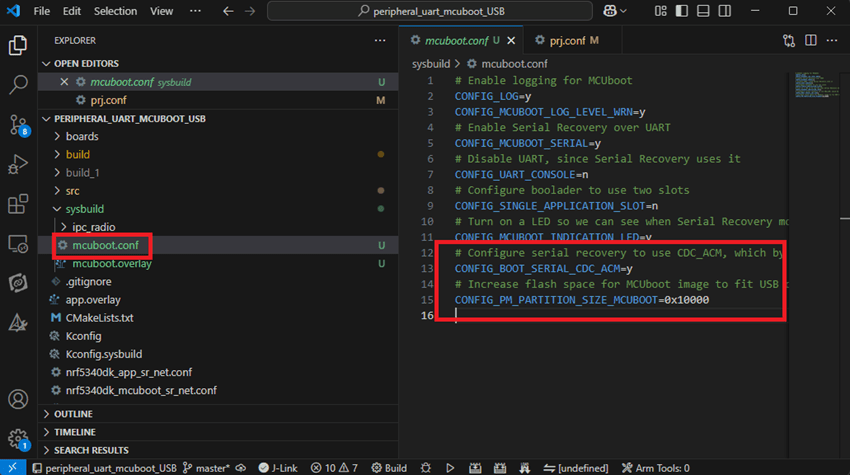
Add a new file mcuboot.conf, in the sysbuild folder, and input the following parameters into the file. (Add relevant parameters according to UART or USB)
(Note: Please be informed if you want to use DFU over UART in the end, you should use UART when you first create the environment. Similarly, if you want to use DFU over USB, you should create the USB environment at the beginning.)

For DFU over UART
# Enable logging for MCUboot
CONFIG_LOG=y
CONFIG_MCUBOOT_LOG_LEVEL_WRN=y
# Enable Serial Recovery over UART
CONFIG_MCUBOOT_SERIAL=y
# Disable UART, since Serial Recovery uses it
CONFIG_UART_CONSOLE=n
# Configure the bootloader to use two slots
CONFIG_SINGLE_APPLICATION_SLOT=n
# Turn on a LED so we can see when Serial Recovery mode is active
CONFIG_MCUBOOT_INDICATION_LED=y


For DFU over USB
# Enable logging for MCUboot
CONFIG_LOG=y
CONFIG_MCUBOOT_LOG_LEVEL_WRN=y
# Enable Serial Recovery over UART
CONFIG_MCUBOOT_SERIAL=y
# Disable UART, since Serial Recovery uses it
CONFIG_UART_CONSOLE=n
# Configure bootloader to use two slots
CONFIG_SINGLE_APPLICATION_SLOT=n
# Turn on a LED so we can see when Serial Recovery mode is active
CONFIG_MCUBOOT_INDICATION_LED=y
# Configure serial recovery to use CDC_ACM, which by default uses the USB
CONFIG_BOOT_SERIAL_CDC_ACM=y
# Increase flash space for the MCUboot image to fit USB drivers
CONFIG_PM_PARTITION_SIZE_MCUBOOT=0x10000


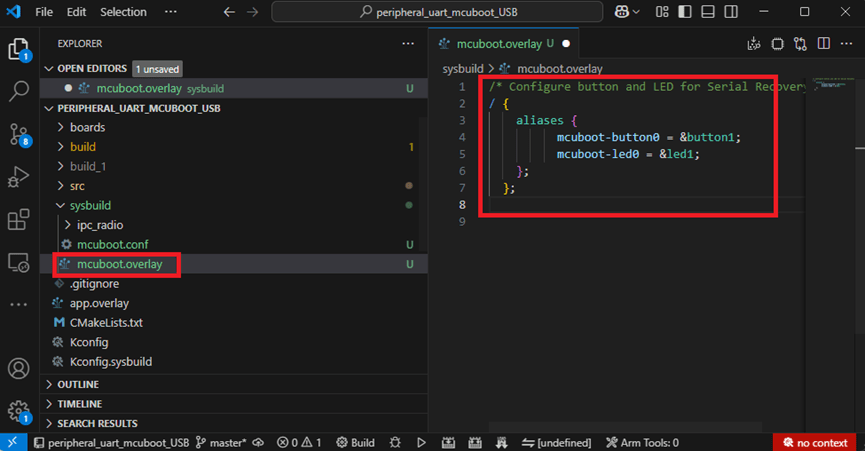
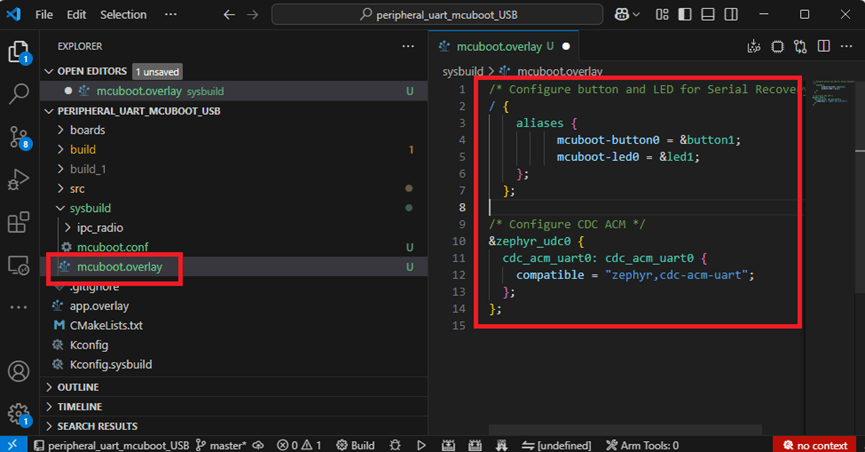
Create a new file: mcuboot.overlay and add the following parameters.


For DFU over UART
/* Configure button and LED for Serial Recovery */
/ {
    aliases {
          mcuboot-button0 = &button0;
          mcuboot-led0 = &led0;
    };
  };


For DFU over USB
/* Configure button and LED for Serial Recovery */
/ {
    aliases {
          mcuboot-button0 = &button0;
          mcuboot-led0 = &led0;
    };
  };
/* Configure CDC ACM */
&zephyr_udc0 {
            cdc_acm_uart0: cdc_acm_uart0 {
                        compatible = “zephyr,cdc-acm-uart";
            };
};


Note: if you use DFU over USB, please enable the USB subsystem in prj.conf.


After all the setup is completed, you can start compiling your project.


d. Start compiling your project
Add Build Configuration ➔ Select target board ➔ In this example, choose raytac_mdbt50q_db_40/nrf52840.


Start compiling by clicking “Generate and Build" at the bottom-right corner.


e. Load your compiled program into the MDBT50Q-DB-40 demo board
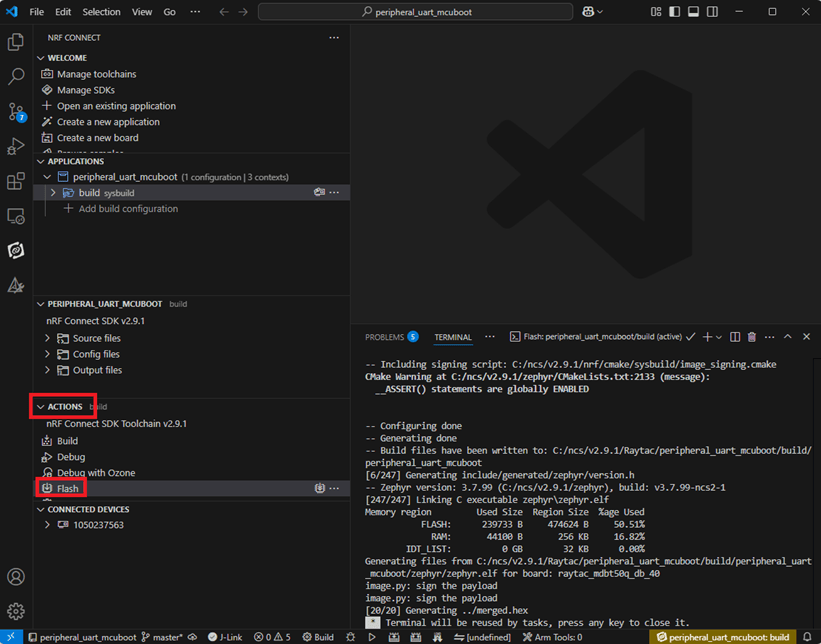
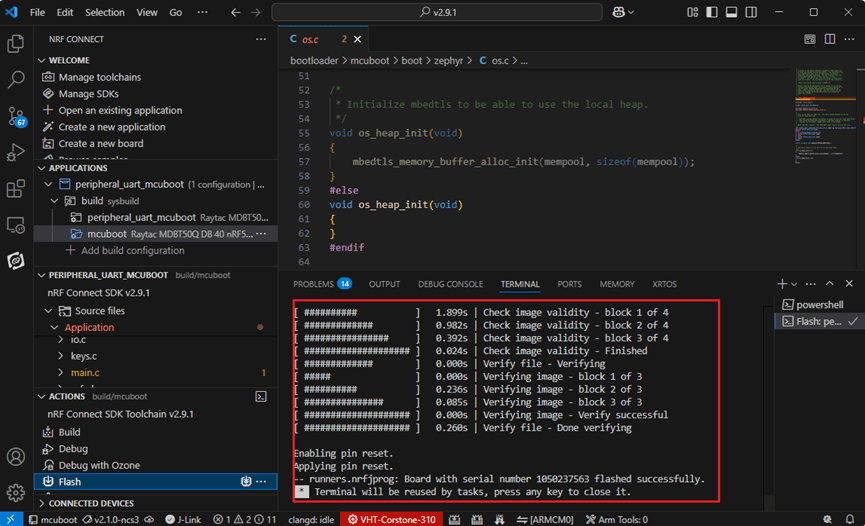
After compiling without error, select the flash function to load your program into the MDBT50Q-DB-40 demo board.


If the below is shown, it means that you have successfully loaded your program into the demo board.


4. DFU to MDBT50Q-DB-40 through UART / USB
DFU over UART
Hold the SW2 button then plug the power into the USB connector.
The system will enter the bootloader mode.
You can then DFU the new firmware via the UART.


DFU over USB
If you update your firmware through USB, please also hold the SW2 button and connect the USB cable.


5. Execute USB DFU using AuTerm
AuTerm is a free-for-download PC software on Windows.
It allows you to update your new firmware on the MDBT50Q-DB-40 demo board.
Download link:
https://github.com/thedjnK/AuTerm/releases/download/v0.35a-pre/AuTerm_test_Win_x64_v0.35a.7z

Steps:
Select the tab Config to set the correct COM port.


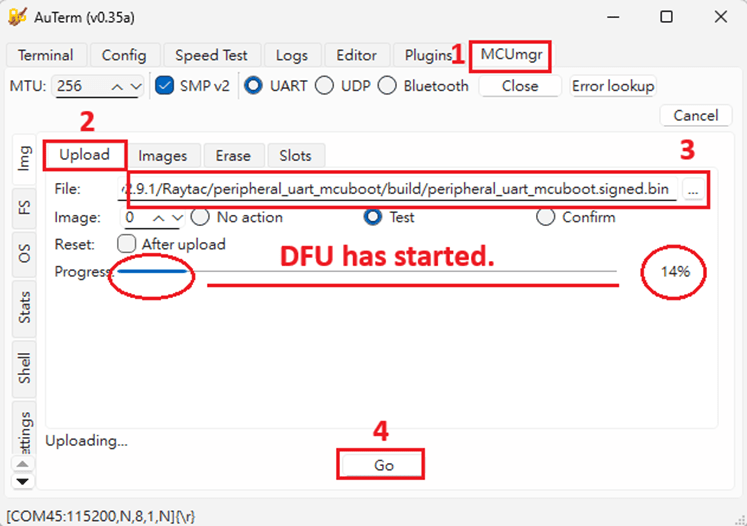
Follow the sequences in the below screenshot.


You can use the file peripheral_uart_mcuboot.signed.bin for testing.
It is located in peripheral_uart_mcuboot/build.
Then follow the sequences in the below screenshot.
DFU will be completed when the progress reaches 100%.


6. DFU using your custom keys
When you compile the code, you will see the below warning.
Reason: It’s required to have your own private key to ensure your product’s security.
Following are the steps to enable security features.


Step 1. Create the key
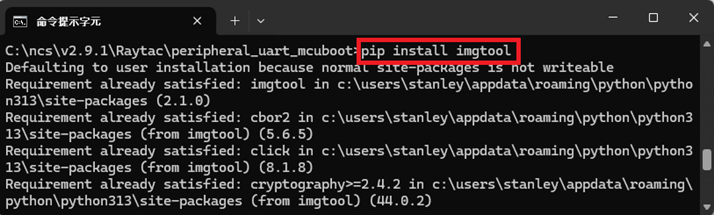
First, install the imgtool program using pip.


Then use the following command to generate your private key in your project folder.
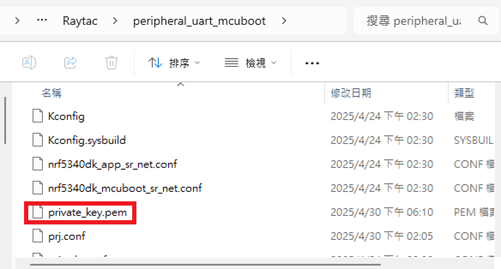
After the private key is generated, you can access it in your directory.


Step 2. Configure the project to use this key in sysbuild.conf

# Add MCUboot
SB_CONFIG_BOOTLOADER_MCUBOOT=y
#Add private key for MCUboot
SB_CONFIG_BOOT_SIGNATURE_KEY_FILE="\${APP_DIR}/private_key.pem"
# Configure key type
SB_CONFIG_BOOT_SIGNATURE_TYPE_ECDSA_P256=y


Step 3. Build and flash the project again. Your firmware will have security features.


Edited by Account Manager: Mr. Welson Kuo


Raytac Corporation 勁達國際電子股份有限公司 / Raytac Corporation (USA)
A Bluetooth, Wi-Fi, and LoRa Module Maker/ODM & OEM Manufacturer based on
Nordic nRF54; nRF53: nRF52; nRF51; nRF7002
Semtech Specification: SX1262


Bluetooth Specification: BT6.1 ; BT6 ; BT5.4 ; BT5.3 ; BT5.2.
Wi-Fi Specification: Wi-Fi 6
LoRa Specification: LoRaWAN


All products are FCC/IC/CE/Telec/KC/RCM/SRRC/NCC/WPC Pre-Certified.
http://www.raytac.com
https://www.raytac.com/contact/
email: sales@raytac.com
Tel: +886-2-3234-0208(TW)/+1-626-217-3139(USA)

How to use Raytac’s MDBT50Q-CX-40 dongle as a BLE sniffer?

Introduction

Uncertainties in Bluetooth Application Development
Bluetooth’s growing popularity comes with challenges during development. Common issues include hardware instability, software incompatibilities, and environmental interference.
Accurate issue identification and resolution are keys to successful development.

Common Uncertainties
Unstable Connections: Disruptions from wireless signals or physical obstacles.
Pairing Failures: Devices unable to establish connections.
Data Errors: Packet loss or corruption during transmission.
Compatibility Problems: Protocol version mismatches affecting interoperability.

Efficient Bluetooth Issue Analysis
Challenges like transmission speed limitations, data loss, connection failures, or protocol violations can arise. As Bluetooth signals travel wirelessly, precise analysis requires specialized tools.
Nordic offers firmware integrated with Wireshark, flashable onto the Raytac MDBT50Q-CX-40 Dongle, enabling engineers to capture and analyze Bluetooth broadcast signals via USB.
This setup streamlines issue identification and resolution.
Below’s how to configure the Dongle for Wireshark reception.


Flashing Firmware into MDBT50Q-CX-40
Step 1: Download and extract the nRF Sniffer for Bluetooth LE from Nordic:
https://www.nordicsemi.com/Products/Development-tools/nRF-Sniffer-for-Bluetooth-LE
Step 2: Locate the file: sniffer_nrf52840dongle_nrf52840_4.1.1.hex
This is the firmware to flash into MDBT50Q-CX-40.


Step 3: Press and hold the button on MDBT50Q-CX-40 and plug it into a PC USB port.
Bootloader mode will be activated after the LED light is turned on.
Then flash the firmware using nRF Programmer.

Step 4: Open the nRF Programmer and follow the below steps:
Select the Device:


The device will appear as the name shown in below:


Add Firmware File:


Load sniffer_nrf52840dongle_nrf52840_4.1.1.hex into the Programmer:


Press “Write" to flash the firmware.
After flashing, press “Select Device" again.
If the Device name appears as nRF Sniffer for Bluetooth, the flashing is successful.


Set Up Wireshark Software Environment
Step 1: Download & install nRF-Util: https://www.nordicsemi.com/Products/Development-tools/nRF-Util
Step 2: Open MS-DOS and use the command nrfutil list to check if the ble-sniffer item is available.
If not, install it using nrfutil install ble-sniffer.


Step 3: Download and Install Wireshark: https://www.wireshark.org/download.html.
Step 4: Open Wireshark and navigate to: Help → About Wireshark → Folders.
Step 5: Locate the string under Personal Extcap Path for the extcap directory, which will be an empty folder.


Step 6: Copy the files from nrf_sniffer_for_bluetooth_le_4.1.1\extcap (downloaded earlier) into Wireshark\extcap directory.


Step 7: After reopening, you should see an interface with a configurable icon next to the dongle.


Step 8: Edit Configuration Profiles Import From Directory Navigate to the directory nrf_sniffer_for_bluetooth_le_4.1.1\Profile_nRF_Sniffer_Bluetooth_LE and click “Select Folder".


Step 9: The profile will be imported. Click OK to confirm.


After all the above is done, the setup shall be completed.


Capturing and analyzing Bluetooth packets
After launching the program, you can see the following devices and Dongle settings.
Double-click to start the packet capture process:


If you want to capture packets with PHY=125K, you can use the following settings:


Packet Analysis Method
In Wireshark, select the device from the “Device" menu to capture and analyze broadcast packets.


User Cases – What sniffer can offer
1. Disconnection when transmitting over 20 bytes between Tablet and Raytac’s AT-Command Module:
Through sniffer analysis, it was discovered that Raytac’s module requested a packet length of 251 bytes, but the tablet’s TX setting was limited to 27 bytes.


2. Broadcast Device Name containing invisible characters:
The device could connect using a mobile app but failed to connect using Central’s code.
From the sniffer interface shown below, the device name length is 11, but the Length field shows 13.
The actual data length (Type length + Device Name) = 1 + 11 = 12, indicating an issue with the program’s broadcast name length.


3. Incorrect parameter settings causing issues with throughput or packet reception:
Improper settings can lead to reduced throughput, incorrect data reception, or disconnections.
The diagram below shows a correct setup with high-volume data transmission. The Protocol Length is 251, and the data transmission intervals are consistent, achieving optimal throughput.


Summary
Mastering hardware and software setups and effectively using packet analysis tools can boost development efficiency and enable high-performance Bluetooth applications.

Resources:
https://www.nordicsemi.com/Products/Development-tools/nRF-Sniffer-for-Bluetooth-LE
https://docs.nordicsemi.com/bundle/nrfutil_ble_sniffer_pdf/resource/nRF_Sniffer_BLE_UG_v4.0.0.pdf
https://www.wireshark.org/download.html

User manual:
https://raytac.blog/2024/07/10/firmware-coding-dfu-onto-mdbt50q-rxuser-manual-of-mdbt50q-cx-nrf52840-usb-c-dongle/


Edited by Business Development Manager: Mr. Tony Yin
Technical guidance provided by R&D Manager: Mr. Stanley Huang


Raytac Corporation 勁達國際電子股份有限公司
A Bluetooth, Wi-Fi, and LoRa Module Maker based on
Nordic nRF54; nRF53: nRF52; nRF51; nRF7002
Semtech Specification: SX1262

Bluetooth Specification: BT6.0 ; BT5.4 ; BT5.3 ; BT5.2.
Wi-Fi Specification: Wi-Fi 6
LoRa Specification: LoRaWAN

All products are FCC/IC/CE/Telec/KC/RCM/SRRC/NCC/WPC Pre-Certified.
http://www.raytac.com
email: sales@raytac.com
Tel: +886-2-3234-0208


FAQ: How to write MAC address into the OTP memory of Raytac’s nRF7002 Wi-Fi module/AN7002Q-DB-5340 DevKit

Recently we have received the FAQ: how to write MAC address into the OTP memory of Raytac’s AN7002Q-P Nordic Wi-Fi module? In this article, we’ll get this question explained to give customers a more smooth experience using the AN7002Q-nRF5340 Demo Board(AN7002Q-DB-5340).

Is there an existing Wi-Fi MAC address in the AN7002Q part on the DevKit?

Currently, the AN7002Q module on Raytac’s AN7002Q-DB-5340 board has no Wi-Fi MAC address.


When running Wi-Fi Scan code/Station code/Shell code…etc. on NCS v2.6.0 (and later versions), the AN7002Q module must have a programed Wi-Fi MAC address to function properly.

Therefore, it’s necessary to follow the below process:
1. Program the original Wi-Fi radio test code (..\nrf\samples\wifi\radio_test) into the MDBT53 section,
2. Then write the Wi-Fi MAC address in to the AN7002Q section(nRF7002 IC) via command.

After this, program the original Wi-Fi Scan code/Station code /Shell code … into the 5340, and it will function properly.

**Raytac will assign 2 Wi-Fi MAC addresses(for both 2.4GHz & 5GHz) to every AN7002Q module.
*If customers don’t have Wi-Fi MAC addresses for DevKit development yet, please reach out to
service@raytac.com


==================================================================================

Case study 1. SCAN code example


Scenario:
Following error occurred when building the SCAN example code, flash it onto the AN7002Q-DB-5340 board, and run the test.

Solution:

When running Wi-Fi scan code on NCS v.2.6.0 or later version, the OTP memory in the AN7002Q module must have a Wi-Fi MAC address programmed in for the Wi-Fi scan functionality to work properly.

(Note: OTP is a One-Time programmable memory, which means the value can only be written once.
The customer must aware of this before performing the OTP operation.)

1. Program the original Wi-Fi radio test code (..\nrf\samples\wifi\radio_test) into the MDBT53 section,
then manually input and execute the following OTP read command.

wifi_radio_ficr_prog otp_read_params

If you see both MAC0 and MAC1 display a value of 0xFF, as shown in above, it means that you haven’t written the Wi-Fi MAC address into the AN7002Q’s OTP.

2. Manually issue the OTP write command to write the Wi-Fi MAC address into the OTP.

https://docs.nordicsemi.com/bundle/ncs-latest/page/nrf/samples/wifi/radio_test/ficr.html

wifi_radio_ficr_prog otp_write_params 0x120 0xDDCCBBAA 0xFFEE

wifi_radio_ficr_prog otp_write_params 0x128 0xDDCCBBAA 0xFFEE


After you complete the above, use the OTP read command in below to check if the Wi-Fi MAC address value was written.
The MAC0 and MAC1 should display the value you’ve input from the OTP write command.

wifi_radio_ficr_prog otp_read_params

3. Program the original Wi-Fi SCAN code back into the MDBT53, the Wi-Fi scan functionality should work properly.

==================================================================================

Case study 2. Shell code example

SDK Wi-Fi example test – Running Shell Code on AN7002Q-DB-5340:

Scenario:
An error occurs while running Shell code on AN7002Q-DB-5340.

Solution:
The AN7002Q-DB-5340 is paired with nRF5340 DK for development,
but neither of the 2 boards has an external MX25R64 (Serial NOR Flash) component.
So far, only the nRF7002DK board is equipped with the MX25R64.

Therefore, while running the original Wi-Fi shell code, the program will enable SPI NOR.

When using AN7002Q-DB-5340, you should add CONFIG_SPI_NOR=n in the prj.conf file to disable SPI NOR, to turn off any configurations related to it.


Edited by Sales Manager: Ms. Mandy Chao
Technical guidance provided by R&D Manager: Mr. MW Lee
Keyword: nRF7002 MAC address


Raytac Corporation 勁達國際電子股份有限公司 
Bluetooth & WiFi module maker based on Nordic nRF54, nRF53, nRF52, nRF7002 solution
BT5.4 &BT5.3 & BT5.2 & BT5.1 Qualified, FCC/IC/CE/Telec/KC/RCM/SRRC/NCC Pre-Certified.
Bluetooth Solution: nRF54, nRF5340, nRF52840, nRF52833, nRF52832, nRF52820, nRF52811, nRF52810, nRF52805, nRF51822
WiFi Solution: nRF7002
http://www.raytac.com
email: sales@raytac.com
Tel: +886-2-3234-0208


User Manual of MDBT50Q-CX (nRF52840/nRF52833-based USB-C Dongle)

MDBT50Q-CX is an advanced version of Raytac’s MDBT50Q-RX(USB-A Dongle).

MDBT50Q-CX has a more compact size, equips an up-to-date Type C USB Connector, and it has a built-in open bootloader for simple DFU process.

If you’ve been developing projects using MDBT50Q-RX in the past, you can find out in this manual how MDBT50Q-CX makes firmware compiling and loading much easier than before.

If you want to load firmware into MDBT50Q-CX, no wiring is needed. 

Simply plug the dongle into your device and USB DFU will be available.

MDBT50Q-CX (USB-C Dongle, nRF52840/nRF52833 solution): Product link

Size: 15.10 x32.85mm (0.59×1.29inches)


Table of Contents

A. Hardware intro

B. Software development environment setup

C. Firmware Implementation with NCS (nRF Connect SDK) or NRF5 SDK

D. Execute DFU (Device Firmware Update)


A. Hardware Intro

 <Pin Allocation>

2

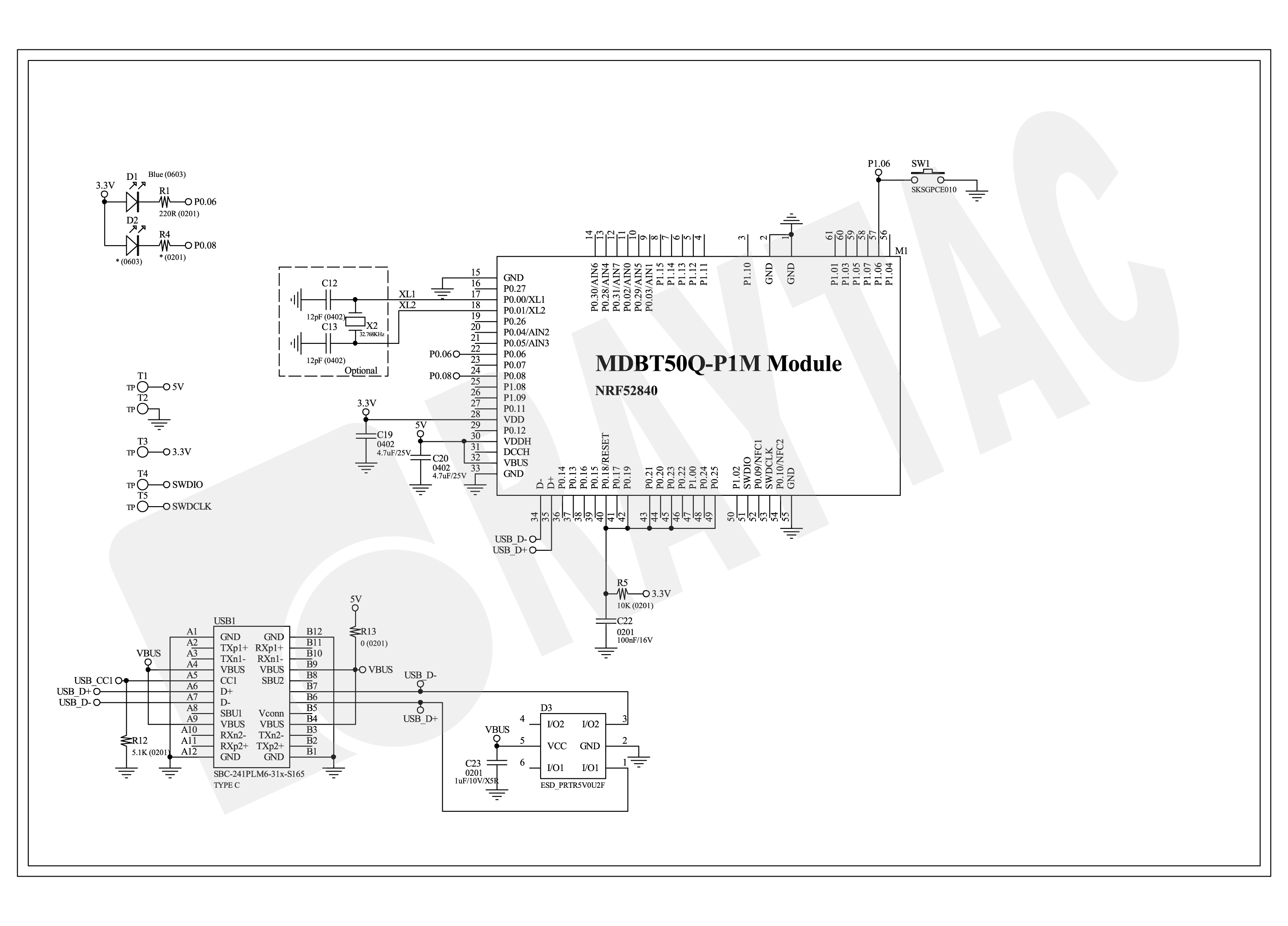
< Schematic> (Click on the image to redirect to product page for Higher resolution photo)

Schematic Spec_MDBT50Q-CX_-240806


B.  Software development environment setup

Option 1. Compile in NCS(nRF Connect SDK)

(1) Install nRF Connect for Desktop:

B1

(2) Install Toolchain Manager and Programmer

B2

(3) Install nRF Connect SDK (NCS) → V2.6.0 is recommended.

B3

Option2. Compile in nRF5 SDK

(1) Download open source nRF5 SDK (Recommend: download the latest version:  17.1.0)

B4

(2) Install Segger Embedded Studio v5.42a (Recommended version)

https://www.segger.com/downloads/embedded-studio/

B5

※Welcome to contact Raytac sales team for v5.42a file of Segger Embedded Studio.


C. Implement firmware in NCS (nRF Connect SDK) or NRF5 SDK

We will use the two example codes below for this demo:

C1. NCS (nRF Connect SDK):

Example code path: \v2.6.0\nrf\samples\bluetooth\peripheral_uart

C2. nRF5 SDK:

Example code path: \nRF5_SDK_17.1.0_ddde560\examples\peripheral\usbd_ble_uart


C1. NCS (nRF Connect SDK): (Using nRF Connect SDK V2.6.0)

Step C1-1. Add build configuration to Board name: nrf52840dongle_nrf52840

C1

Step C1-2. Disable DCDC & DCDCHV by adding the below code into  prj.conf  file

CONFIG_BOARD_ENABLE_DCDC=n

CONFIG_BOARD_ENABLE_DCDC_HV=n

C2

Step C1-3. Fix the VDD power to 3.0V or 3.3V in board.c  file

The default power is 3.0V if you use board name: nrf52840dongle_nrf52840.

In this case, you don’t need to alter the power.

C3

Step C1-4. Click the rebuild icon to reconfigure the program.

C4

Step C1-5. The program will be saved automatically in the path below:

C:\ncs\v2.6.0\nrf\samples\bluetooth\peripheral_uart\build\zephyr\zephyr.hex


C2. nRF5 SDK:

Step C2-1. Open the program under:

\nRF5_SDK_17.1.0_ddde560\examples\peripheral\usbd_ble_uart\pca10056\s140\ses\ usbd_ble_uart_pca10056_s140.emProject

Step C2-2.  Fix the VDD power supply to 3.0V or 3.3V.

C2-1

Step C2-3. Start editing the project by opening the solution in Editor.

C2-2

Change the board name from PCA10056(nRF52840-DK) to PCA10059(nRF52840 dongle).

Save and re-compile the program after the amendment.

C2-3

Click the program file name and save the modified project.

C2-4

Press “Yes” to re-load the new set up value into configuration.

C2-5

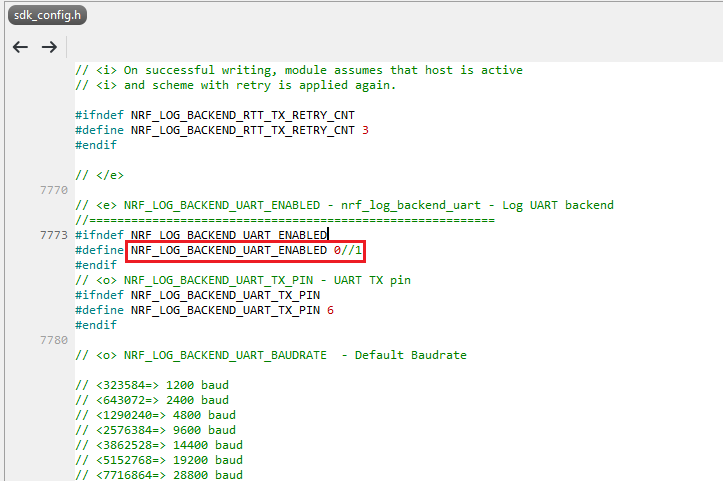
The default code in sdk_config.h is: NRF_LOG_BACKEND_UART_ENABLED 1 (in red frame);

Please change 1 to 0 to make the LED light work.

Stanley修改內容_20240806

Press “Rebuild Solution” to make sure all the parameters you’ve modified are reconfigured.

C2-6

Step C2-4. The program will be saved automatically under the path below:

V:\nRF5_SDK_17.1.0_ddde560\examples\ble_peripheral\ble_app_uart\pca10056\s140\ses\Output\Release\Exe\ble_app_uart_pca10056_s140.hex


D. Execute DFU (Device Firmware Update)

Reminder: 

No extra bootloader can be programmed into MDBT50Q-CX until you manually wire the pins on the PCB and erase the built-in bootloader.  You can simply operate DFU using MDBT50Q-CX’s bootloader.

Step D1. How to enable DFU?

(1) Press the button on MDBT50Q-CX

(2) Plug MDBT50Q-CX into your device while pressing the button

(3) Press and wait for approx.1 second until the LED light turns on. → DFU is activated.

(4) Release the button

※When Bootloader mode is enabled, the LED light on MDBT50Q-CX will twinkle continuously. 

D1

Step D2. Open the built-in DFU Bootloader

nRF Connect Desktop →  Programmer  → SELECT DEVICE  → Open DFU Bootloader

D2

You have successfully entered bootloader mode after you see the screen as below.

D3

Step D3. Add ready firmware file into the Programmer

(The program completed and saved during Step C1-5(NCS) or Step C2-4(nRF5 SDK))

※If you’re using nRF5 SDK, you need to add the soft device file into your program for loading firmware.

※Soft device path:

nRF5_SDK_17.1.0_ddde560\components\softdevice\s140\hex\s140_nrf52_7.2.0_softdevice.hex

D4

Step D4. Load the firmware and write it into the MDBT50Q-CX

D5

Step D5. Process FW DFU

D6

Step D6.  DFU Completed. The appointed firmware is successfully loaded into MDBT50Q-CX.

D7

※Any failure during the DFU process will leave you under bootloader mode.

Last-failure

If this happens, simply restart the firmware writing process from Step D4 to reload your firmware into MDBT50Q-CX.


Edited by Sales Manager: Ms. Jocelyn Tsai
Technical guidance provided by Firmware Deputy Manager: Mr. Stanley Huang

Raytac Corporation 勁達國際電子股份有限公司
Bluetooth & WiFi & LoRa module maker based on Nordic nRF54, nRF53, nRF52, nRF7002 solution
BT5.4 &BT5.3 & BT5.2 & BT5.1 Qualified, FCC/IC/CE/Telec/KC/RCM/SRRC/NCC/WPC Pre-Certified.
Bluetooth Solution: nRF54, nRF5340, nRF52840, nRF52833, nRF52832, nRF52820, nRF52811, nRF52810, nRF52805, nRF51822
WiFi Solution: nRF7002
http://www.raytac.com
email: sales@raytac.com
Tel: +886-2-3234-0208


How to Set Up the Development and Programming Environment for Raytac’s AN7002Q-nRF5340 Demo Board (AN7002Q-DB-5340)?

To help you quickly get started with Raytac’s AN7002 Nordic WiFi module and nRF5340 module, here’s a simple guide on how to set up the development and programming environment using AN7002Q-nRF5340 Demo Board(AN7002Q-DB-5340)and nRF5340 DK.

This article will cover the 4 sections below:
1. Hardware setup
2. Software Development Kit and Environment setup
3. Programming/Development
4. Flashing/Uploading firmware


1. Hardware Setup
1 x Nordic nRF5340-DK: PCA10095(2.0.0)
1 x Raytac AN7002Q-DB-5340
1 x IDC Cable
1 x USB-Micro USB Cable
1 x USB-Type C USB Cable

*Note: You need to use both the “Nordic nRF5340-DK” and “Raytac AN7002Q-DB-5340 demo board” together for programming and development. *

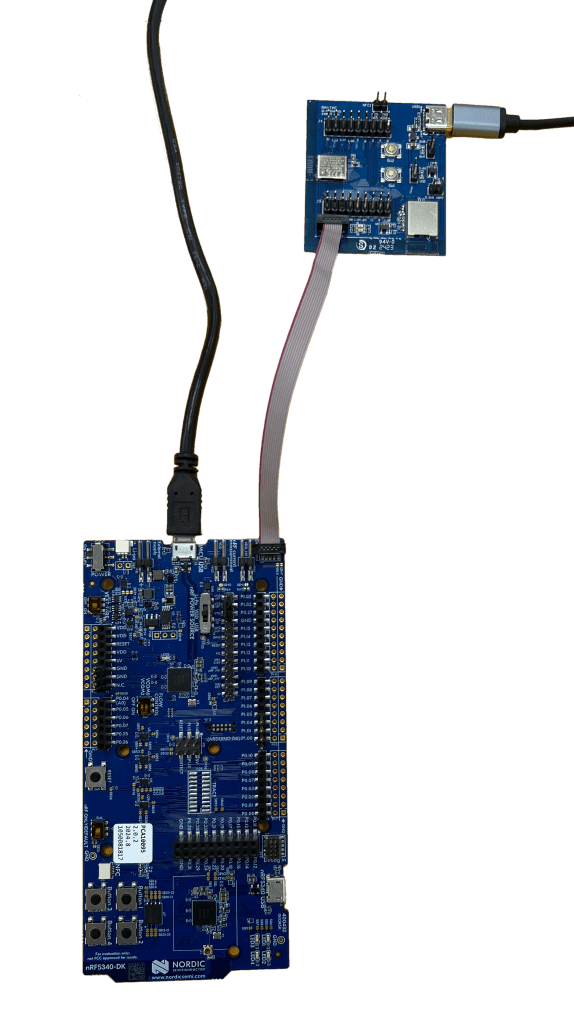
Steps to connect the hardware:

  • Connect J-Link on Nordic DK to AN7002Q-DB-5340 using IDC Cable
  • Power Nordic nRF5340-DK up using Micro USB Cable
  • Power Raytac AN7002Q-DB-5340 up using Type C USB Cable


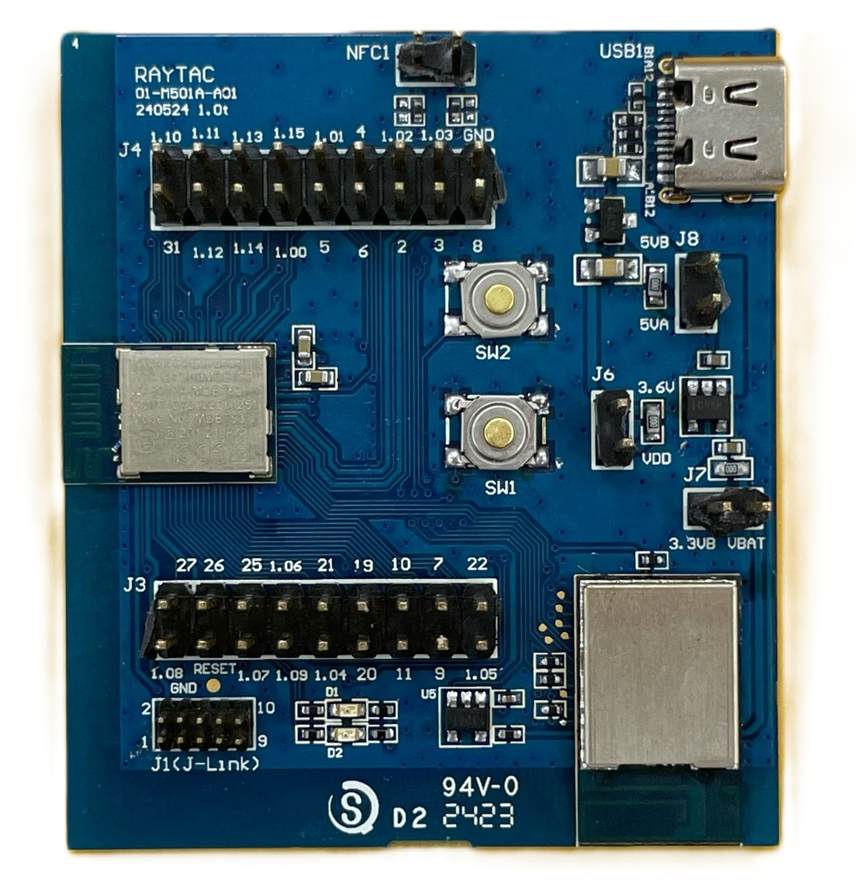
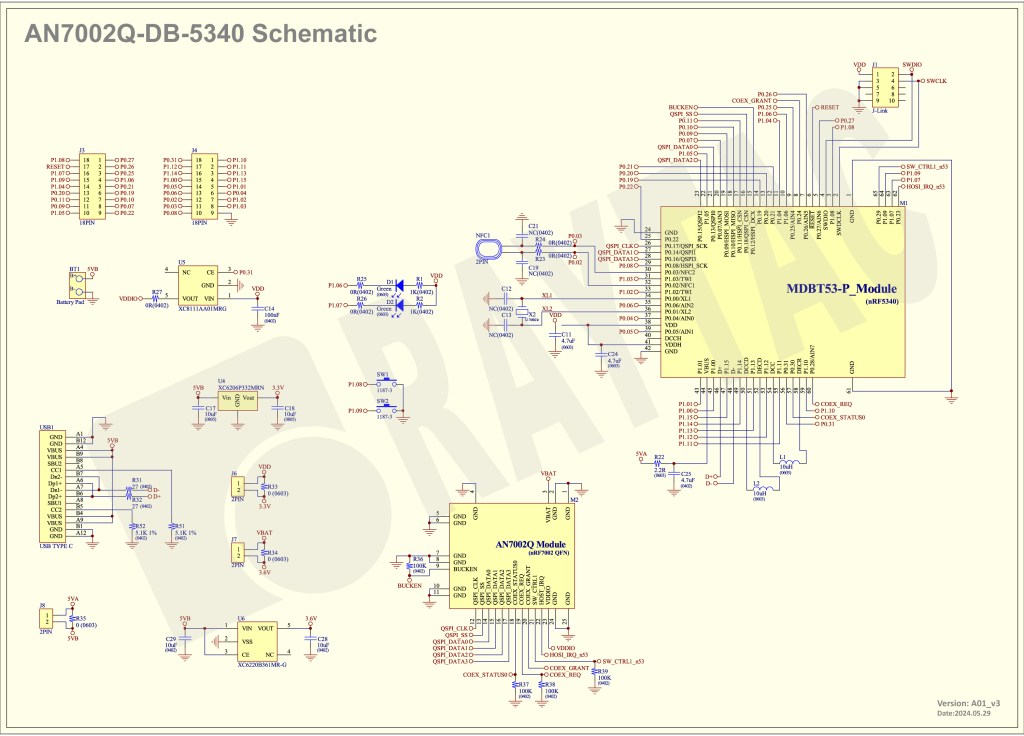
AN7002Q-DB-5340 Schematic Diagram:

(Click on the image to redirect to product page for Higher resolution photo)


2. Software Development Kit and Environment Setup

Download nRF Connect For Desktop: Download nRF Connect For Desktop (Please Click Me)

Download nRF Command Line Tools: Download nRF Command Line Tools (Please Click Me)

(1) Download and install the latest version of nRF Connect for Desktop (Windows 64-bit – 5.0.0 version)
nrfconnect-setup-5.0.0-x64.exe

(2) Download and install the latest version of nRF Command Line Tools (Windows X86 64 – 10.24.2 version)
nrf-command-line-tools-10.24.2-x64.exe

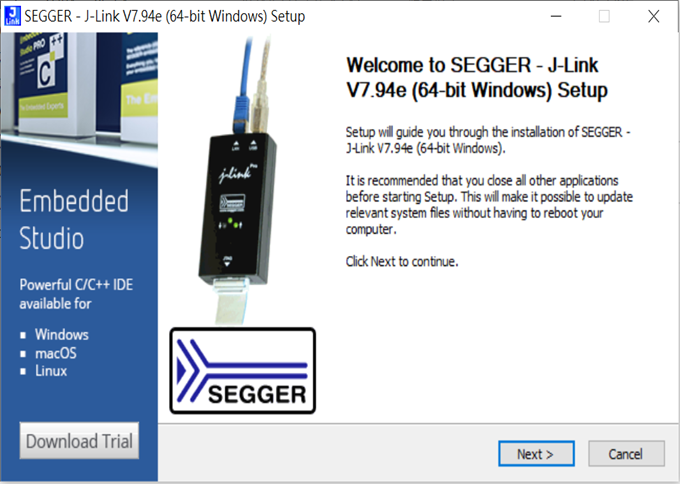
*Note: During set-up, the SEGGER J-LINK installation/update request might pop up on your screen. *
*(As shown in below screenshot). *

If you’re initiating Segger J-Link Driver, please check the guideline here(Click me)


After the installations are completed, you can see the following applications under the:

“Programs and Features" section in the Control Panel.


3. Programming/Development

nRF Connect SDK (NCS) supports development using the free VS (Visual Studio) Code IDE.
Here’s how to select and install the NCS SDK version (nRF Connect SDK vx.x.x):


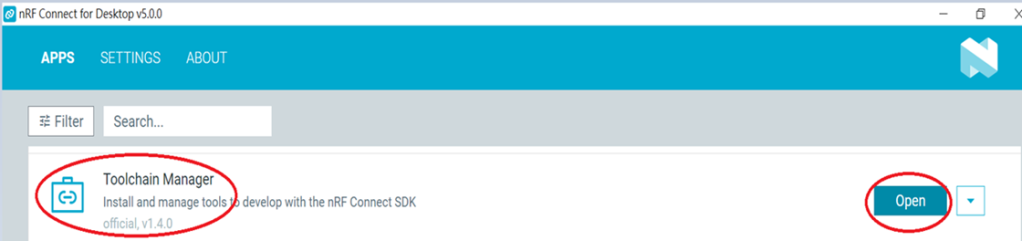
Step1.

Open “nRF Connect for Desktop” → Choose “Toolchain Manager” → then click” Open”


Step2.

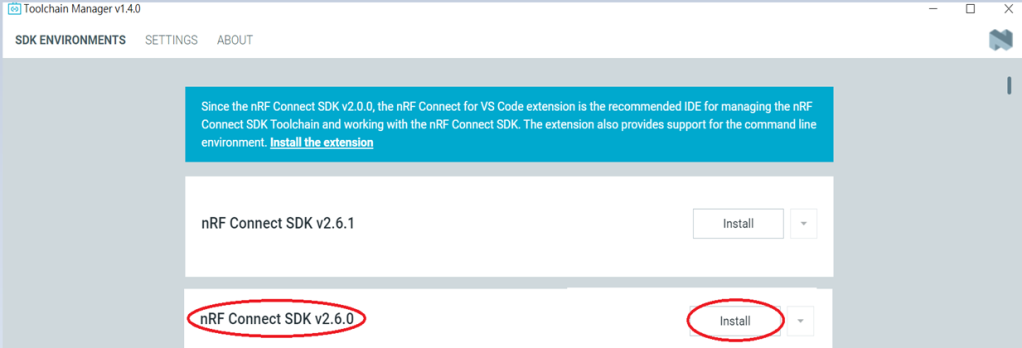
You’ll see a list of nRF Connect SDK versions. It’s recommended to install NCS v2.6.0 or later.
Here, we use NCS v2.6.0 as an example.


Step3.

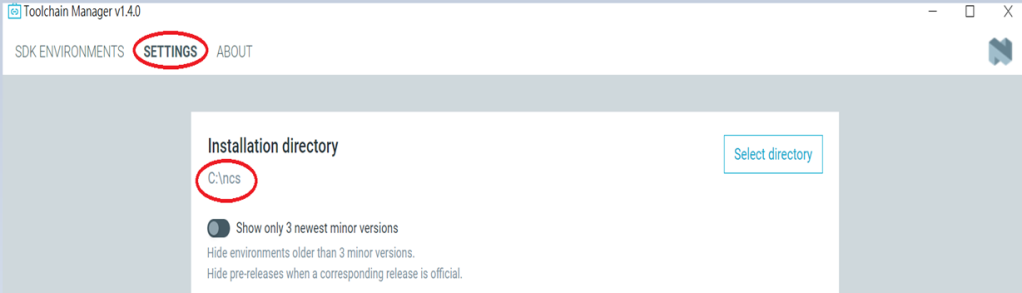
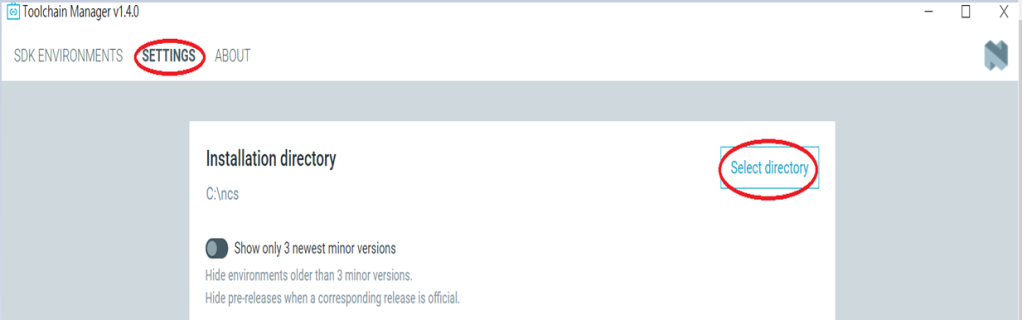
Before installing NCS v2.6.0, confirm the installation path (Default path → C:\ncs).


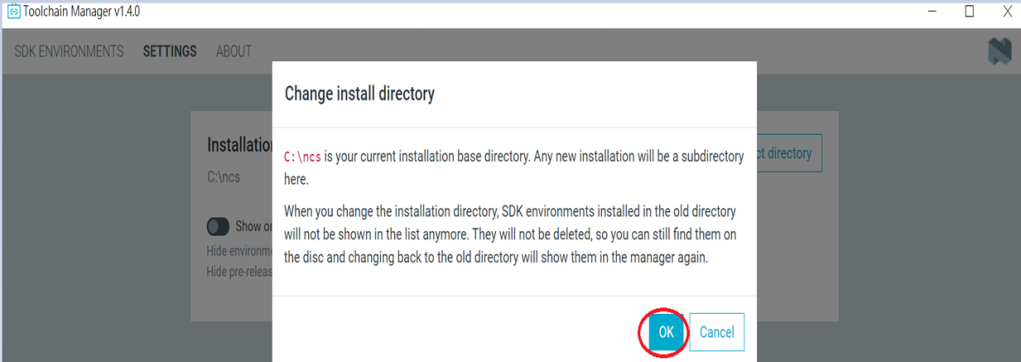
If you want to change the path, click “Select directory”, and press OK.


Step4.

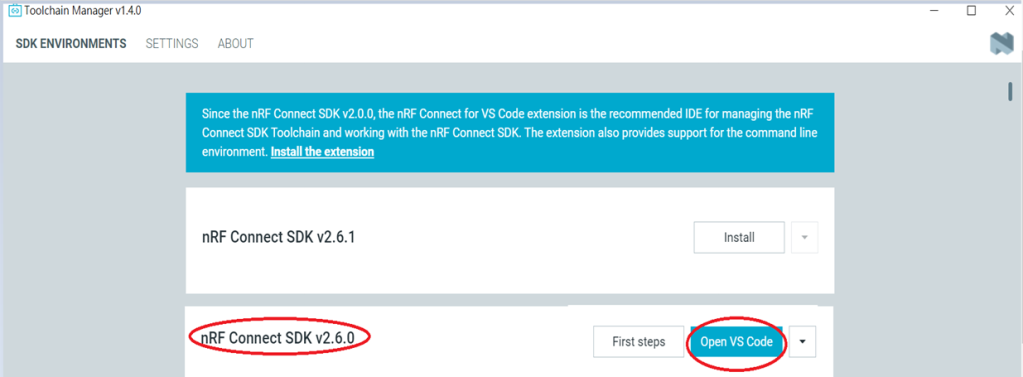
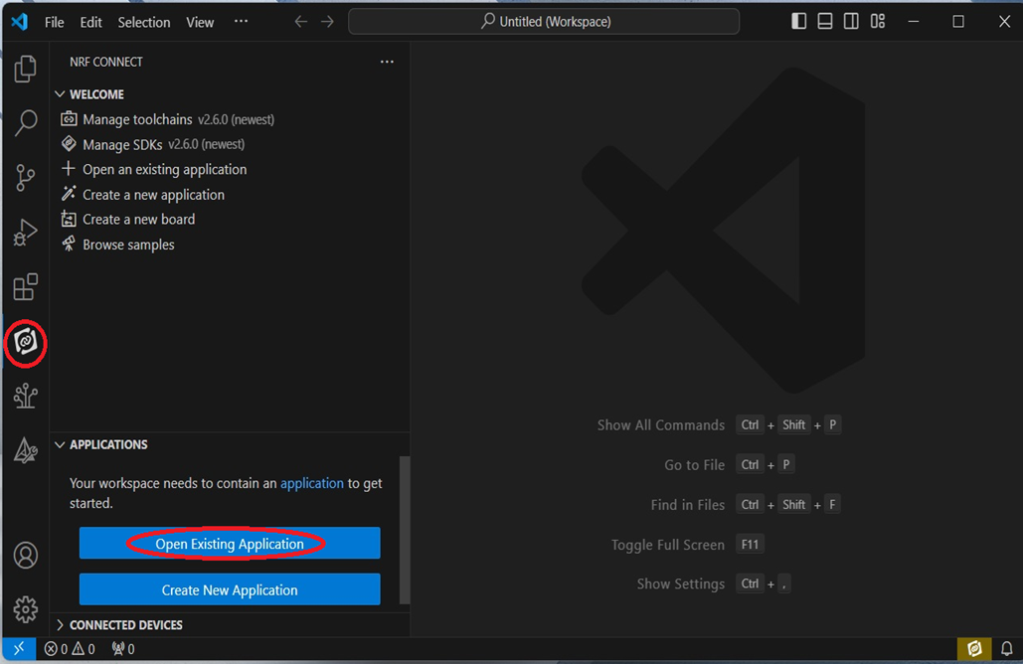
After installing the nRFConnect SDK v2.6.0, click “Open VS Code”.


Step5.

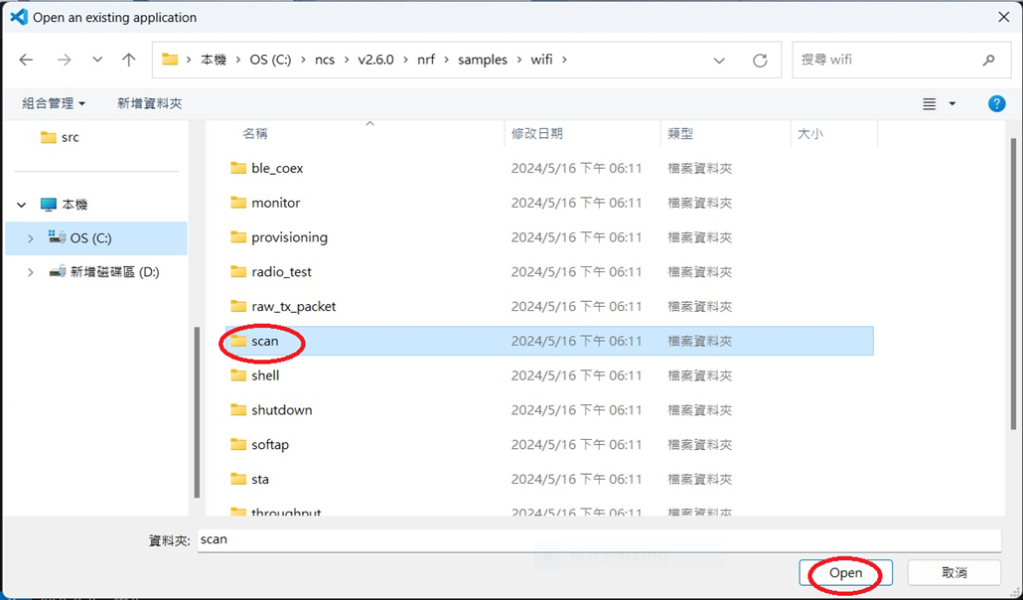
Open the Wi-Fi scan example


Step6.

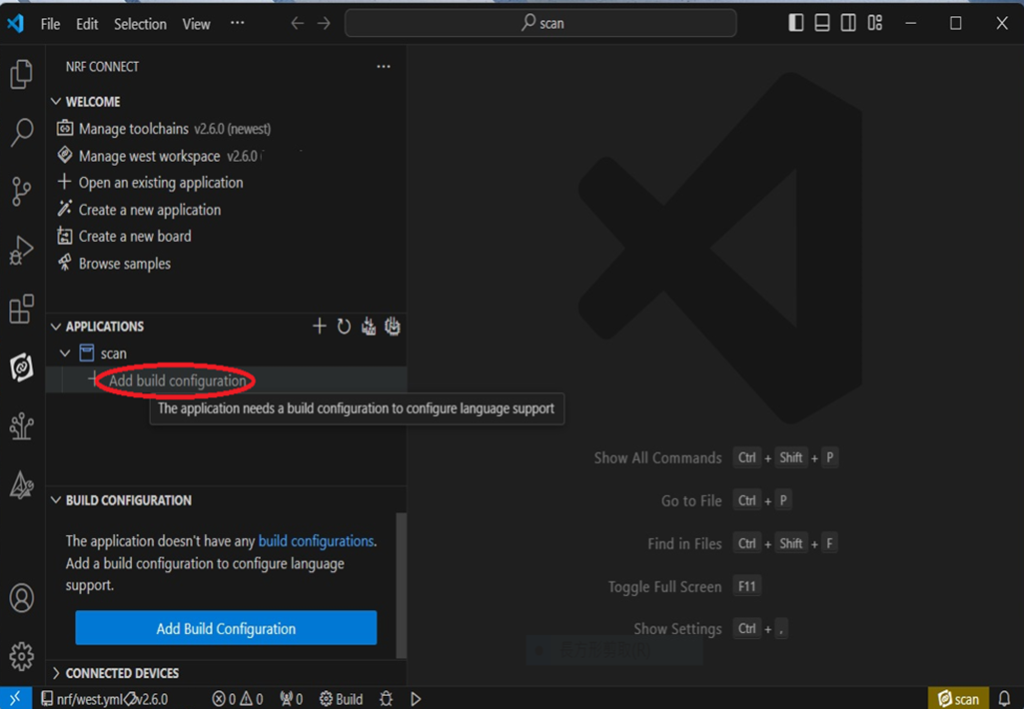
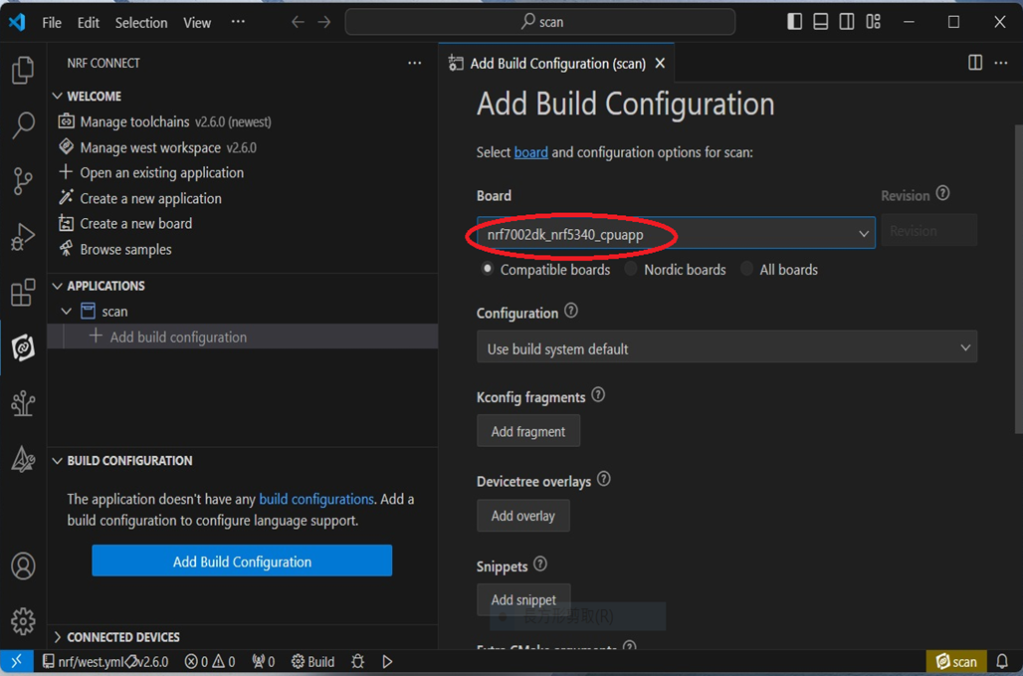
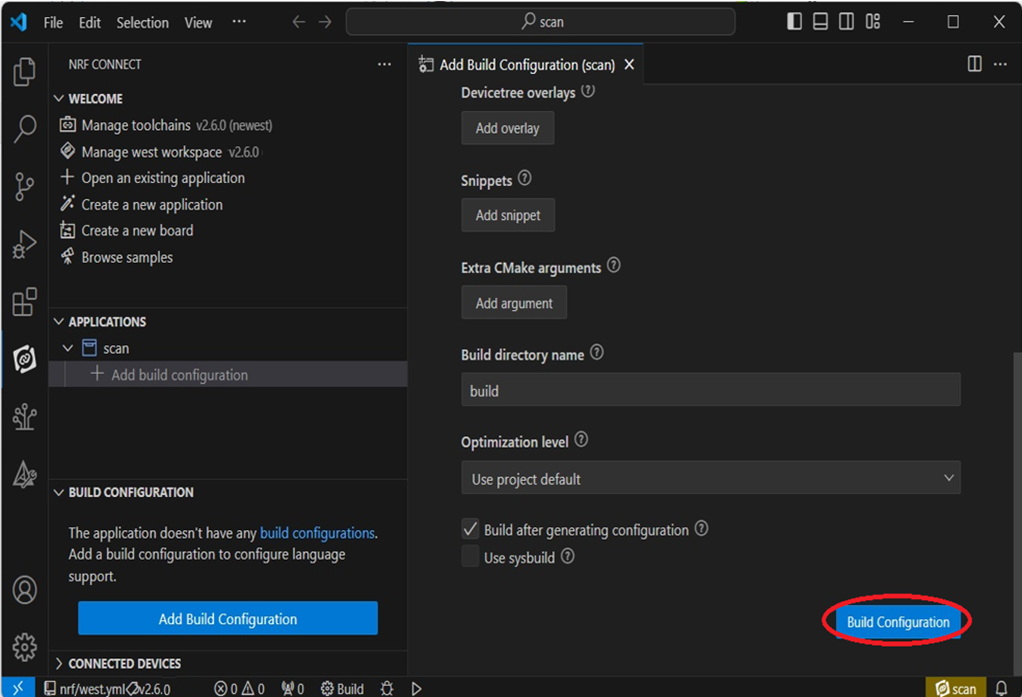
Add build configuration → select the board and compile.


Select board: nrf7002dk_nrf5340_cpuapp.


Step7.

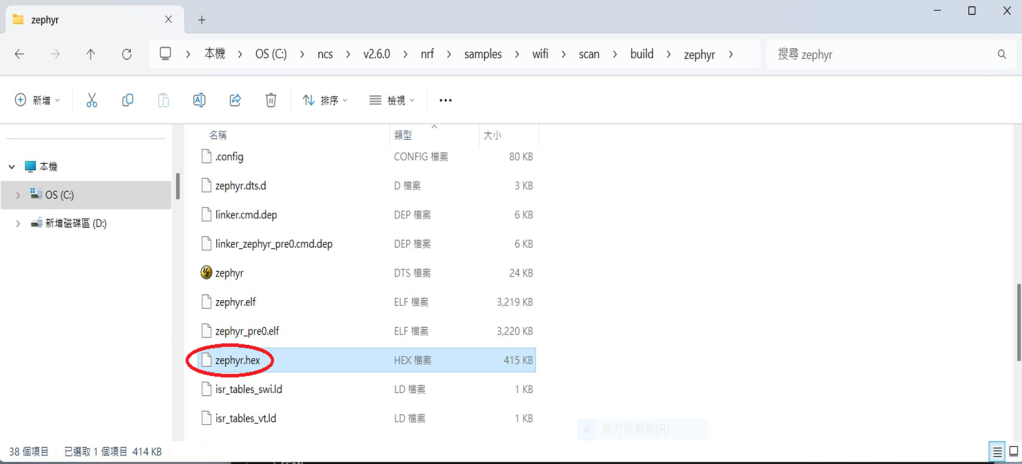
After compilation, a hex file will be generated.


Step8.

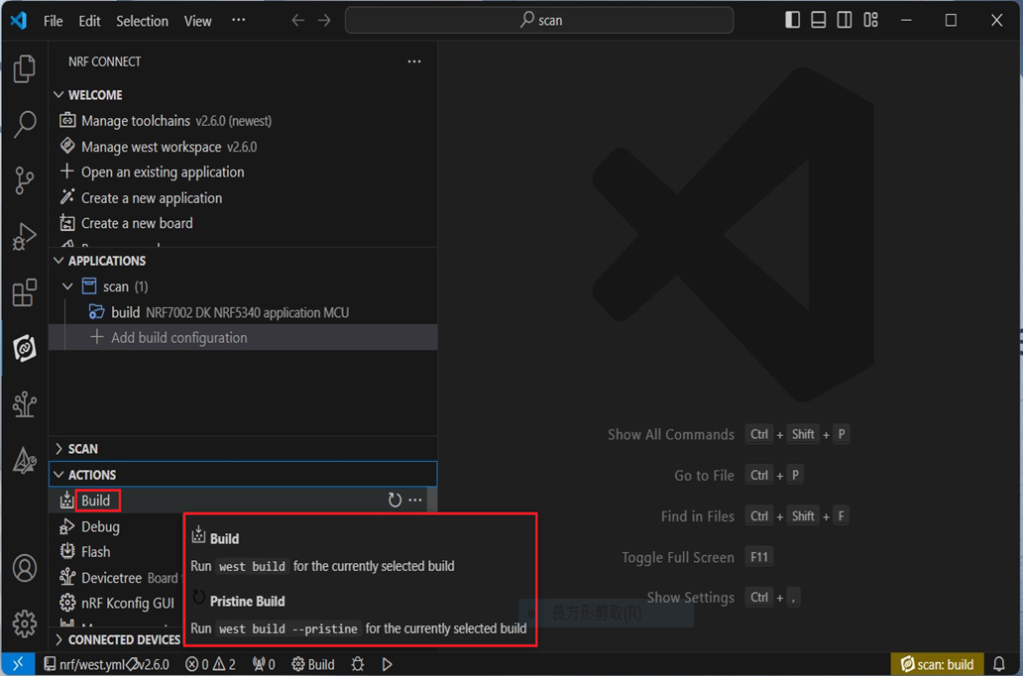
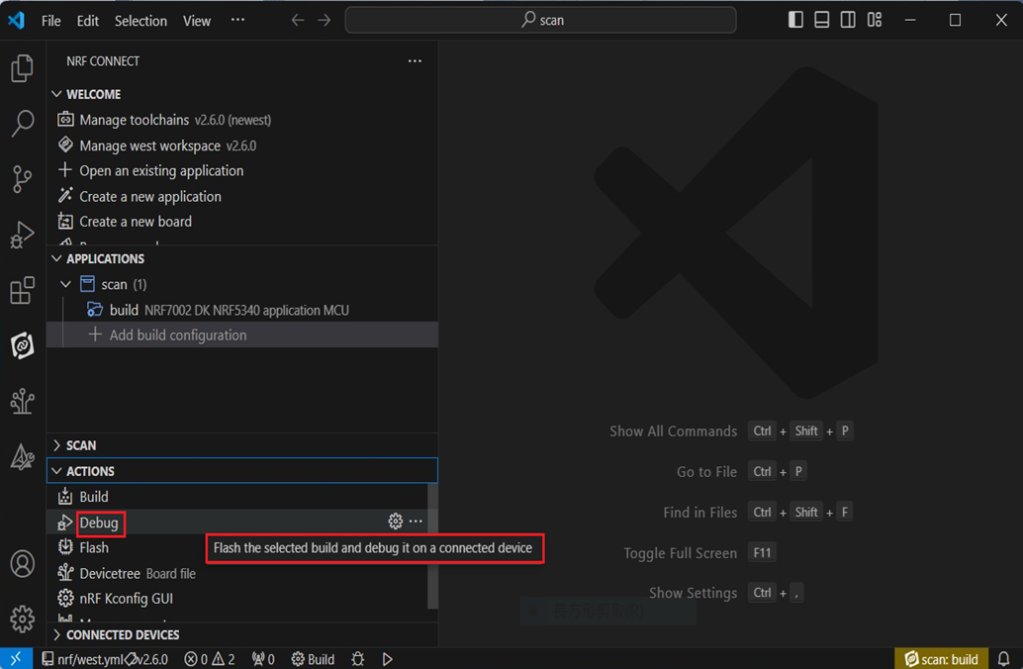
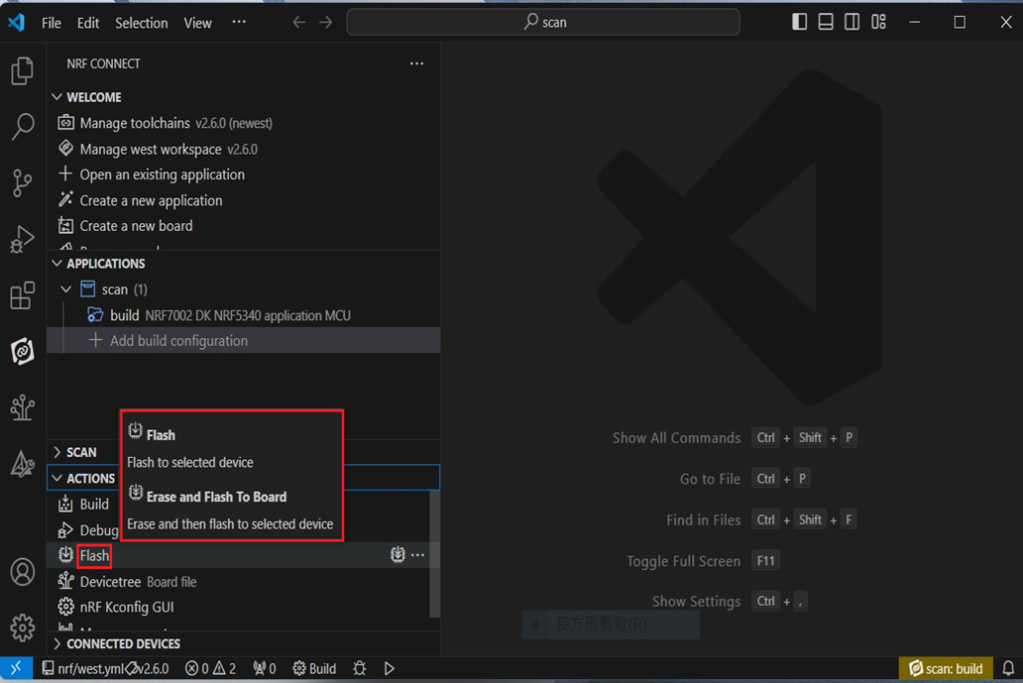
Under ACTIONS, you can choose to Build, Debug, or Flash.


Build:


Debug:


Flash:


4. Programming

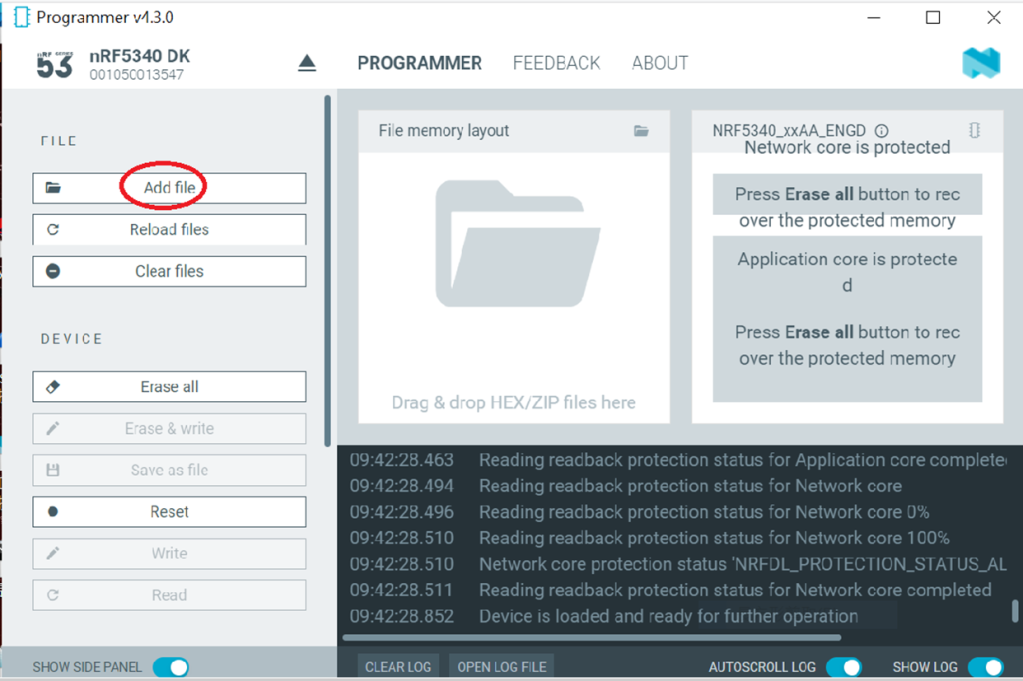
nRF Connect SDK(NCS) supports programming. You can use the “Programmer” tool to flash .hex file.
Here’s how:


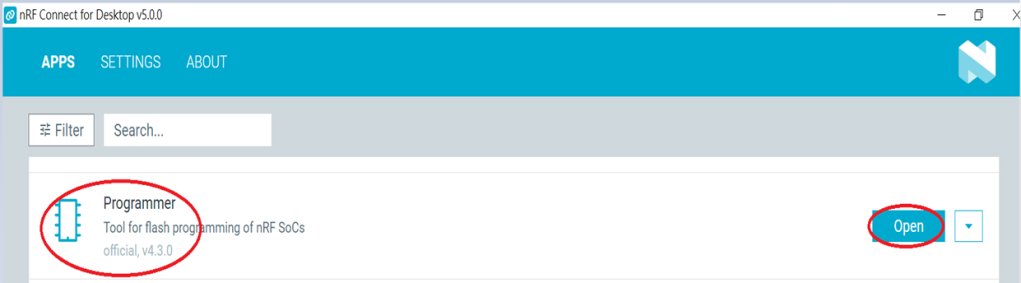
Step1.

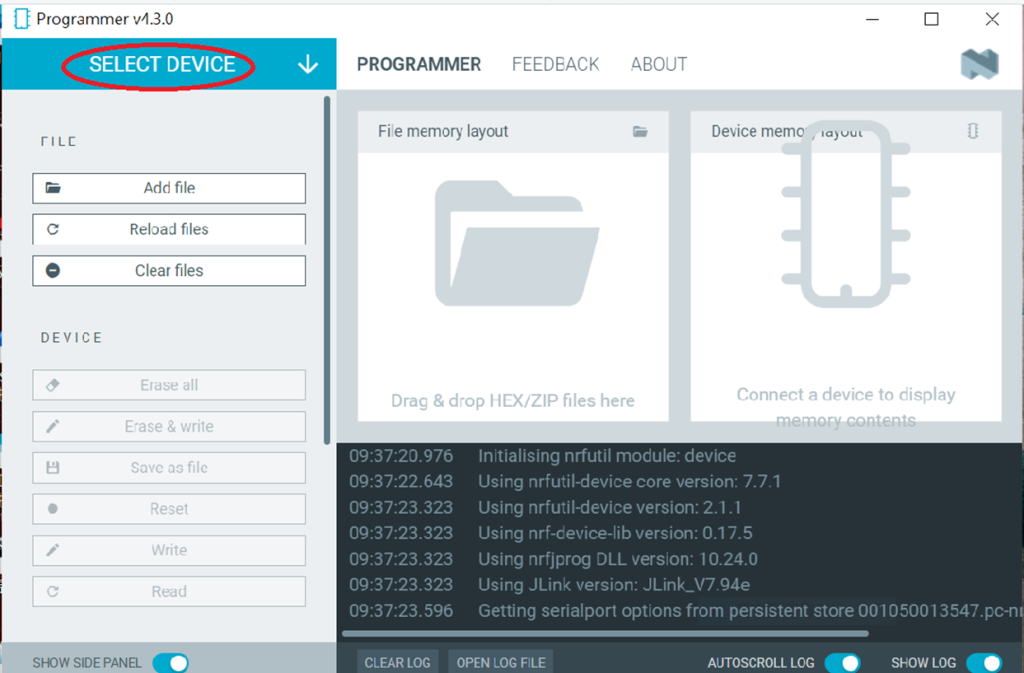
Open “nRF Connect for Desktop” → Select “Programmer” → then click” Open”.


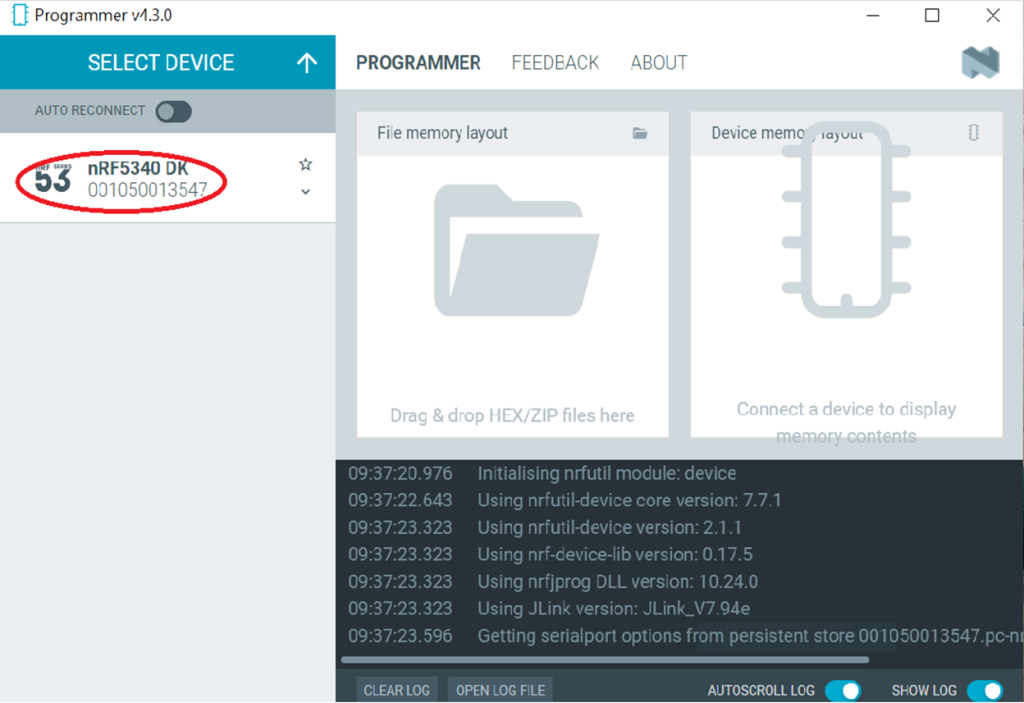
Click “Select Device”;


Since AN7002 Wi-Fi IC does not act as an MCU,
we can only flash the .hex file into the MDBT53(nRF5340) BLE IC.


Click “Add file” to add the .hex file.


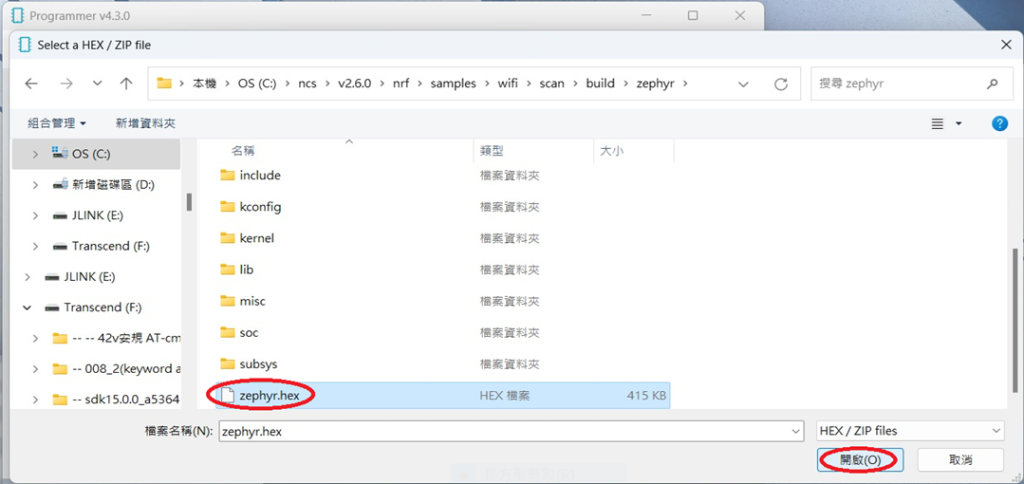
Step2.

Select the .hex file you want to flash.


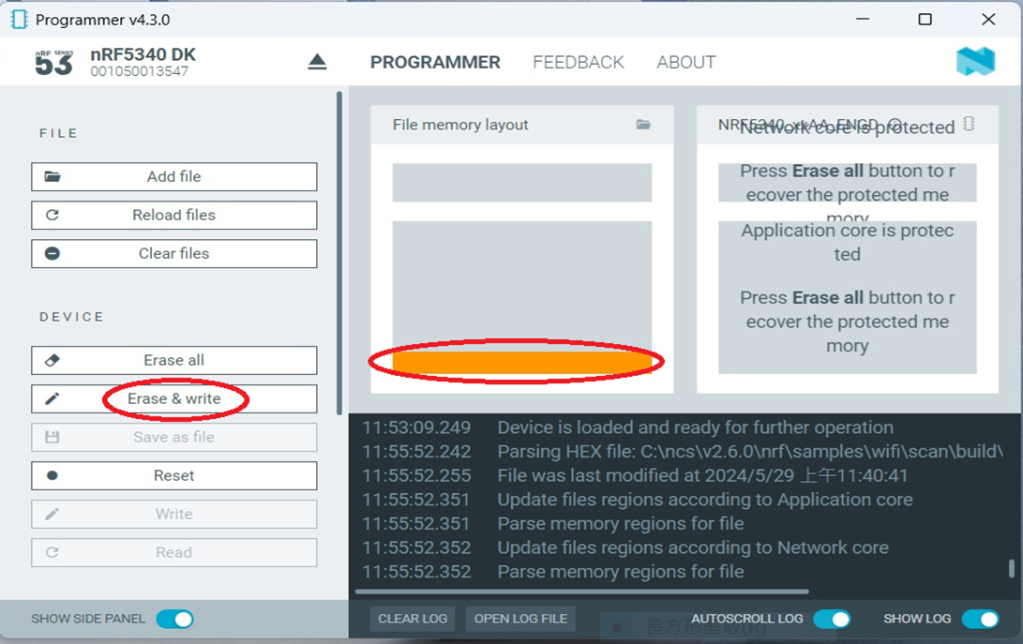
The hex file will be written into the part of the memory layout (where orange part is highlighted).


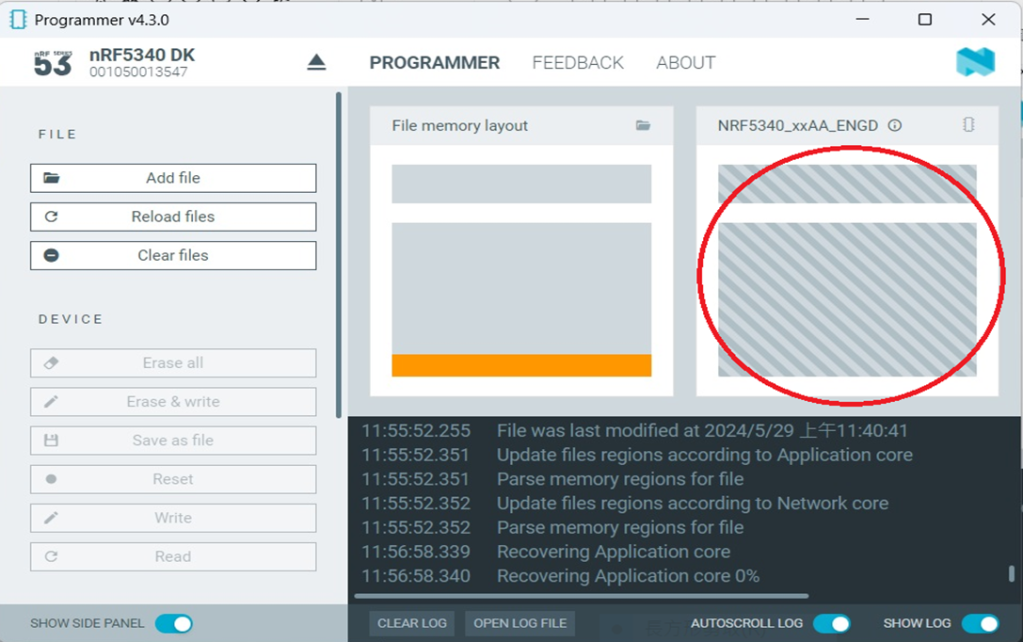
Slashes will be displayed in the circled part during the flash process.


Step3.

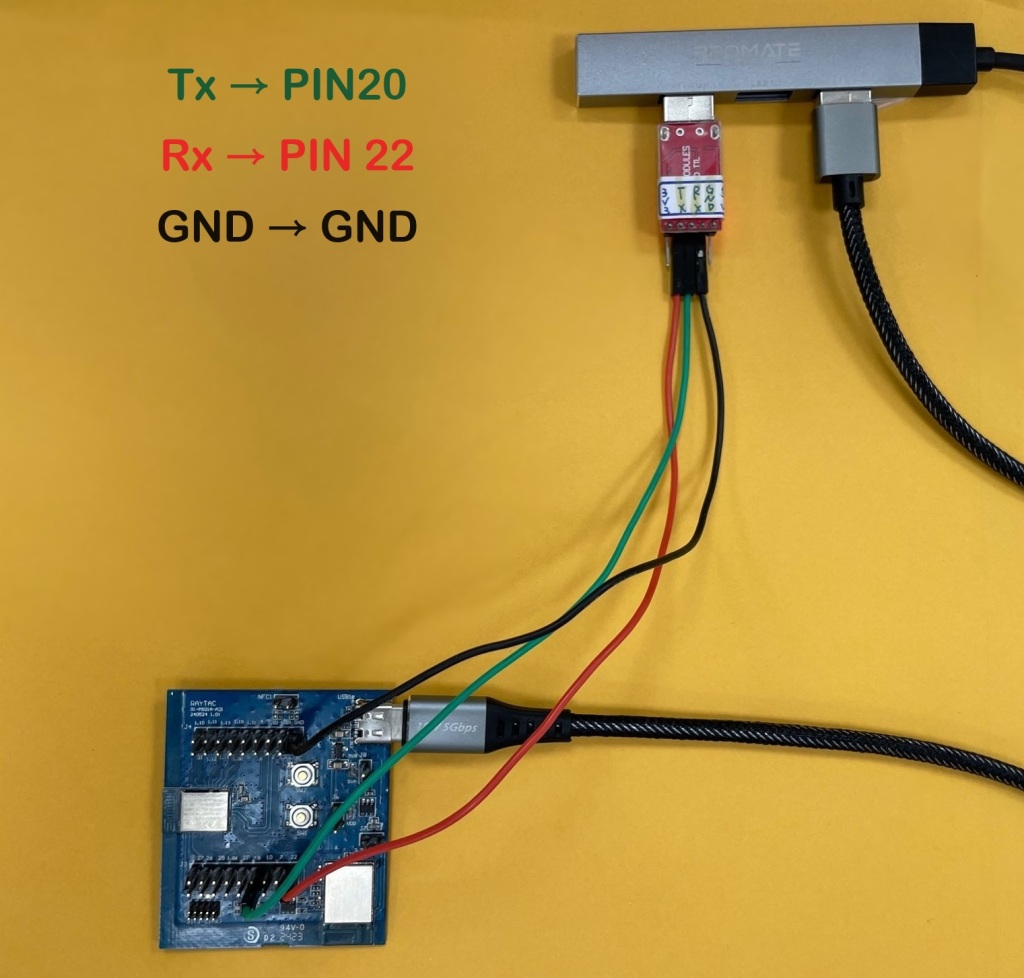
Once the flash process is completed, connect Raytac’s AN7002Q-DB-5340 development board to PuTTY.

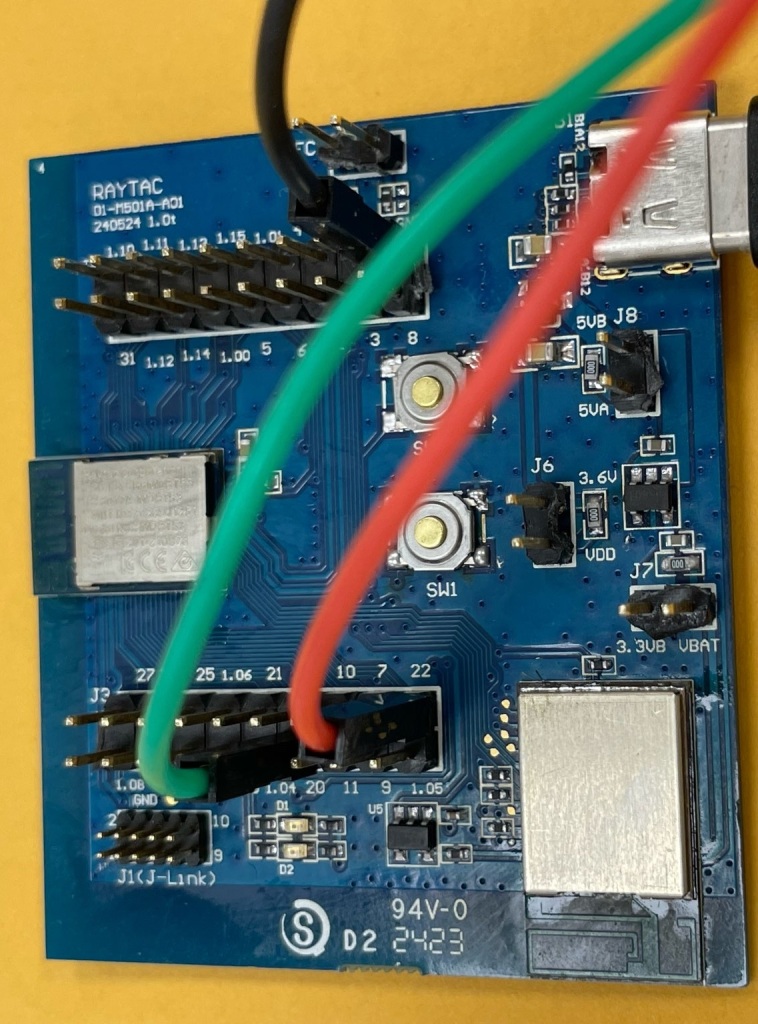
Tx to p0.20

Rx to p0.22

GND to GND

This is a closer look into the pins that will be connected.


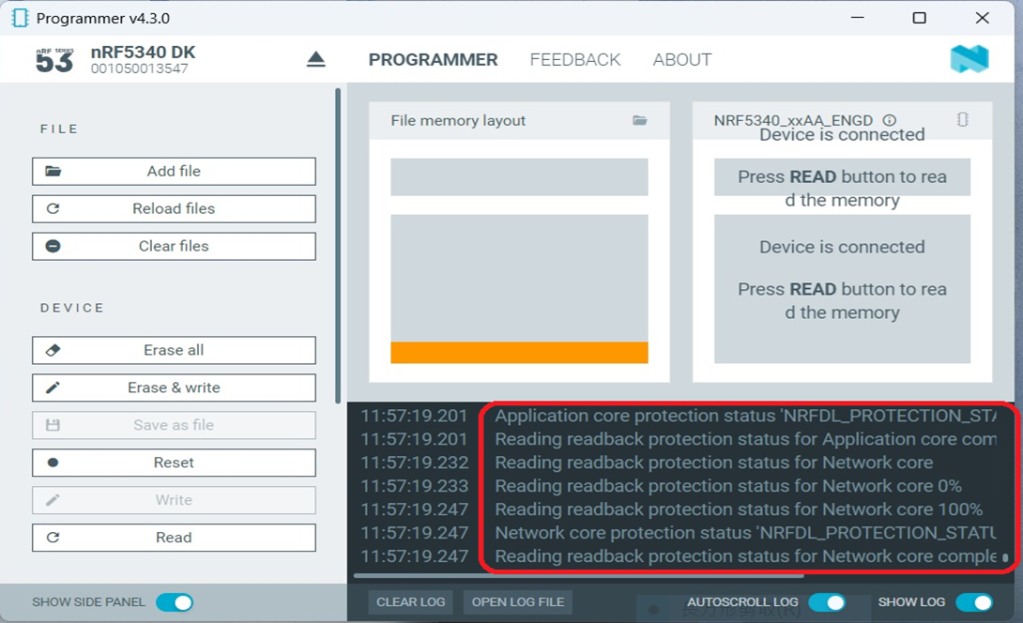
The flash process is completed when the LOG is displayed as circled below.


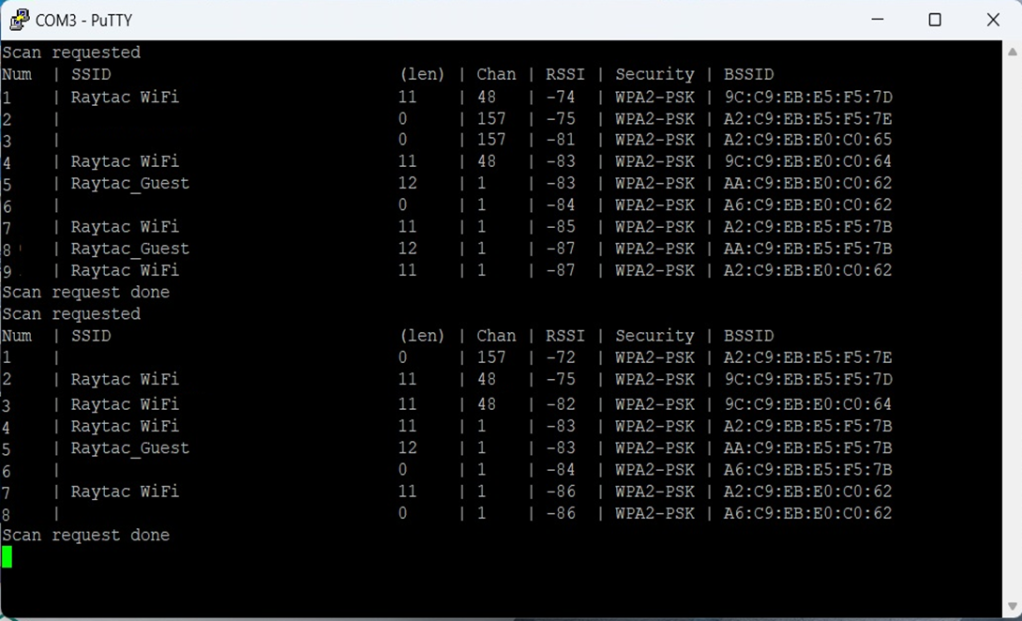
Check if hardware connection is successful using PuTTY.


*2024-Aug-12 update:*
Before running Scan code / Station code / Shell code:
You must ensure that the MAC address has already been programmed into the module.
Click on this link to learn more about how to load the MAC address.


Useful references:


Edited by Sales Manager: Ms. Vicky Huang
Technical guidance provided by R&D Manager: Mr. MW Lee
Hardware environment provided by Hardware Engineer: Mr. Kyle Wang


Raytac Corporation 勁達國際電子股份有限公司 
Bluetooth & WiFi module maker based on Nordic nRF54, nRF53, nRF52, nRF7002 solution
BT5.4 &BT5.3 & BT5.2 & BT5.1 Qualified, FCC/IC/CE/Telec/KC/RCM/SRRC/NCC Pre-Certified.
Bluetooth Solution: nRF54, nRF5340, nRF52840, nRF52833, nRF52832, nRF52820, nRF52811, nRF52810, nRF52805, nRF51822
WiFi Solution: nRF7002
http://www.raytac.com
email: sales@raytac.com
Tel: +886-2-3234-0208

Nordic nRF52833 Module by Raytac

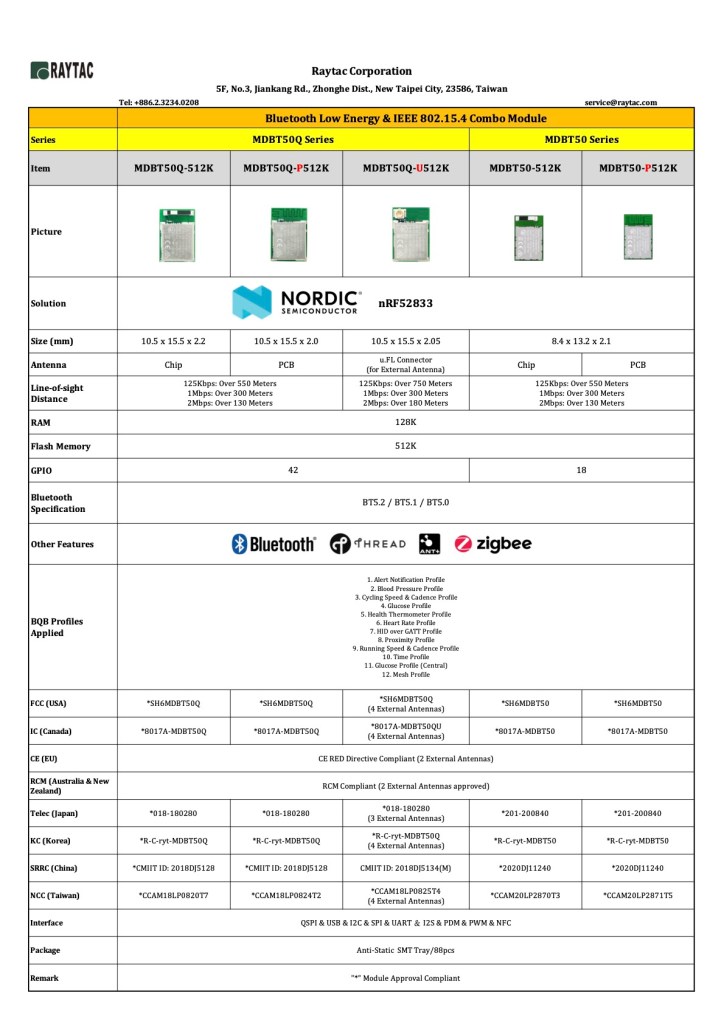
 nRF52833 is a powerful solution which supports multiprotocol such as Bluetooth, Zigbee, and Thread but also qualified for industrial operation at an extended temperature range of -40°C to 105°C. 

Raytac’s MDBT50Q and MDBT50 module employed nRF52833 solution offering 2 kinds of form factor with either 48 or 18 GPIO option for selection. 3 antenna options helps developers to find the best balance between performance and budgetary for projects.

MDBT50Q and MDBT50 modules are BT5.2 qualified supports direction finding and Bluetooth long range feature.  Both are built around 128K RAM, 512K Flash memory with I2C, SPI, I2S, UART, NFC, USB interface. A 1.7V to 5.5V supply voltage range enables powering the device from rechargeable batteries or over USB and +8dBm output power has significantly enhance the bluetooth long range coverage which is suitable for outdoor or smart home applications.

Nordic nRF52833 module by Raytac MDBT50Q & MDBT50

The modules are FCC/IC/CE/Telec/KC/SRRC/NCC/RCM pre-certified and in mass production for volume shipment. EVK demo board is also available for quick debug and evaluation. Developers who are interested in nRF52833 module MDBT50Q and MDBT50 are welcome get in touch with Raytac for immediate service support.

Raytac Corporation 勁達國際電子有限公司
A BT5.2 & BT5.1 & BT5 module maker based on Nordic nRF52 & nRF51 solution 
(nRF5340 & nRF52840 & nRF52833 & nRF52832 & nRF52820 & nRF52811 & nRF52810 & nRF52805 & nRF51822)
www.raytac.com. email: cs@raytac.com. Tel: +886.2.3234.0208

Nordic nRF52820 Module By Raytac

Raytac released MDBT50 series module which deployed Nordic latest nRF52 member, nRF52820 solution. nRF52820’s specification looks similar to nRF51822, but offer superior features than ever.

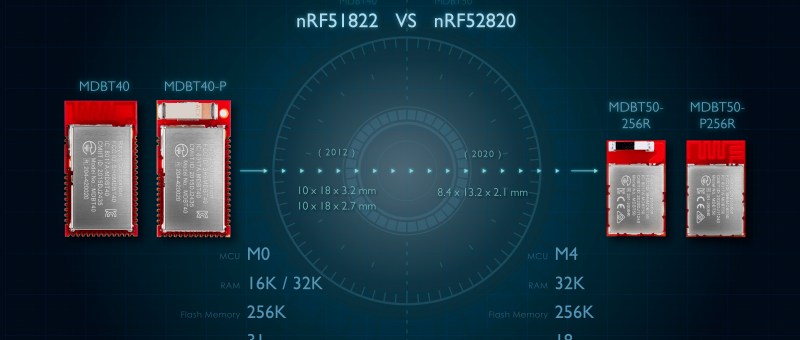
MDBT40 (nRF51822) VS. MDBT50 (nRF52820)

The nRF52820 features an Arm Cortex-M4 processor, 256 KB Flash and 32 KB RAM and offer I2C/SPI/UART but also full speed USB 2.0 interface which provide the maximum flexibility for commercial and industrial applications.

MDBT50 employed nRF52820 can be supplied with a voltage from 1.7 to 5.5 V, -40°C~105 industrial operation temperature. Features Upto +8 dBm output power and supports BT5.2 Direction Finding, high-throughput 2 Mbps, Long Range. Multiprotocol radio provides, Thread and Zigbee and Bluetooth mesh protocols. 

MDBT50 series modules covers both nRF52833 and nRF52820 solutions and provide both chip and PCB antenna for customer’s selection. Developers are encouraged to visit Raytac website for more information.

Nordic nRF52 Module Family by Raytac

Raytac Corporation 勁達國際電子有限公司
A BT5.2 & BT5.1 & BT5 module maker based on Nordic nRF53 & nRF52 solution 
(nRF5340 & nRF52840 & nRF52833 & nRF52832 & nRF52820 & nRF52811 & nRF52810 & nRF52805)
www.raytac.com email: service@raytac.com Tel: +886.2.3234.0208

Welcome nRF52805 & nRF52820 module on board

It figures, Raytac launched nRF52820 & nRF52805 modules soon after Nordic released the SoC. As usual, all modules by Raytac are Bluetooth qualified and regulation pre-certified by FCC/IC/CE/SRRC/Telec/KC/SRRC/NCC.
With both modules added on the list, whole nRF52 series module road map now has become comprehensive and completed.


#nRF52805 Solution
MDBT42T series designed for highly cost constrained. 

MDBT42T-P192K (Click me for more information)

MDBT42T-192K (Click me for more information)

MDBT42TV series designed for highly size constrained.

MDBT42TV-P192K (Expected in Oct. 2020)

MDBT42TV-192K (Expected in Oct. 2020)

#nRF52820 SolutionMDBT50 series designed for long range connectivity and USB interface.

MDBT50-P256R (Click me for more information)

MDBT50-256R (Click me for more information)

Raytac Corporation 勁達國際電子有限公司

A BT5.2 & BT5.1 & BT5 module maker based on Nordic nRF52 & nRF51 solution 
(nRF5340 & nRF52840 & nRF52833 & nRF52832 & nRF52820 & nRF52811 & nRF52810 & nRF52805 & nRF51822)