Secure DFU OTA for nRF52832 solution modules: Guide to create hex/zip file for implementation – Part 1(Bootloader & Application)

Below are the guidelines to implement Secure DFU OTA by using Raytac’s nRF52832 modules, SDK16.0.0.
It consists of 2 parts:

Part 1: Bootloader & Application


Part 2: Combining and merging built files (Article link)

In this article, we will be focusing on Part 1: Bootloader & Application.


Path: ..\nRF5_SDK_16.0.0_98a08e2\examples\dfu\secure_bootloader\pca10040_s132_ble\arm5_no_packs
Specifically for nRF52832, programmers need to embed ECC(Elliptic Curve Cryptography) into the bootloader.


Step 1. ’micro_ecc_lib_nrf52.lib’ library can be found in the path below, but we need to boot it up first.


Step 2. Unzip ’micro-ecc-master.zip’ to the below path(create a new “micro-ecc” file first).


Step 3. Run ’gcc-arm-none-eabi-7-2018-q2-update-win32.exe’.


Step 4. Make sure the Environment variables in Win10 are set as below. (Follow the steps 1 to 6)


Step 5. Open DOS → run the “make” command under armgcc path → generate’micro_ecc_lib_nrf52.lib’


Step 6. Add ’micro_ecc_lib_nrf52.lib’ into folder: nRF_micro-ecc


Step 7. An error may occur while building bootloader without a public key:
(Shown in red frames in below screenshot)


Step 8. How to generate the public key file in Bootloader?
A. Visit DOS at path: ..\Python27\Scripts
B. Then execute:

nrfutil keys generate private.pem
nrfutil keys display --key pk --format code private.pem --out_file public_key.c


Step 9. Copy the pk[64] code from (public_key.c) into (dfu_public_key.c)
(Shown in red frames in below screenshot)

※Note: Make sure to save the 3 generated files:
private.pem
public_key.c
dfu_public_key.c


Step 10. Generate the bootloader file: nrf52832_xxaa_s132.hex after re-compiling the code files.


Application


Path:
..\nRF5_SDK_16.0.0_98a08e2\examples\ble_peripheral\ble_app_uart\pca10040\s132\arm5_no_packs
Before building Application code , some amendments need to be made regarding DFU-related settings and code inside Application:


Step 1. Add code in definition in C/C++ :
BL_SETTINGS_ACCESS_ONLY NRF_DFU_SVCI_ENABLED NRF_DFU_TRANSPORT_BLE=1
(Total 3 steps definitions need to be set up)


Step 2. Add the 3 paths shown below in C/C++ to make DFU work.


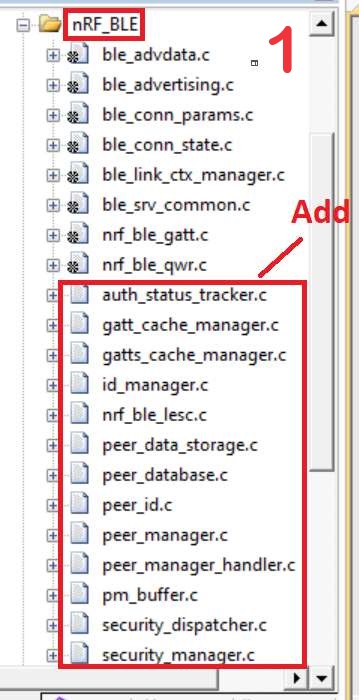
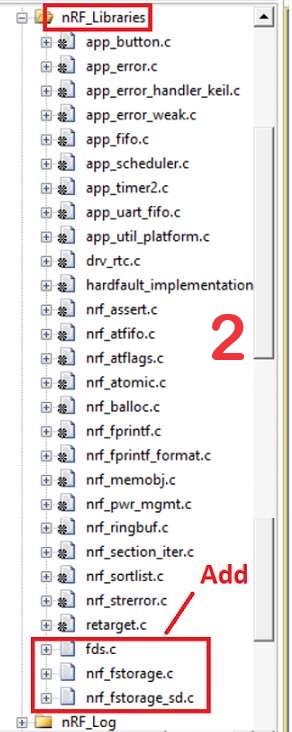
Step 3. Add the .c files inside red frame in (Screenshots 1 & 2)
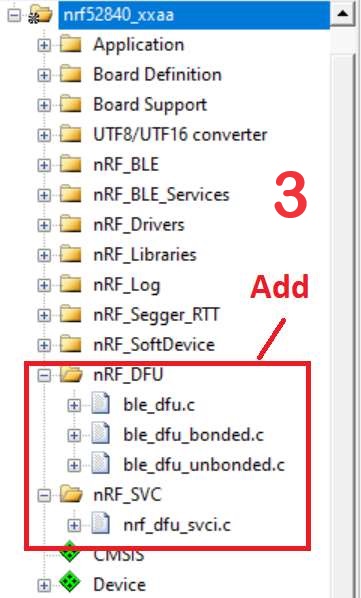
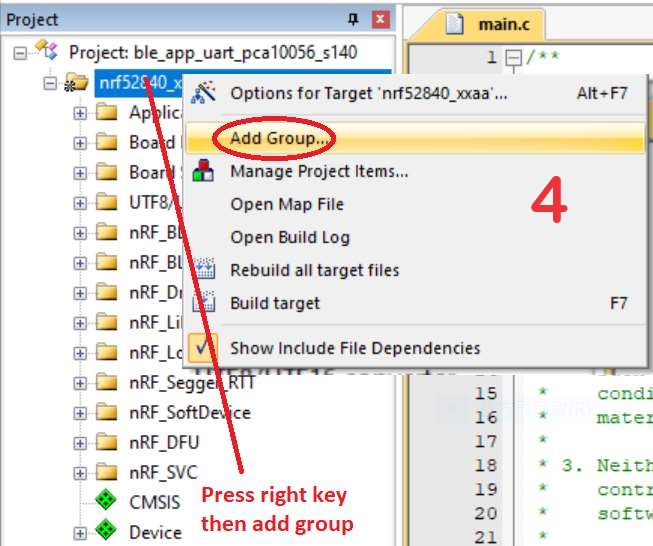
and add the 2 groups of (nRF_DFU & nRF_SVC)(Screenshot 4) under Project(Screenshot 3)


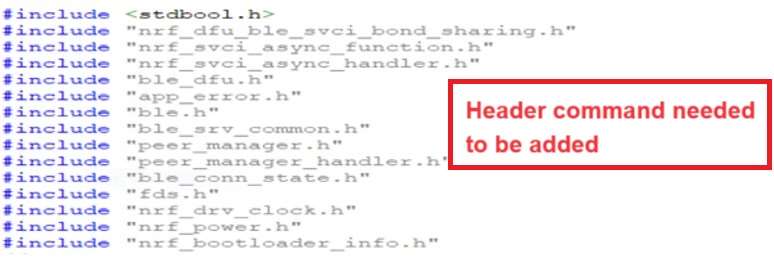
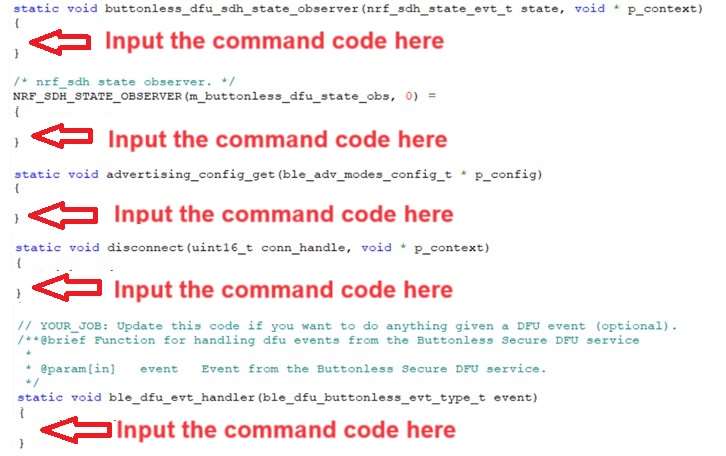
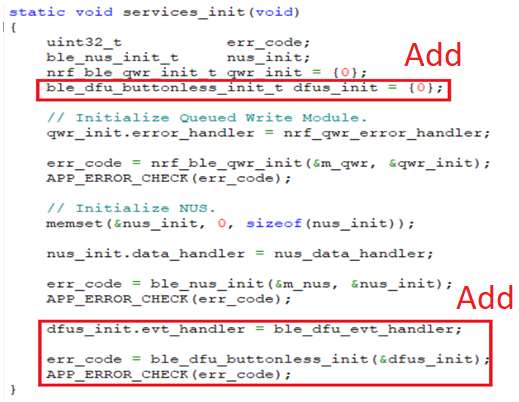
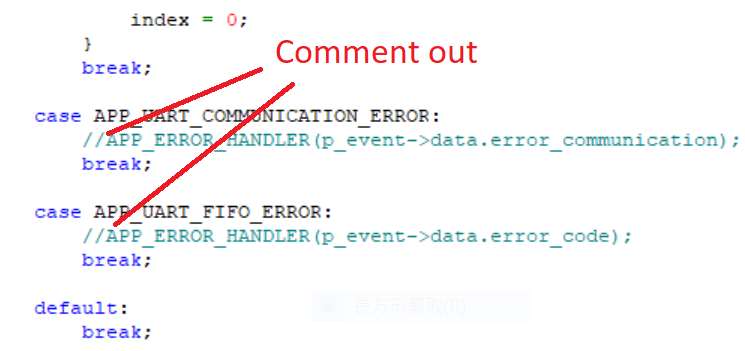
Step 4. Add code into main.c file in Application (..\examples\ble_peripheral\ble_app_uart\main.c)
(Please refer to: main.c file at: ..\examples\ble_peripheral\ ble_app_buttonless_dfu)


Step 5.
The code of file: sdk_config.h (..\examples\ble_peripheral\ble_app_uart\pca10040\s132\config\sdk_config.h)

inside Application needs to be modified.


Step 6. Adjust the IRAM1 value in Target after implementing DFU service:
Make sure the IRAM1 Value of *p_app_ram_start is modified from default: 0x20002AD8 0xD528 to
0x20002AE8 0xD518, as shown in the red frame in the bottom right corner.
In this case, the program should run/advertise successfully.


Step 7. Create a file of: nrf52832_xxaa.hex after building application code files.


Step 8. Create a bootloader setting file of nrf52832_bootloader_secure_settings.hex via DOS.
nrfutil settings generate –family NRF52 –application nrf52832_xxaa.hex –application-version 3 —
bootloader-version 2 –bl-settings-version 1 nrf52832_bootloader_secure_settings.hex –no-backup

※Stay tuned for Part 2: Combining and merging built files in the next article, scheduled release in next week(04-Sep-2024).


Technical guidelines provided by R&D Manager: Mr. MW Lee
Edited by Sales Manager: Ms. Mandy Chao


Raytac Corporation 勁達國際電子股份有限公司 
Raytac Corporation: A Bluetooth, Wi-Fi, and LoRa Module Maker based on
Nordic nRF54; nRF53: nRF52; nRF51; nRF7002
Semtech Specification: SX1262

Bluetooth Specification: BT5.4 ; BT5.3; BT5.2.
Wi-Fi Specification: Wi-Fi 6
LoRa Specification: LoRaWAN

All products are FCC/IC/CE/Telec/KC/RCM/SRRC/NCC Pre-Certified.
http://www.raytac.com
email: sales@raytac.com
Tel: +886-2-3234-0208
Secure DFU OTA for nRF52840 solution modules: Guide to create hex/zip file for implementation – #3(Combining/merging built files)

Following up – Part A: Bootloader (Click for article link) and Part B: Application (Click for article link)

We will be focusing on:

in this article.

IC: nRF52840
DK: PCA10056 (for nRF52840)
SDK: 17.1.0
Softdevice: s140_nrf52_7.2.0_softdevice.hex
IDE: Keil C
PC: Win 10


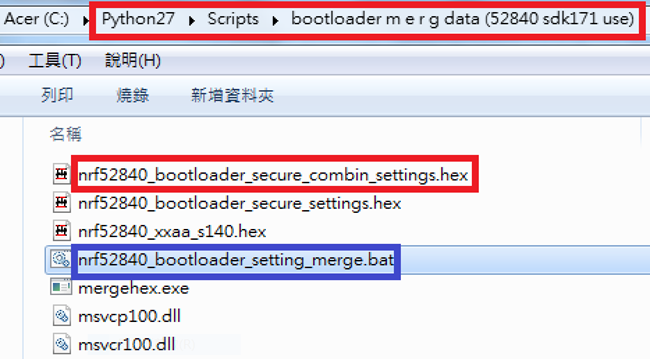
Step 1. Execute the combine batch file in bootloader (nrf52840_bootloader_setting_merge.bat) and generate file of nrf52840_bootloader_secure_combin_settings.hex :

@echo off
title = [ J-Link Tool ] %CD%
set nrfDir=C:\Program Files (x86)\Nordic Semiconductor\nrf5x\bin
set BS= nrf52840_bootloader_secure_settings.hex
set BL= nrf52840_xxaa_s140.hex
set BSBLCombind= nrf52840_bootloader_secure_combin_settings.hex
set path=%nrfDir%;%path%
pause
echo ———–merge image file——————-
mergehex.exe -m %BS% %BL% -o %BSBLCombind%
pause


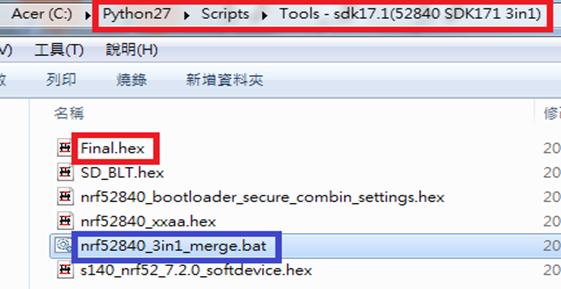
Step 2. Create a Final.hex file by 3-in-1 batch file(nrf52840_3in1_merge.bat)
※Note : This hex file is created for the production line to pre-load firmware into modules prior to shipment.

@echo off
title = [ J-Link Tool ] %CD%
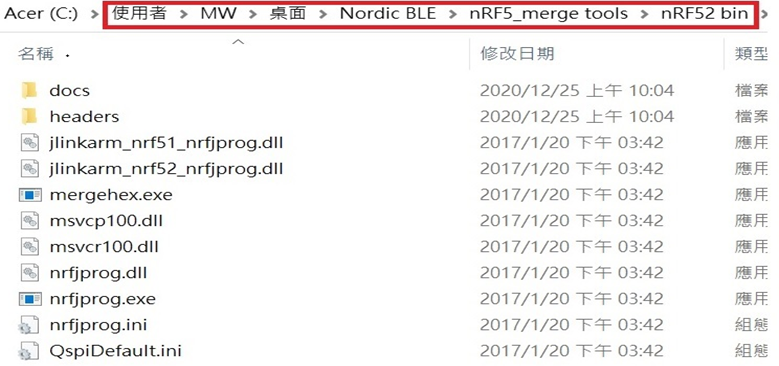
set nrfDir=C:\Users\user\Desktop\Nordic BLE\nRF5_merge tools\nRF52 bin
set SD= s140_nrf52_7.2.0_softdevice.hex
set BLT= nrf52840_bootloader_secure_combin_settings.hex
set APP= nrf52840_xxaa.hex
set SD_BLT=SD_BLT.hex
set Finalfile=Final.hex
set path=%nrfDir%;%path%
pause
echo ———–merge image file——————-
mergehex.exe -m %SD% %BLT% -o %SD_BLT%
pause
mergehex.exe -m %SD_BLT% %APP% -o %Finalfile%
pause


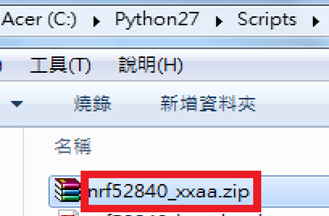
Step 3. Create a DFU(OTA).zip file of nrf52840_xxaa.zip
※Note : This zip file is created for end device DFU(OTA) implementation.

nrfutil pkg generate –hw-version 52 –sd-req 0x100 –application-version 0xFF –application
nrf52840_xxaa.hex –key-file private.pem nrf52840_xxaa.zip

The DFU OTA zip file will be derived.

※Note :
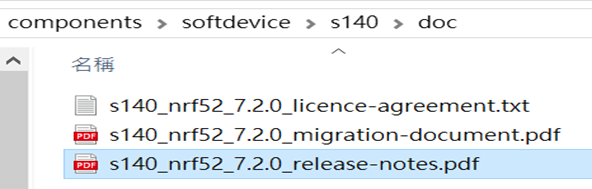
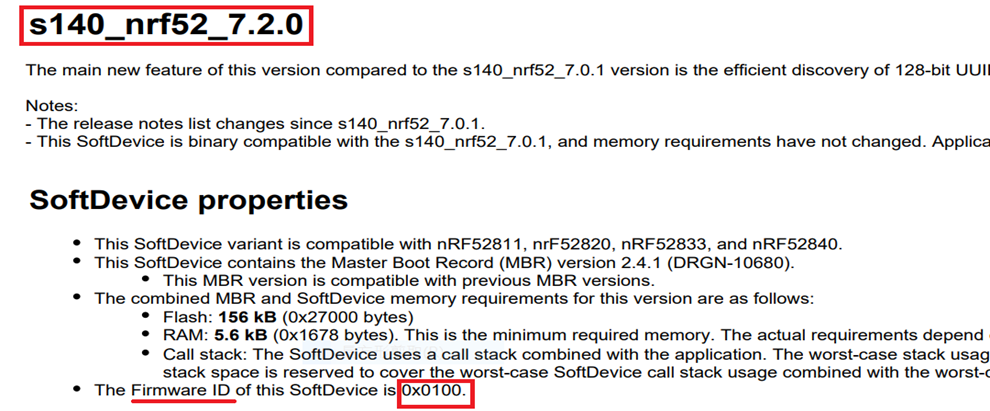
The “0x100" appeared in the above DOS code(in red font) is the FWID(Firmware ID) for s140_nrf52_7.2.0_softdevice.hex;
FWID can be found from the soft device documents on the Nordic website.


Step 4: Run DFU OTA (On mobile in this example)


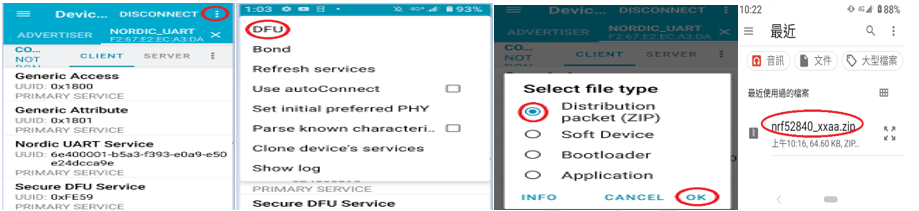
4A. Install the nRF Connect APP on mobile, with DFU OTA file: nrf52840_xxaa.zip. (Download link)


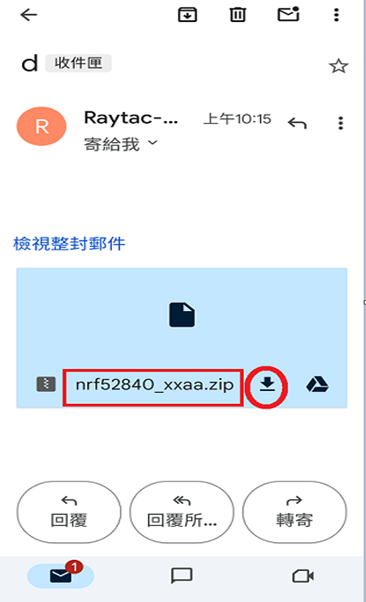
4B. Send nrf52840_xxaa.zip via email to mobile device after combination is done on PC, then download it.


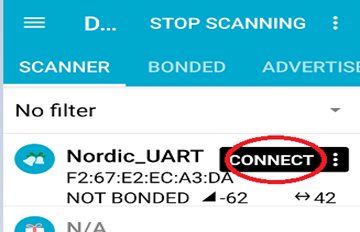
4C. Open nRF Connect APP and run connection;


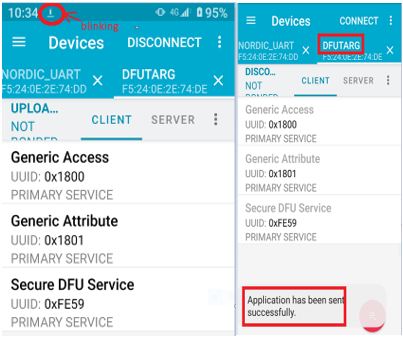
4D. Execute DFU and select “Distribution packet(ZIP)", thus starting the DFU OTA process.


4E. Start DFU OTA → exit the APP after DFU OTA is completed → restart the mobile device.


Secure DFU OTA for nRF52840 solution modules: Guide to create hex/zip file for implementation
Detailed links of articles:
Part A: Bootloader (Click for article link)
Part B: Application
(Click for article link)
Part C: Combining and merging built files
(Click for article link)


Technical guidelines provided by R&D Manager: Mr. MW Lee
Edited by Sales Manager: Mr. Tony Yin

Raytac Corporation 勁達國際電子股份有限公司 
Bluetooth & WiFi module maker based on Nordic nRF54, nRF53, nRF52, nRF7002 solution
BT5.4 &BT5.3 & BT5.2 & BT5.1 Qualified, FCC/IC/CE/Telec/KC/RCM/SRRC/NCC Pre-Certified.
Bluetooth Solution: nRF54, nRF5340, nRF52840, nRF52833, nRF52832, nRF52820, nRF52811, nRF52810, nRF52805, nRF51822
WiFi Solution: nRF7002
http://www.raytac.com
email: service@raytac.com
Tel: +886-2-3234-0208
Secure DFU OTA for nRF52840 solution modules: Guide to create hex/zip file for implementation – #2(Application)

Following up-Part A: Bootloader (Click for article link)

We will be focusing on:

in this article.

IC: nRF52840
DK: PCA10056 (for nRF52840)
SDK: 17.1.0
Softdevice: s140_nrf52_7.2.0_softdevice.hex
IDE: Keil C
PC: Win 10


Path: nRF5_SDK_17.1.0_ddde560\examples\ble_peripheral\ble_app_uart\pca10056\s140\arm5_no_packs

Before building Application code , some amendments need to be made regarding DFU-related settings and code inside Application:

Step 1.


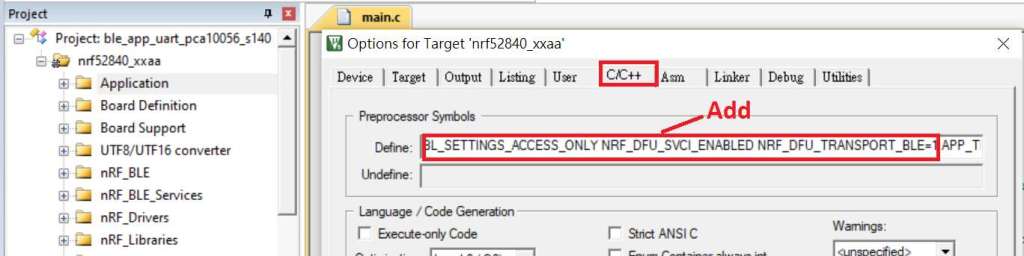
1A. Add code in definition in C/C++ :
BL_SETTINGS_ACCESS_ONLY NRF_DFU_SVCI_ENABLED NRF_DFU_TRANSPORT_BLE=1
(Total 3 steps definitions need to be set up)


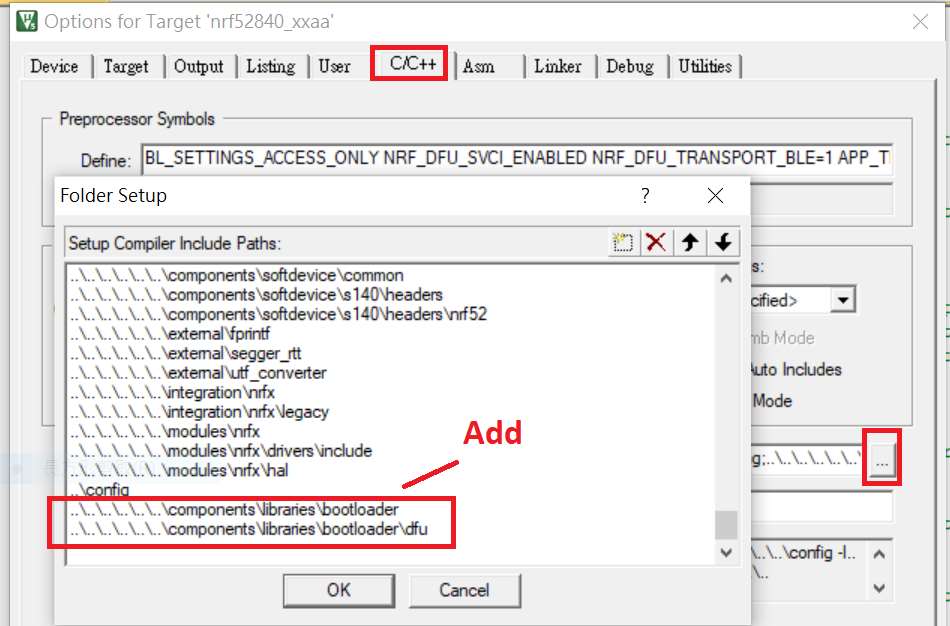
1B. Add “include path” in C/C++


1C. Add the .c files inside red frame in (Screenshots 1 & 2)
and the 2 groups of (nRF_DFU & nRF_SVC)(Screenshot 3) under Project(Screenshot 4)


1D. Add code into main.c file in Application (..\examples\ble_peripheral\ble_app_uart\main.c)
(Please refer to: main.c file at: ..\examples\ble_peripheral\ ble_app_buttonless_dfu)


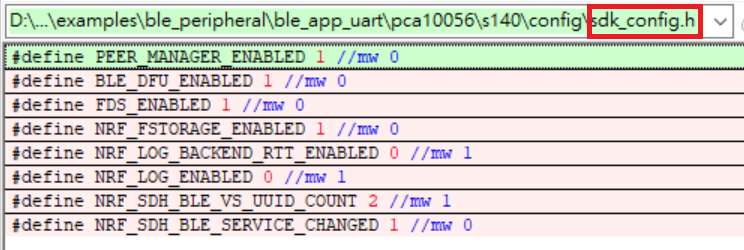
1E. The code of file: sdk_config.h (..\examples\ble_peripheral\ble_app_uart\pca10056\s140\config\
sdk_config.h) inside Application needs to be modified.


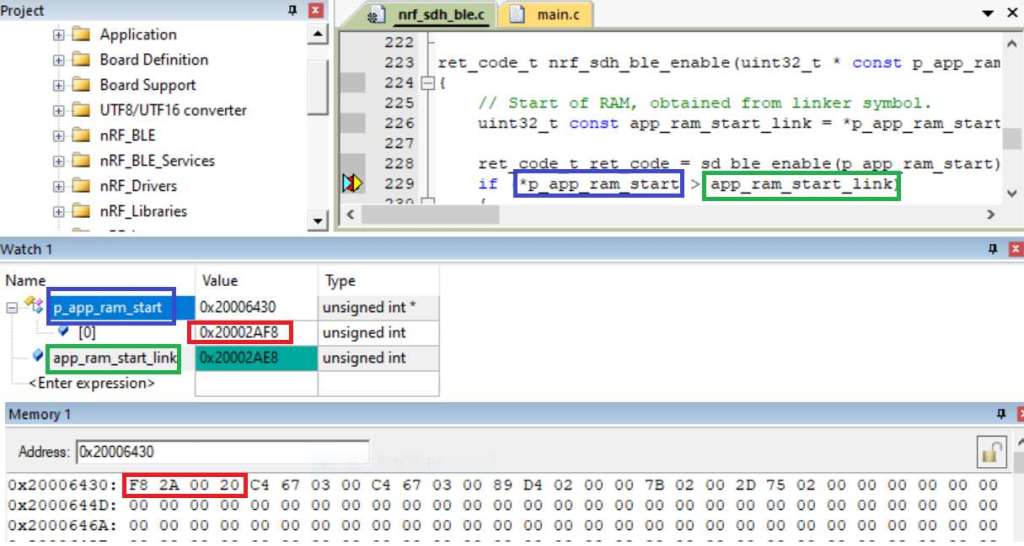
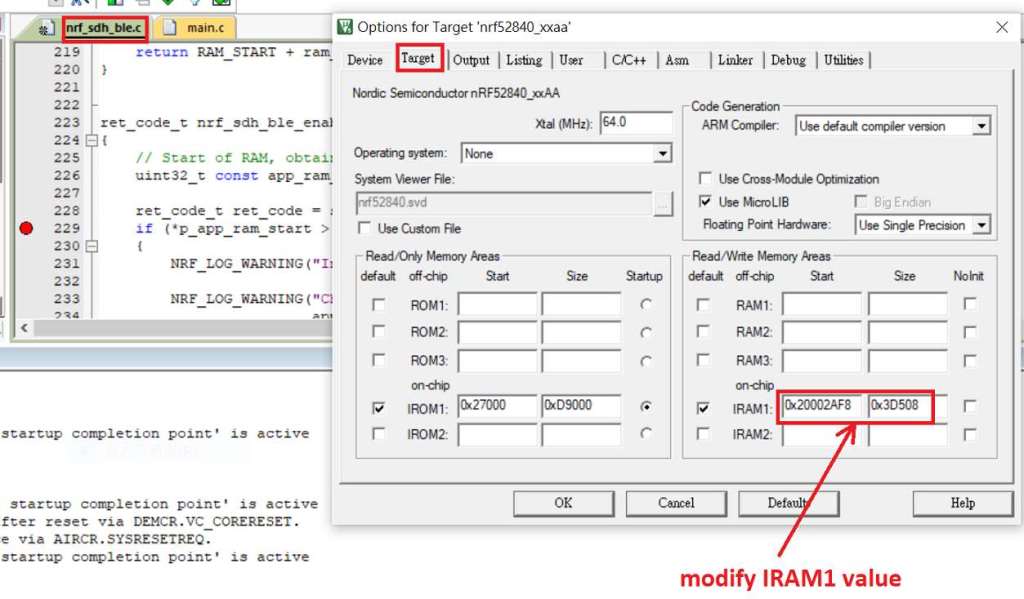
1F. Adjust the IRAM1 value in Target after implementing DFU service:
Check on the IRAM1 Value of *p_app_ram_start to be modified from default: 0x20002AE8 0x3D518 to 0x20002AF8 0x3D508, as shown in the red frame in the bottom right corner.
In this case, the program should run successfully.


1G: Create a file of: nrf52840_xxaa.hex after building application code files.


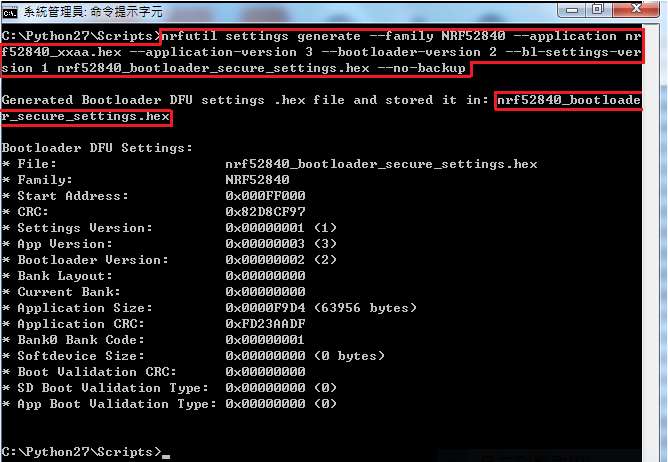
Step 2. Create a bootloader setting file of nrf52840_bootloader_secure_settings.hex : (via DOS)

nrfutil settings generate –family NRF52840 –application nrf52840_xxaa.hex –application-version 3 — bootloader-version 2 –bl-settings-version 1 nrf52840_bootloader_secure_settings.hex –no-backup


※Stay tuned for #3 – Part C: Combining and merging built files in the next article,

scheduled release in next week(05/06/2024).


Technical guidelines provided by R&D Manager: Mr. MW Lee
Edited by Sales Manager: Mr. Tony Yin

Raytac Corporation 勁達國際電子股份有限公司 
Bluetooth & WiFi module maker based on Nordic nRF54, nRF53, nRF52, nRF7002 solution
BT5.4 &BT5.3 & BT5.2 & BT5.1 Qualified, FCC/IC/CE/Telec/KC/RCM/SRRC/NCC Pre-Certified.
Bluetooth Solution: nRF54, nRF5340, nRF52840, nRF52833, nRF52832, nRF52820, nRF52811, nRF52810, nRF52805, nRF51822
WiFi Solution: nRF7002
http://www.raytac.com
email: service@raytac.com
Tel: +886-2-3234-0208
Secure DFU OTA for nRF52840 solution modules: Guide to create hex/zip file for implementation – #1(Bootloader)

Below are the following steps to implement Secure DFU OTA by using nRF52840 chip set, SDK17.1.0.
It consists of 3 parts:

Part A: Bootloader

Part B: Application (Click for article link)

Part C: Combining and merging built files (Click for article link)

In this article, we will be focusing on Part A: Bootloader.

Path: nRF5_SDK_17.1.0_ddde560\examples\dfu\secure_bootloader\pca10056_s140_ble\arm5_no_packs


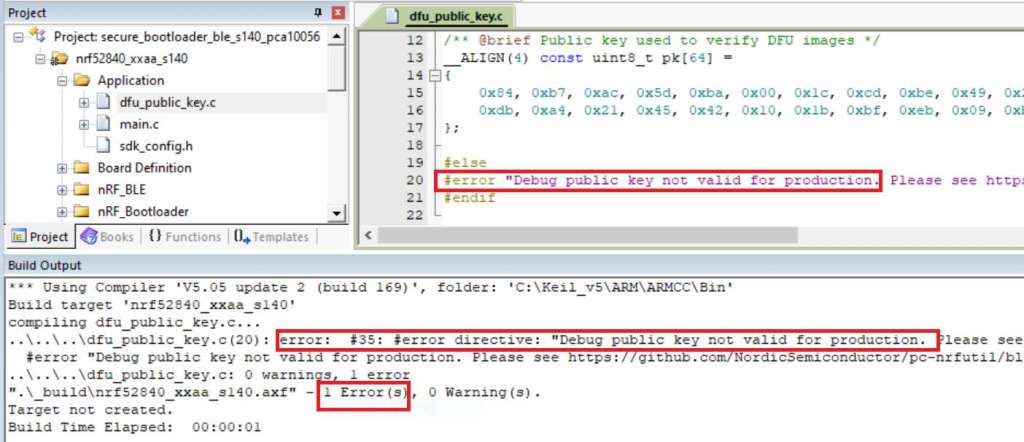
Step 1. An error may occur while building bootloader without a public key:
(Shown in red frames in below screenshot)


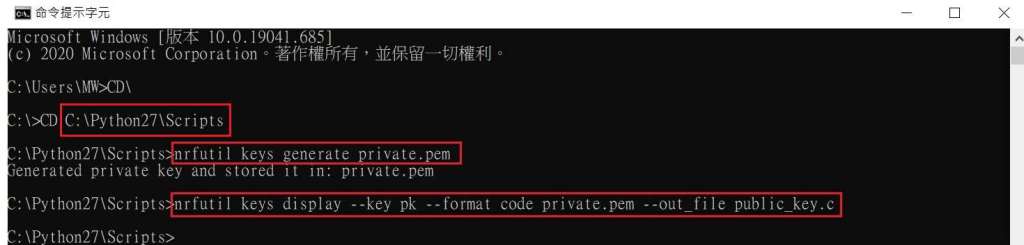
Step 2. How to generate the public key file in Bootloader?
A. Visit DOS at path: ..\Python27\Scripts
B. Then execute:

nrfutil keys generate private.pem
nrfutil keys display --key pk --format code private.pem --out_file public_key.c


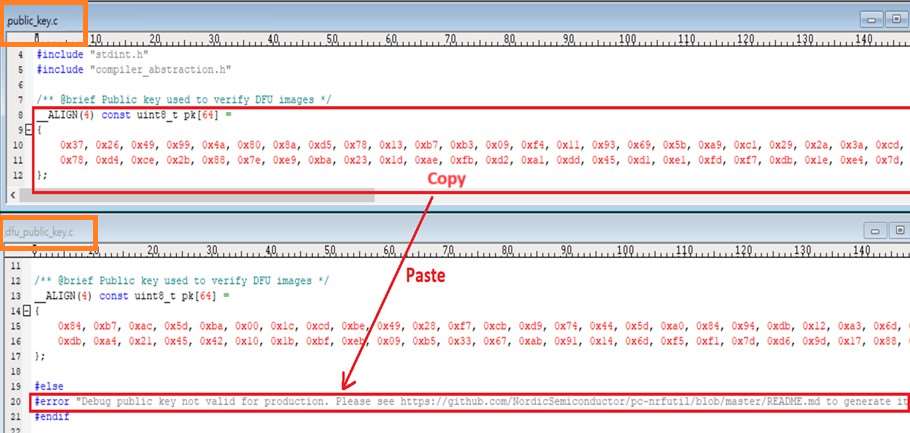
Step 3. Copy the pk[64] code from (public_key.c) into (dfu_public_key.c)
(Shown in red frames in below screenshot)

※Note: Make sure to save the 3 generated files:
private.pem
public_key.c
dfu_public_key.c


Step 4. Generate the bootloader file: nrf52840_xxaa_s140.hex after re-compiling the code files.


※Stay tuned for #2 – Part B: Application in the next article, scheduled release in next week(29/05/2024).


Technical guidelines provided by R&D Manager: Mr. MW Lee
Edited by Sales Manager: Mr. Tony Yin


Raytac Corporation 勁達國際電子股份有限公司 
Bluetooth & WiFi module maker based on Nordic nRF54, nRF53, nRF52, nRF7002 solution
BT5.4 &BT5.3 & BT5.2 & BT5.1 Qualified, FCC/IC/CE/Telec/KC/RCM/SRRC/NCC Pre-Certified.
Bluetooth Solution: nRF54, nRF5340, nRF52840, nRF52833, nRF52832, nRF52820, nRF52811, nRF52810, nRF52805, nRF51822
WiFi Solution: nRF7002
http://www.raytac.com
email: service@raytac.com
Tel: +886-2-3234-0208
How To Use nRF52840/nRF52833 module DevKit(MDBT50Q series) – 2024 Update – Applied to nRF5 SDK

Preface:
Here provides an easy introduction of How to set up of nRF52840 & nRF52833 Module Demo board MDBT50Q-DB-40 (for nRF52840) & MDBT50Q-DB-33 (for nRF52833)


MDBT50Q-DB-40  is a Demo Board built by Raytac’s MDBT50Q-1MV2  with Red PCBA deployed nRF52840 SoC with Bluetooth 5 & Thread Combo, with 1MB Flash Memory and 256KB RAM and Chip Antenna.
 
MDBT50Q-DB-33 is a Demo Board built by Raytac’s MDBT50Q-512K with Green PCBA deployed nRF52833 SoC with Bluetooth 5 & Thread Combo, with 512KB Flash Memory and 128KB RAM and Chip Antenna.
 
Both demo boards are Bluetooth BT5.4 qualified and FCC, IC, CE, Telec, KC, SRRC, RCM, NCC, WPC pre-certified.

Table of contents:

1.1 Hardware Set Up

1.2 Software Kits resources & preparations

1.3 Flash the ready firmware into Raytac’s module

1.4 DFU to MDBT50Q-DB-XX through USB interface 


1.1 Hardware Set Up
 
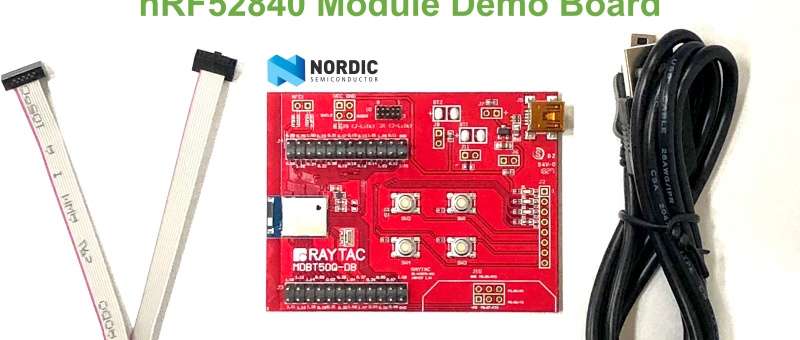
MDBT50Q-DB-XX package contains:
  • 1 x MDBT50Q-DB-40/MDBT50Q-DB-33
  • 1 x IDC Wire
  • 1 x Data/Power Mini USB Wire(for data transferring)

Where to buy MDBT50Q-DB-XX?

MDBT50Q-DB-40 (nRF52840 Solution)

MDBT50Q-DB-33 (nRF52833 Solution)
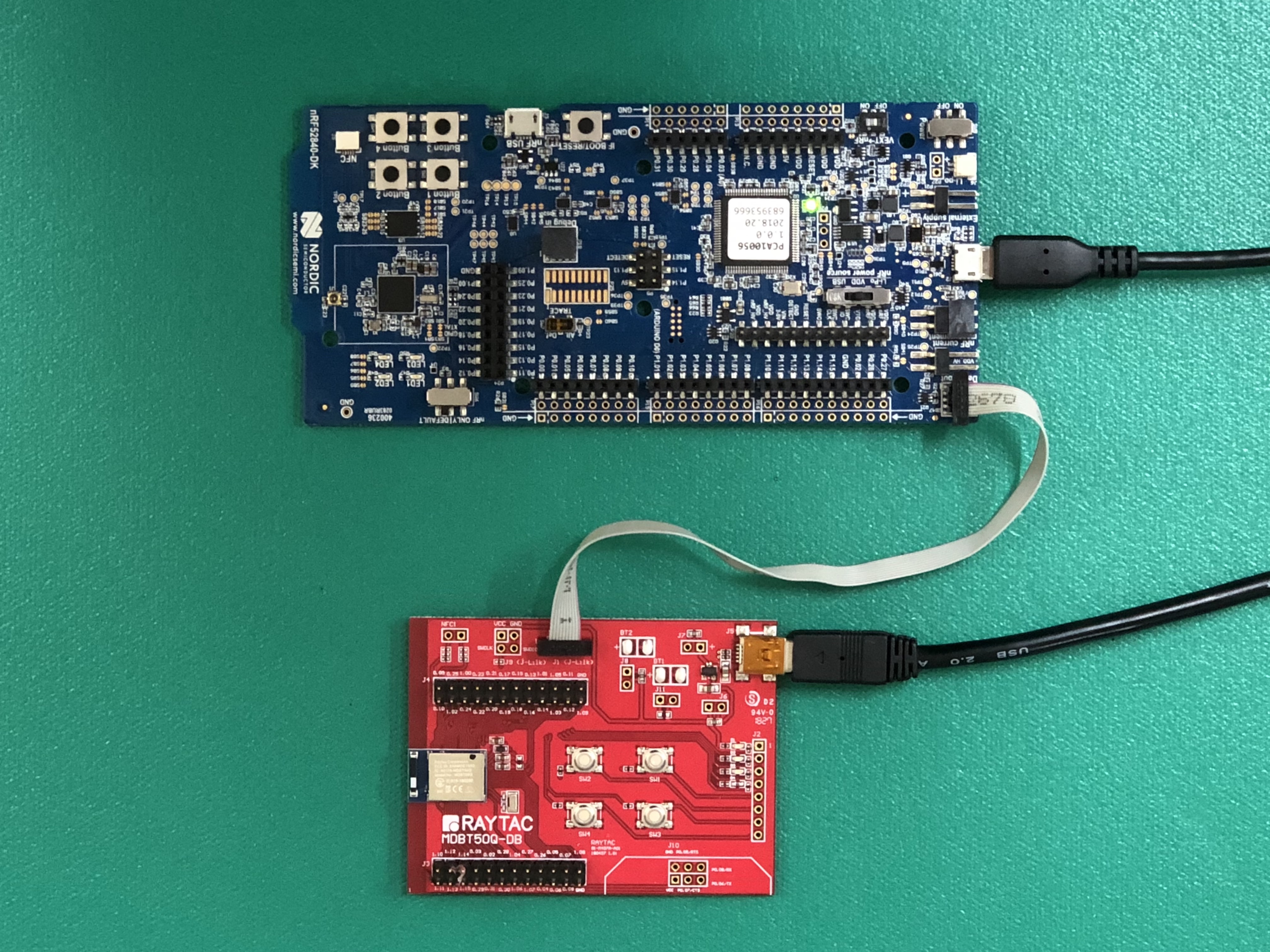
Connect Nordic NRF52-DK/NRF52840-DK Connect with MDBT50Q-DB-40 by IDC Wire

※Note: PCA10056 (NRF52840-DK) / PCA10040 (NRF52832-DK) / PCA10100(NRF52833-DK)

Power up MDBT50Q-DB-XX using Mini USB

IMG_0064.jpg
MDBT50Q-DB-40

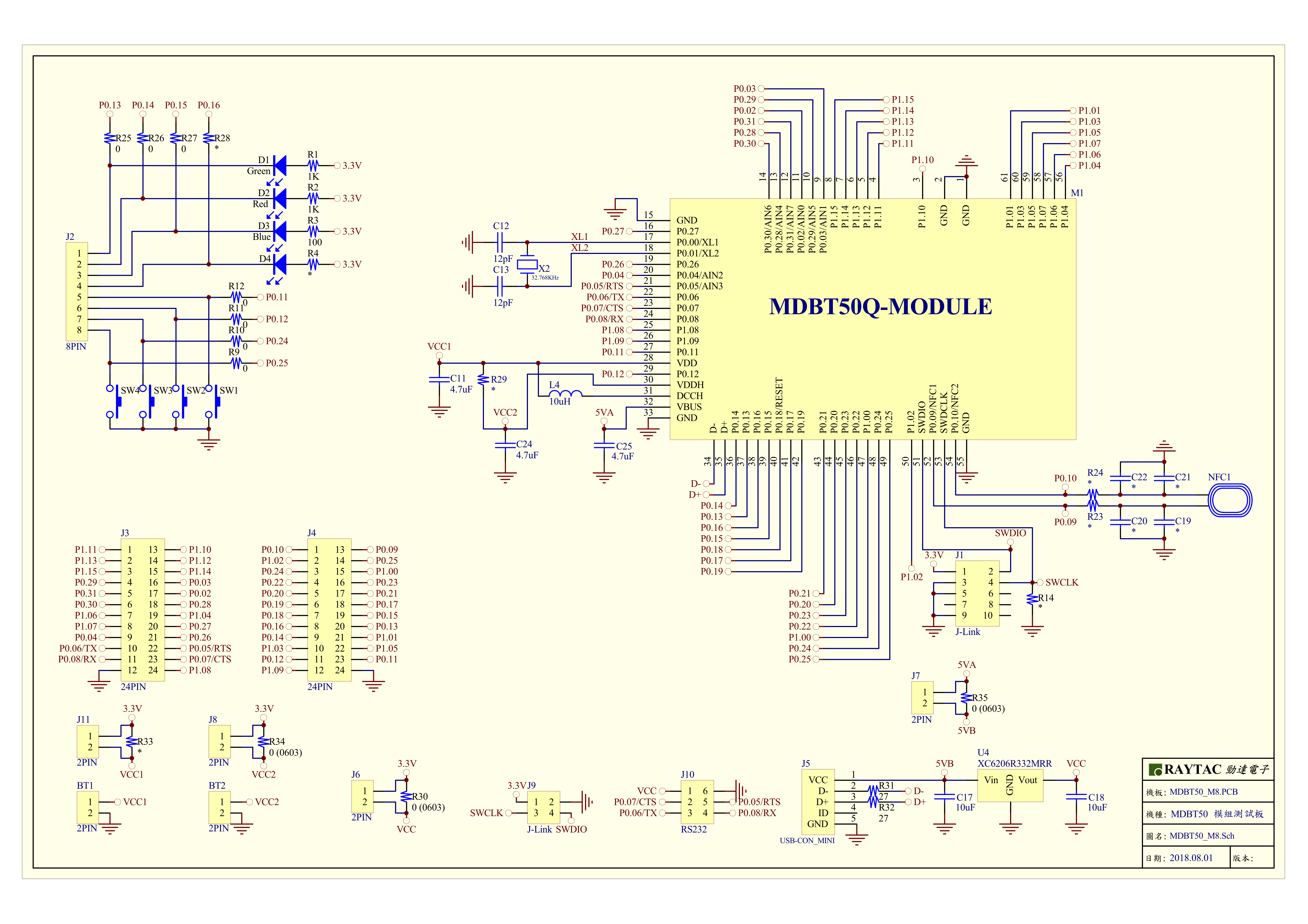
MDBT50Q-DB-40 Schematic:

MDBT50Q Demo Board Schematic-V2.jpg

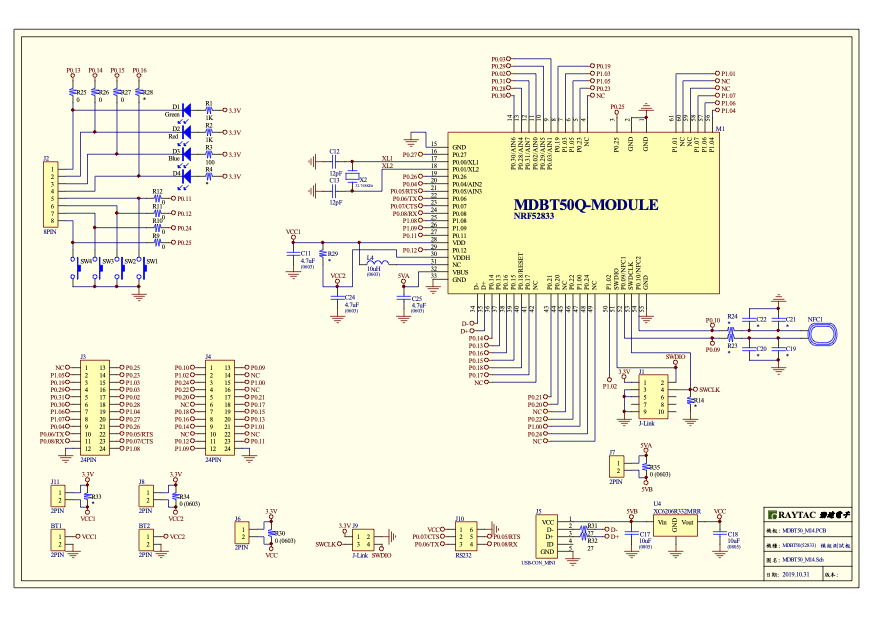
MDBT50Q-DB-33 Schematic:

MDBT50Q-DB-33 Schematic


1.2 Software kits resources & preparations

Resources:

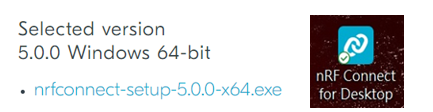
Download nRF Connect For Desktop (Please Click Me)

Download nRF Command Line Tools (Please Click Me)

Download NRF5 SDK (The latest V17.1.0) (Please Click Me)

Download Visal Studio Code(Please Click Me)

Preparations:

Option 1.  NRF5 SDK (The latest version V17.1.0)

  1. 1.0_ddde560\components\softdevice\s140\hex\ s140_nrf52_7.2.0_softdevice.hex
  2. 1.0_ddde560\examples\ble_peripheral\ble_app_uart\pca10056\s140\arm5_no_packs\_build\ nrf52840_xxaa.hex

*Tips: If you go with nRF5 SDK option, please consider to add a bootloader hex file if you’re going to make DFU requests in the future.

Option 2.  NCS (Recommended version V2.6.0)

螢幕擷取畫面 2024-06-04 161138

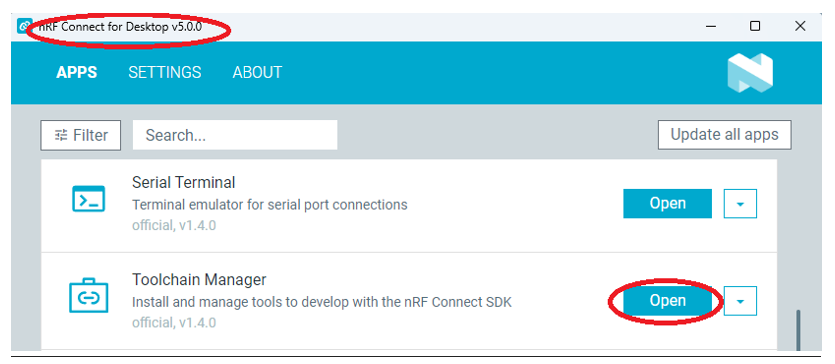
2A.  Find “Toolchain Manager” in app nRFConnect for Desktop

螢幕擷取畫面 2024-06-04 161251

2B.  Install nRFConnect SDK V2.6.0 to your working site.

螢幕擷取畫面 2024-06-04 161333

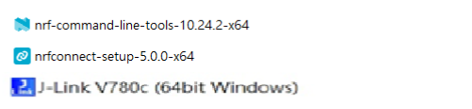
2C. Prepared with the latest version of nRF Command Line Tools
螢幕擷取畫面 2024-06-04 161627
 
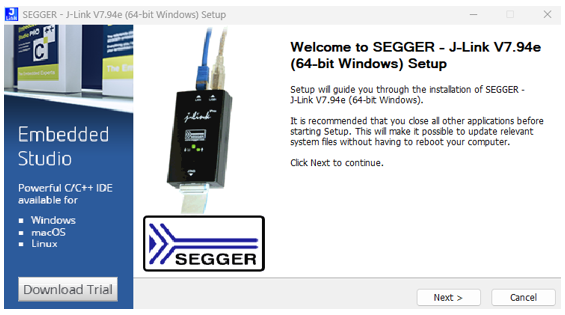
**Note: SEGGER J-LINK Upgrade message might pop up while you’re doing above download.
螢幕擷取畫面 2024-06-04 161724
 
2D. Locate all the necessary kits for programming in PC

螢幕擷取畫面 2024-06-04 161810


1.3 Flash the ready firmware into Raytac’s module

Intro:

With the ready built code of zephyr.hex (Made through NCS) or nrf52840_xxaa.hex & s140_nrf52_7.2.0_softdevice.hex (Made through nRF5-SDK) file for application, we would like to move onto  flashing code into the MDBT50Q BLE module(mounted on MDBT50Q-DB-XX demo board).

Step1.  

Execute nRF Connect >>  Programmer  > > Open

螢幕擷取畫面 2024-06-04 161858

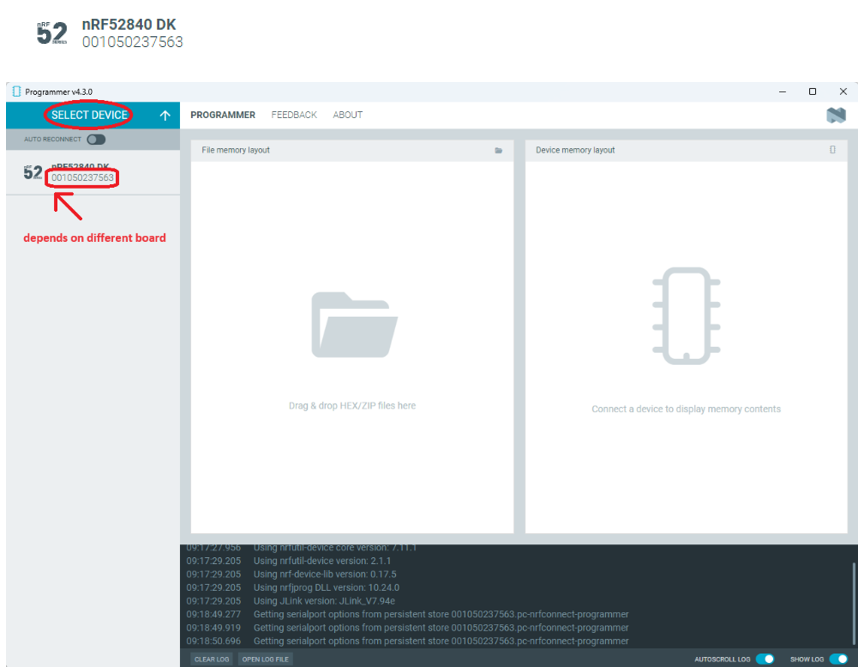
Step2.

Click “SELECT DEVICE” >> Find icon “nRF52840 DK” which is detected by the programmer app

螢幕擷取畫面 2024-06-04 162005

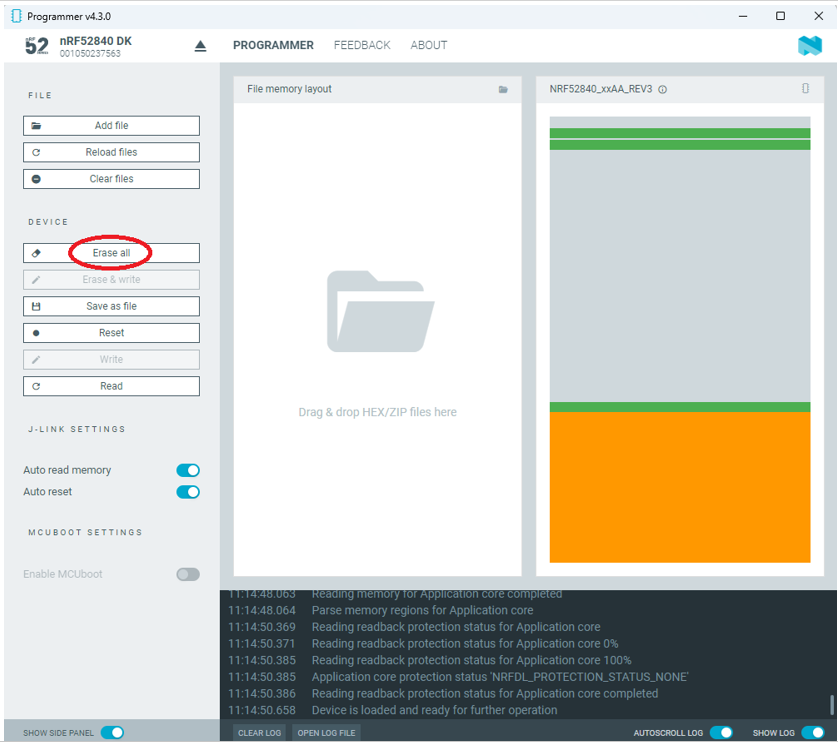
Step3.

Click “nRF52840 DK”>> “Erase All” to remove flash memory inside MDBT50Q BLE Module

螢幕擷取畫面 2024-06-04 162106

Step4.

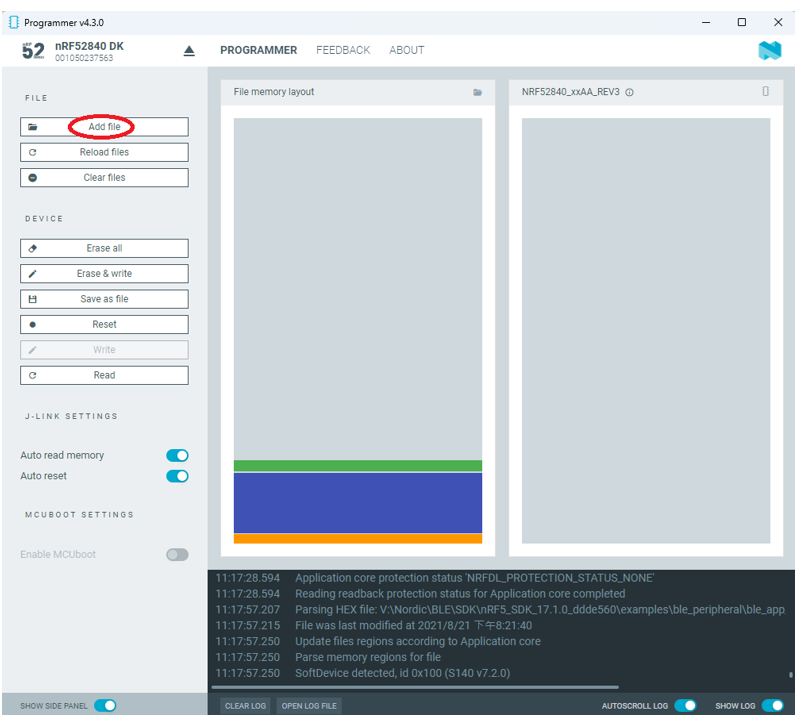
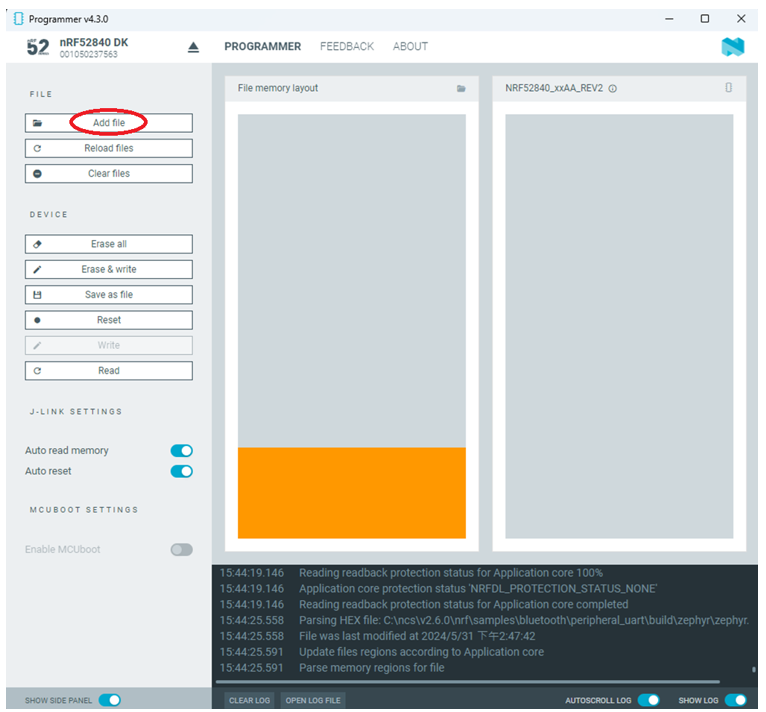
Click “Add File” to load application zephyr.hex into programmer

螢幕擷取畫面 2024-06-04 162202

!! Important Tips:!!


  • If you’re using nRF Connect SDK for code compiling as above, Program the hex file to MDBT50Q BLE module on the MDBT50Q-DB Demo board:
    – C:\ncs\v2.6.0\nrf\samples\bluetooth\peripheral_uart\build\zephyr\zephyr.hex
  • If you’re using NRF5 SDK for code compiling, do make the 4-in-1 hex file (merged ready) before programming it to MDBT50Q BLE module.  It includes the 4 hex files below:

(1) bootloader.hex

(2) bootloader_setting_file.hex

(3) s140_nrf52_7.2.0_softdevice.hex

(4) nrf52840_xxaa.hex

螢幕擷取畫面 2024-06-04 162300


1.4 DFU to MDBT50Q-DB-XX through USB interface

Intro : Before DFU implement , Please make sure the bootloader file has been installed in your MDBT50Q BLE module.

※Note: NRF52840 SoC supports USB interface to utilize Device Firmware Update (DFU).

How do I prepare the software??

  • Download nrfutil.exe file from Nordic website .
  • It is workable to do List, Program, Recover, Erase, and operations with nRFutil device command to Nordic device.
  • Open DOS mode to install device command type: nrfutil install device

(Jocelyn) How To Use NRF52840 NRF52833 module Dev Kit (MDBT50Q Series) 2024 version - Release file

How do I setup the hardware??

  1. Press Switch 4 and hold
  2. Power up Demo Board
  3. Blue LED Lights on
  4. Demo Board successfully enters into USB DFU Mode

螢幕擷取畫面 2024-06-04 162504

How do I prepare the firmware??

**USB DFU works only in DOS mode.

**USB DFU only works when USB Bootloader installed in current loaded firmware (inside BLE Module)

A single, merged 4-in-1 hex file is required, which includes:

Bootloader, Bootloader setting, Softdevice, and Application.

Firmware DFU requires a .zip file.

USB DFU Execution Steps:

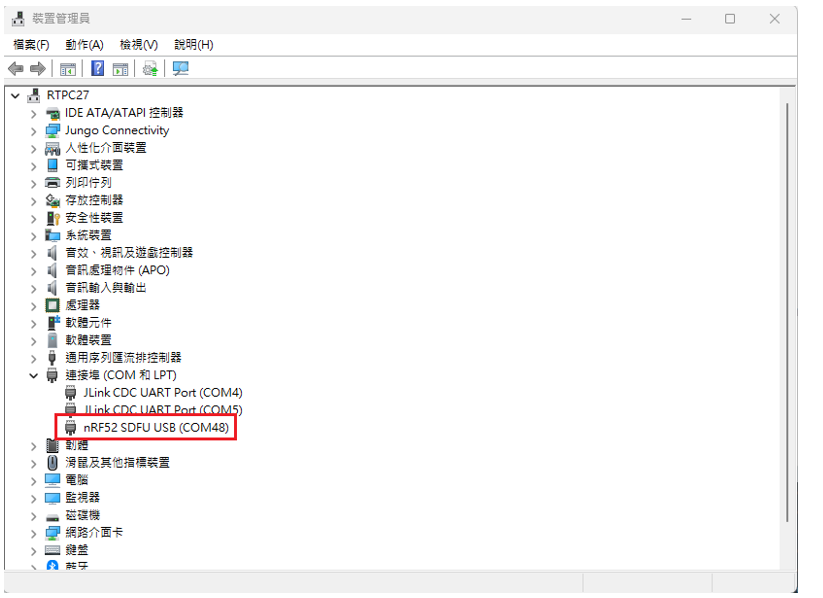
Step 1. When Blue LED Lights on with MDBT50Q-DB (Ready to enter USB DFU Mode)

Step 2. Find out Com Port No. “nRF52 SDFU USB(COMxx)”

螢幕擷取畫面 2024-06-04 162542


Step 3. Execute USB DFU

Option 1. Using device program command:

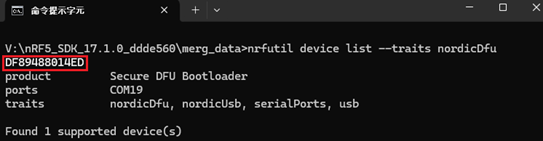
(1) List the devices with a DFU trigger interface by running:

nrfutil device list –traits nordicDfu

Option1-1

(2) Program new firmware to a device identified by its serial number by running:

nrfutil device program –firmware .zip nrf52840_xxaa.zip –serial-number XXXXXXXXXXXX

Option1-2

Bluetooth Project: How to program your firmware to module

After setup been done, here comes the next question: How to program the firmware in to the module. We are using some simple instruction in below for reader’s quick reference.

Hardware

You will need a Nordic nRF5X DK or a Segger J-link as programmer to load the firmware. To use Nordic nRF5X DK to debug the SoC as well, you will need to order corresponding nRF5X DK to match the SoC number. For example, order nRF52840 DK to debug nRF52840 SoC or order nRF52 DK to debug nRF52832/52810 SoC. But if you are only using it as programmer, any version of nRF5X DK will work as we only use the J-link on this board.

Software

Please download Nordic nRFGo Studio for programming. Remember to install nRF5X Command Line Tools if the board was not detected by nRFGo Studio. Once they are all connected, you can then start programming. Please make sure to “erase all” every time before programming.

For more tutorials and demo of sample code, please visit Nordic’s DevZone and Infocenter where have ample resources to utilize.

Programing 

SoftDevice + Application

  1. Erase all first. Then program Softdevice and follow by Application code.
  2. Or you may combine code as stated in above. Erase all and follow by programing the combined code.

SoftDevice + Bootloader+ Application

  1. Either Erase all first.  Program the Softdevice and follow by Bootloader. and then use DFU to update the application code.
  2. Or suggested having a combined code (SofDevice+Application+Bootloader) for program. Simply erase all and follow by programming the combined code.
*Remark
Bootloader is needed for DFU (OTA) Function.
SDK 11 (included) and before – a legacy DFU method, which is simple but less security
SDK 12 (Included) and after – a latest DFU method, which has higher security.

To easy customer’s IoT device mass production, Raytac provide code pre-program service into module before shipment.  There are requirements listed in below for customers who need the service!

  1. A single, combined hex file is required. Please combine softdevice and application or/and bootloader (depending on your firmware design) together before programming. This will shorten programming time and help to manage your code easier. If you are not familiar with merging firmware, please download the instruction from the link:     https://mega.nz/#!Qg5UBJTQ!POWmmNNdapGqefHpB10YjpcuExLWwXnxDfBzcVrsTOw
  2.  Need a simple method to check programming status. The easiest way is to check the device name if device will broadcast device name after programming is done; or use I/O to trigger LED and its behavior. This does not aim to test any or full function of your device, only a simple method for the operator to know programming status.

nRF52840 MDBT50Q Module

Raytac Corporation 勁達國際電子股份有限公司
A company of Abietec
Bluetooth & WiFi module maker based on Nordic nRF54, nRF53, nRF52, nRF7002 solution
BT5.4 &BT5.3 & BT5.2 & BT5.1 Qualified, FCC/IC/CE/Telec/KC/RCM/SRRC/NCC Pre-Certified. Bluetooth Solution: nRF54, nRF5340, nRF52840, nRF52833, nRF52832, nRF52820, nRF52811, nRF52810, nRF52805, nRF51822 WiFi Solution: nRF7002
www.raytac.com
email:service@raytac.com
Tel: +886.2.3234.0208
Nordic nRF52810 Module MDBT42Q-P192K by Raytac in Mass Production

With Nordic nRF52810 SoC volume production, Raytac announced nRF52810 module MDBT42Q-P192K and MDBT42Q-192K will be available by 2017/11

nRF52810 SoftDevice S112 Released

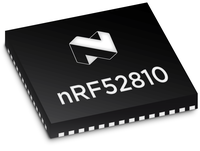
nRF52810 is an ultra-low power 2.4 GHz wireless system on chip (SoC) integrating the an ARM® Cortex®-M4 CPU with 24K RAM and 192K flash memory, supports BT5.0 (BLE),  , the ANT™ protocol, and a range of proprietary 2.4 GHz protocols.
Differ from nRF52832 solution which developed based on S132 Softdevice, Nordic has released S112 for nRF52810 in order to increase the flexibility of application code in limited flash memory size.
Raytac strongly suggest all customer to download the product specification and Softdevice in below link for further nRF52810 development.
 
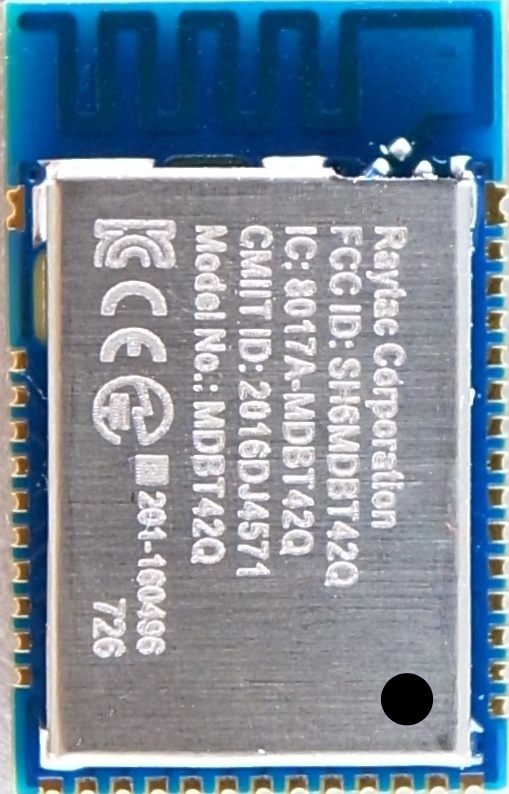
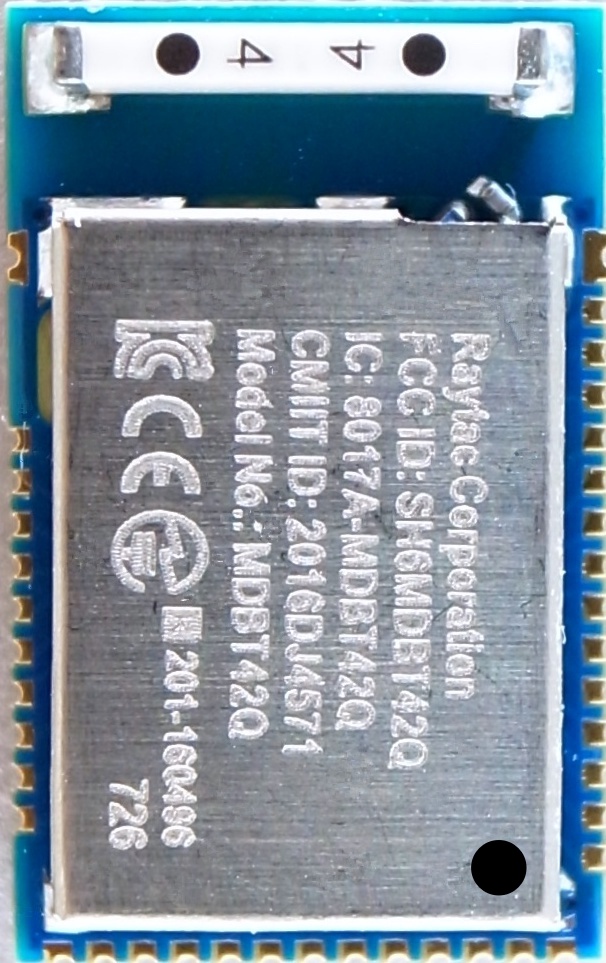
Raytac, meanwhile, has released MDBT42Q series module correspondent to nRF52810 solution. MDBT42Q series module is a pin to pin design for both nRF52832 and nRF52810 solution and equipped 2 kinds of antenna, Chip antenna and PCB antenna.
nRF52810 solution module MDBT42Q chip antenna P/N.: MDBT42Q-192K
nRF52810 solution module MDBT42Q PCB antenna P/N.: MDBT42Q-P192K
nRF52810 module MDBT42Q Specification
  nRF52810 Module MDBT42Q-P.jpg               nRF52810 Module MDBT42Q.jpg
Raytac Corporation
A BT4.1 & BT4.2 & BT5 module maker based on Nordic nRF51 & nRF52 solution 
(nRF51822 & nRF51422 & nRF52832 & nR52810 & nRF52840)
www.raytac.com            Tel: +886.2.3234.0208
email: service@raytac.com

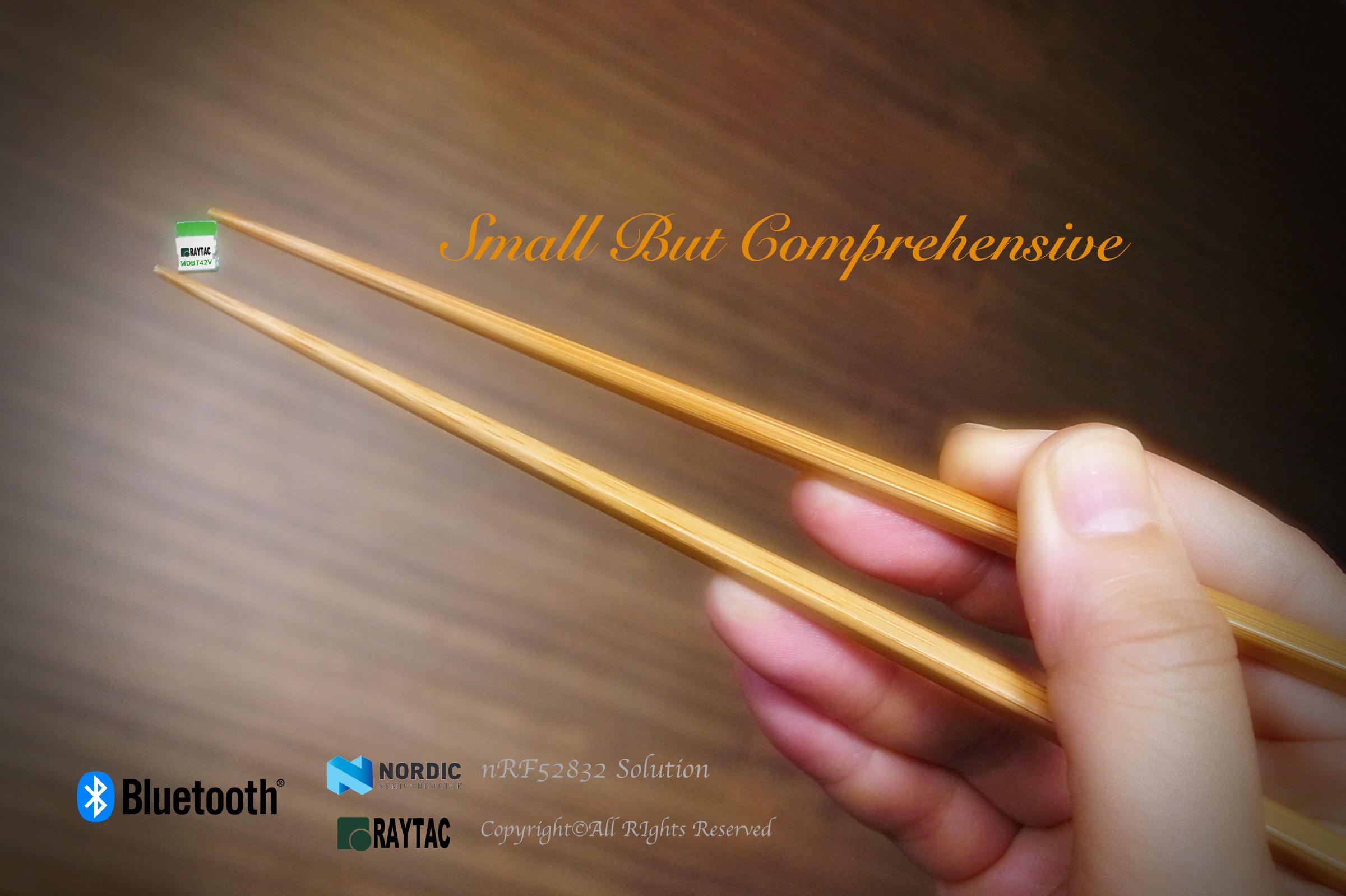
Raytac MDBT42V, Small But Comprehensive

Raytac BT5 module MDBT42V series designed to provide developers of Internet of Things (IoT) and wearable connected products.
Nordic Module-nRF52832- MDBT42V.JPG

Nordic Released S132 V5.0 Concurrent multi-role Bluetooth 5 protocol stack

Nordic latest released SoftDevice S132 v5.0 is a Bluetooth 5 protocol stack. It works for  nRF52832 and nRF52810 multi-protocol SoCs. The S132 not only supports up to 20 connections, but also offers following 4 Bluetooth low energy roles:

  • Central
  • Peripheral
  • Broadcaster
  • Observer