Raytac Product Change Notice(PCN) Announcement for Nordic SoC USB-A Dongle – MDBT50Q-RX Series

Raytac Corporation would like to inform all customers and partners of an official Product Change Notice: PCN-25100801 regarding the following product series:

Affected Series
MDBT50Q-RX Series (nRF52840/833 based USB-A dongles)

Affected Models
MDBT50Q-RX (Product Link)
MDBT50Q-RX-33
MDBT50Q-RX-ATM (Product Link)
MDBT50Q-RX-ATMS

Reminder
This PCN involves:

  1. Update of Raytac’s company logo on the nameplate, and
  2. Addition of NCC logo on the back label.

There are no changes to product function, performance, quality, form factor, or safety compliances. All existing certifications and technical documentations remain valid.

We kindly invite our customers, distributors, and partners to update your records accordingly. For any questions or support regarding this update, feel free to reach out via: service@raytac.com.

Full details of the PCN please see below(Click on the images to zoom in).
Remark: Please take note of the final shipment date.


Edited by Business Development Manager: Tony Yin

Raytac Corporation 勁達國際電子股份有限公司 / Raytac Corporation (USA) / abietec Inc.
A Bluetooth, Wi-Fi, and LoRa Module Maker/ODM & OEM Manufacturer based on
Nordic nRF54; nRF53: nRF52; nRF51; nRF7002
Semtech Specification: SX1262


Bluetooth Specification: BT6 ; BT5.4 ; BT5.3 ; BT5.2.
Wi-Fi Specification: Wi-Fi 6
LoRa Specification: LoRaWAN


All products are FCC/IC/CE/Telec/KC/RCM/SRRC/NCC/WPC/RoHS/Reach Pre-Certified.
http://www.raytac.com
https://www.raytac.com/contact/
email: sales@raytac.com
Tel: +886-2-3234-0208(TW)/+1-626-217-3139(USA)

Transition tips for program from MDBT50Q-RX (USB-A) to MDBT50Q-CX (USB-C)  with current NRF52840 project

Intro:

This is a guidance provided for those who is going to transit (or replicate) their project from Raytac MDBT50Q-RX (USB-A Dongle) to MDBT50Q-CX(USB-C Dongle).  In addition to the hardware spec change (Compact Size , LED, Button, Pin definition change) , the key firmware configuration should be made with changes to fit new USB-C Dongle MDBT50Q-CX.


RX-1                    CX-1

    MDBT50Q-RX                           MDBT50Q-CX


 Table of Contents:

1. Comparison chart: MDBT50Q-RX(USB-A) & MDBT50Q-CX(USB-C)

2. Firmware configuration

3. Create a merged hex file (2 in 1 or 4 in 1)

4. Firmware flashing process


1. Comparison chart: MDBT50Q-RX & MDBT50Q-CX

Comparison chart


2. Firmware configuration : MDBT50Q-RX → MDBT50Q-CX

Edit your current MDBT50Q-RX firmware with configuration change to align the PIN change to accommodate the hardware change.

Option 1. Using nRF5 SDK:

Make the definition set up of LED, BUTTON pin in the highlighted 4 sections.

Firmware configuration-nRF5


Option 2. Using NCS V2.6.X:

Use the board name: nrf52840dongle_nrf52840 and add the overlay file:

nrf52840dongle_nrf52840.overlay to the program (Devicetree Overlays),

then configure the below code definition into the overlay file:

/ {
   leds {
             compatible = “gpio-leds";
             led0_green: led_0 {
                      gpios = <&gpio0 6 GPIO_ACTIVE_LOW>;
                      label = “Green LED 0″;
             };
             led1_red: led_1 {
                     gpios = <&gpio0 8 GPIO_ACTIVE_LOW>;
                     label = “Red LED 1″;
             };
};

  buttons {
  compatible = “gpio-keys";
  button0: button_0 {
                  gpios = <&gpio1 6(GPIO_PULL_UP | GPIO_ACTIVE_LOW)>;
                  label = “Push button switch 0″;
                                   };
};
};

Firmware configuration-NCS


3. Create a merged hex file (2-in-1 or 4-in-1 hex file)


3A. Bootloader public key product

nrfutil keys generate public_key.pem → for zipping new firmware

nrfutil keys display –key pk –format code public_key.pem –out_file public_key.c

→ include public key to compile bootloader hex file

3A-1

3A-2


3B. Examples Demo

nRF5 SDK: nRF5_SDK_17.1.0_ddde560\examples\ble_peripheral\ble_app_uart\pca10056\s140

NCS V2.6.X: ncs\v2.6.0\nrf\samples\bluetooth\peripheral_uart


3C. How to generate bootloader setting file (if you need bootloader):

nrfutil.exe settings generate –family NRF52840 –application nrf52840_xxaa.hex –application-version 255 –bootloader-version 2 –bl-settings-version 1 bootloader_settings.hex


3D. Merge and create a 2-in-1 or 4-in-1 hex file

a). Merge 2-in-1 (no Bootloader file required):

mergehex.exe -m s140_nrf52_7.2.0_softdevice.hex nrf52840_xxaa.hex -o merge.hex

3D-a


b). Merge 4-in-1 (with Bootloader file & Bootloader settings file required):

mergehex.exe -m bootloader.hex bootloader_settings.hex  s140_nrf52_7.2.0_softdevice.hex nrf52840_xxaa.hex -o merge.hex

3D-b


4. Firmware flashing process

MDBT50Q-RX(USB-A):Manual wiring is required to have the firmware uploaded.

Please refer to the article: Firmware Coding & DFU onto MDBT50Q-RX

MDBT50Q-CX(USB-C):Built-in open bootloader included for simple DFU process..

Please refer to the article: User Manual of MDBT50Q-CX (nRF52840/nRF52833-based USB-C Dongle)


Edited by Sales Manager:
 Ms. Jocelyn Tsai
Technical guidance provided by Firmware Deputy Manager: Mr. Stanley Huang

Raytac Corporation 勁達國際電子股份有限公司
Bluetooth & WiFi & LoRa module maker based on Nordic nRF54, nRF53, nRF52, nRF7002 solution
BT5.4 &BT5.3 & BT5.2 & BT5.1 Qualified, FCC/IC/CE/Telec/KC/RCM/SRRC/NCC/WPC Pre-Certified.
Bluetooth Solution: nRF54, nRF5340, nRF52840, nRF52833, nRF52832, nRF52820, nRF52811, nRF52810, nRF52805, nRF51822
WiFi Solution: nRF7002
http://www.raytac.com
email: sales@raytac.com
Tel: +886-2-3234-0208

User Manual of MDBT50Q-CX (nRF52840/nRF52833-based USB-C Dongle)

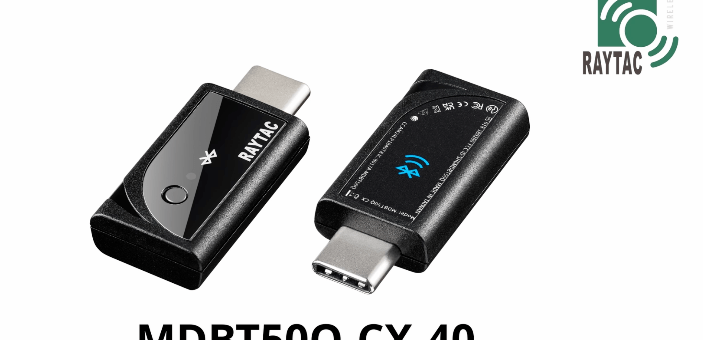
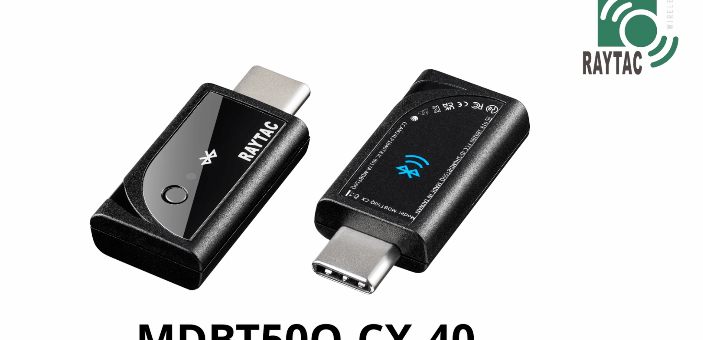
MDBT50Q-CX is an advanced version of Raytac’s MDBT50Q-RX(USB-A Dongle).

MDBT50Q-CX has a more compact size, equips an up-to-date Type C USB Connector, and it has a built-in open bootloader for simple DFU process.

If you’ve been developing projects using MDBT50Q-RX in the past, you can find out in this manual how MDBT50Q-CX makes firmware compiling and loading much easier than before.

If you want to load firmware into MDBT50Q-CX, no wiring is needed. 

Simply plug the dongle into your device and USB DFU will be available.

MDBT50Q-CX (USB-C Dongle, nRF52840/nRF52833 solution): Product link
Size: 15.10 x32.85mm (0.59×1.29inches)


Table of Contents

A. Hardware intro

B. Software development environment setup

C. Firmware Implementation with NCS (nRF Connect SDK) or NRF5 SDK

D. Execute DFU (Device Firmware Update)


A. Hardware Intro

 <Pin Allocation>

2

< Schematic> (Click on the image to redirect to product page for Higher resolution photo)
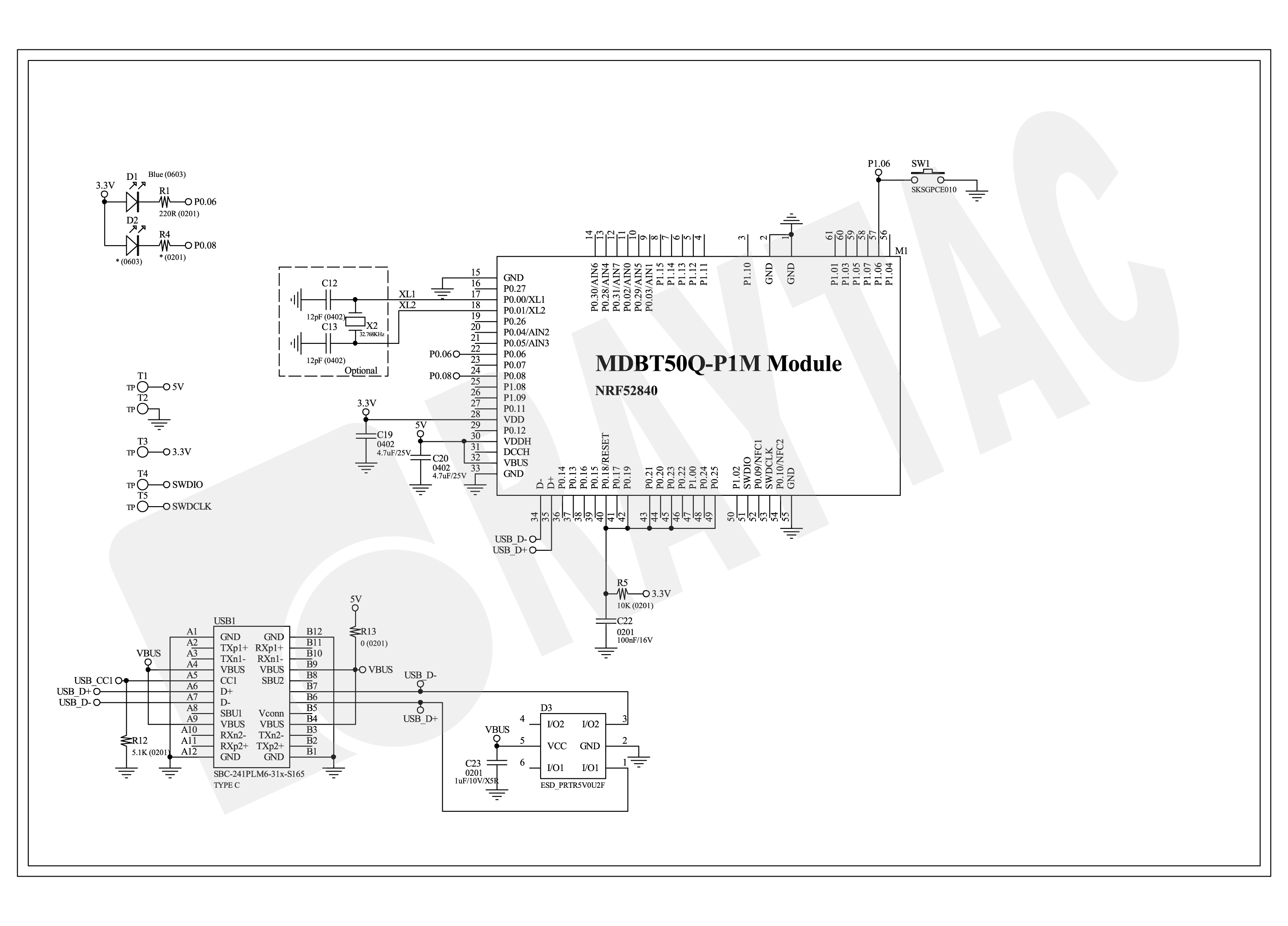
Schematic Spec_MDBT50Q-CX_-240806


B.  Software development environment setup

Option 1. Compile in NCS(nRF Connect SDK)

(1) Install nRF Connect for Desktop:

B1

(2) Install Toolchain Manager and Programmer

B2

(3) Install nRF Connect SDK (NCS) → V2.6.0 is recommended.

B3

Option2. Compile in nRF5 SDK

(1) Download open source nRF5 SDK (Recommend: download the latest version:  17.1.0)

B4

(2) Install Segger Embedded Studio v5.42a (Recommended version)

https://www.segger.com/downloads/embedded-studio/

B5

※Welcome to contact Raytac sales team for v5.42a file of Segger Embedded Studio.


C. Implement firmware in NCS (nRF Connect SDK) or NRF5 SDK

We will use the two example codes below for this demo:

C1. NCS (nRF Connect SDK):

Example code path: \v2.6.0\nrf\samples\bluetooth\peripheral_uart

C2. nRF5 SDK:

Example code path: \nRF5_SDK_17.1.0_ddde560\examples\peripheral\usbd_ble_uart


C1. NCS (nRF Connect SDK): (Using nRF Connect SDK V2.6.0)

Step C1-1. Add build configuration to Board name: nrf52840dongle_nrf52840

C1

Step C1-2. Disable DCDC & DCDCHV by adding the below code into  prj.conf  file

CONFIG_BOARD_ENABLE_DCDC=n

CONFIG_BOARD_ENABLE_DCDC_HV=n

C2

Step C1-3. Fix the VDD power to 3.0V or 3.3V in board.c  file

The default power is 3.0V if you use board name: nrf52840dongle_nrf52840.

In this case, you don’t need to alter the power.

C3

Step C1-4. Click the rebuild icon to reconfigure the program.

C4

Step C1-5. The program will be saved automatically in the path below:

C:\ncs\v2.6.0\nrf\samples\bluetooth\peripheral_uart\build\zephyr\zephyr.hex


C2. nRF5 SDK:

Step C2-1. Open the program under:

\nRF5_SDK_17.1.0_ddde560\examples\peripheral\usbd_ble_uart\pca10056\s140\ses\ usbd_ble_uart_pca10056_s140.emProject

Step C2-2.  Fix the VDD power supply to 3.0V or 3.3V.

C2-1

Step C2-3. Start editing the project by opening the solution in Editor.

C2-2

Change the board name from PCA10056(nRF52840-DK) to PCA10059(nRF52840 dongle).

Save and re-compile the program after the amendment.

C2-3

Click the program file name and save the modified project.

C2-4

Press “Yes” to re-load the new set up value into configuration.

C2-5

The default code in sdk_config.h is: NRF_LOG_BACKEND_UART_ENABLED 1 (in red frame);

Please change 1 to 0 to make the LED light work.
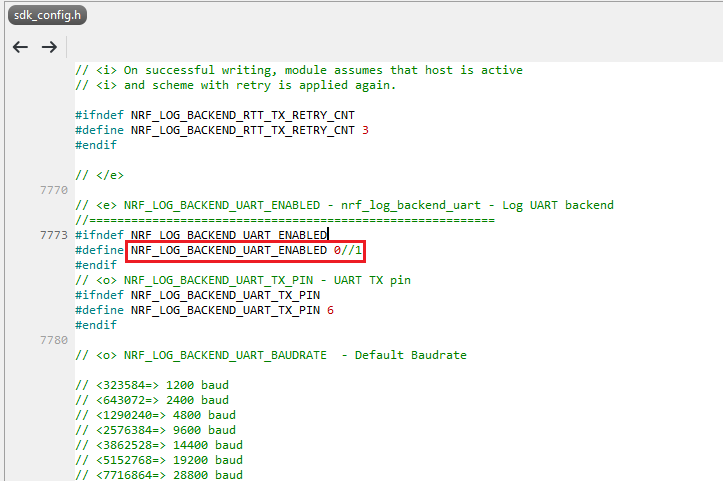
Stanley修改內容_20240806

Press “Rebuild Solution” to make sure all the parameters you’ve modified are reconfigured.

C2-6

Step C2-4. The program will be saved automatically under the path below:

V:\nRF5_SDK_17.1.0_ddde560\examples\ble_peripheral\ble_app_uart\pca10056\s140\ses\Output\Release\Exe\ble_app_uart_pca10056_s140.hex


D. Execute DFU (Device Firmware Update)

Reminder: 

No extra bootloader can be programmed into MDBT50Q-CX until you manually wire the pins on the PCB and erase the built-in bootloader.  You can simply operate DFU using MDBT50Q-CX’s bootloader.

Step D1. How to enable DFU?

(1) Press the button on MDBT50Q-CX

(2) Plug MDBT50Q-CX into your device while pressing the button

(3) Press and wait for approx.1 second until the LED light turns on. → DFU is activated.

(4) Release the button

※When Bootloader mode is enabled, the LED light on MDBT50Q-CX will twinkle continuously. 

D1

Step D2. Open the built-in DFU Bootloader

nRF Connect Desktop →  Programmer  → SELECT DEVICE  → Open DFU Bootloader

D2

You have successfully entered bootloader mode after you see the screen as below.

D3

Step D3. Add ready firmware file into the Programmer

(The program completed and saved during Step C1-5(NCS) or Step C2-4(nRF5 SDK))

※If you’re using nRF5 SDK, you need to add the soft device file into your program for loading firmware.

※Soft device path:

nRF5_SDK_17.1.0_ddde560\components\softdevice\s140\hex\s140_nrf52_7.2.0_softdevice.hex

D4

Step D4. Load the firmware and write it into the MDBT50Q-CX

D5

Step D5. Process FW DFU

D6

Step D6.  DFU Completed. The appointed firmware is successfully loaded into MDBT50Q-CX.

D7

※Any failure during the DFU process will leave you under bootloader mode.

Last-failure

If this happens, simply restart the firmware writing process from Step D4 to reload your firmware into MDBT50Q-CX.


Edited by Sales Manager: Ms. Jocelyn Tsai
Technical guidance provided by Firmware Deputy Manager: Mr. Stanley Huang

Raytac Corporation 勁達國際電子股份有限公司
Bluetooth & WiFi & LoRa module maker based on Nordic nRF54, nRF53, nRF52, nRF7002 solution
BT5.4 &BT5.3 & BT5.2 & BT5.1 Qualified, FCC/IC/CE/Telec/KC/RCM/SRRC/NCC/WPC Pre-Certified.
Bluetooth Solution: nRF54, nRF5340, nRF52840, nRF52833, nRF52832, nRF52820, nRF52811, nRF52810, nRF52805, nRF51822
WiFi Solution: nRF7002
http://www.raytac.com
email: sales@raytac.com
Tel: +886-2-3234-0208

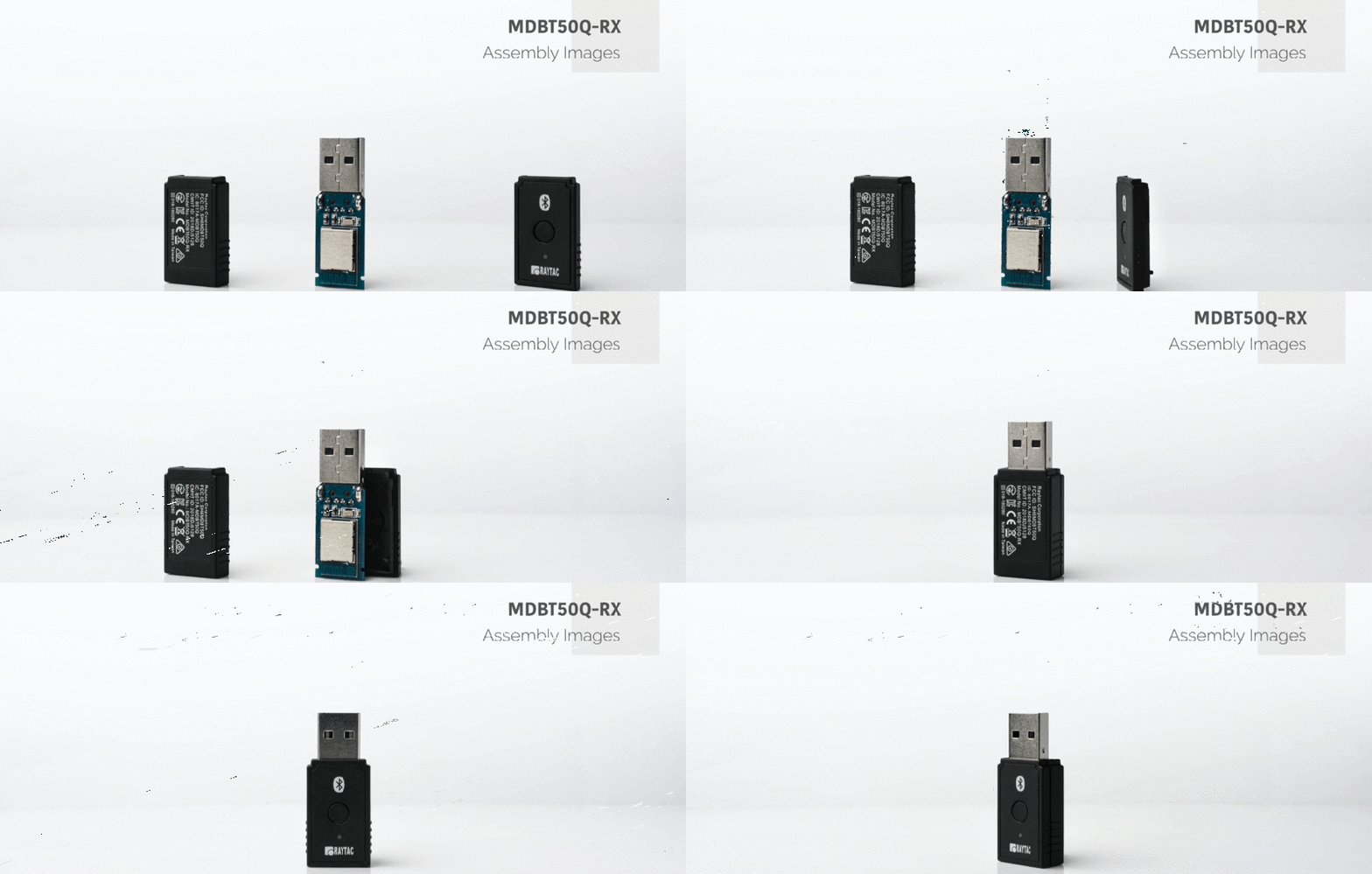
 

Firmware Coding & DFU onto MDBT50Q-RX

Hi there, 

Here introduce the firmware perspective about how to program your code onto MDBT50Q-RX dongle.

Believed all readers have done the hardware setting and now has well prepared to load the code onto the dongle. (If not yet done the hardware setting, pls find it here)

In this blog, we will introduce the procedure based on below 2 scenarios

  • First time to load the code
  • DFU Firmware update by USB or OTA (through Bluetooth over the air)

Burn your firmware – onto MDBT50Q-RX that is

Hi there, folks!
So you have hopefully downloaded your IDE, you have written your code which you then plan to copy it over onto your MDBT50Q-RX and make it execute your master plan to take over the world!
Seriously, don’t underestimate the Nordic nRF52840 based MDBT50Q-RX. USB sticks with Bluetooth can do wonders 😉
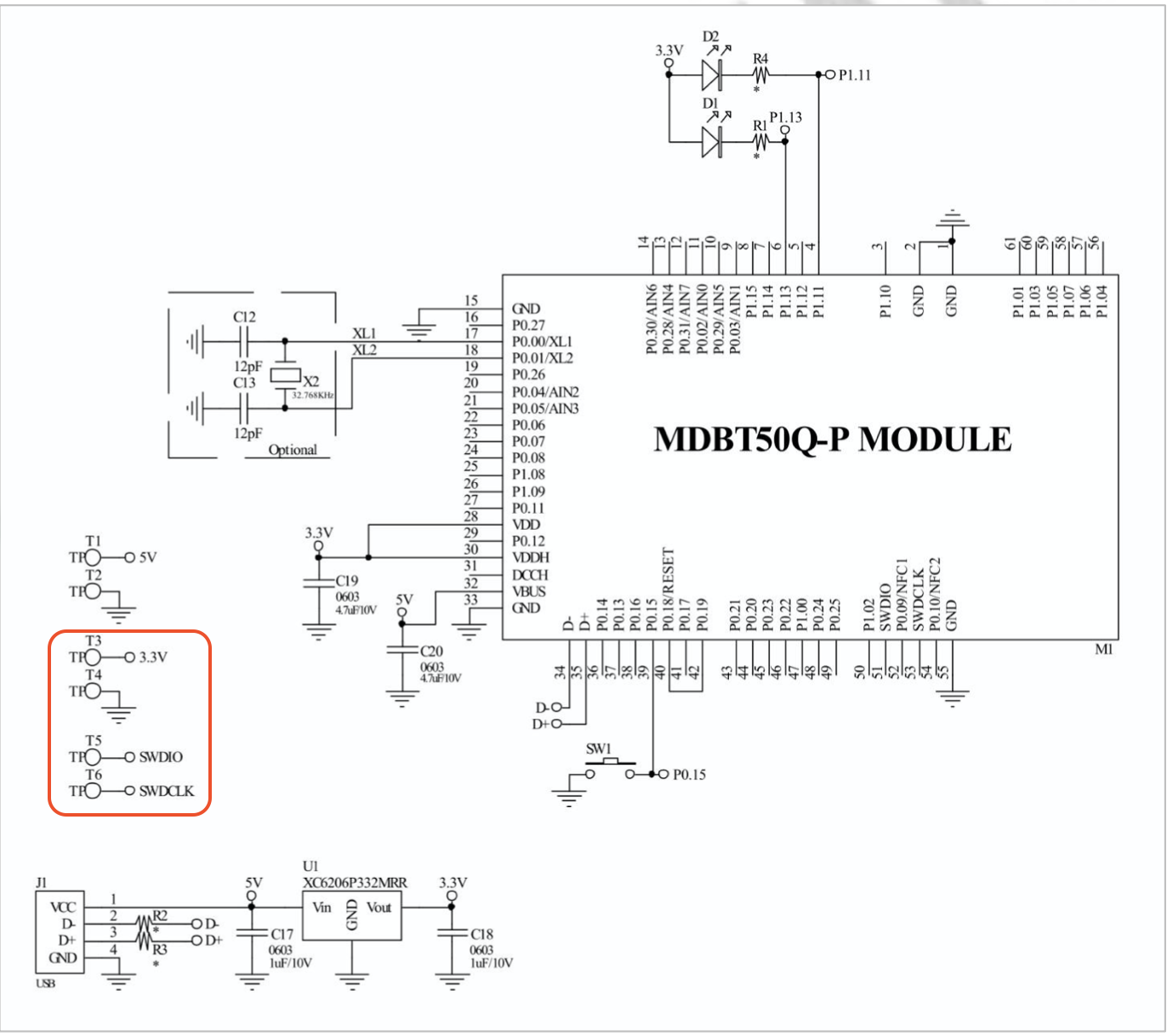
So, first of all, in order to be able to burn your code onto the USB Dongle, you will have to know the nerdy parts which includes which pins you will have to connect to. In our very well documented specification sheet for MDBT50Q-RX on section 8 which is called “Reference Circuit", you will find parts down to the left that has “3.3V/SWDIO/SWCLK/GND" marks on it:
MDBT50Q-RX Circuit
Further down in the specification sheet, in section 9, you will find pictures illustrating where exactly on the PCB you can find these pins:
Pin locationsNow we know what to look for and where they are, so now we have only got to tell you how to use them.Some people might not know this, but for developing these things, you need to get something called J-Link to connect your MDBT50Q-RX to your desktop. However, since this J-Link, when buying the official one from SEGGER, is very expensive, we strongly recommend you to just buy the nRF52840-DK from Nordic Semiconductor as it can be used as a J-Link through their software development kit (SDK) called nRFgo Studio and is MUCH CHEAPER than the official J-Link from SEGGER is.
Sidenote: There are a couple of other reasons why you should just get your hands on a nRF52840-DK from Nordic Semiconductor instead of getting a SEGGER J-Link, but that’s not the topic of this post ;)When this is done, this is finally how you connect your MDBT50Q-RX to your J-Link to make it all work:

MDBT50Q-RX and J-Link connection

Here you will have to pay attention to the fact that you have to connect J-Link pins 3, 5 & 9 to GND. Otherwise, you won’t be able to burn anything onto your dear MDBT50Q-RX.
The physical connection should look like this:

J-Link Cable Connection

Pay attention to the direction of the cable, because that will also matter. The direction we mean in this case is which way the slim strip of red is facing.

As we have just revised our MDBT50Q-RX, our customers who have been developing firmware for our USB dongle should take a look at our previous blog post in which we explain about the changes made or contact us directly at service@raytac.com

Have a good day and we at Raytac wish you smooth and happy tinkering 🙂

Raytac Corporation 勁達國際電子股份有限公司
A company of Abietec
Bluetooth & WiFi module maker based on Nordic nRF54, nRF53, nRF52, nRF7002 solution
BT5.4 &BT5.3 & BT5.2 & BT5.1 Qualified, FCC/IC/CE/Telec/KC/RCM/SRRC/NCC Pre-Certified. Bluetooth Solution: nRF54, nRF5340, nRF52840, nRF52833, nRF52832, nRF52820, nRF52811, nRF52810, nRF52805, nRF51822 WiFi Solution: nRF7002
www.raytac.com
email:service@raytac.com
Tel: +886.2.3234.0208

Raytac Product Change Notice (PCN) Announcement for nRF52840 Dongle: MDBT50Q-RX

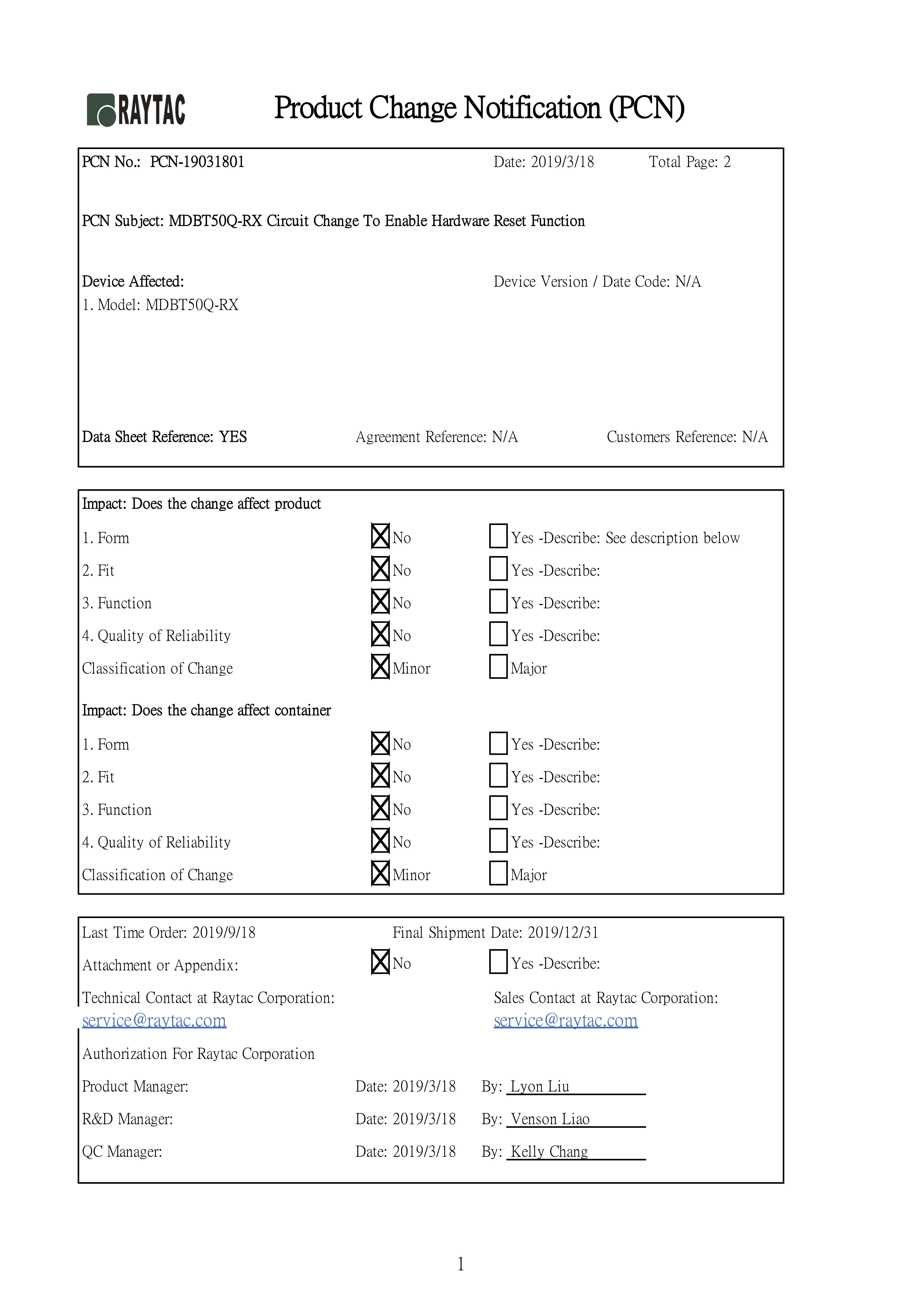
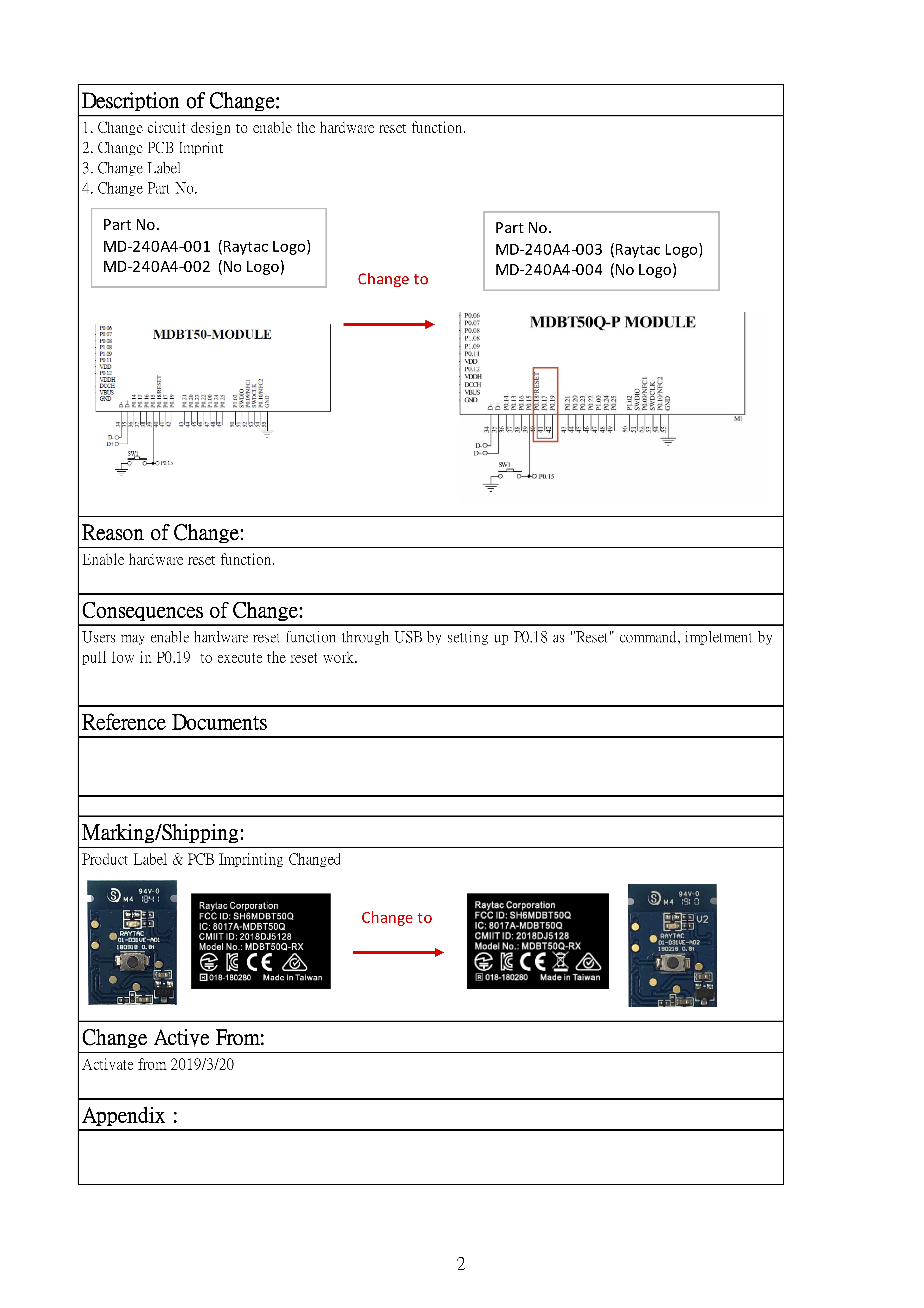
Dear Customers,To enable hardware reset function in Raytac’s nRF52840 dongle (P/N: MDBT50Q-RX), Raytac’s has revised the circuit and issued the PCN accordingly.


Description of the Change:

1. Change circuit design to enable the hardware reset function.
2. Change PCB Imprint
3. Change Label
4. Change Part No.

Here provided the content of the PCN for customer’s reference.

PCN-19031801-1
PCN-19031801-2

Customers who have been developing firmware based on pervious dongle, please contact with service@raytac.com to request the latest sample version for evaluation.
Raytac Corporation 勁達國際電子有限公司
A BT5 & BT 4.2 & BTv4.1 module maker based on Nordic nRF51 & nRF52 solution
(nRF51822 & nRF51422 & nRF52832 & nRF52810 & nRF52840)
www.raytac.com email: cs@raytac.com Tel: +886.2.3234.0208

Raytac Corporation at IT Week Hall 3 & 4 / 11-22

With over 600 exhibitors gathering in Tokyo, Japan from April 10-12, IT Week has become one of the biggest exhibitions within the IoT Technology sector.
Raytac is pleased to be attending this years IT Week and present our full range of module family based on Nordic nRF51822, nRF52832 and nRF52840.

Meanwhile, the latest product, MDBT50Q-RX, a multi protocol nRF52840 dongle will make its second public appearance which powers up the most advanced IoT and Mesh network implementations.

Raytac Corporation 勁達國際電子有限公司
A BT5 & BT 4.2 & BTv4.1 module maker based on Nordic nRF51 & nRF52 solution (nRF51822 & nRF51422 & nRF52832 & nRF52810 & nRF52840)

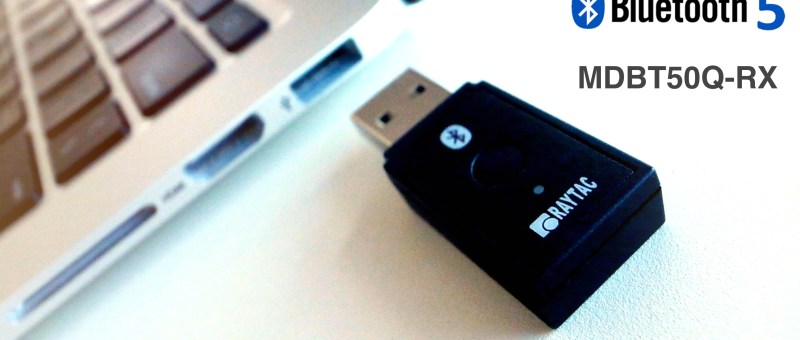
MDBT50Q-RX, a nRF52840 USB Dongle, delivers an easy implement for M2M IoT application

Raytac's MDBT50Q-RX, a Nordic nRF52840 USB Dongle

Raytac’s BT5 certified nRF52840 USB dongle, MDBT50Q-RX, eliminating the need for RF design expertise, and speeding time to market for complex M2M IoT applications. The Dongle built by Raytac’s MDBT50Q-P1M module with FCC/IC/CE/Telec/KC/SRRC/NCC/RCM/WPC certification.

Raytac's MDBT50Q-RX, a Nordic nRF52840 USB Dongle
Raytac’s MDBT50Q-RX, a Nordic nRF52840 USB Dongle

Raytac Released nRF52840 USB Dongle “MDBT50Q-RX"

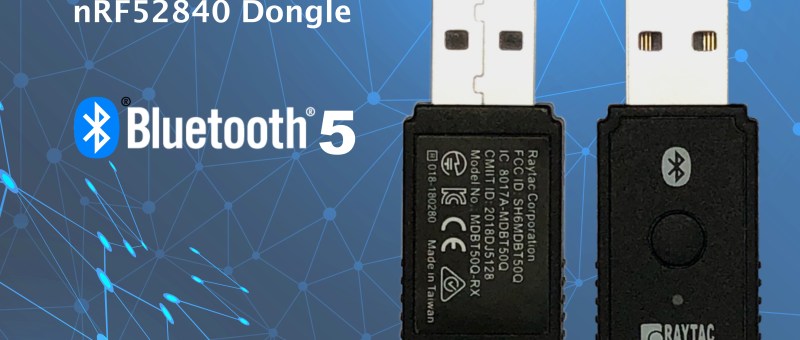
Raytac released nRF52840 USB Dongle which deployed MDBT50Q-P1M module offers a Bluetooth 5 specification granted, FCC/IC/Telec(MIC)/KC/SRRC/NCC/WPC pre-certified, and CE/RCM compliant solution.

Raytac nRF52840 Dongle MDBT50Q-RX
Abstract molecule structure on dark blue color background. Vector illustration of Communication – network for futuristic technology concept