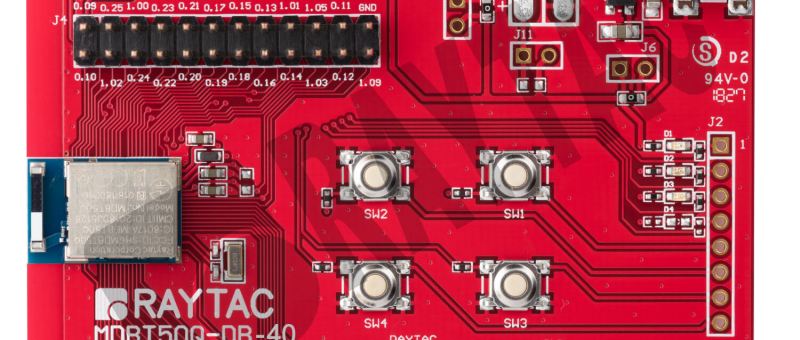
MCUboot DFU Guide For Raytac MDBT50Q-DB-40 (Using NCS V2.9.1)

This guide teaches you how to use MCUboot for DFU (Device Firmware Update),
Combined with nRF Connect SDK (NCS) V2.9.1 to upgrade firmware on Raytac’s MDBT50Q series modules.


Table of contents:

  1. Hardware Set Up
  2. Software Kits resource download & install
  3. Compile and load the program
    a. Open VS Code
    b. Project setup
    c. Setup the situation for DFU over UART or DFU over USB
    d. Start compiling your project
    e. Load your compiled program into the MDBT50Q-DB-40 demo board
  4. DFU to MDBT50Q-DB-40 over UART / USB
  5. Execute USB DFU using AuTerm
  6. DFU using your custom keys

1. Hardware setup
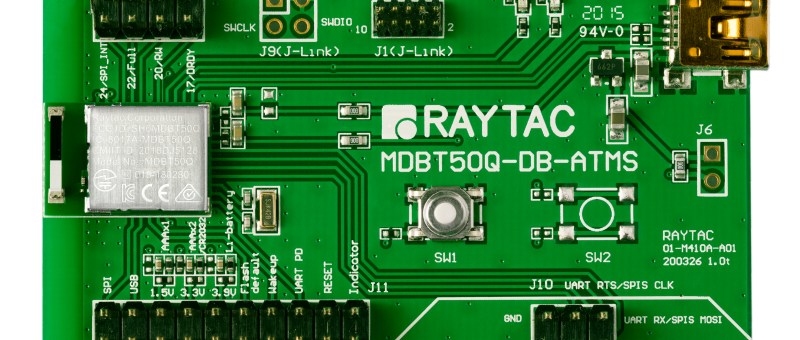
– Equip Raytac’s MDBT50Q-DB-40 development board
– Ensure the board is connected via USB to your PC


2.Software Kits resources download & install
– Resources download:
nRF Connect for Desktop – Download nRF Connect for Desktop (Please Click Me)
nRF Command Line Tools – Download nRF Command Line Tools (Please Click Me)
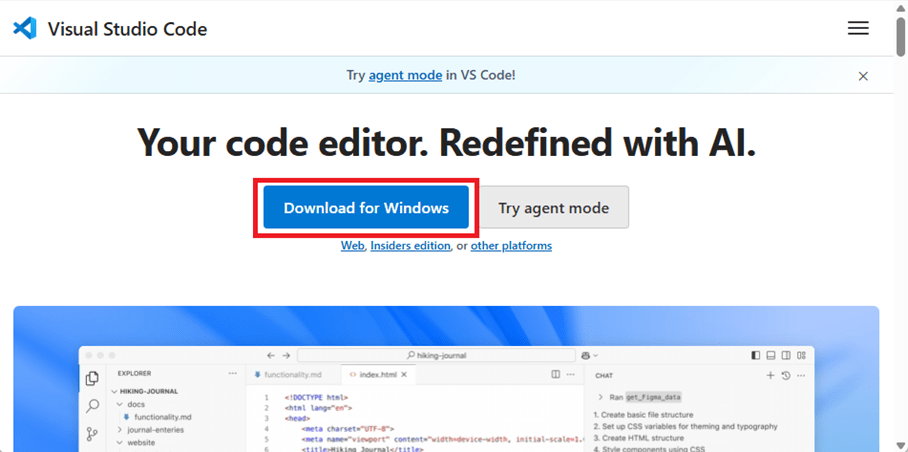
Visual Studio Code – Download Visual Studio Code(Please Click Me)

Install nRF Connect for Desktop ➔ install Programmer and Toolchain Manager.


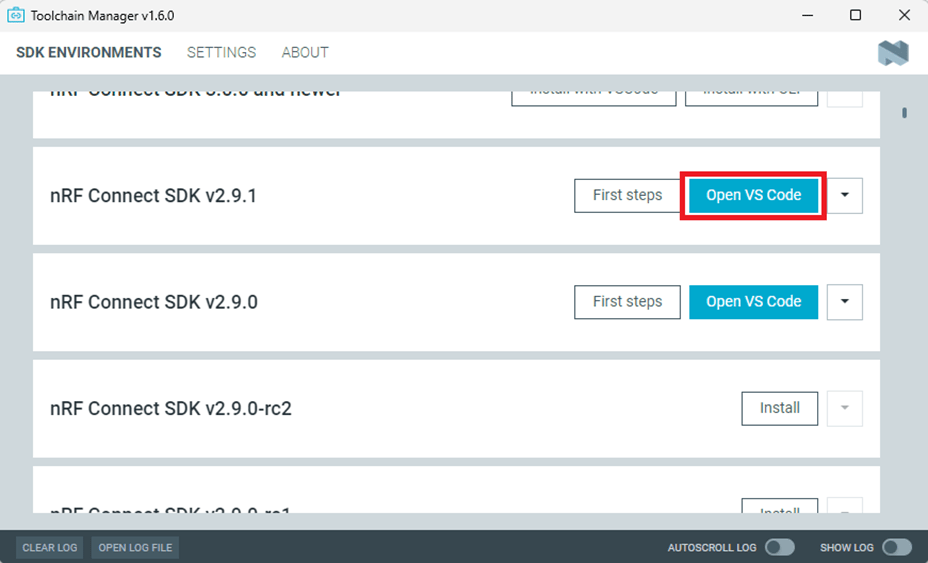
Open Toolchain Manager and install SDK V2.9.1.


Install Visual Studio Code

3. Compile and load the program
a. Open VS Code(Visual Studio Code)

Note:
If it’s your first time using the software: after installing all the extensions, you should see the same on your screen.


b. Project setup
b.1 Create an example code(In this article: peripheral_uart)
Please refer to the following steps:
Create a new application ➔ Copy a sample ➔ NCS V2.9.1

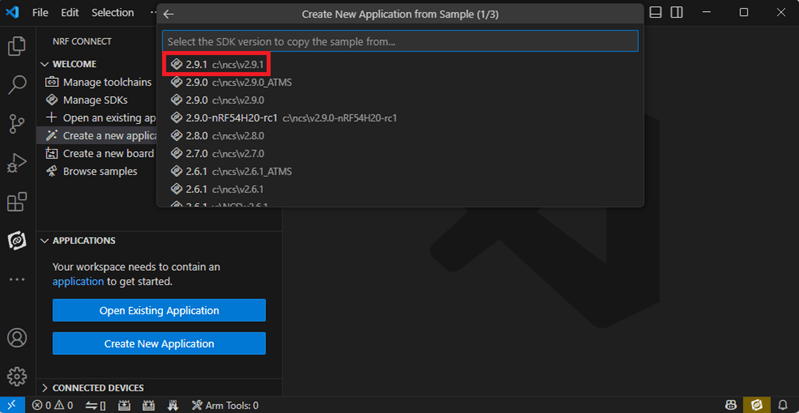
b.2 Name the Project: peripheral_uart
Input peripheral_uart and the corresponding example program will appear in the options section below.
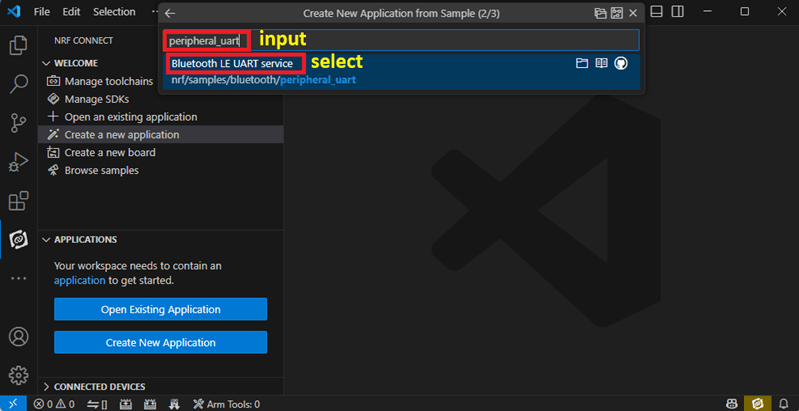

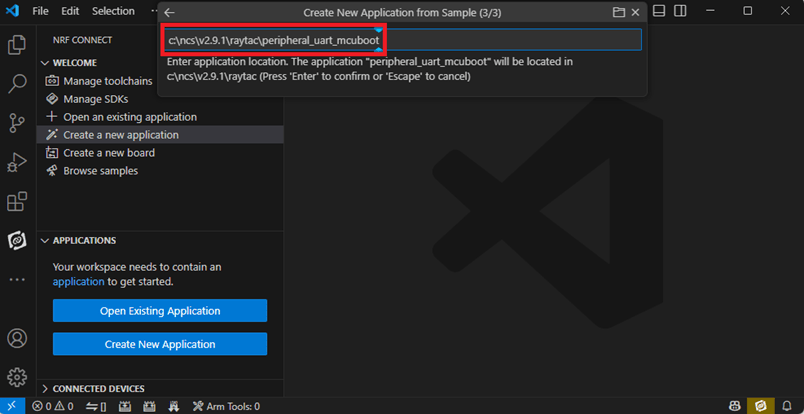
Note: We named the project peripheral_uart_mcuboot to distinguish it.
This project will create a directory named peripheral_uart_mcuboot.
c. Build an environment for DFU over UART or DFU over USB
– Create a new application ➔ Open

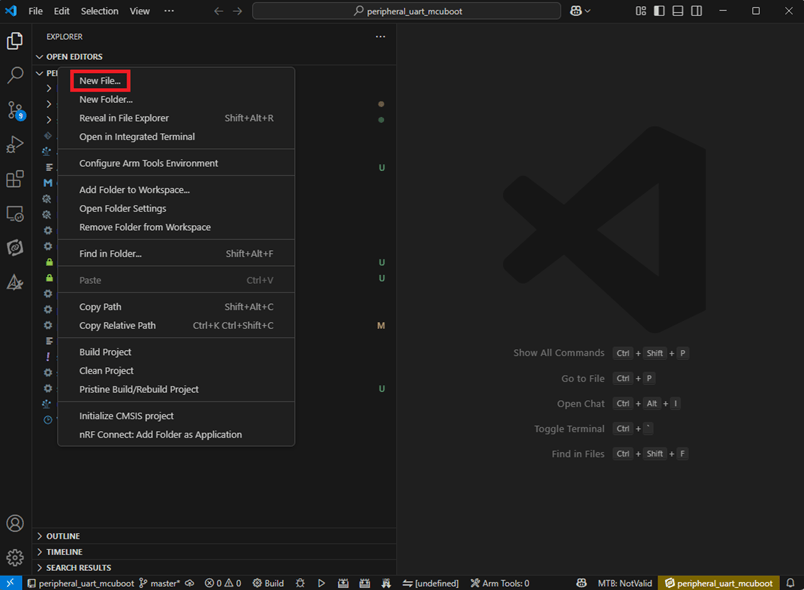
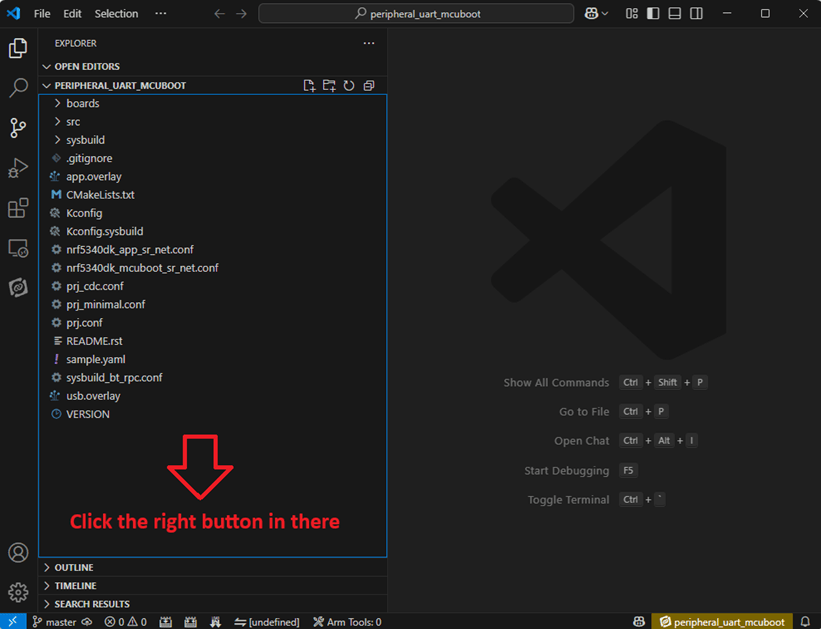
Right click on the project name you just created (peripheral_uart_mcuboot), a pop-up menu will appear. Select the first option “Show in Explorer" from the pop-up menu to display all project files.


Then select New File to create a sysbuild.conf file.

select sysbuild.conf, left-click on it, and a blank box will show.

Input the file name and write: SB_CONFIG_BOOTLOADER_MCUBOOT=y
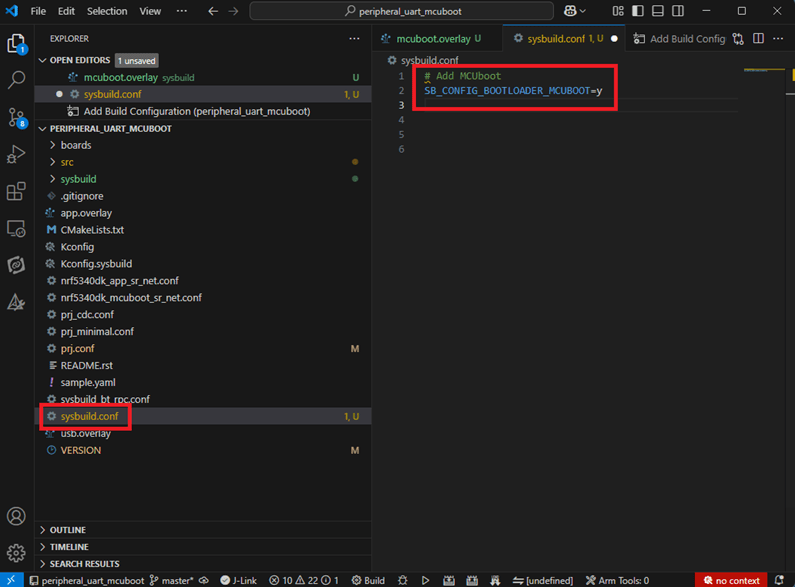

Parameters and instructions
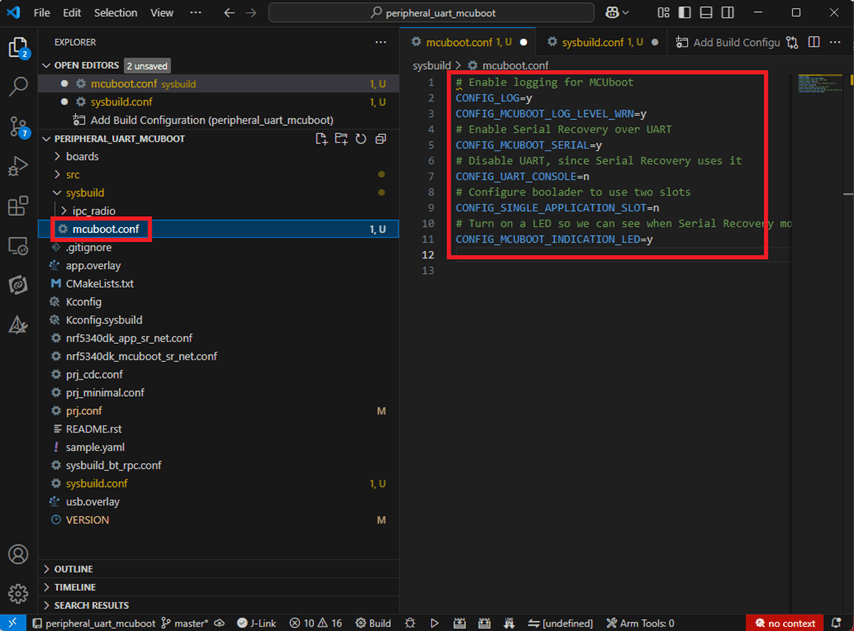
Add a new file mcuboot.conf, in the sysbuild folder, and input the following parameters into the file. (Add relevant parameters according to UART or USB)
(Note: Please be informed if you want to use DFU over UART in the end, you should use UART when you first create the environment. Similarly, if you want to use DFU over USB, you should create the USB environment at the beginning.)
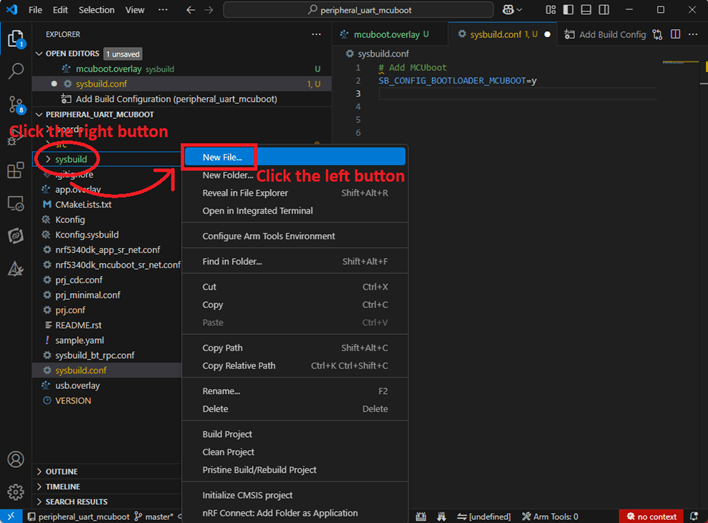
For DFU over UART
# Enable logging for MCUboot
CONFIG_LOG=y
CONFIG_MCUBOOT_LOG_LEVEL_WRN=y
# Enable Serial Recovery over UART
CONFIG_MCUBOOT_SERIAL=y
# Disable UART, since Serial Recovery uses it
CONFIG_UART_CONSOLE=n
# Configure the bootloader to use two slots
CONFIG_SINGLE_APPLICATION_SLOT=n
# Turn on a LED so we can see when Serial Recovery mode is active
CONFIG_MCUBOOT_INDICATION_LED=y

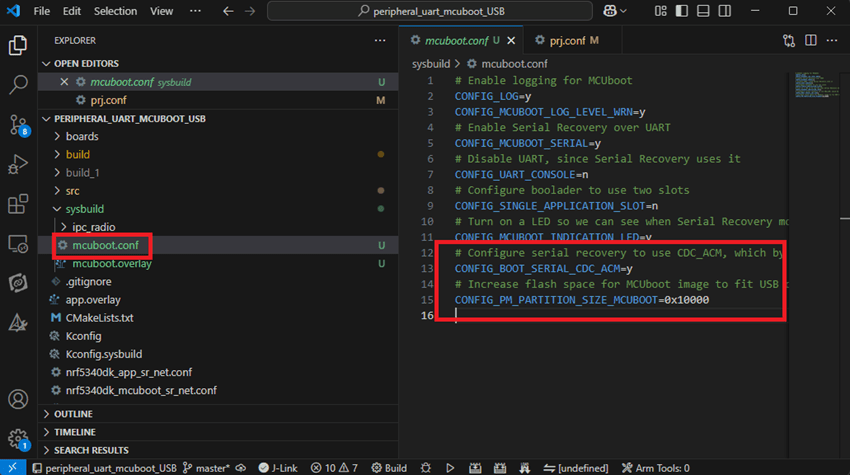
For DFU over USB
# Enable logging for MCUboot
CONFIG_LOG=y
CONFIG_MCUBOOT_LOG_LEVEL_WRN=y
# Enable Serial Recovery over UART
CONFIG_MCUBOOT_SERIAL=y
# Disable UART, since Serial Recovery uses it
CONFIG_UART_CONSOLE=n
# Configure bootloader to use two slots
CONFIG_SINGLE_APPLICATION_SLOT=n
# Turn on a LED so we can see when Serial Recovery mode is active
CONFIG_MCUBOOT_INDICATION_LED=y
# Configure serial recovery to use CDC_ACM, which by default uses the USB
CONFIG_BOOT_SERIAL_CDC_ACM=y
# Increase flash space for the MCUboot image to fit USB drivers
CONFIG_PM_PARTITION_SIZE_MCUBOOT=0x10000

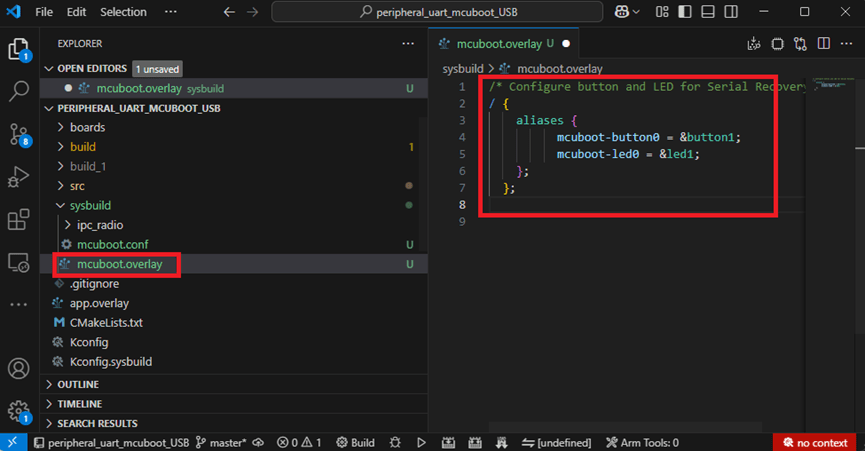
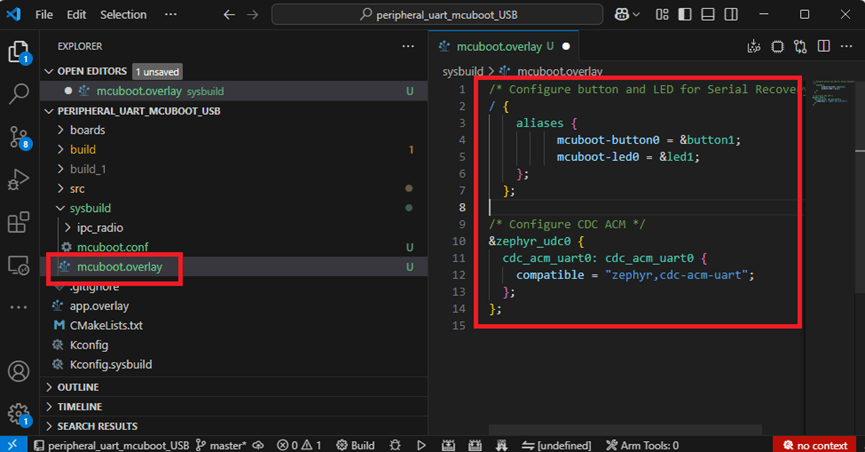
Create a new file: mcuboot.overlay and add the following parameters.


For DFU over UART
/* Configure button and LED for Serial Recovery */
/ {
    aliases {
          mcuboot-button0 = &button0;
          mcuboot-led0 = &led0;
    };
  };

For DFU over USB
/* Configure button and LED for Serial Recovery */
/ {
    aliases {
          mcuboot-button0 = &button0;
          mcuboot-led0 = &led0;
    };
  };
/* Configure CDC ACM */
&zephyr_udc0 {
            cdc_acm_uart0: cdc_acm_uart0 {
                        compatible = “zephyr,cdc-acm-uart";
            };
};

Note: if you use DFU over USB, please enable the USB subsystem in prj.conf.


After all the setup is completed, you can start compiling your project.


d. Start compiling your project
Add Build Configuration ➔ Select target board ➔ In this example, choose raytac_mdbt50q_db_40/nrf52840.


Start compiling by clicking “Generate and Build" at the bottom-right corner.


e. Load your compiled program into the MDBT50Q-DB-40 demo board
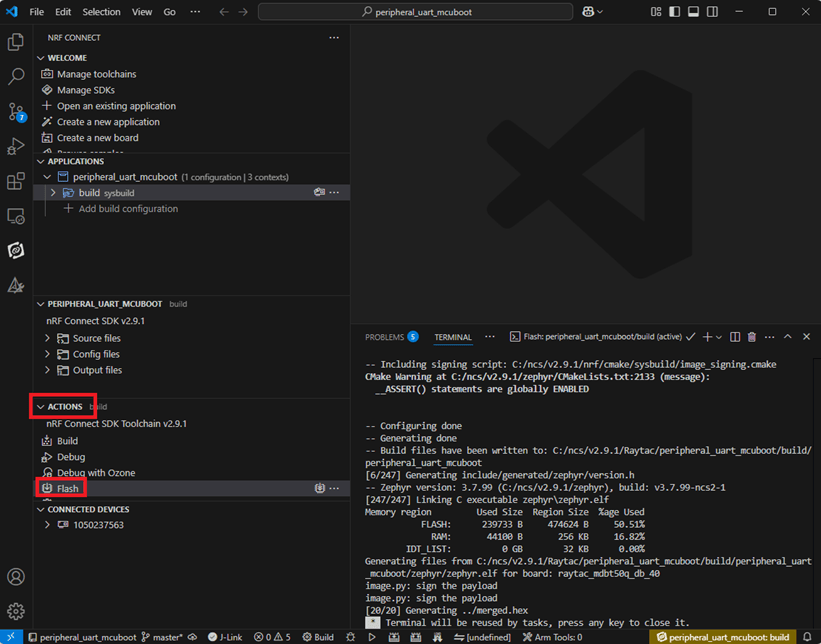
After compiling without error, select the flash function to load your program into the MDBT50Q-DB-40 demo board.

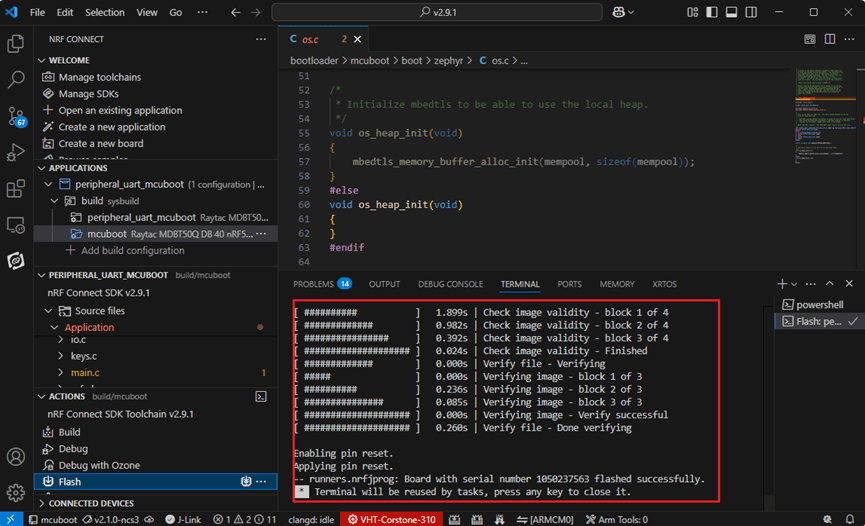
If the below is shown, it means that you have successfully loaded your program into the demo board.

4. DFU to MDBT50Q-DB-40 through UART / USB
DFU over UART
Hold the SW2 button then plug the power into the USB connector.
The system will enter the bootloader mode.
You can then DFU the new firmware via the UART.


DFU over USB
If you update your firmware through USB, please also hold the SW2 button and connect the USB cable.


5. Execute USB DFU using AuTerm
AuTerm is a free-for-download PC software on Windows.
It allows you to update your new firmware on the MDBT50Q-DB-40 demo board.
Download link:
https://github.com/thedjnK/AuTerm/releases/download/v0.35a-pre/AuTerm_test_Win_x64_v0.35a.7z

Steps:
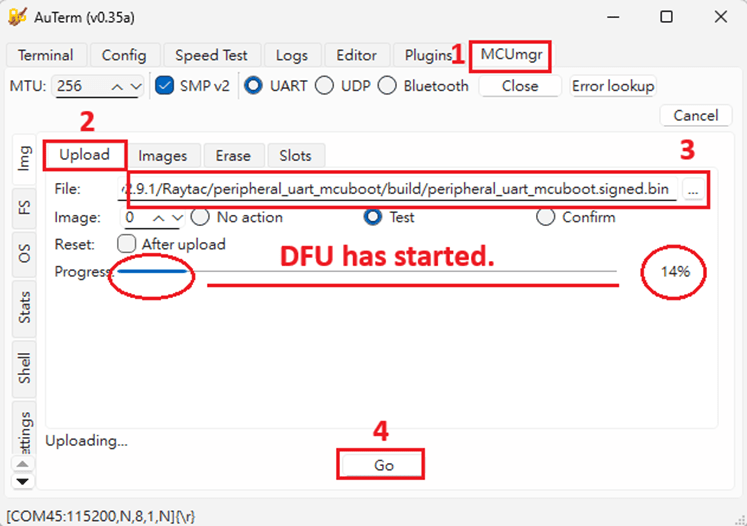
Select the tab Config to set the correct COM port.


Follow the sequences in the below screenshot.


You can use the file peripheral_uart_mcuboot.signed.bin for testing.
It is located in peripheral_uart_mcuboot/build.
Then follow the sequences in the below screenshot.
DFU will be completed when the progress reaches 100%.

6. DFU using your custom keys
When you compile the code, you will see the below warning.
Reason: It’s required to have your own private key to ensure your product’s security.
Following are the steps to enable security features.


Step 1. Create the key
First, install the imgtool program using pip.
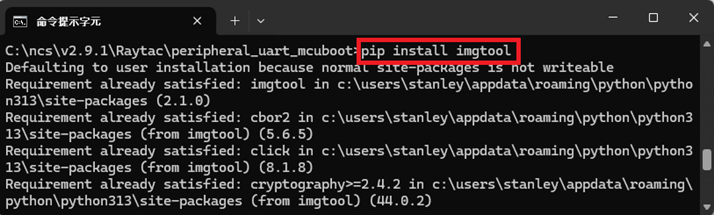

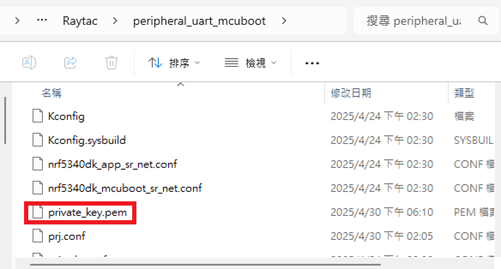
Then use the following command to generate your private key in your project folder.
After the private key is generated, you can access it in your directory.

Step 2. Configure the project to use this key in sysbuild.conf

# Add MCUboot
SB_CONFIG_BOOTLOADER_MCUBOOT=y
#Add private key for MCUboot
SB_CONFIG_BOOT_SIGNATURE_KEY_FILE="\${APP_DIR}/private_key.pem"
# Configure key type
SB_CONFIG_BOOT_SIGNATURE_TYPE_ECDSA_P256=y


Step 3. Build and flash the project again. Your firmware will have security features.


Edited by Account Manager: Mr. Welson Kuo


Raytac Corporation 勁達國際電子股份有限公司 / Raytac Corporation (USA)
A Bluetooth, Wi-Fi, and LoRa Module Maker/ODM & OEM Manufacturer based on
Nordic nRF54; nRF53: nRF52; nRF51; nRF7002
Semtech Specification: SX1262


Bluetooth Specification: BT6.1 ; BT6 ; BT5.4 ; BT5.3 ; BT5.2.
Wi-Fi Specification: Wi-Fi 6
LoRa Specification: LoRaWAN


All products are FCC/IC/CE/Telec/KC/RCM/SRRC/NCC/WPC Pre-Certified.
http://www.raytac.com
https://www.raytac.com/contact/
email: sales@raytac.com
Tel: +886-2-3234-0208(TW)/+1-626-217-3139(USA)

Secure DFU OTA for nRF52840 solution modules: Guide to create hex/zip file for implementation – #2(Application)

Following up-Part A: Bootloader (Click for article link)

We will be focusing on:

in this article.

IC: nRF52840
DK: PCA10056 (for nRF52840)
SDK: 17.1.0
Softdevice: s140_nrf52_7.2.0_softdevice.hex
IDE: Keil C
PC: Win 10


Path: nRF5_SDK_17.1.0_ddde560\examples\ble_peripheral\ble_app_uart\pca10056\s140\arm5_no_packs

Before building Application code , some amendments need to be made regarding DFU-related settings and code inside Application:

Step 1.


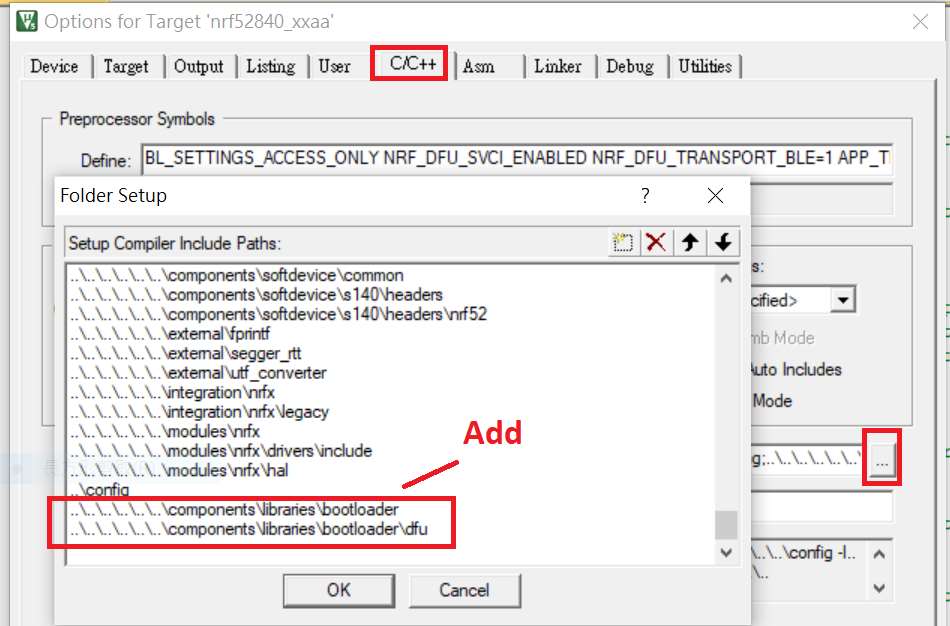
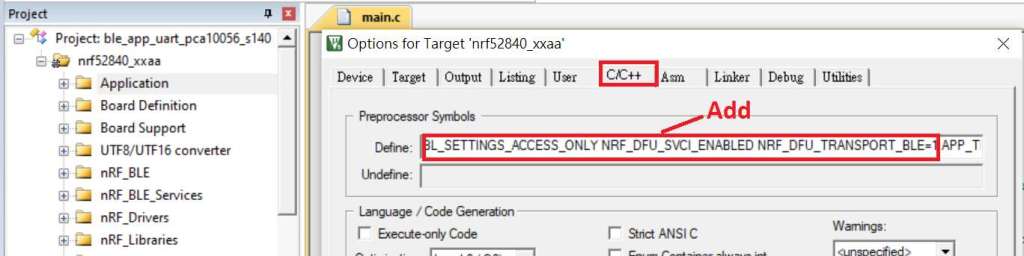
1A. Add code in definition in C/C++ :
BL_SETTINGS_ACCESS_ONLY NRF_DFU_SVCI_ENABLED NRF_DFU_TRANSPORT_BLE=1
(Total 3 steps definitions need to be set up)


1B. Add “include path” in C/C++


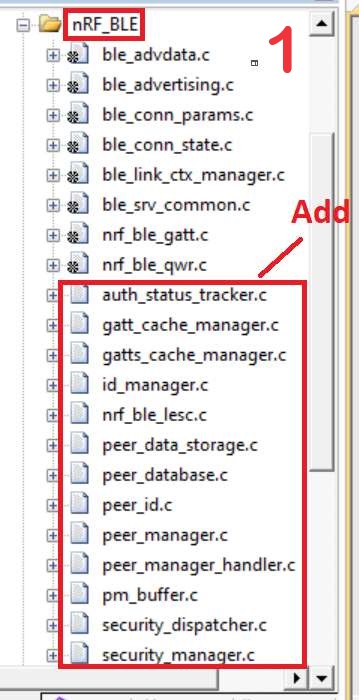
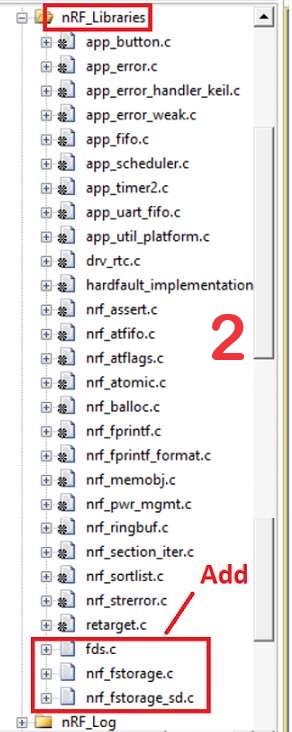
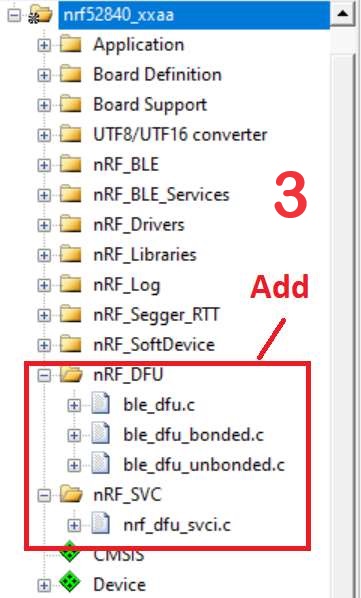
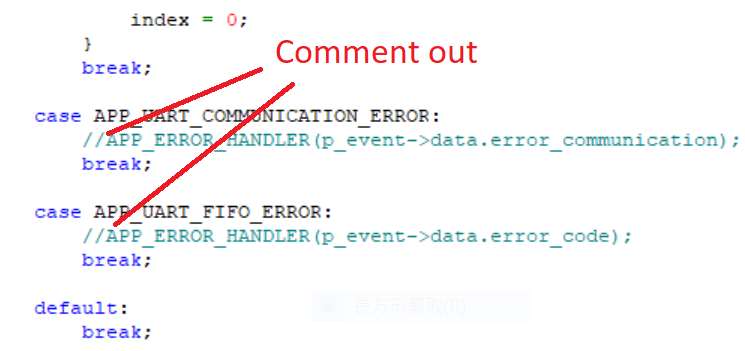
1C. Add the .c files inside red frame in (Screenshots 1 & 2)
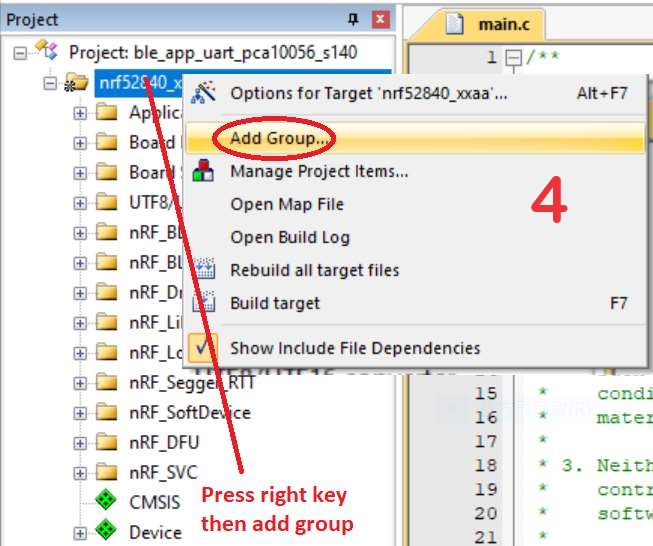
and the 2 groups of (nRF_DFU & nRF_SVC)(Screenshot 3) under Project(Screenshot 4)


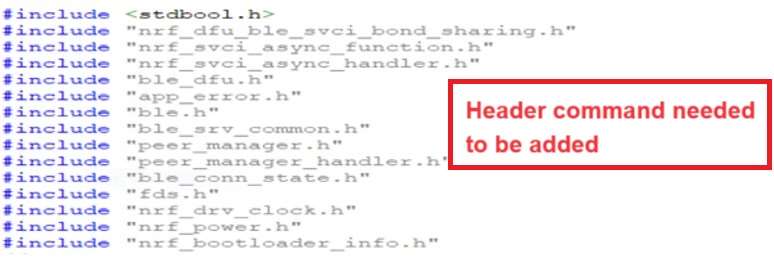
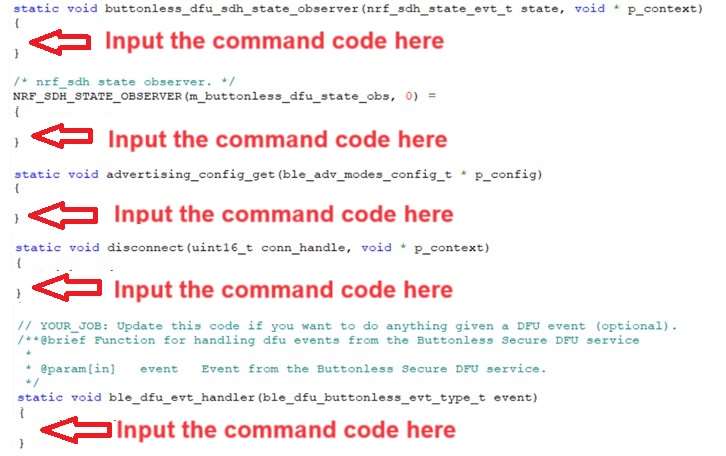
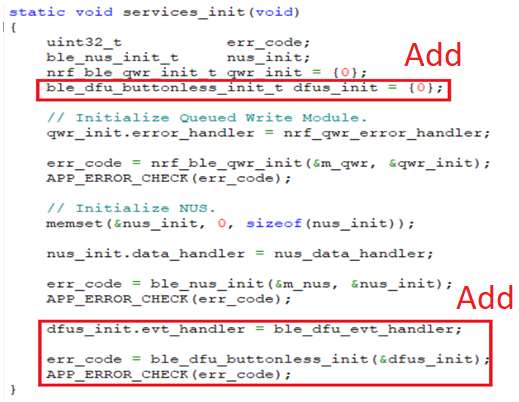
1D. Add code into main.c file in Application (..\examples\ble_peripheral\ble_app_uart\main.c)
(Please refer to: main.c file at: ..\examples\ble_peripheral\ ble_app_buttonless_dfu)


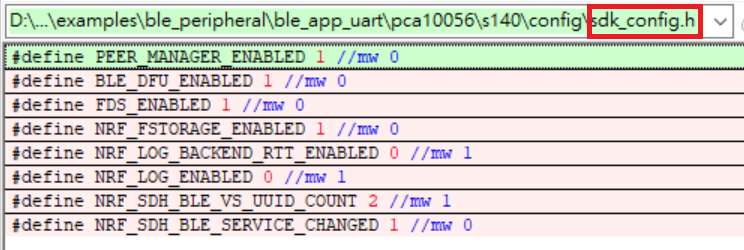
1E. The code of file: sdk_config.h (..\examples\ble_peripheral\ble_app_uart\pca10056\s140\config\
sdk_config.h) inside Application needs to be modified.


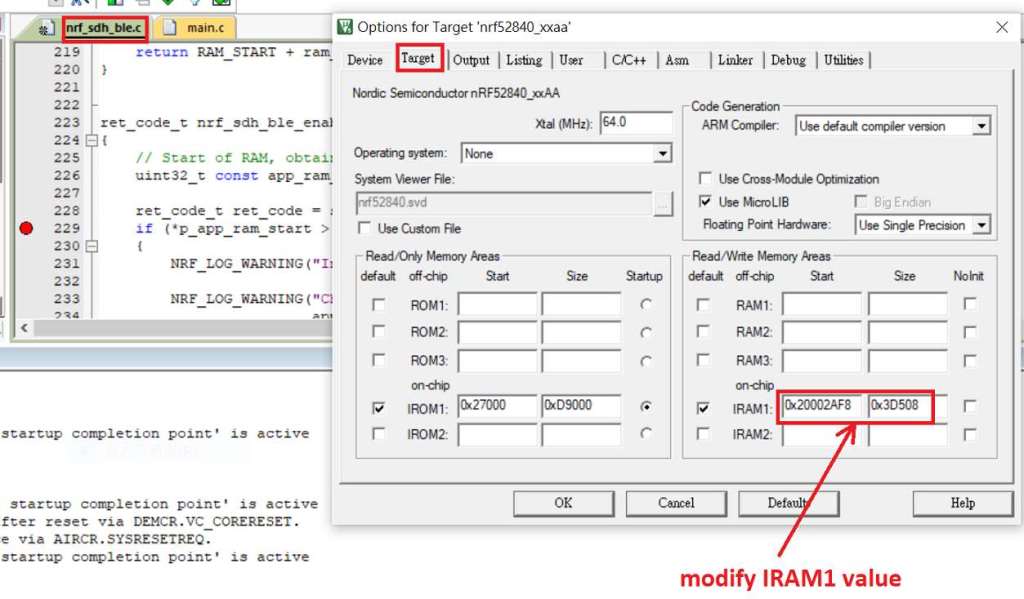
1F. Adjust the IRAM1 value in Target after implementing DFU service:
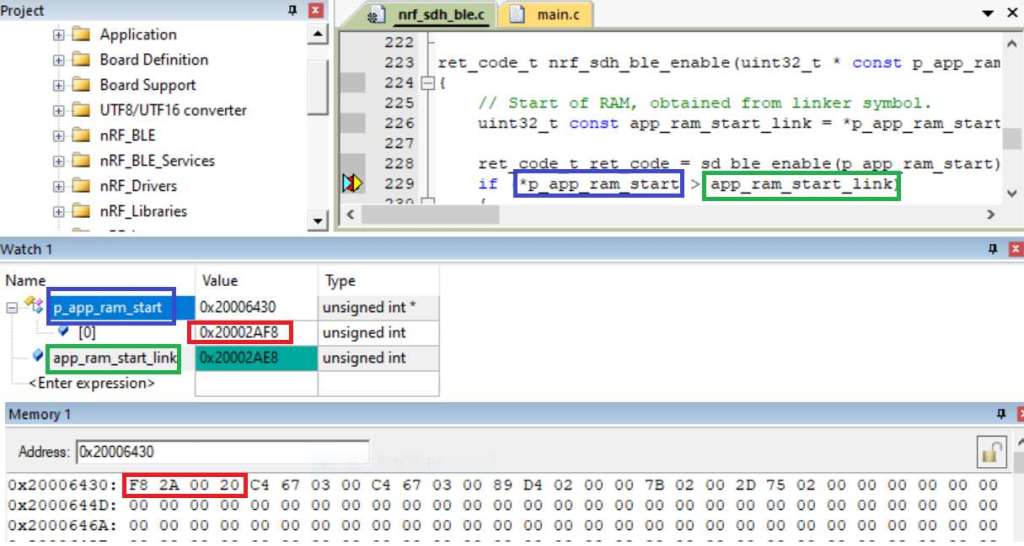
Check on the IRAM1 Value of *p_app_ram_start to be modified from default: 0x20002AE8 0x3D518 to 0x20002AF8 0x3D508, as shown in the red frame in the bottom right corner.
In this case, the program should run successfully.


1G: Create a file of: nrf52840_xxaa.hex after building application code files.


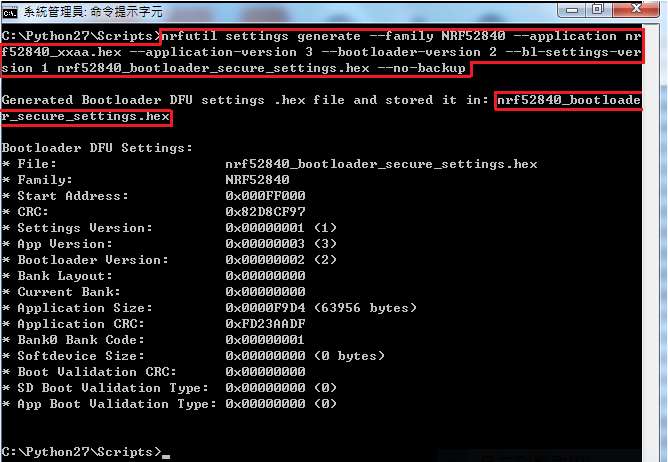
Step 2. Create a bootloader setting file of nrf52840_bootloader_secure_settings.hex : (via DOS)

nrfutil settings generate –family NRF52840 –application nrf52840_xxaa.hex –application-version 3 — bootloader-version 2 –bl-settings-version 1 nrf52840_bootloader_secure_settings.hex –no-backup


※Stay tuned for #3 – Part C: Combining and merging built files in the next article,

scheduled release in next week(05/06/2024).


Technical guidelines provided by R&D Manager: Mr. MW Lee
Edited by Sales Manager: Mr. Tony Yin

Raytac Corporation 勁達國際電子股份有限公司 
Bluetooth & WiFi module maker based on Nordic nRF54, nRF53, nRF52, nRF7002 solution
BT5.4 &BT5.3 & BT5.2 & BT5.1 Qualified, FCC/IC/CE/Telec/KC/RCM/SRRC/NCC Pre-Certified.
Bluetooth Solution: nRF54, nRF5340, nRF52840, nRF52833, nRF52832, nRF52820, nRF52811, nRF52810, nRF52805, nRF51822
WiFi Solution: nRF7002
http://www.raytac.com
email: service@raytac.com
Tel: +886-2-3234-0208

AT Command Tutorial: MDBT42Q-AT/PAT

AT commands play a crucial role in wireless communication, IoT, and embedded systems.

This guide aims to assist developers in creating an appropriate environment for efficient AT command usage, ensuring smooth communication and application operation.

Credit to Hanyu Hsu /Avnet Taiwan.

Edited by Sales Manager: Ms. Mandy Chao

Raytac Corporation 勁達國際電子股份有限公司

Bluetooth & WiFi module maker based on Nordic nRF54, nRF53, nRF52, nRF7002 solution
BT5.4 &BT5.3 & BT5.2 & BT5.1 Qualified, FCC/IC/CE/Telec/KC/RCM/SRRC/NCC Pre-Certified.
Bluetooth Solution: nRF54, nRF5340, nRF52840, nRF52833, nRF52832, nRF52820, nRF52811, nRF52810, nRF52805, nRF51822 WiFi Solution: nRF7002
http://www.raytac.com
email:service@raytac.com
Tel: +886.2.3234.0208

MDBT42T & MDBT42TV Joined Raytac AT Command Codeless Module Family

Headache about how to make your device going wirelessly? Want to have Bluetooth connectivity implement but worried about there is no resource to support firmware code developing ? Raytac AT command modules is the best ideal solution to enable the project having a breakthrough achievement quickly without writing a line of code or building up a design of RF hardware.

AT command stands for Attention Command, which is the most ordinary, easy and widely applied protocol to connect and bridge between IoT devices. Learning from Bluetooth Classic Serial Port Profile (aka SPP) experience, Raytac has been using UART service (ask NUS, Nordic UART service) since 2016 to assist customers proceed the Bluetooth project development. With full experience accumulated from projects, Raytac released the fist AT command module in 2018. Until now, Raytac AT command modules have been widely applying in different applications and successfully easier the project development and shorten the schedule.

Raytac keep improving to meet your demand now and future. When IoT device goes smaller become a trend of fashion, Raytac headed for it. Today, Raytac is happy to announce there are 2 new AT command modules released which are MDBT42T & MDBT42TV, which will have 2 kinds of antenna option available for each model. The modules are smaller than ever which benefit for the applications with space constraints design, also an optimized hardware module design to enable the module not only small but low cost. Raytac keep striving to make it better.

MDBT42T Series – AT Command Module & Development Kit Demo Board

MDBT42T-PAT (PCB Antenna AT Command Module)

MDBT42T-AT (Chip Antenna AT Command Module)

MDBT42T-AT-UART-S (AT Command Module DK Development Kit )

MDBT42TV Series -AT Command Module

MDBT42TV-PAT (PCB Antenna AT Command Module)

MDBT42TV-AT (Chip Antenna AT Command Module)

Raytac Corporation 勁達國際電子有限公司
A BT5.2 & BT5.1 & BT5 module maker based on Nordic nRF52 & nRF51 solution 
(nRF5340 & nRF52840 & nRF52833 & nRF52832 & nRF52820 & nRF52811 & nRF52810 & nRF52805 & nRF51822)
www.raytac.com. email: cs@raytac.com. Tel: +886.2.3234.0208

Raytac Released MDBT50Q (Dual Roles / BT5 Long Range) AT Command Module

Raytac is glad to announce a brand new AT command module line released today.

Highlight 

* Supports BT5.1/ BT5 Long Range Feature
* Works either as Central (Master) or Peripheral (Slave)
Module
Demo Board
MDBT50Q-AT-UART-ATMS

Raytac’s UART Service (AT Command) – How do you get started?

Easy! At least when you know what to do. Many of our customers just want a device that provides Bluetooth technology to their product or solution that they’ve developed. However, utilizing the full capacity of the Bluetooth protocol is not always easy and sometimes not even necessary. For these customers, choosing Raytac’s modules/dongles loaded with AT Command, such as MDBT50Q-RX-ATM, is the best choice.
But even a product such as MDBT50Q-RX-ATM that is supposed to make it easy for customers to wirelessly transfer data from one device to the next can be difficult to use – especially when you don’t know HOW.So, I thought we’d take this in two simple steps.

  1. Device Name

To be really sure that you can connect to the device thus making you able to pair with it, you will have to make sure that the device name setting in the AT Command list is set to the name you want or need.
For example, if you have a device set to have the name “I_love_Bluetooth" and you haven’t changed the settings in the AT Command, you will not be able to pair your MDBT50Q-RX-ATM with this device.
As you can see in the picture below, the default setting for this device’s name is “Raytac AT-UART".

When editing this name, you get a smaller window like this popping up:

Make sure that the name set on your device that you wish to connect with the dongle AND this name in the AT-Command device’s list are the same.

  1. RSSI

This is a trickier part – especially when you don’t know what it is.
RSSI stands for Received Signal Strength Indicator and, just like the name implies, is a value of strength of which the incoming signal has to be in order to even be considered by the scanning device.
In other words, the lower the value is set to, the weaker signals the scanning device will show.
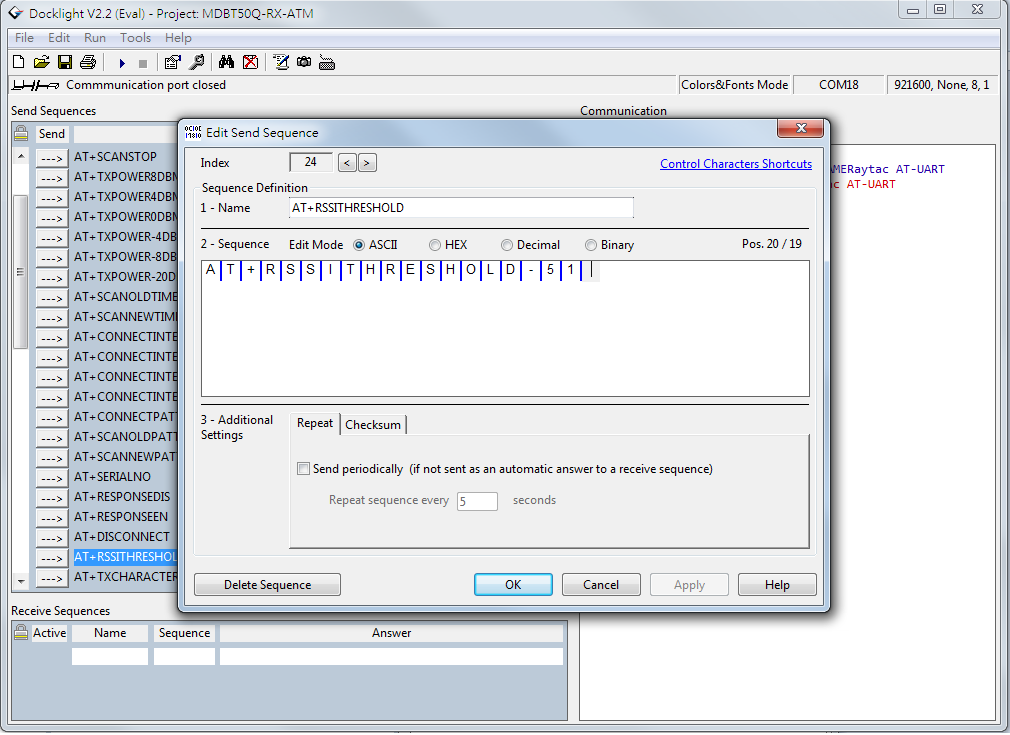
The standard value of Raytac’s AT-Command modules/dongle is -51 and the setting screen looks like this:

  1. Slave device’s SDK

What many new customers seem to believe is that if you use our AT-Command modules/dongles, you won’t need to do anything – they will just magically communicate with each other somehow.
I hate to break it to you, but no… that’s not how it works. You will have to at least make sure that the two devices “speak the same language". As for our AT-Command modules/dongles, or in this case MDBT50Q-RX-ATM, it is through a “language" (a.k.a. protocol) called UART.
First of all, “UART" is not “U-ART" although it’s kind of pronounced that way, but it’s an abbreviation that stands for Universal Asynchronous Receiver/Transmitter. You can read about it here.
I will spare you all the details about the UART protocol itself, but one thing that we will need to make sure of is that you have it installed onto your slave device.

Hopefully, you’ve downloaded Nordic’s latest SDK and you have it ready on your computer. You can download them directly HERE.
Note: This file is quite big (~130MB), so DO NOT click on the last link if you don’t want to download this on your current device.

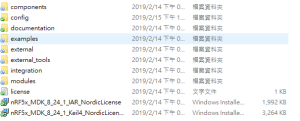
Inside this file, you will find a lot of stuff. However, for this particular case, we only really need to care about the “examples" folder.

31bcd-nordic2bsdk2bfolder

In this folder, we will have (surprise surprise!) even more folders 😀
As per usual, we don’t have to check them all out. In this case, we specifically only want to check the “ble_peripheral" and the “peripheral" folders.

003e6-nordic2bsdk2bfolder2b2528examples2b-2bble_peripheral2529

Go into the former folder and you’ll find see the following folders in which you will want to enter the “ble_app_uart" folder.:

484a6-nordic2bsdk2bfolder2b2528examples2b-2bble_peripheral2b-2bble_app_uart2529

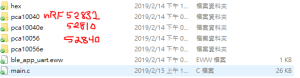
In this folder, you will see five more folders and two files, but we only want to check out one of them depending on which chip type you’re using in your slave device. Let’s say you’re using a nRF52832 chip (or module such as MDBT42Q-P512KV2), then you’d want to enter the first folder called pca10040. Check the picture below to see which folder you’d want to enter:

ab33e-nordic2bsdk2bfolder2b2528examples2b-2bble_peripheral2b-2bble_app_uart2b-2bboardversionselection2529

Assuming you entered the folder that I mentioned above, you will then want to enter the “s132″ folder.
91608-nordic2bsdk2bfolder2b2528examples2b-2bble_peripheral2b-2bble_app_uart2b-2bboardversionselection2b-2bs1322529

Once you’re in here, I am pretty sure you developers out there know what to pick 🙂

In the beginning of this section, however, I also mentioned another folder called “peripheral" which we will guide you through now – even if it’s very similar to what we just did.
692fd-nordic2bsdk2bfolder2b2528examples2b-2bperipheral2529
As you can see, there are a TON of folders in here, but we will cherry-pick our folders here too.
Let’s say that you’d like to be able to make your slave device to read and transmit information from a sensor. Supposedly, most sensors use either the I2C or the SPI interface. In each respective folder, you will find the same folder layout as in the previous picture – folders representing what chip/module you have.
The main point of showing you this is simply because from these two folders, you can snatch the small amount of code that you need to edit the main code of your UART main-code so that you can both read and send the data from the sensor you might have.

Hopefully, you’ve now started to realize how these things come together and we can finally start to connect these devices. This takes us to the next step:

  1. ATSCANNEW

Once that’s done, you will need to use your AT-Command module/dongle (here MDBT50Q-RX-ATM) to scan for the slave device that you want to pair. To do this, you first have to make sure your slave device is broadcasting, then execute a command called ATSCANNEW.
Once you’ve done so, your MDBT50Q-RX-ATM’s blue LED will hopefully go from fast blinking to a slower blinking. This means that your two devices, master and slave, have now paired successfully. Wohoo! 🙂

We hope that this makes our AT-Command modules/dongles even easier to use!
Raytac wishes you all happy tinkering 🙂

Raytac Corporation 勁達國際電子有限公司 A BT 5.1 & BT 5 & BT 4.2 module maker based on Nordic nRF53 & nRF52 solution (nRF5340 & nRF52840 & nRF52832 & nRF52811 & nRF52810 & nRF51822)

www.raytac.com email:service@raytac.com Tel: +886.2.3234.0208

nRF52840 AT Command USB Dongle MDBT50Q-RX-ATM

To have an easy understanding of Raytac’s AT Command USB Dongle, here provides the command table for reader’s easy reference.We encourage readers to visit Raytac’s website to obtain the detail information

MDBT50Q-RX-ATM

MDBT50Q-RX-ATM-1.jpg

Raytac AT command is built based on Nordic UART service, aka NUS, which is similar to SPP (Serial Port Profile) applied in Classic Bluetooth (BT2 and BT3)

To service the Bluetooth bridging works, AT command modules or dongle comes with both Central/Master & Peripheral/ Slave role available.

Latest released MDBT50Q-RX-ATM is a USB dongle designated to connect to PC or Machine acted as the Central / Mater role supporting below commands.

List of supported commands

  • Setting of scanned device name
  • Setting of scanned base UUID/service UUID/TX character/RX character
  • Setting of scanned RSSI threshold
  • Selective data rate of 1M bps, 2M bps or 125K bps on-air
  • Set TX output power in 6 levels.
  • Set scanning time
  • Enable/disable scanning
  • Set LED pattern indicating scanning or connecting status
  • Auto UART baud rates
  • Use external 32.768KHz oscillator
  • Recover-to-default setting with software method
  • System reset of software
  • Set serial number and retrieve
  • Retrieve MAC Address
  • Support maximum MTU 247bytes / data payload up to maximum 244 bytes

MDBT50Q-RX-ATM-2 Command Table.jpg

Raytac Corporation 勁達國際電子有限公司A BT5 & BT 4.2 & BTv4.1 module maker based on Nordic nRF51 & nRF52 solution

(nRF51822 & nRF52832 & nRF52810 & nRF52811 & nRF52840)

www.raytac.com email: cs@raytac.com Tel: +886.2.3234.0208

Raytac Central Role AT Command USB Dongle MDBT50Q-RX-ATM Released

Raytac today announced (Central / Master) AT command dongle released.

Part No.:

MDBT50Q-RX-ATM

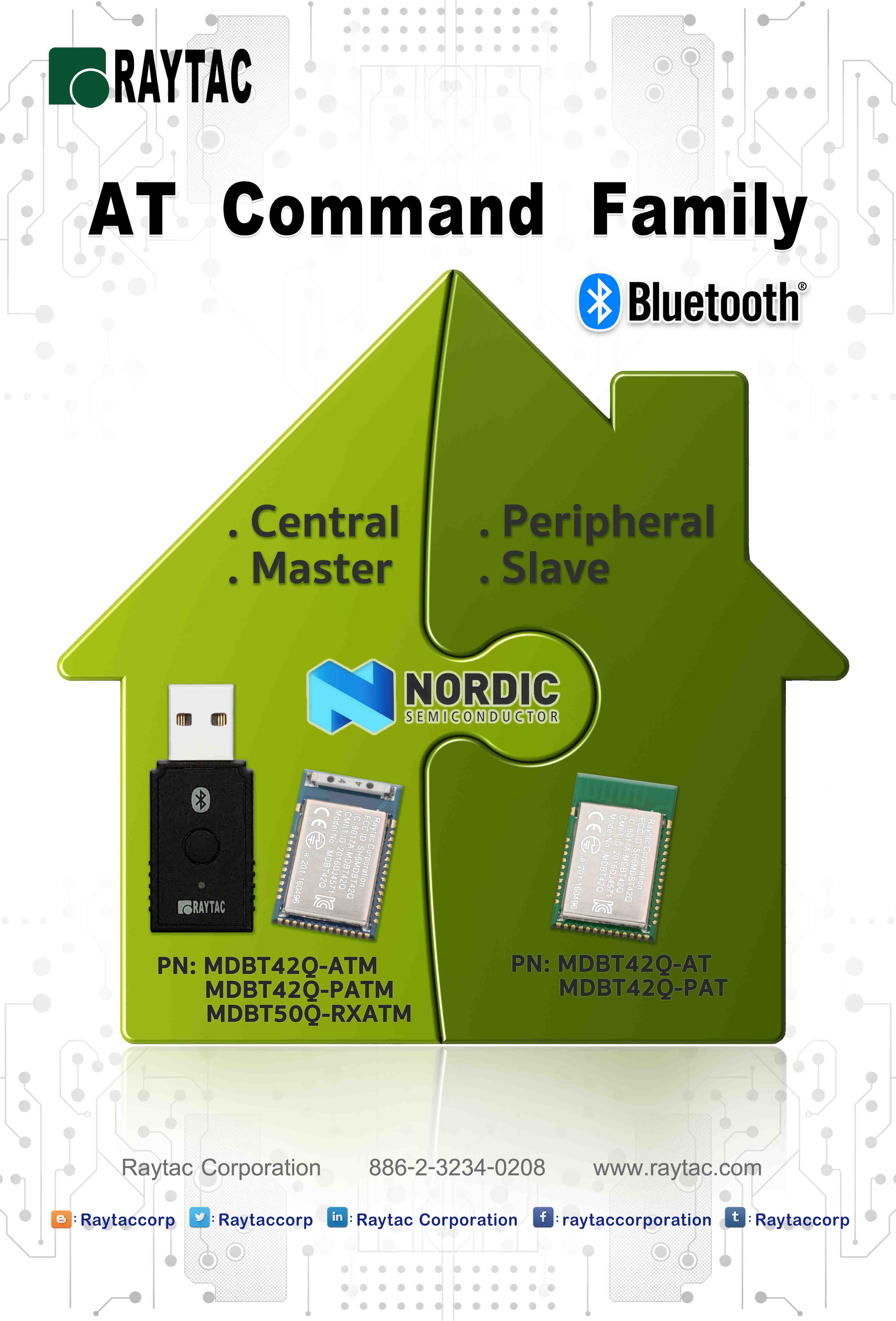
Raytac AT Command Module Family

nRF52840 is Nordic’s latest and advanced solution, which brings a new interface “USB" from other lines, has drawn the attention among developers. 


Raytac developed AT Command  (Master / Central ) solution based on nRF52840 solution, fulfilled the demand of USB interface, missioned to deliver a full coverage of AT Command product line.


Raytac’s nRF52840 USB AT Command dongle, MDBT50Q-RX-ATM is a BT5, FCC/IC/CE/Telec/KC/SRRC/NCC/RCM/WPC pre-certified dongle which is  eliminating the need for RF design expertise, and speeding time to market for complex M2M IoT applications. 


AT command module is an easy solution provides developers a quick breakthrough to Bluetooth connection. Without firmware effort needed, simply have commands setting on MCU and the start to enjoy the implement of bridging connectivity between devices through Bluetooth.

After Raytac’s completed both Central (Master) & Peripheral (Salve) role AT command module projects, the USB interface has brought up the strongest demand by developers.

Raytac Corporation 勁達國際電子有限公司
A BT5 & BT 4.2 & BTv4.1 module maker based on Nordic nRF51 & nRF52 solution
(nRF51822 & nRF51422 & nRF52832 & nRF52810 & & nRF52811 &nRF52840)
www.raytac.com email: cs@raytac.com Tel: +886.2.3234.0208

AT-Command Module Tutorial ~ About First Time Connect To The DK Demo Board

Raytac AT Command Family

With strong demand for AT command module coming up from markets, here provides an easy introduction about hardware and software setup work for Raytac’s AT command module demo board for quick start.

AT-Command Module Tutorial ~ How To Read Battery Status?

After AT Command Module, MDBT42Q-PAT, released, Raytac has received several feedback from developers about “How to read battery status through AT command?

In order to help developers quickly set up the environment, the tutorial hereby is using a AT command DK board which deployed MDBT42Q-AT, to demonstrate how to work out this function.

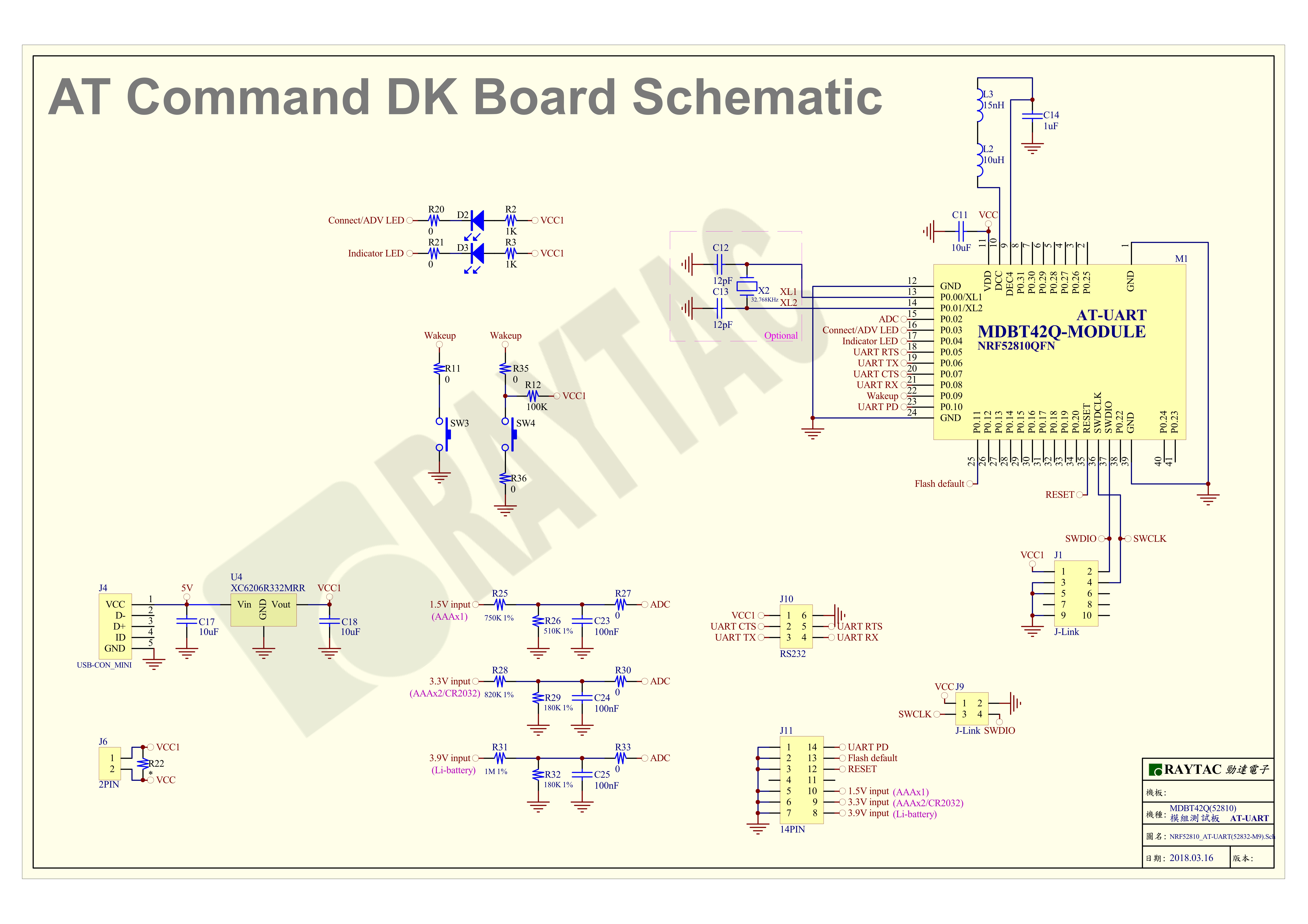
First of all, the DK board schematic is provided in below for reference.

MDBT42Q-AT-UART- How to read battery-1 .jpg