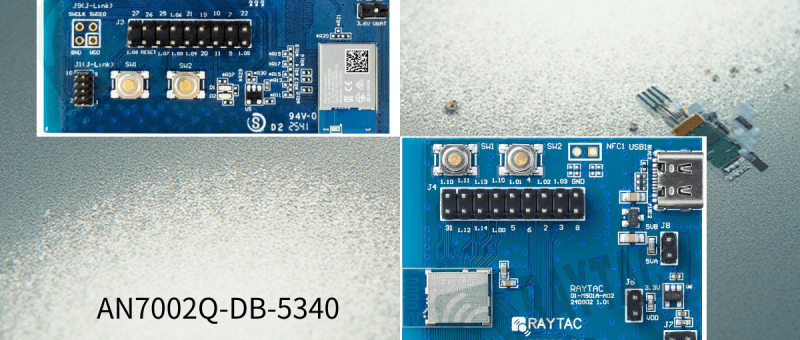
How to set up Hardware & Software, Build & Compile Firmware, Validate DFU, and Wifi SCAN using Raytac’s Nordic nRF7002+nRF5340 WiFi+BLE Devkit-AN7002Q-DB-5340-M

Raytac has advanced the dev kit version of bundle offer – WIFI+BLE: AN7002Q-DB-
5340-M with an on-board flash memory(MX25R64) to create easy evaluation
for Wi-Fi project developments.

Table of Content———————————————————————————————————

  1. Hardware Set Up
    A. Project WITHOUT External Flash MX25R64 needed
    B. Project WITH External Flash MX25R64 needed
  2. Software Resources & Preparations
  3. Firmware Build & Compile
    A. Project WITHOUT External Flash MX25R64 needed
    B. Project WITH External Flash MX25R64 needed
  4. Validate DFU Process & WIFI SCAN

—————————————————————————————————————————-


1. Hardware Set Up

Hardware Kit on hand:

Note: Pease make sure to have both “Nordic nRF5340-DK” and “AN7002Q-DB-5340-M” connected and running during the WIFI+BLE (nRF7002+nRF5340) project development.

Hardware Network:
IDC Ribbon Wire(J-Link Cable): Connect nRF5340-DK to AN7002Q-DB-5340-M
USB Wire –Type C USB: Power supply to AN7002Q-DB-5340-M through USB TYPE-C
USB Wire-Micro USB: Power supply to nRF5340-DK through Micro USB

A. Project WITHOUT External Flash MX25R64 needed
– Allocate QSPI for communication between MDBT53 (BLE) and AN7002Q (WIFI)
– External flash MX25R64 flash memory is not activated
NO additional resistor swapping needed, keep it as it is on board now. The Resistors on board align with the Nordic board definition (same as nRF7002-DK).
– Please closely follow the definition chart printed on back side of board AN7002Q-DB-5340-M.
“Component Options Table” > “AN7002Q active with QSPI (Typ)”


– Photo showing the resistor allocation:


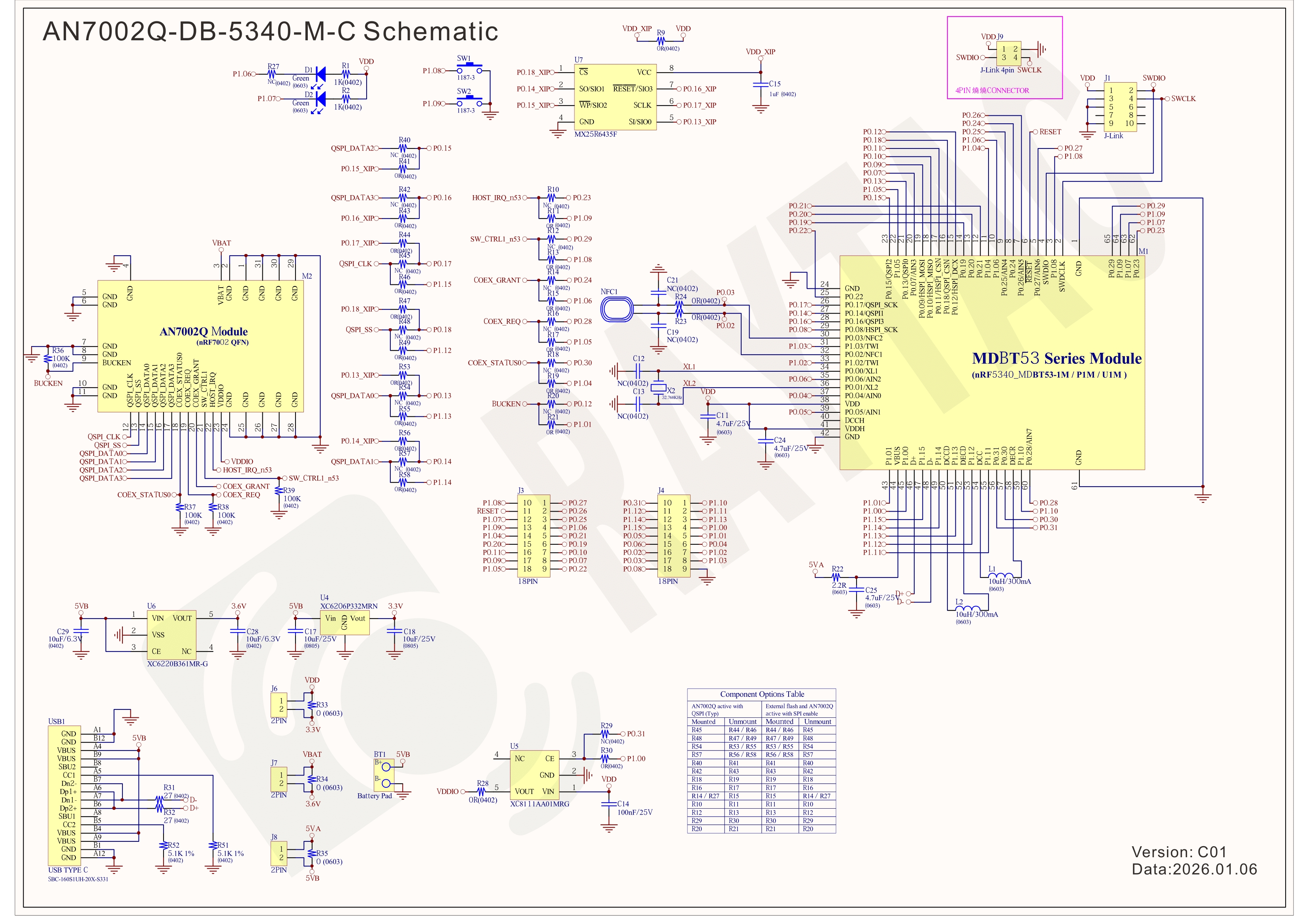
– Schematic of the AN7002Q-DB-5340-M(Click on the image to zoom in):


B. Project WITH External Flash MX25R64 needed
– Allocate SPI for communication between MDBT53 (BLE) and AN7002Q (WIFI)
– Allocate QSPI for XIP: External flash MX25R64 is activated
– It is REQUIRED to reallocate resistors to swap the QSPI and SPI on the AN7002Q-DB-5340-M in order to activate the circuit for MX25R64.
Do necessary resistors swapping manually (closely follow the definition chart printed on back side of board AN7002Q-DB-5340-M.)
Component Options Table” >  “External flash and AN7002Q active with SPI enable


– Photo showing the resistor allocation:
Detach the resistor -R27
Component Options Table” >  “External flash and AN7002Q active with SPI enable
<<< Necessary resistors swapping manually needed ↓ >>>


– Schematic of the AN7002Q-DB-5340-M(Click on the image to zoom in):
Modify the above resistors swapped and necessary component based on the chart:
“Component Options Table” >  “External flash and AN7002Q active with SPI enable”


!! Important Note:!!
The circuit of SW1(p1.08)/SW2(p1.09)/LED1(p1.06) on AN7002Q-DB-5340-M is NOT COMPATIBLE to Nordic WI-FI Control Pin of swctrl1(p1.08)/host_irq(p1.09)/grant(p1.06).
In this case, if you’re working with external flash MX25R64 for the WIFI project, Please avoid pin SW1/SW2/LED1 usage while LED2(p1.07) remains available as normal usage.
For the design perspective of mother board/carrier board /target board (mounted with AN7002Q & MDBT53 modules), it is required to design the circuit align to SW1(p0.23)/SW2(p0.24)/LED1(p0.28).


2. Software Resources & Preparations
Download nRF Connect For Desktop (Please Click Me)
Download nRF Command Line Tools (Please Click Me)

Step 1: Prepared with the latest version of nRF Connect for Desktop, using Windows 64-bit – 5.2.0
Step 2: Prepared with the latest version of Command Line Tools, using Windows X86 64 – 10.24.2

**Note: SEGGER J-LINK Upgrade message might pop up while you’re doing above downloads.

 If you’re initiating Segger Embedded Studio (SES) application, please check the guideline here(Click me) 

Step 3: Locate all the necessary kits for programming in PC


3. Firmware Build & Compile
After you download and set up nRFConnect SDK (NCS), you will be able to apply free VS (Visual Studio) Code IDE as firmware programming tool.
Here’re the guidelines to developing programs without/with External Flash MX25R64.

A. Project WITHOUT External Flash MX25R64 needed
You can directly build/compile on Nordic NCS without any additional configurations/modifications needed.

B. Project WITH External Flash MX25R64 needed
– Allocate SPI for communication between MDBT53 (BLE) and AN7002Q (WIFI)
– Allocate QSPI for XIP: External flash MX25R64 is activated

The below example uses NCS v3.1.1 and runs the under: C:\ncs

Step 1: Start with a Wi-Fi Scan project and run the program under: C:\ncs\v3.1.1\raytac
<<Create a new application and Copy a sample>>


Step 2: Select SDK v3.1.1 to copy the sample


Step 3: Select example by entering keyword: wifi scan(Wi-Fi Scan)


Step 4: Enter application location and name the project as: wifi_scan_uart_dfu


Step 5: Open an existing application and find the registered project: wifi_scan_uart_dfu

★★How to activate the Devicetree setting of Wi-Fi nRF7002 and Create file: nrf5340dk_nrf5340_cpuapp.overlay
Code example is as follows:
/ {
  chosen {
              aliases {
                       /delete-node/ leds;
                       /delete-node/ buttons;               
              }; 
          }; 

          leds {
                   compatible = “gpio-leds";

                   led1: led_1 {
                             gpios = <&gpio1 7 GPIO_ACTIVE_HIGH>;
                             label = “Green LED 1″;
                   };

          };

          /* These aliases are provided for compatibility with samples */
          aliases {
                   led1 = &led1;
          };
};

&mx25r64 {
  status = “okay";
};

/ {
          chosen {
                   nordic,pm-ext-flash = &mx25r64;
                   zephyr,wifi = &wlan0;
          };
};

&gpio_fwd {
    /delete-node/ uart;
};

&gpio_fwd
{
  status = “disabled";
};

&qspi {
          status = “okay";
          pinctrl-0 = <&qspi_default>;
          pinctrl-1 = <&qspi_sleep>;
          pinctrl-names = “default", “sleep";
          mx25r64: mx25r6435f@0 {
                   compatible = “nordic,qspi-nor";
                   reg = <0>;
                   /* MX25R64 supports only pp and pp4io */
                   writeoc = “pp4io";
                   /* MX25R64 supports all readoc options */
                   readoc = “read4io";
                   sck-frequency = <8000000>;
                   jedec-id = [c2 28 17];
                   sfdp-bfp = [
                             e5 20 f1 ff  ff ff ff 03  44 eb 08 6b  08 3b 04 bb
                             ee ff ff ff  ff ff 00 ff  ff ff 00 ff  0c 20 0f 52
                             10 d8 00 ff  23 72 f5 00  82 ed 04 cc  44 83 68 44
                             30 b0 30 b0  f7 c4 d5 5c  00 be 29 ff  f0 d0 ff ff
                   ];
                   size = <67108864>;
                   has-dpd;
                   t-enter-dpd = <10000>;
                   t-exit-dpd = <35000>;
          };
};

&spi1 {
    status = “okay";
    compatible = “nordic,nrf-spim";
    pinctrl-0 = <&spi1_default>;
    pinctrl-1 = <&spi1_sleep>;
    pinctrl-names = “default", “sleep";
cs-gpios = <&gpio1 12 GPIO_ACTIVE_LOW >;
nrf70: nrf7002@0 {
    status = “okay";
compatible = “nordic,nrf7002-spi";
reg = <0>;
spi-max-frequency = <24000000>;
/* Wi-Fi Pins used */
iovdd-ctrl-gpios = <&gpio1 0 GPIO_ACTIVE_HIGH>;
bucken-gpios = <&gpio1 1 GPIO_ACTIVE_HIGH>;
host-irq-gpios = <&gpio1 9 GPIO_ACTIVE_HIGH>;
wlan0: wlan {
compatible = “nordic,wlan";
};
wifi-max-tx-pwr-2g-dsss = <21>;
wifi-max-tx-pwr-2g-mcs0 = <16>;
wifi-max-tx-pwr-2g-mcs7 = <16>;
wifi-max-tx-pwr-5g-low-mcs0 = <9>;
wifi-max-tx-pwr-5g-low-mcs7 = <9>;
wifi-max-tx-pwr-5g-mid-mcs0 = <11>;
wifi-max-tx-pwr-5g-mid-mcs7 = <11>;
wifi-max-tx-pwr-5g-high-mcs0 = <13>;
wifi-max-tx-pwr-5g-high-mcs7 = <13>;       
};

nrf_radio_coex: nrf7002-coex {
status = “okay";
compatible = “nordic,nrf700x-coex";
req-gpios = <&gpio1 5 GPIO_ACTIVE_HIGH>;
status0-gpios = <&gpio1 4 GPIO_ACTIVE_HIGH>;
grant-gpios = <&gpio1 6 (GPIO_PULL_DOWN | GPIO_ACTIVE_LOW)>;
swctrl1-gpios = <&gpio1 8 GPIO_ACTIVE_HIGH>; 
};         
};

&pinctrl {
  spi1_default: spi1_default {
group1 {
psels = <NRF_PSEL(SPIM_SCK, 1, 15)>,
<NRF_PSEL(SPIM_MOSI, 1, 13)>,
<NRF_PSEL(SPIM_MISO, 1, 14)>;
};
  };
  spi1_sleep: spi1_sleep {
group1 {
psels = <NRF_PSEL(SPIM_SCK, 1, 15)>,
<NRF_PSEL(SPIM_MOSI, 1, 13)>,
<NRF_PSEL(SPIM_MISO, 1, 14)>;
low-power-enable;
};
  };
};

/ {
chosen {
zephyr,console = &uart2;
zephyr,shell-uart = &uart2;                                 
};
};

&uart2 {
status = “okay";
current-speed = <115200>;
pinctrl-0 = <&uart2_default>;
pinctrl-1 = <&uart2_sleep>;
pinctrl-names = “default", “sleep";
};

&pinctrl {
uart2_default: uart2_default {
                  group1 {
                          psels = <NRF_PSEL(UART_TX, 1, 2)>,
                                     <NRF_PSEL(UART_RX, 1, 3)>;
                          bias-pull-up;
                  };
};
uart2_sleep: uart2_sleep {
                  group1 {
                          psels = <NRF_PSEL(UART_TX, 1, 2)>,
                                     <NRF_PSEL(UART_RX, 1, 3)>;
                          low-power-enable;
                  };
};
};


Step 7: It is required to do MCUBoot before working with DFU using External Flash
Please do the code configuration in sysbuild.conf as following reference code.

SB_CONFIG_BOOTLOADER_MCUBOOT=y
# DFU with UART
SB_CONFIG_MCUBOOT_MODE_SINGLE_APP=n

# DFU with external flash
SB_CONFIG_PM_EXTERNAL_FLASH_MCUBOOT_SECONDARY=y

Step 8: It is required to do MCUMGR before working with DFU over UART
Please do the code configuration in prj.conf as following reference code.

# Enable QSPI driver for Application
CONFIG_NORDIC_QSPI_NOR=y

# Enable mcumgr DFU in application
CONFIG_MCUMGR=y    
CONFIG_NET_BUF=y
CONFIG_ZCBOR=y  
CONFIG_CRC=y    

# Enable mcumgr management for both OS and Images
CONFIG_MCUMGR_GRP_OS=y 
CONFIG_MCUMGR_GRP_IMG=y
CONFIG_FLASH=y
CONFIG_IMG_MANAGER=y
CONFIG_STREAM_FLASH=y
CONFIG_FLASH_MAP=y

# Configure MCUMGR transport to UART
CONFIG_MCUMGR_TRANSPORT_UART=y
CONFIG_BASE64=y

Step 9: Add with MCUBoot setting , and create a root for sysbuild ; Build with file mucboot.overlay & file mcuboot.conf

9A. With mucboot.overlay
&mx25r64 {
status = “okay";
};

/ {
          chosen {
                   nordic,pm-ext-flash = &mx25r64;
          };
};

&gpio_fwd {
/delete-node/ uart;
};

&gpio_fwd
{
status = “disabled";
};

9B. With file: mcuboot.conf

CONFIG_NORDIC_QSPI_NOR=y
CONFIG_BOOT_MAX_IMG_SECTORS=512

Step 10: Create a VERSION file by referencing the following code when testing DFU over UART.
VERSION_MAJOR = 99
VERSION_MINOR = 0
PATCHLEVEL = 0
VERSION_TWEAK = 0
EXTRAVERSION =

Step 11: Add build configuration.


Step 12: Add build configuration >> Choose Board target: nrf5340dk/nrf5340/cpuapp


Step 13: Generate and Build


Step 14: Generate a Merged.hex file after compiling the program


Step15: You can choose Build/Debug/Flash under ACTIONS during development
<< Build >>


<< Debug >>


<< Flash >>


Step 16: Go to ACTIONS >> Memory report


Now you can see partitions available in the system. mcu_secondary has already been located in MX25R64 flash memory.


4. Test/Validate DFU Process & WIFI SCAN
After the firmware programmed to MDBT53 module on board, we use the USB to UART adaptor board for connection AN7002Q-DB-5340-M through: A. MCUMGR UART to PC and through: B. WiFi Scan UART to PC respectively.
Note: We suggest you finish connecting A. and B. before running tests.


Now we can run the tests.

A. DFU over UART – Using AuTerm Program
1. We can locate Image version=V99.0.0 under the current VERSION file


It also indicates Image version: 99.0.0 in MCUmgr-Slot 0.


2. Try to modify the file version from V99 to V100 under VERSION file:
VERSION_MAJOR = 100

VERSION_MINOR = 0

PATCHLEVEL = 0

VERSION_TWEAK = 0

EXTRAVERSION =

And go with “Pristine Build”


3. We’re about to run DFU over UART , Please DO NOT do “Flash” or “Erase”.


Proceed with “Force reboot”


4. It’s now Version 100.0.0 in Slot 0 under MCUgr ⭢ DFU over UART successfully done!


Before it was Version 99.0.0 in Slot 1 under MCUgr.


B. WIFI SCAN – PuTTY Console
WIFI SCAN credentials can be located under PC Console – PuTTY.


Useful references:
Nordic Developer Academy
nRF Connect SDK Documentation
Wi-Fi Samples
Nordic DevZone – Technical Forum


Edited by Business Development Manager: Jocelyn Tsai
Technical Guidance by R&D Manager: MW Lee

Raytac Corporation 勁達國際電子股份有限公司 / Raytac Corporation (USA) / abietec Inc.
A Bluetooth, Wi-Fi, and LoRa Module Maker/ODM & OEM Manufacturer based on
Nordic nRF54; nRF53: nRF52; nRF51; nRF7002
Semtech Specification: SX1262

Bluetooth Specification: BT6 ; BT5.4 ; BT5.3 ; BT5.2.
Wi-Fi Specification: Wi-Fi 6
LoRa Specification: LoRaWAN

All products are FCC/IC/CE/Telec/KC/RCM/SRRC/NCC/WPC/RoHS/Reach Pre-Certified.
http://www.raytac.com
https://www.raytac.com/contact/
email: sales@raytac.com
Tel: +886-2-3234-0208(TW)/+1-626-217-3139(USA)


Raytac’s Impact on the Zephyr Ecosystem – Little Module, Huge Potential

In this article, Stanley Huang, MSc, Deputy Manager of Firmware Development at Raytac, shares insights on how Raytac’s modules and development kits strengthen the Zephyr ecosystem.

[Stanley Huang, New Taipei City]
When we talk about open-source platforms like Zephyr RTOS, most people immediately think of major chip manufacturers such as ST Micro, NXP, or Nordic. But to me, what truly makes Zephyr famous amongst the developer community is through modules that developers can actually touch: those they can instantly plug in and start using right away. In these terms, Raytac is one of the most underrated and important contributors in this ecosystem.

Raytac Modules Make Zephyr More Accessible
Instead of being a chip vendor, we specialize in producing high-quality, globally certified modules – especially Bluetooth and Wi-Fi modules based on Nordic chipsets, such as the AN7002Q, AN54LQ, AN54LV, MDBT53, MDBT50Q, and MDBT42Q.
All these modules are already certified with Regional RF compliances(FCC, IC, CE, KC, etc.) and the latest Bluetooth Specifications, offering developers the assurance of “plug and play” and “production-ready” solutions.
We assure that our modules have become one of the easiest platforms for Zephyr developers to test BLE functionality.

I paired Zephyr with Raytac’s MDBT50Q-DB-40 development board when I first applied Zephyr in a BLE Peripheral project . With a simple west build -b nrf52840dk_nrf52840 followed by flashing the firmware using J-Link or nRF Connect for Desktop, the BLE beacon immediately showed up on my phone. Clean, simple, noise-free, and developer-friendly – that’s Raytac’s style.

Modules play an invaluable role in product development
Many would say Raytac only makes modules and the real core is still Nordic’s SoC.
But I believe that in an open-source system like Zephyr, the hardware that helps your project runs first is that which contributes the most.
Our Zephyr-registered development kits eliminate the hassles of manual soldering, regulatory certification, and antenna design, allowing engineers to fully focus on developing applications based on Zephyr.
They can run Zephyr’s BLE peripheral, central, GATT, and HCI samples directly on the Raytac kits that act as a one-stop hardware solution.
In many ways, Raytac has pushed Zephyr’s usability a significant step forward.

Raytac Also Expands Zephyr’s Application Horizon
Many of Raytac’s modules are ultra-compact- ideal for wearables, smart sensors, and low-power beacons…etc. These are the scenarios where Zephyr excels, and Raytac’s modules provide the physical platform to enable companies to build their “dream devices".
When running Zephyr on a tiny module like the AN54LV-15(Product Link), developers will be amazed that something smaller than a piece of corn kernel can run a full RTOS, manage the BLE stack, trigger timers, drive I2C sensors, and even connect to the cloud, all by itself.  This combination doesn’t just make development easier – it inspires developers to realize that: “they can build their projects using Raytac’s hardware.”

Raytac may not be the star, but we’re always ready for you
On Zephyr’s main stage, companies like Nordic, STM, and Intel take the spotlight, but Raytac plays an essential supporting role – supporting the performance from behind the scenes. We offer stable, high quality, and low-power platforms, giving every line of Zephyr code a place to run and every feature a cornerstone.
Our greatest value lies in helping developers skip antenna design and RF interference concerns – so they can jump right into the Zephyr ecosystem with ease.

Our products deliver the reliability you need and the efficiency you expect.

We invite you to explore more about how Raytac supports the Zephyr ecosystem and discover our range of development kits and modules designed for seamless integration.
Visit our Zephyr page here: https://docs.zephyrproject.org/latest/boards/raytac/index.html
Visit Zephyr’s Ecosystem Vendors page: https://www.zephyrproject.org/ecosystem-vendor-offerings/

For more information, please contact:
Raytac Contact Form: https://www.raytac.com/contact/
Raytac Sales email: sales@raytac.com
abietec Service email: service@abietec.com


Article by Firmware Deputy Manager: Stanley Huang
Edited by Business Development Manager: Tony Yin

Raytac Corporation 勁達國際電子股份有限公司 / Raytac Corporation (USA) / abietec Inc.
A Bluetooth, Wi-Fi, and LoRa Module Maker/ODM & OEM Manufacturer based on
Nordic nRF54; nRF53: nRF52; nRF51; nRF7002
Semtech Specification: SX1262

Bluetooth Specification: BT6 ; BT5.4 ; BT5.3 ; BT5.2.
Wi-Fi Specification: Wi-Fi 6
LoRa Specification: LoRaWAN


All products are FCC/IC/CE/Telec/KC/RCM/SRRC/NCC/WPC/RoHS/Reach Pre-Certified.
http://www.raytac.com
https://www.raytac.com/contact/
email: sales@raytac.com
Tel: +886-2-3234-0208(TW)/+1-626-217-3139(USA)

Important Notice:Upcoming price increase in Bluetooth SIG Membership Fees and DID

The Bluetooth SIG Board of Directors(BoD) has granted its approval for a 15% increase in member fees, effective from January 1,2024. This decision comes after careful consideration of the organization’s financial situation and the need to cover the rising costs of current and futrue member services throughout 2024.
Bluetooth

Feel free to explore the mission and operations of the Bluetooth SIG by visiting the provided web pages below:

Raytac Corporation 勁達國際電子有限公司
A Bluetooth & WiFi module maker based on Nordic nRF53, nRF52, nRF70 solution 
www.raytac.com email: service@raytac.com Tel: +886.2.3234.0208           

Matter, New Era of Connection, Introduction & Certification

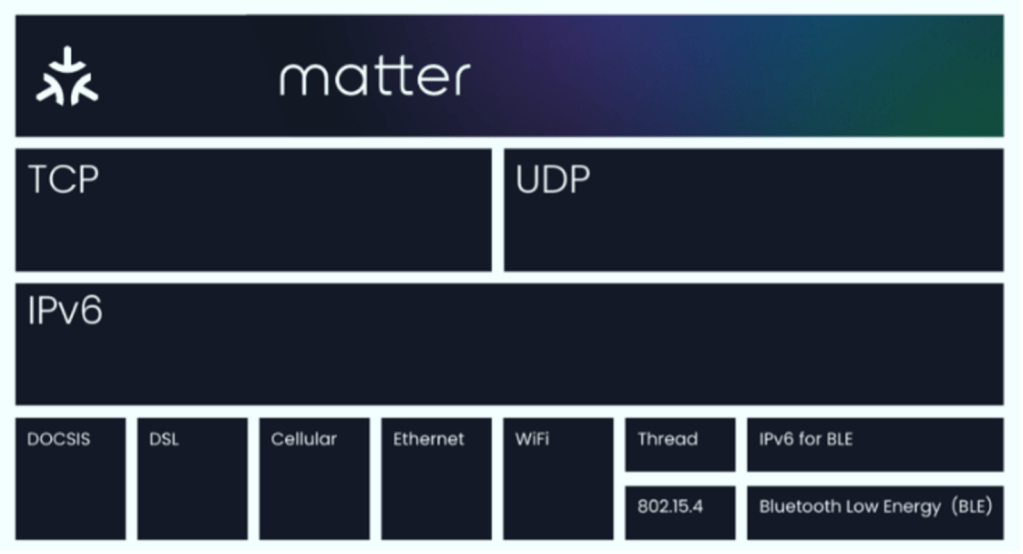
Matter aims to build a universal IPv6-based communication protocol to make it easier for smart home devices to communicate with each other. The protocol defines the application layer that will be deployed on devices as well as the different link layers to help maintain interoperability. Matter protocol built from the best pieces of existing trustworthy protocols, including Google Weave, Apple HomeKit, and Zigbee.

Matter is using Thread, Wi-Fi, and Ethernet for transport and Bluetooth Low Energy (BLE) for device commissioning to support a host of smart home devices. Any smart home gadgets you have that use these technologies should be able to be bridged into Matter.

Overall, Matter 1.0 simplifies the process of connecting smart home devices and enables seamless communication between them, regardless of their brand or manufacturer.

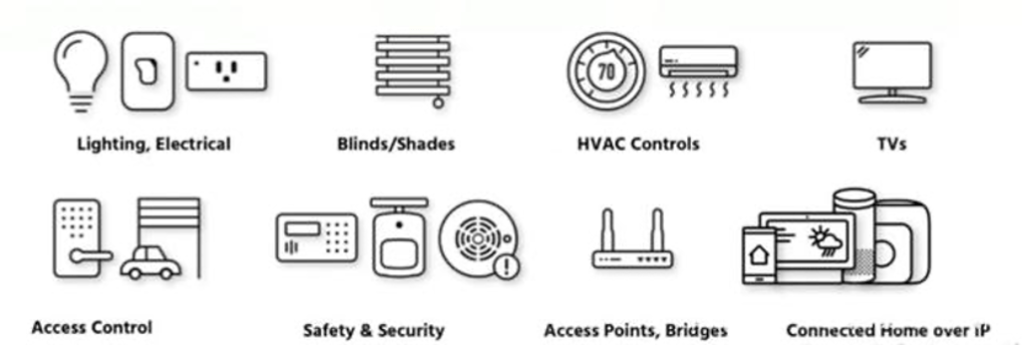
Matter 1.0 specs already support a variety of common smart home products, including lighting and electrical, HVAC controls, window coverings and shades, safety and security sensors, door locks, media devices including TVs, controllers as both devices and applications, and bridges. Support for security cameras, smart speakers, home appliances and robotic vacuums is already planned for subsequent versions of Matter. With the ecosystem expansion, new use cases and applications are expected to emerge.

Certification Process

Matter Testing


The Matter 1.0 standard launches with test cases and comprehensive test tools for Alliance members and a global certification program including nine authorized test labs who are primed to test not only Matter, but also Matter’s underlying network technologies, Wi-Fi and Thread. Wi-Fi enables Matter devices to interact over a high-bandwidth local network and allows smart home devices to communicate with the cloud. Thread provides an energy efficient and highly reliable mesh network within the home.

Authorized Testing Providers

Edited by Sales Manager: Mr. Neo Hsu

Raytac Corporation 勁達國際電子有限公司
A BT5.2 & BT5.1 & BT5 module maker based on Nordic nRF53 & nRF52 solution 
(nRF5340 & nRF52840 & nRF52833 & nRF52832 & nRF52820 & nRF52811 & nRF52810 & nRF52805)
www.raytac.com email: service@raytac.com Tel: +886.2.3234.0208

FCC Amends Equipment Authorization Program – A written and signed attestation Needed

For protecting against National Security Threats reason, FCC newly announced a new request added in Equipment Authorization program. FCC Publication Number: 986446. date:01/24/2023

FCC amends the rules related to equipment authorization program to prevent any unacceptable risk result from communications networks and supply chains from equipment. DA/FCC #: FCC-22-84. FCC Amends Equipment Authorization Program require applicants for certification need to provide a written and signed attestation. Also, any equipment certification needs to identify a agent, located in United States for service or the process.

Raytac Corporation has pointed US subsidiary, Raytac USA LLC., poses as the US agent for Raytac Corporation to fulfill the FCC new requirements. Customers has any issues to adopt this new regulation may contact Raytac for further support.

Edited by Sales Deputy Manager: Ms. Vicky Huang

Raytac Corporation 勁達國際電子有限公司
A BT5.2 & BT5.1 & BT5 module maker based on Nordic nRF53 & nRF52 solution 
(nRF5340 & nRF52840 & nRF52833 & nRF52832 & nRF52820 & nRF52811 & nRF52810 & nRF52805)
www.raytac.com email: service@raytac.com Tel: +886.2.3234.0208

How To Get Started With nRF5340 Module Program Coding and Compiling

Intro:

As the chipset of nRF5340 is built by Dual Core structure (net core and application core), we need to proceed the coding and compiling process individually to net core & application core.

After the coding and compiling process done, we could get the separate zephyr.hex file respectively which are used for BLE module FW.

 Firmware Development Steps : Code Building / Compiling

Case Study : 

A. NON-Audio Project

     nRFConnect SDK V2.6.0

     Nordic Example code – “peripheral_uart”

  1. Nordic example code of “hci_ipc” extracted for coding and we will get zephyr.hex file for net core
  2. Nordic example code of “peripheral_uart” extracted for coding and we will get zephyr.hex file for application core

Step 1. Net core Layer

1a) Activate “Open VS Code” IDE in NCS V2.6.0

1b) Select “Add an existing application” and extract “hci_ipc” file moving forward

1c) Click “Add Build Configuration” icon

1d) Select “nrf5340dk_nrf5340_cpunet” and check Nordic boards then Execute “Build Configuration”

1e) zephyr.hex file is successfully generated for net core layer if the coding process is properly executed

B. Project with Audio inquiry

  nRFConnect SDK V2.6.0

    Nordic Example code – “nrf5340_audio

  1. Nordic example code of “hci_ipc” extracted for coding and we will get zephyr.hex file for net core
  2. Nordic example code of “nrf5340_audio” extracted for coding and we will get zephyr.hex file for application core

Step 2. Application core Layer:

2a) Activate “Open VS Code” IDE in NCS V2.6.0

2b) Select “Add an existing application” and extract “hci_ipc” file moving forward

2c) Click “Add Build Configuration” icon

2d) Select “nrf5340dk_nrf5340_cpuapp” and check Nordic boards, then Execute “Build Configuration”

2e) zephyr.hex file is successfully generated for application core layer if the coding process is properly executed

Find more nRF5340 module development resources in below links:

How To Get started with MDBT53/53V Demo Board Set up (MDBT53-DB-40/MDBT53V-DB-40)

How To USE Nordic Connect SDK (NCS) Flashing Built Code into nRF5340 Module

Edited by Account Manager: Jocelyn Tsai

Raytac Corporation 勁達國際電子股份有限公司 
Bluetooth & WiFi module maker based on Nordic nRF54, nRF53, nRF52, nRF7002 solution
BT5.4 &BT5.3 & BT5.2 & BT5.1 Qualified, FCC/IC/CE/Telec/KC/RCM/SRRC/NCC Pre-Certified. Bluetooth Solution: nRF54, nRF5340, nRF52840, nRF52833, nRF52832, nRF52820, nRF52811, nRF52810, nRF52805, nRF51822 WiFi Solution: nRF7002
www.raytac.com
email:sales@raytac.com
Tel: +886.2.3234.020

How To USE Nordic Connect SDK (NCS) Flashing Built Code into nRF5340 Module

Edited by Jocelyn Tsai / Account Manager

Intro:  With the ready built code of zephyr.hex file for net core and application core individually, we would like to proceed code flashing into the MDBT53/53V Nordic nRF5340 BLE module.

  • Ready Built Code Programming Steps

Step1. 

Execute nRF Connect >>  Programmer  > > Open

Step2.

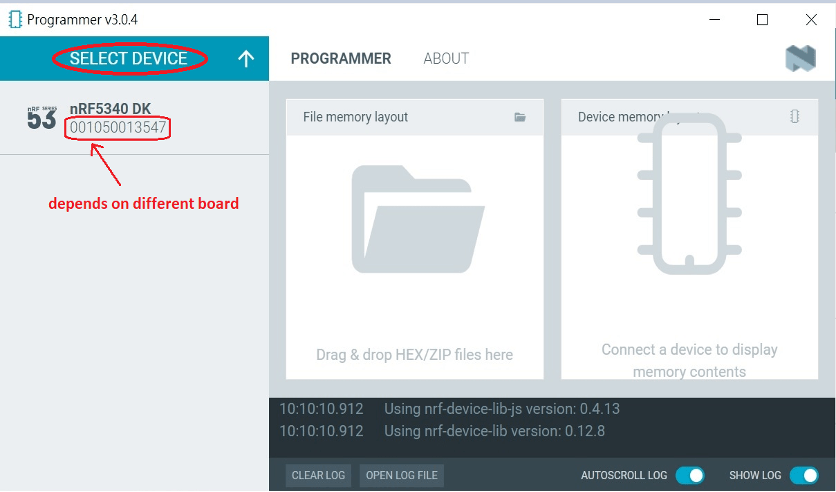
Click “SELECT DEVICE” >> Find icon of “nRF5340 DK” which is detected by the programmer app

Step3.

Click icon of “nRF5340 DK” >> “Erase All” to remove the flash memory from MDBT53/53V BLE Module

Step4.

Click “Add File” to load the net core zephyr.hex and application core zephyr.hex both into programmer

Step5.

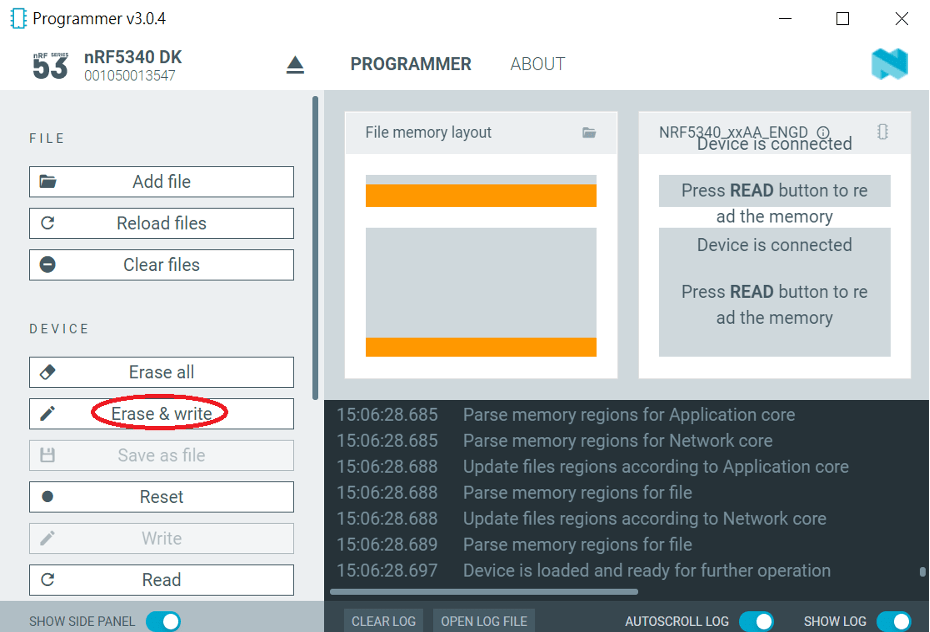
Do “Erase & Write ” to execute the flashing process for both zephyr.hex into memory of MDBT53/53V Module.

Step6.

To validate the wireless broadcast of default name “Nordic_UART_Service” from MDBT53/53V Module, please check on the “nRF Connect for mobile” APP and do “Scan device” through your mobile.   

Once the device name is detected in your mobile , the wireless connection is successfully done.

There are some more useful resources in the below links:
Hardware set up works
“How To Get started with Nordic nRF5340 Project by Raytac MDBT53/MDBT53V Development Kit Demo Board"
Firmware development:
“How To Get Started With nRF5340 Module Program Coding and Compiling" (Click Me)

Edited by Account Manager: Jocelyn Tsai

Raytac Corporation 勁達國際電子有限公司
A BT5.2 & BT5.1 & BT5 module maker based on Nordic nRF53 & nRF52 solution 
(nRF5340 & nRF52840 & nRF52833 & nRF52832 & nRF52820 & nRF52811 & nRF52810 & nRF52805)
www.raytac.com email: service@raytac.com Tel: +886.2.3234.0208

How To Get started with Nordic nRF5340 Project by Raytac MDBT53/MDBT53V Development Kit Demo Board

Edited by Jocelyn Tsai / Account Manager

Here provides the easy introduction to the article of Hardware & Firmware Set up with step-by-step guidelines for nRF5340 Module demo board MDBT53-DB-40/MDBT53V-DB-40.

  1. Hardware Set Up
  2. Software Kits Resource & Preparation
  3. To recognize your nRFConnect SDK version case by case

1. Hardware Set Up

  • 1 x Nordic nRF5340-DK Board: PCA10095(2.0.0)
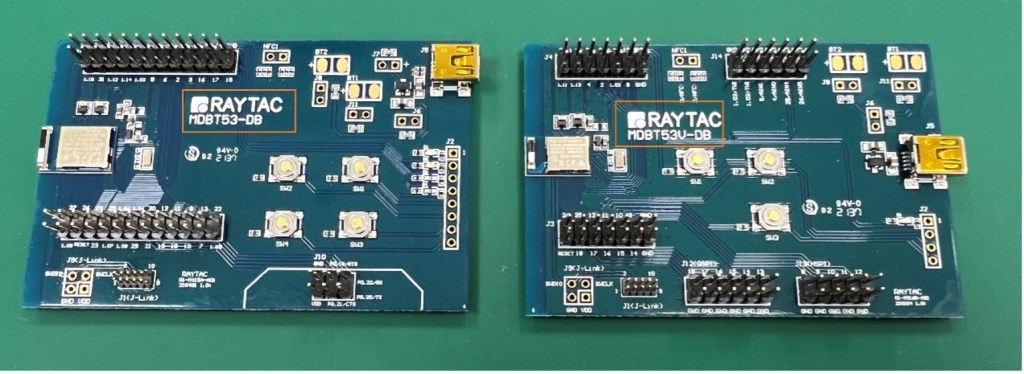
  • 1 x MDBT53-DB-40 or 1x MDBT53V-DB-40
  • 1 x IDC Wire 
  • 1 x Power Micro USB
  • 1 x Power Mini USB

**Reminder: Both “Nordic nRF5340-DK” and “Raytac MDBT53/53V Demo BD” should be included into the working network for program development.

Where to buy MDBT53-DB-40 , MDBT53V-DB-40
MDBT53-DB-40 (nRF5340 Solution)
MDBT53V-DB-40 (nRF5340 Solution)

  • Using Nordic DK as J-Link ( nRF5340 DK ONLY) Connects with MDBT53/53V DB by IDC wire.
  • Powered up MDBT53/53V DB by Mini USB wire.
  • Powered up the nRF5340-DK by Micro USB wire.


2.Software Kits Resource & Preparation

Download nRF Connect For Desktop (Please Click Me)

Download nRF Command Line Tools (Please Click Me)

Preparation

a. Prepared with the latest version of nRF Connect for Desktop

Selected version 3.12.0 Windows 32-bit and 64-bit

nrfconnect-setup-3.12.0-ia32.exe

b. Prepared with the latest version of nRF Command Line Tools

Selected version 10.18.1 Windows X86 64

nrf-Command-Line-Tools-10.18.1-x64.exe

**Note: SEGGER J-LINK Upgrade message might pop up while you’re doing above download.

 If you’re initiating Segger Embedded Studio (SES) application, please check the guideline here

c. Locate all the necessary kits for programming in PC (Check Software/Application list)


3. To recognize your nRFConnect SDK version case by case

Intro: The preparation of nRF Connect SDK Vx.x.x(NCS SDK version, ) and Nordic Example code will help you get through the program code building and trace debug in VS Code IDE or Segger Embedded Studio IDE. Here’s the brief way to recognize your nRFConnect SDK version which suits your project development.

Step1.

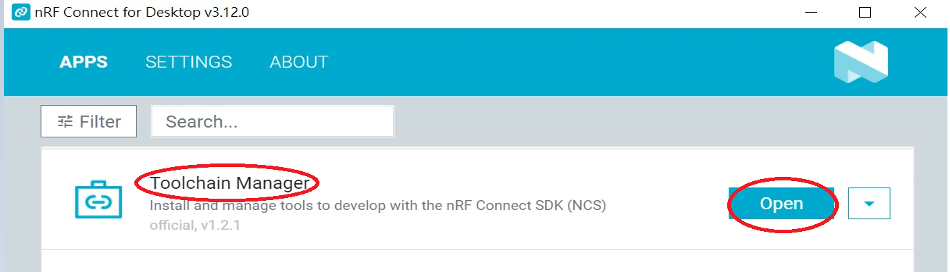
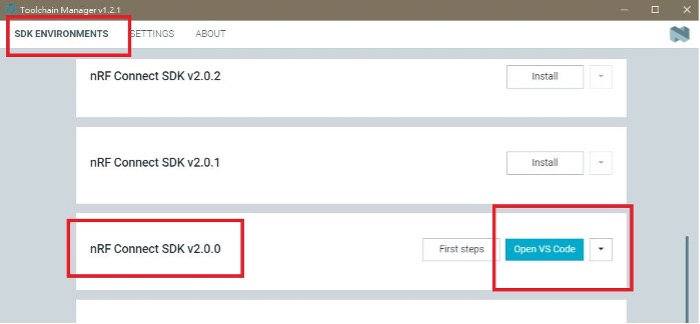
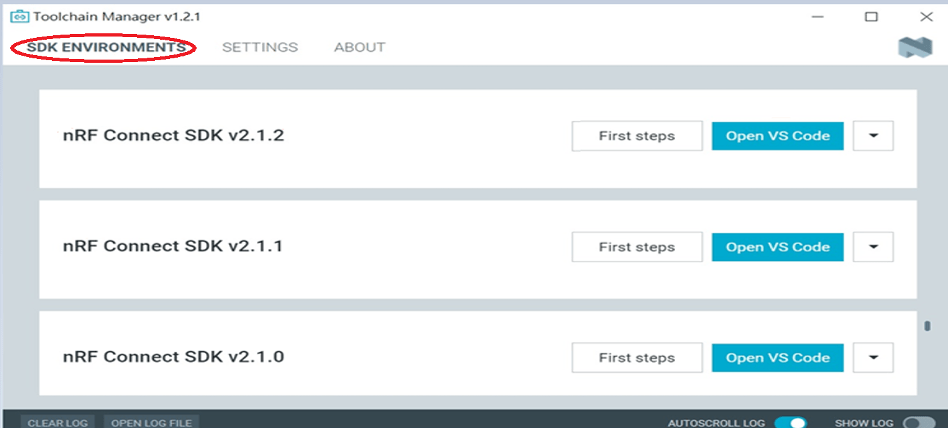
  Activated your “nRF Connect for Desktop”  >> “Toolchain Manager” >> “Open” >> “Install”

(**Note: The development nRF Connect SDK(NCS) provides with free VS Code IDE and Segger Embedded Studio IDE as compiling system)

Step2.

To recognize your project is with or without Audio inquiry and download the “nRF Connect SDK(NCS)” by the following classification.

A.) Project with Non-Audio case

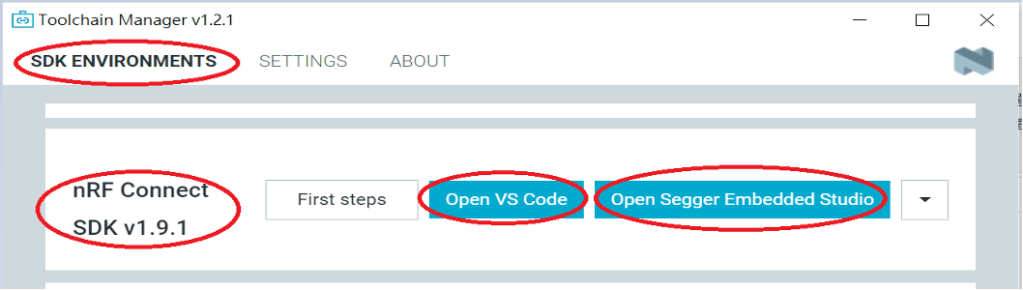
Option1. Go with NCS V1.9.1 (Included) and previous version.

There’re either “Open VS Code” or “Open Segger Embedded Studio” IDE options could be selected for program coding.

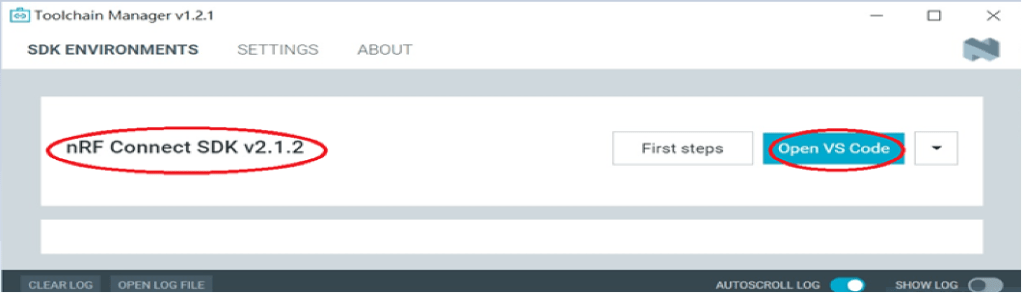
Option2. Go with NCS V2.0.0(included) and the later.

 There’s simply “Open VS Code” IDE that could be run for program coding.

B.) Project with “Audio” inquiry

You would only have option of NCS V2.0.0(included) and the later version working in “Open VS Code” IDE.

Step3.

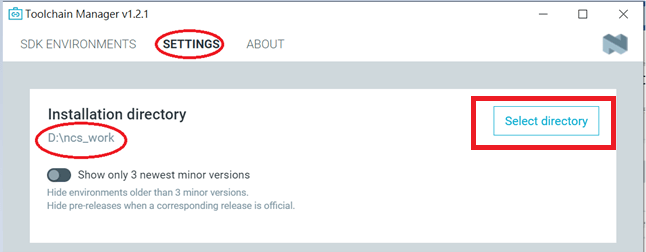
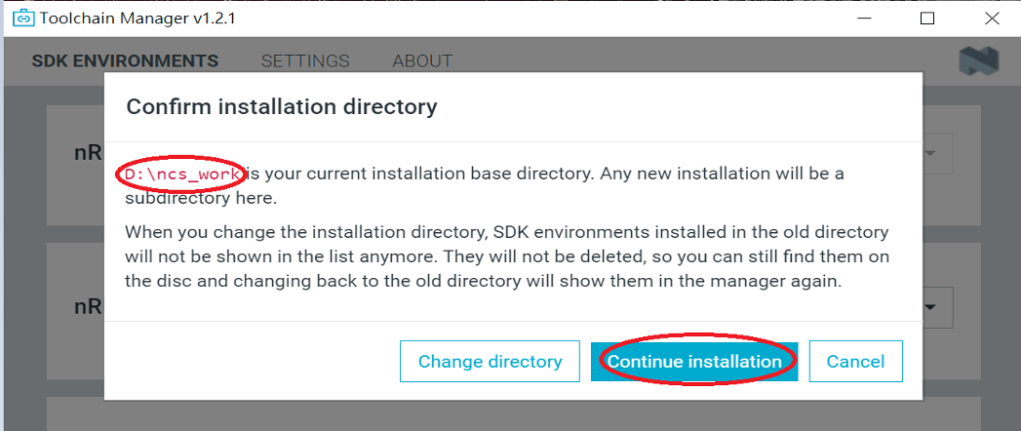
 Please make sure the nRFConnect SDK is installed at same base directory with compiling system  (the root of Open VS Code)

(This is using D:\ncs-work base as example.)    

If the base is not directing to the same, do “Select directory’” to re-direct the route.

Step4.

nRFConnect SDK Vx.x.x Download ready

Find more information about nRF5340 Module firmware development resources in below link!

“How To USE Nordic Connect SDK (NCS) Flashing Built Code into nRF5340 Module" , Please click this link! 

“How To Get Started With nRF5340 Module Program Coding and Compiling" Please click this link


Raytac Corporation 勁達國際電子有限公司
A BT5.2 & BT5.1 & BT5 module maker based on Nordic nRF53 & nRF52 solution 
(nRF5340 & nRF52840 & nRF52833 & nRF52832 & nRF52820 & nRF52811 & nRF52810 & nRF52805)
www.raytac.com email: service@raytac.com Tel: +886.2.3234.0208

Find nRF5340 module here!

Where to find nRF5340 module quickly? The nRF5340 a dual core solution deployed with 2 Arm Cortex M33 processors. Not only provide faster and powerful for advanced applications, but also LE audio. Raytac knows your anxiety and already distributed the modules available in several channels aimed to provide a speedy and comfortable way to get it.

Buy From Amazon
By From Digi-Key

Raytac Corporation 勁達國際電子有限公司
A BT5.2 & BT5.1 & BT5 module maker based on Nordic nRF53 & nRF52 solution 
(nRF5340 & nRF52840 & nRF52833 & nRF52832 & nRF52820 & nRF52811 & nRF52810 & nRF52805)
www.raytac.com email: service@raytac.com Tel: +886.2.3234.0208

Nordic nRF5340 Module MDBT53 and MDBT53V By Raytac Corporation

Nordic nF5340 is the first wireless SoC with dual core processors which aimed to optimized the performance of complex IoT applications and LE audios. The dual core contains a 1MB Flash / 512K RAM M4F MCU for application processor and another 256K Flash / 64K RAM for network. This structure remarkable optimized the performance also low power efficiency.

Raytac released 5 modules with 2 form factors, MDBT53 and MDBT53V,  with different antenna options for selection. The modules deployed nRF53 SoC supports high-speed SPI, QSPI, USB, I2C, I2S, and NFC interface and 105°C industrial temperature specification. BT5.3 pre-qualified, FCC/IC/CE/Telec (MIC)/KC/SRRC/NCC pre-certified is a MUST for all Raytac modules.

MDBT53 is a System-on-Module (aka SoM) with a good size of 9.3mm x 14.3mm and 48 GPIO which is an ideal dimension to fit in most applications. MDBT53 provides 3 antenna options, Chip antenna; PCB antenna; and u.FL connector for external antenna which deliver a maximum feasibility for most IoT projects. MDBT53-1M (Chip Antenna) MDBT53-P1M (PCB Antenna) MDBT53-U1M (u.FL Connector for External Antenna)

MDBT53V is designated for the application which has a space constraint design. A 7.8mm x 12.4mm with 25 GPIO is small enough to offer the opportunity of employing nRF5340 modules in the project. MDBT53V provides 2 options of antenna, Chip and PCB, for developers’ selection which is capable of optimizing the project plan in terms of performance and budgetary.  MDBT53V-1M (Chip Antenna) MDBT53V-P1M (PCB Antenna)

Raytac Corporation 勁達國際電子有限公司
A BT5.3 & BT5.2 & BT5.1 module maker based on Nordic nRF53 & nRF52 solution 
(nRF5340 & nRF52840 & nRF52833 & nRF52832 & nRF52820 & nRF52811 & nRF52810 & nRF52805)
www.raytac.com. email: sales@raytac.com Tel: +886.2.3234.0208