BLE Module Firmware Development Q&A: NFC pins creates “Error 404 – signal not found” (technically)

When you start developing your firmware for your Nordic nRF52832 solution-based Raytac BLE module, you will (like on most other projects) bump into some difficulties.

The other day, we had yet another case where a simple thing caused major difficulties for even some of the brightest people – a customer couldn’t get their GPIO direction bit to work.

Although not too difficult to solve, it’s a common error that most customers end up having on our modules and that is because Pin 0.09 & 0.10 are set to NFC per Nordic’s default settings. In order to be able to use these pins as normal GPIOs, you will have to change those settings.

The two pins I am talking about are the ones linked to the NFC-part to the far left in the circuit example below:


nRF52832 MDBT42V Schematic.png

So, to convert these two pins to normal GPIOs, here’s what you need to do:

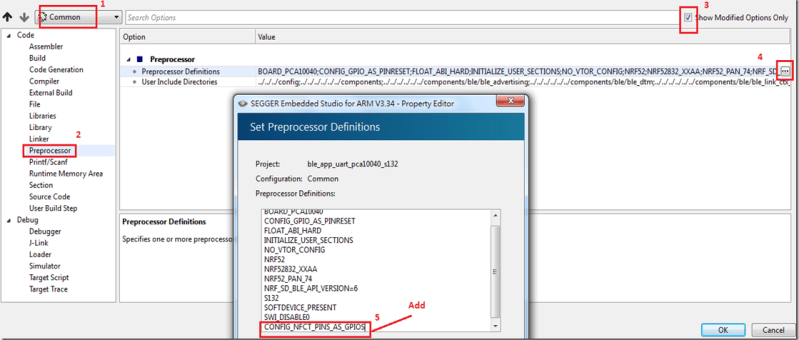
In SES, you’ll need to add CONFIG_NFCT_PINS_AS_GPIOS.

Pic 1
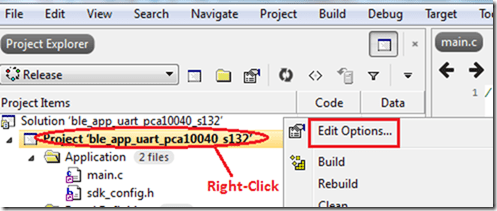
Right-click on the project and click “Edit Options"
Pic 2
Select “Common", click on “Preprocessor" under “Code" and then click “CONFIG_NFCT_PINS_AS_GPIOS"

Check out the link below for a reference example on Nordic’s DevZone.

Reference link: Nordic DevZone – NFC pins into GPIOs

Raytac Corporation 勁達國際電子有限公司
A BT5.2 & BT5.1 & BT5 module maker based on Nordic nRF53 & nRF52 solution
(nRF5340 & nRF52840 & nRF52833 & nRF52832 & nRF52820 & nRF52811 & nRF52810 & nRF52805)
www.raytac.com email: service@raytac.com Tel: +886.2.3234.0208

Raytac Nordic Module Line

Bluetooth Project: How to get your firmware development started!

Setting up Nordic’s IDE (Integrated Development Environment) is the first step into Bluetooth product development, and it’s also where most developers need support.

In order for developers to be able to smoothly set up their IDE, Raytac hereby provide you with a few easy steps.

First and foremost – In terms of IDEs, there are currently four different ones that are all viable; Segger Embedded Studio (SES), Keil C, IAR and GCC. Among these, SES and GCC are IDEs free of charge while Keil C and IAR both require the developer to pay a license fee to their respective company.

We at Raytac generally recommend SES, as it is an IDE brought forth by both Nordic and Segger together and it uses Segger J-Link. Although GCC is a free IDE, it only builds code and is impractical editting make file or debugging firmware. Thus, it’s not our primary choice.

Therefore, we will hereby provide you a step-by-step guide on how to set up your IDE when using SES.

  1. Where to download SES?

https://www.segger.com/downloads/embedded-studio/

圖片 1.png

  1. Where to Nordic SDK ( Use SDK v15.0.0 as an example)

https://developer.nordicsemi.com/nRF5_SDK/nRF5_SDK_v15.x.x/

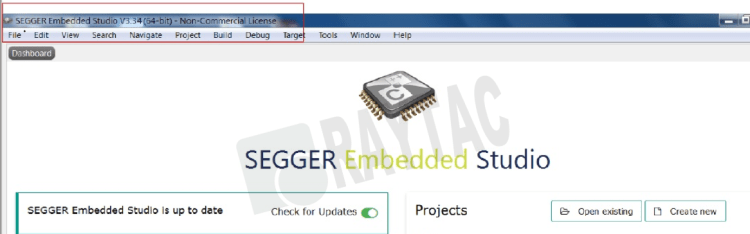
  1. Install SES V3.34 and unzip SDK v15.0.0

After SES installed, you may find “Non-Commercial License" 

圖片 4.png

  1. SES License Key? http://license.segger.com/Nordic.cgi
  2. How to get free License Key?

Key in Name, Company name, Address and PC’s MAC address. Then press “Request License", the “License key" will send to your mail box automatically.

Tips: How look up PC’s Mac address: Pls enter DOS mode, 

Key in ipconfig/all,

The Mac address will be found in Ethernet card.

圖片 7.png

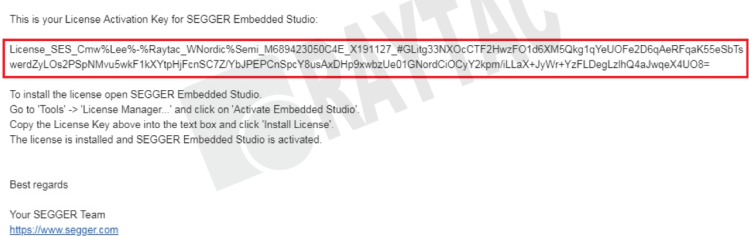
  1. Copy the license key from mail

圖片 8

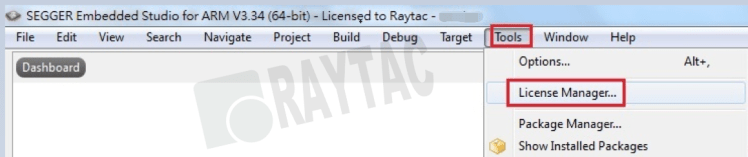
  1. Execute SES and find out the “License Manager" in “Tools" option

圖片 9

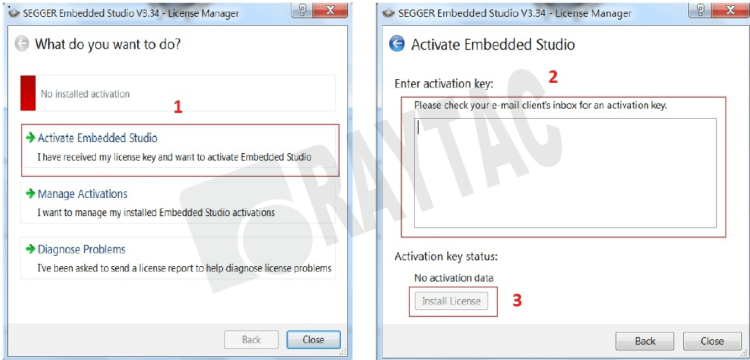
  1. Select “Activate Embedded Studio", Paste the “License Key", Click “Install License"

圖片 10.png

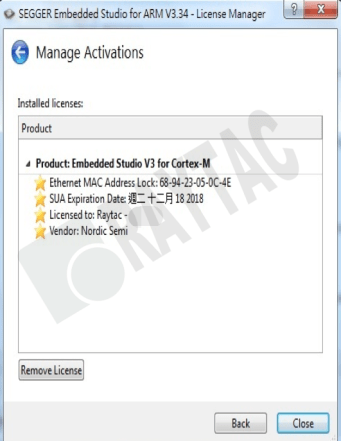
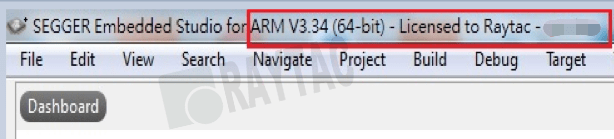
  1. When completed, click"Manage Activation",shown “License key" well installed.

圖片 11

圖片 12.png

CMSIS Configuration Wizard,

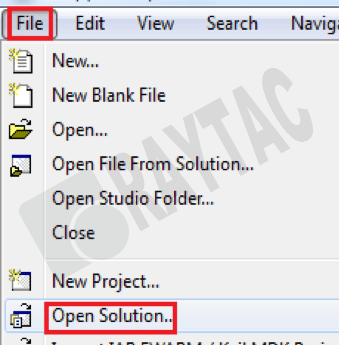
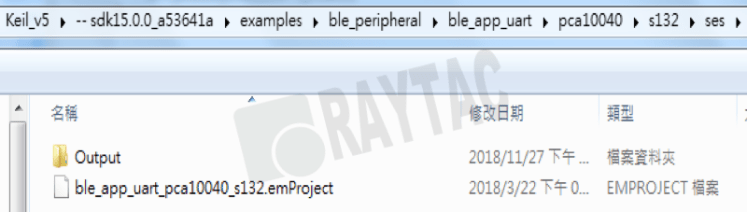
  1. Select “Open Solution" in SES’s File option to open SDK v15.0.0 project

..\examples\ble_peripheral\ble_app_uart\pca10040\s132\ses\ble_app_uart_pca10040_s132.emProject 

圖片 13圖片 14

  1. Select “Open Studio Folder" in SES’s File option, then select “External Tools Configuration". You may find the display as below screen shot. Pls paste the below command. (The command can also be found in below link)

https://infocenter.nordicsemi.com/index.jsp?topic=%2Fcom.nordic.infocenter.sdk5.v15.0.0%2Fsdk_config.html&cp=4_0_0_1_6

圖片 15.png

圖片 16

  1. Please save the “tools.xml". Afterward, developers may able start over build code and debug works.

Build Code & Debug

Raytac Corporation 勁達國際電子股份有限公司
A company of Abietec
Bluetooth & WiFi module maker based on Nordic nRF54, nRF53, nRF52, nRF7002 solution
BT5.4 &BT5.3 & BT5.2 & BT5.1 Qualified, FCC/IC/CE/Telec/KC/RCM/SRRC/NCC Pre-Certified. Bluetooth Solution: nRF54, nRF5340, nRF52840, nRF52833, nRF52832, nRF52820, nRF52811, nRF52810, nRF52805, nRF51822 WiFi Solution: nRF7002
www.raytac.com
email:service@raytac.com
Tel: +886.2.3234.0208

Why Nordic BLE Solution? OTA DFU is the Key!

img_0924
With recent booming demand related to IoT field all over the world, many companies are celebrating brilliant sales record achieved.
Raytac, as a part of IoT player, we are really expecting the coming era for a wildly IoT implements to enhance people’s life!
However, we sincerely appeal all developers do no forget to consider about risk control especially the risk raised at the stage when the products already in consumer’s hand!
Without risk control efficiently, the happiness earned from the success may become only a instant moment.

How to use Raytac MDBT42Q (Nordic nRF52832) Demo Board

mdbt42q-db

Many customers are using Raytac’s Demo board for firmware development and debug.

Here we provide easy setup way for customer reference.

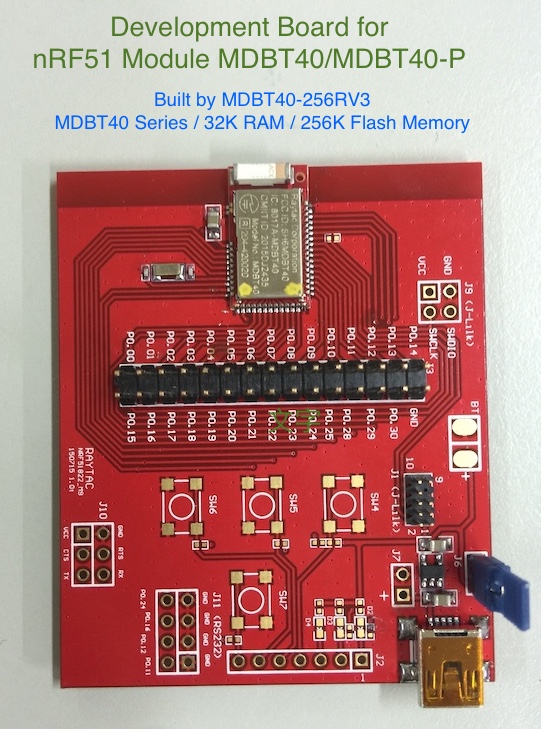
How to use Raytac MDBT40 (Nordic nRF51822) Demo Board

img_4067

Many customers are using Raytac’s Demo board for firmware development and debug.

Here we provide easy setup way for customer reference.