How to Set Up the Development and Programming Environment for Raytac’s AN7002Q-nRF5340 Demo Board (AN7002Q-DB-5340)?

To help you quickly get started with Raytac’s AN7002 Nordic WiFi module and nRF5340 module, here’s a simple guide on how to set up the development and programming environment using AN7002Q-nRF5340 Demo Board(AN7002Q-DB-5340)and nRF5340 DK.

This article will cover the 4 sections below:
1. Hardware setup
2. Software Development Kit and Environment setup
3. Programming/Development
4. Flashing/Uploading firmware
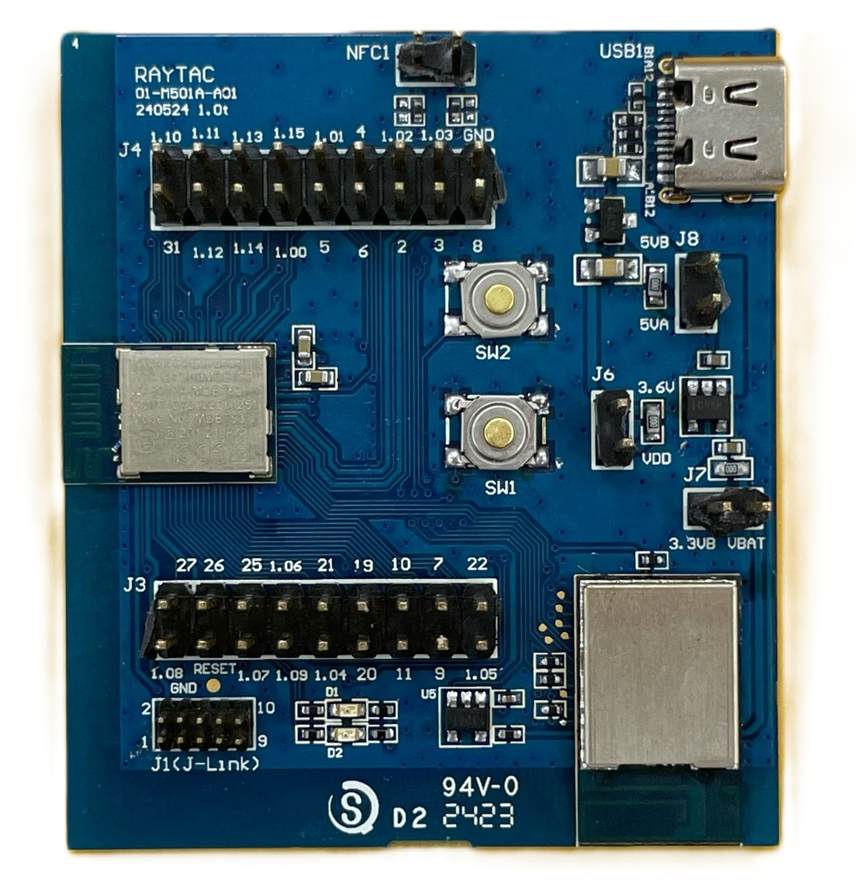

1. Hardware Setup
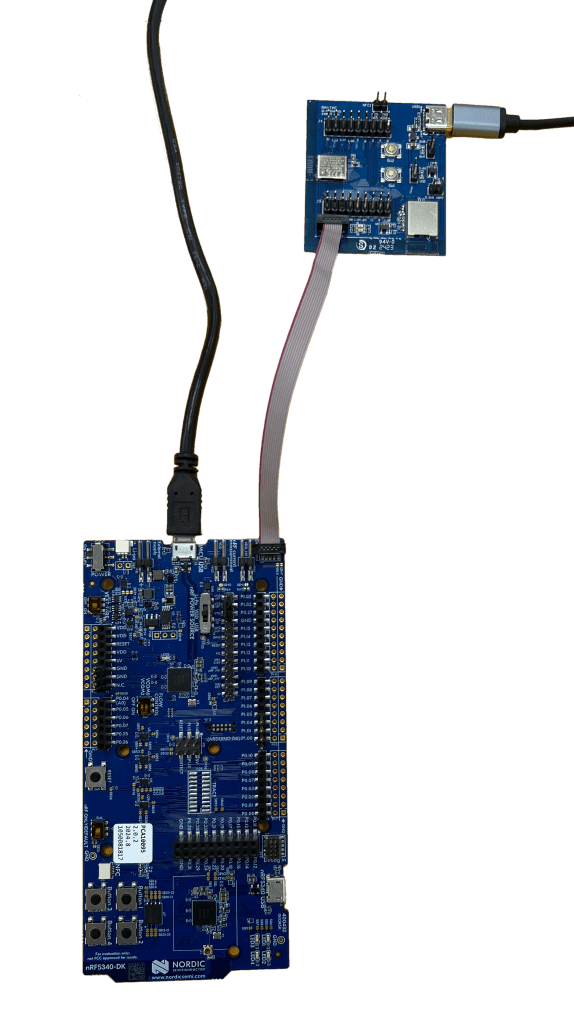
1 x Nordic nRF5340-DK: PCA10095(2.0.0)
1 x Raytac AN7002Q-DB-5340
1 x IDC Cable
1 x USB-Micro USB Cable
1 x USB-Type C USB Cable

*Note: You need to use both the “Nordic nRF5340-DK” and “Raytac AN7002Q-DB-5340 demo board” together for programming and development. *

Steps to connect the hardware:

  • Connect J-Link on Nordic DK to AN7002Q-DB-5340 using IDC Cable
  • Power Nordic nRF5340-DK up using Micro USB Cable
  • Power Raytac AN7002Q-DB-5340 up using Type C USB Cable

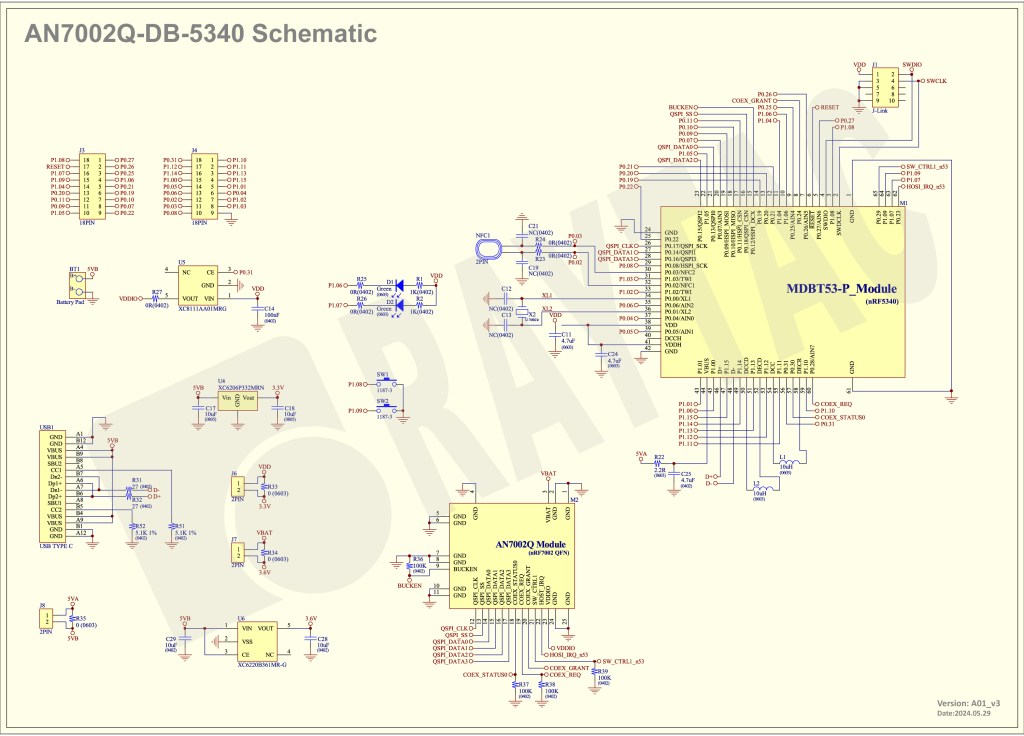
AN7002Q-DB-5340 Schematic Diagram:

(Click on the image to redirect to product page for Higher resolution photo)

2. Software Development Kit and Environment Setup

Download nRF Connect For Desktop: Download nRF Connect For Desktop (Please Click Me)

Download nRF Command Line Tools: Download nRF Command Line Tools (Please Click Me)

(1) Download and install the latest version of nRF Connect for Desktop (Windows 64-bit – 5.0.0 version)
nrfconnect-setup-5.0.0-x64.exe

(2) Download and install the latest version of nRF Command Line Tools (Windows X86 64 – 10.24.2 version)
nrf-command-line-tools-10.24.2-x64.exe

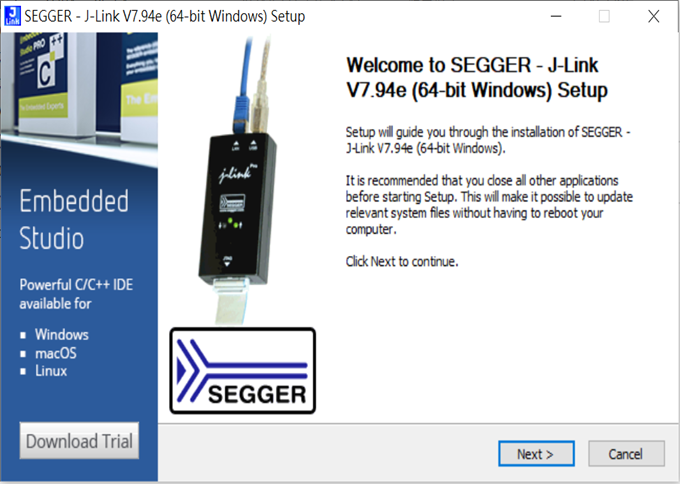
*Note: During set-up, the SEGGER J-LINK installation/update request might pop up on your screen. *
*(As shown in below screenshot). *

If you’re initiating Segger J-Link Driver, please check the guideline here(Click me)

After the installations are completed, you can see the following applications under the:

“Programs and Features" section in the Control Panel.


3. Programming/Development

nRF Connect SDK (NCS) supports development using the free VS (Visual Studio) Code IDE.
Here’s how to select and install the NCS SDK version (nRF Connect SDK vx.x.x):


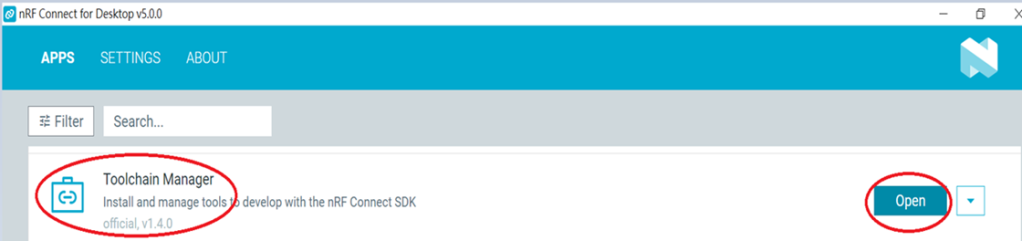
Step1.

Open “nRF Connect for Desktop” → Choose “Toolchain Manager” → then click” Open”

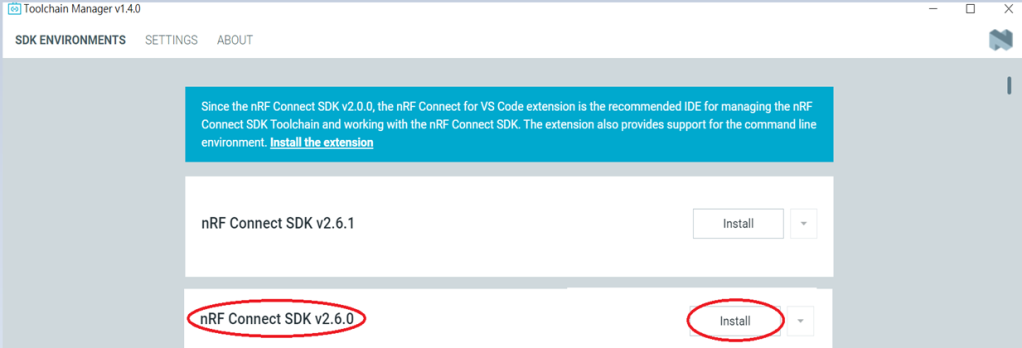
Step2.

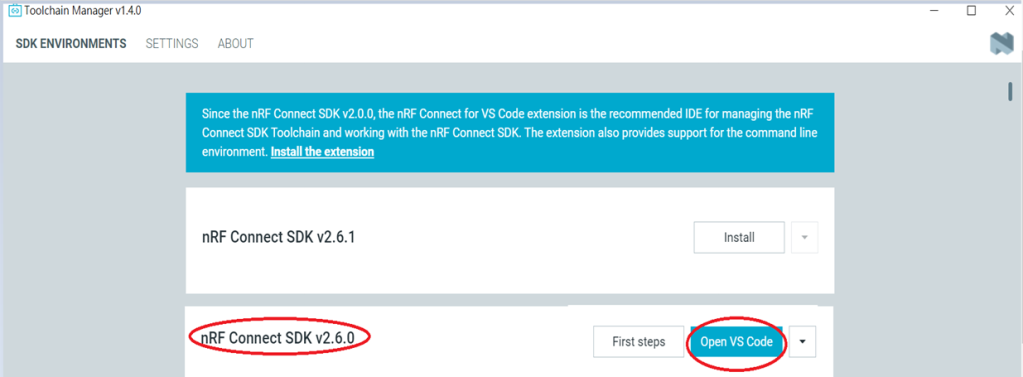
You’ll see a list of nRF Connect SDK versions. It’s recommended to install NCS v2.6.0 or later.
Here, we use NCS v2.6.0 as an example.

Step3.

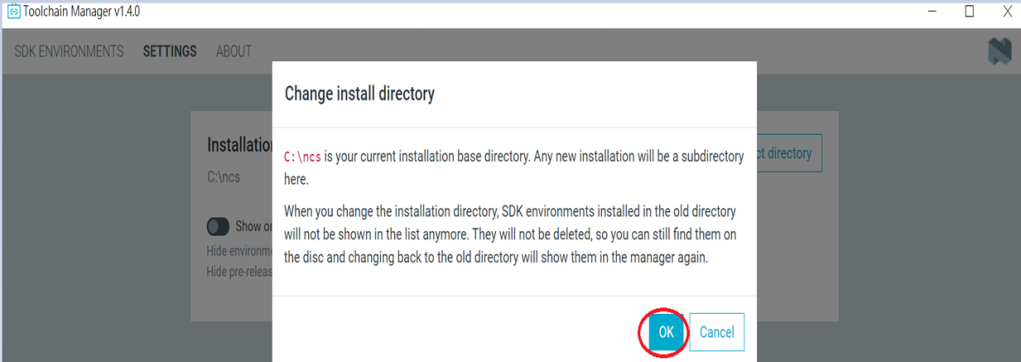
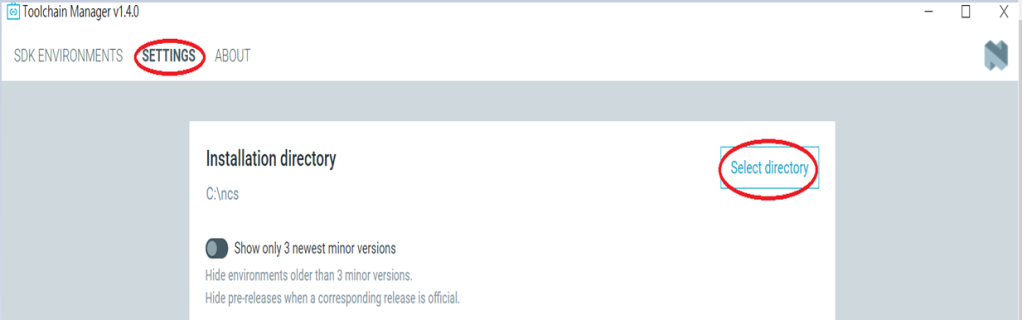
Before installing NCS v2.6.0, confirm the installation path (Default path → C:\ncs).
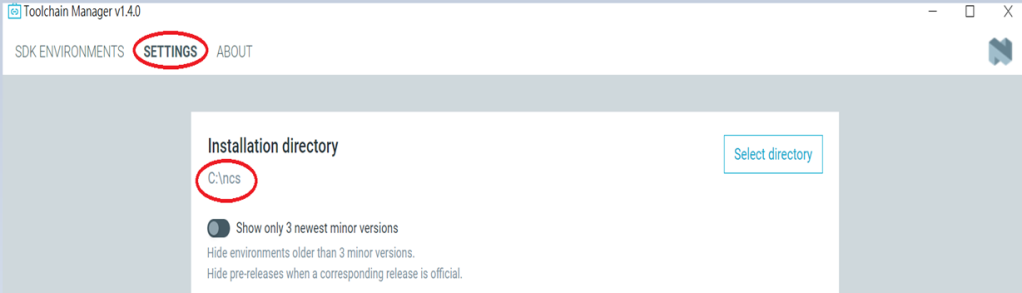

If you want to change the path, click “Select directory”, and press OK.

Step4.

After installing the nRFConnect SDK v2.6.0, click “Open VS Code”.

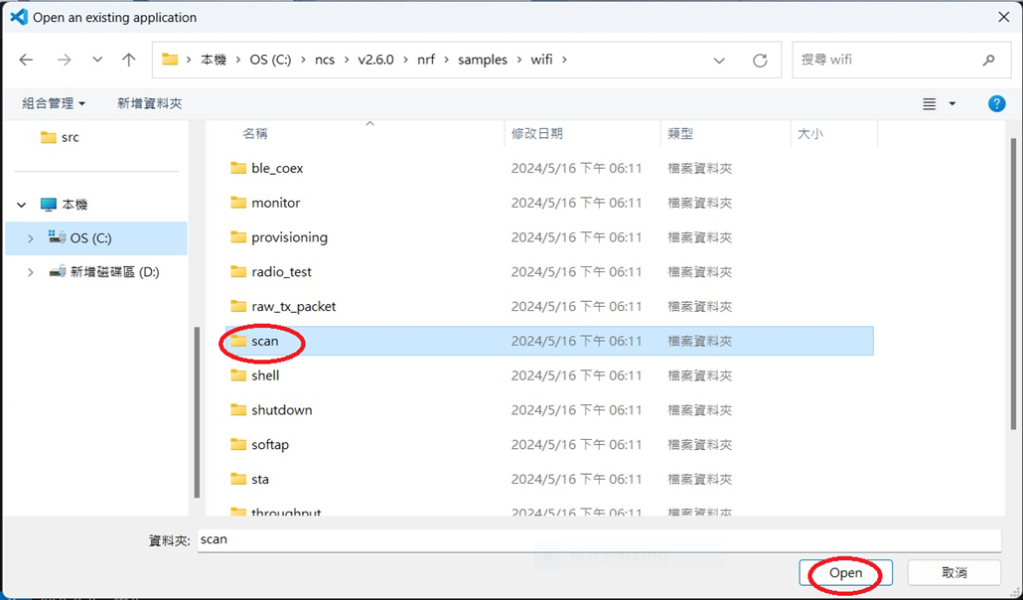
Step5.

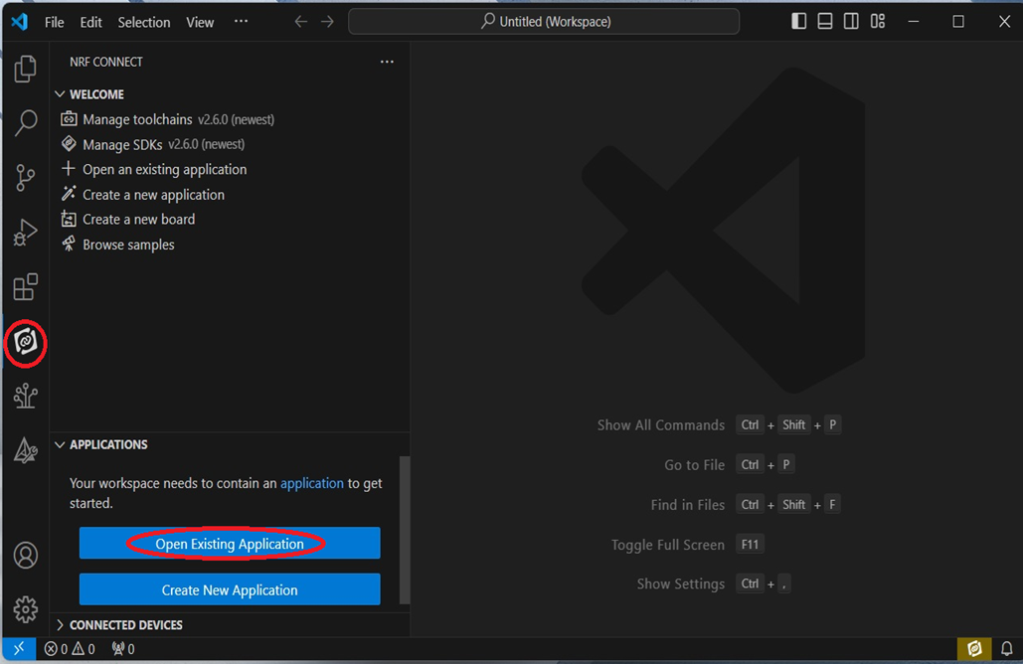
Open the Wi-Fi scan example

Step6.

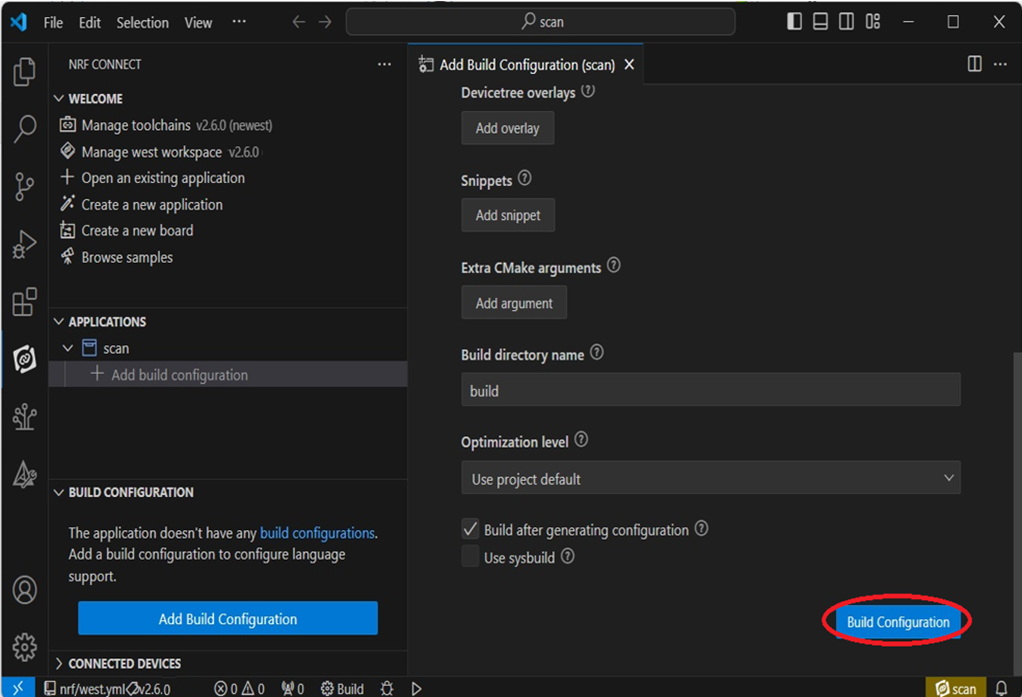
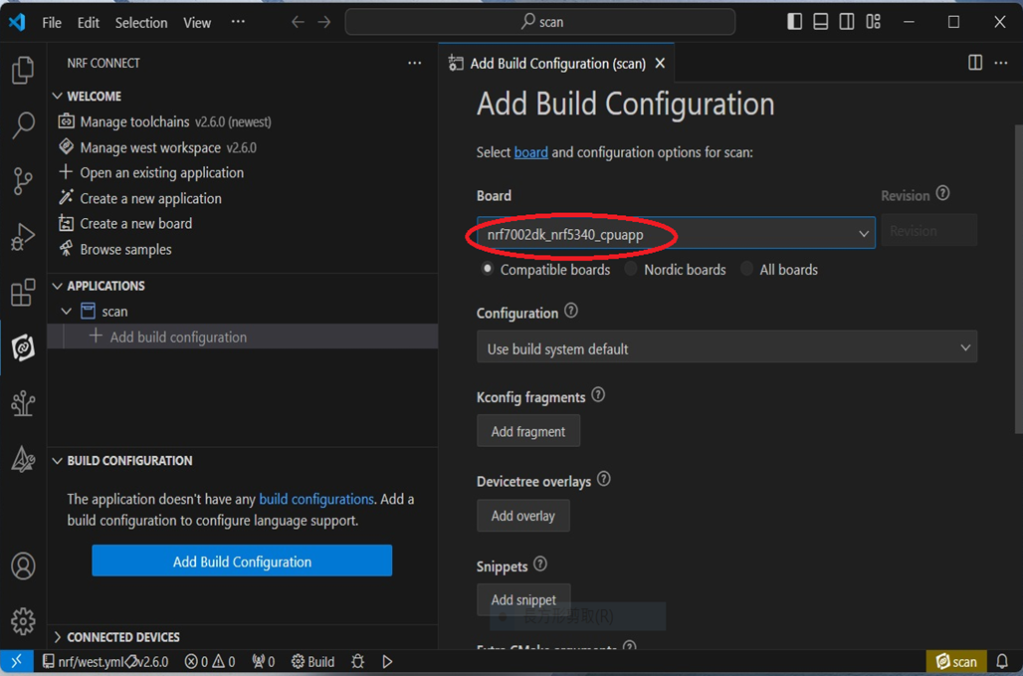
Add build configuration → select the board and compile.
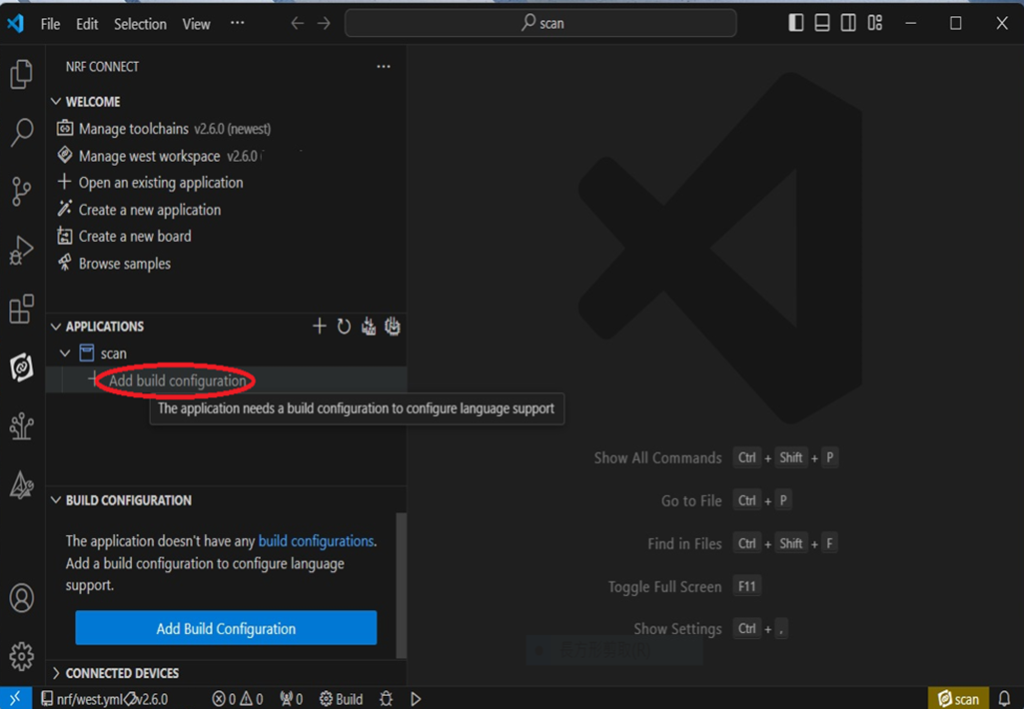

Select board: nrf7002dk_nrf5340_cpuapp.

Step7.

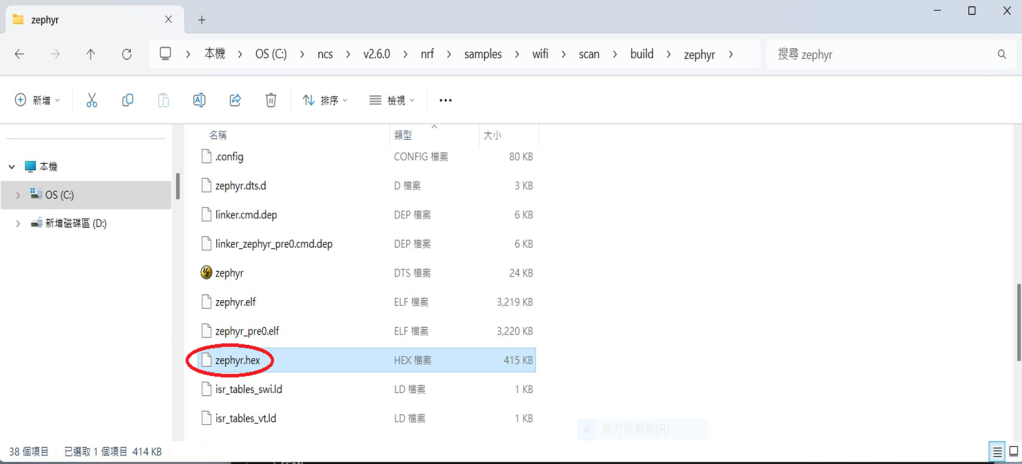
After compilation, a hex file will be generated.

Step8.

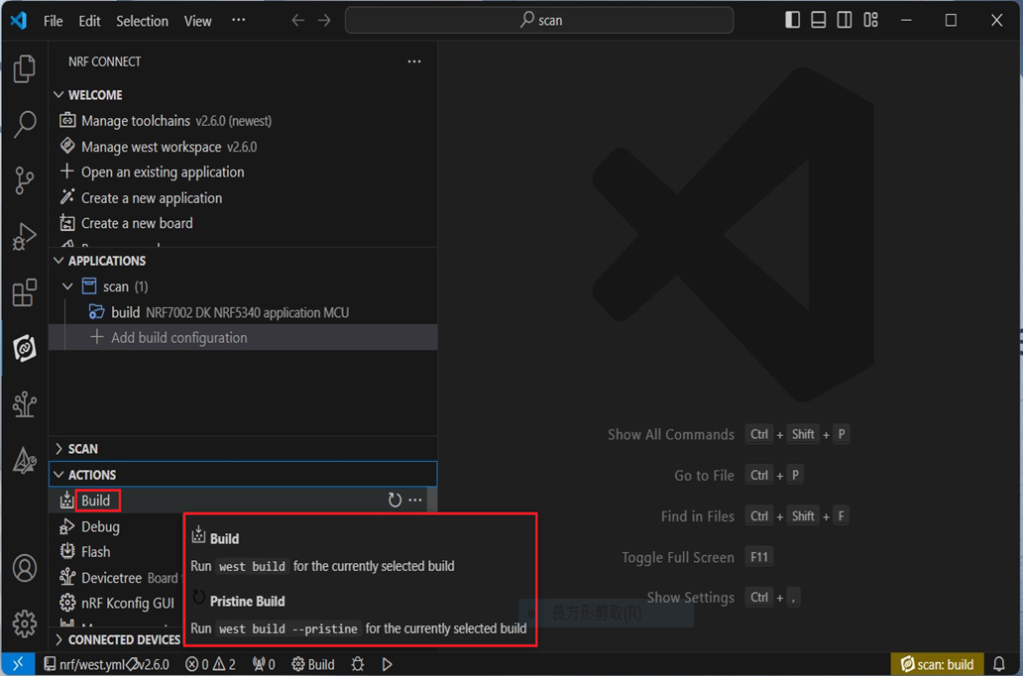
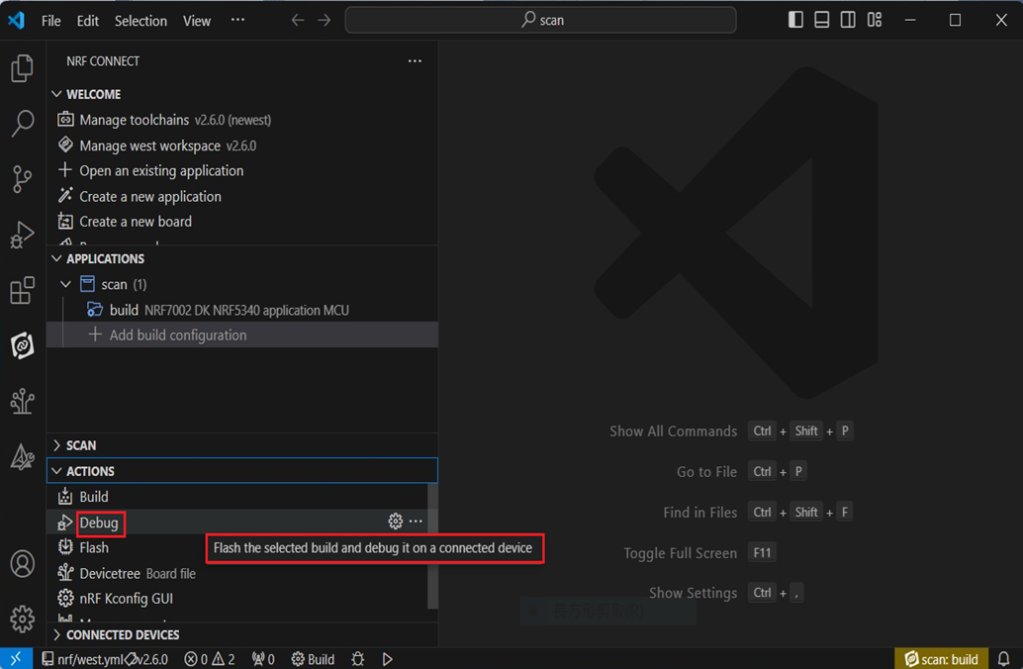
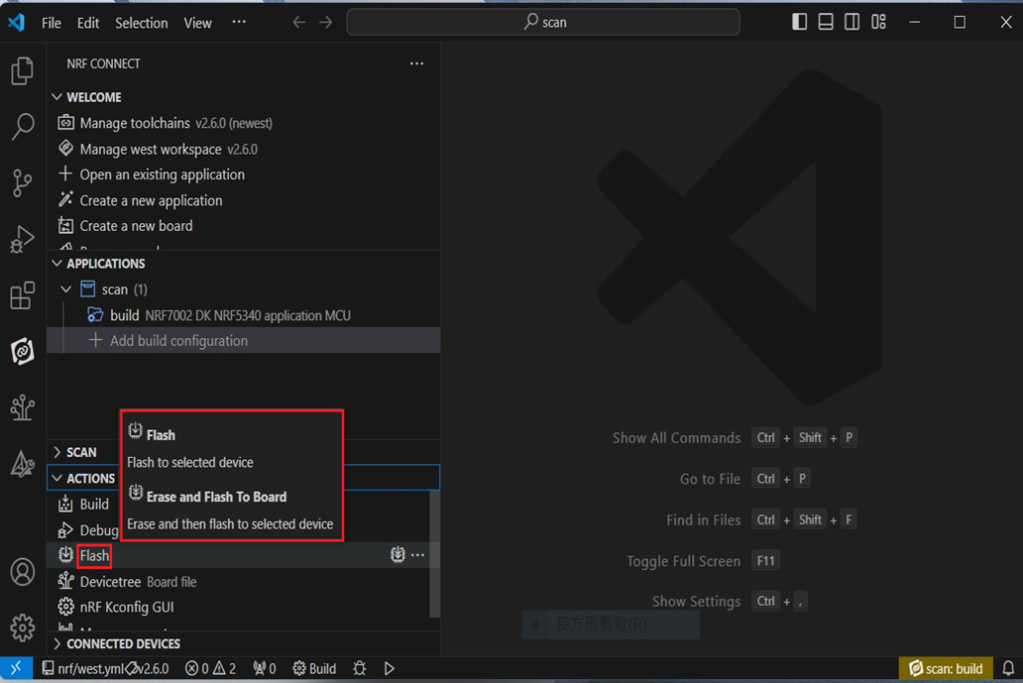
Under ACTIONS, you can choose to Build, Debug, or Flash.


Build:

Debug:

Flash:

4. Programming

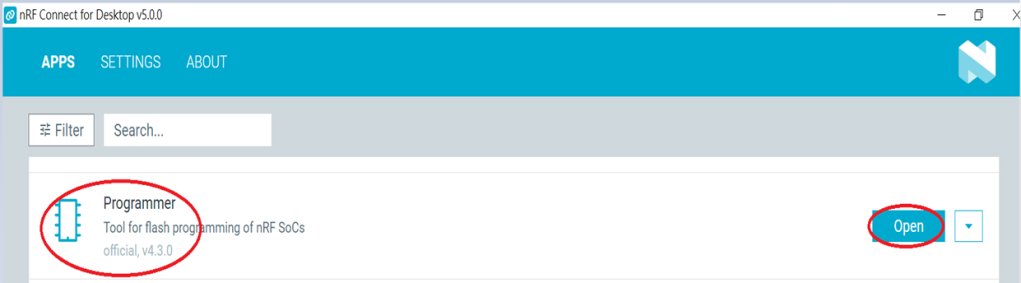
nRF Connect SDK(NCS) supports programming. You can use the “Programmer” tool to flash .hex file.
Here’s how:


Step1.

Open “nRF Connect for Desktop” → Select “Programmer” → then click” Open”.

Click “Select Device”;
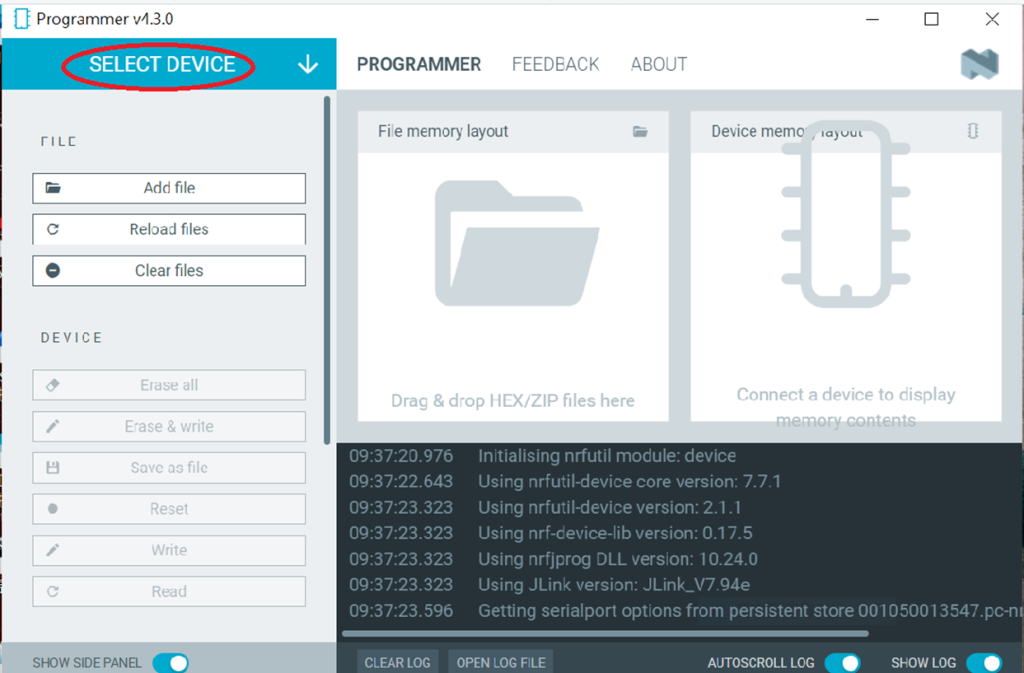

Since AN7002 Wi-Fi IC does not act as an MCU,
we can only flash the .hex file into the MDBT53(nRF5340) BLE IC.
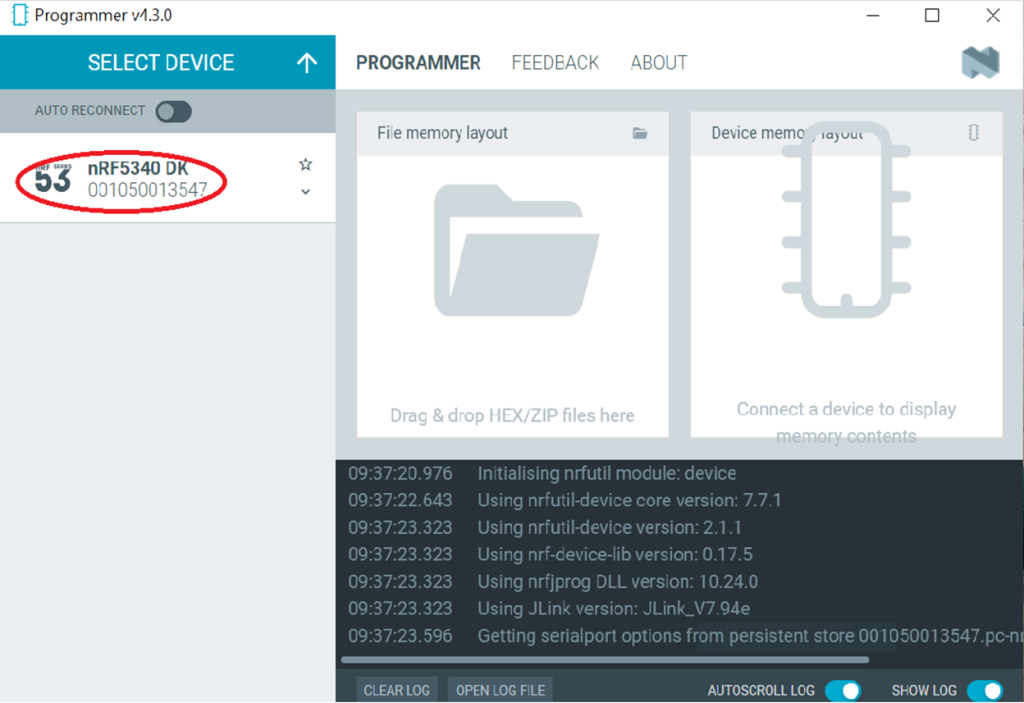

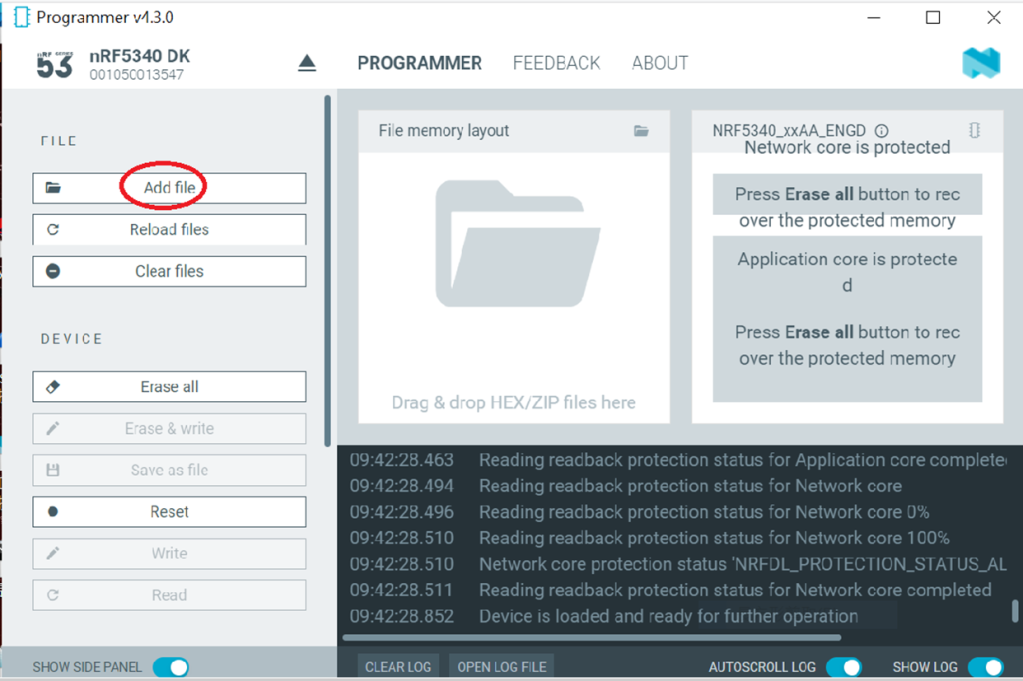
Click “Add file” to add the .hex file.

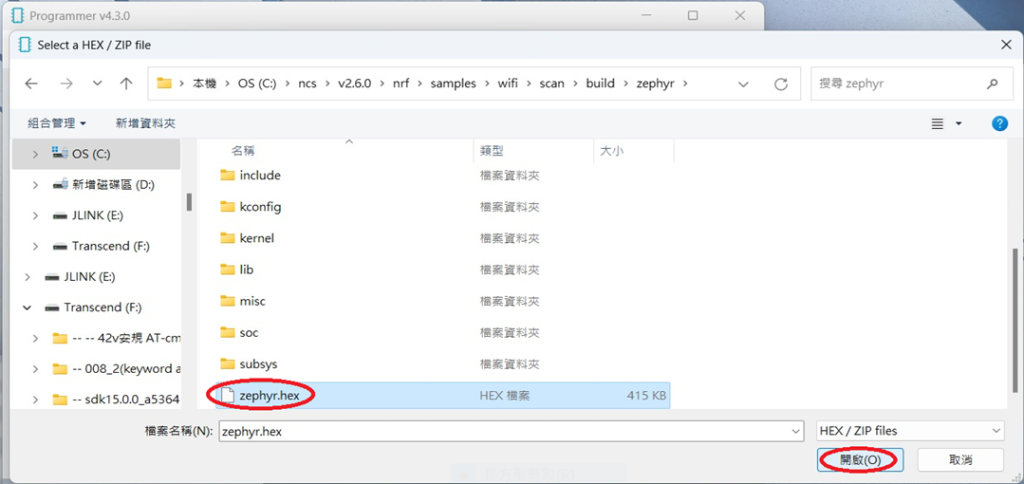
Step2.

Select the .hex file you want to flash.

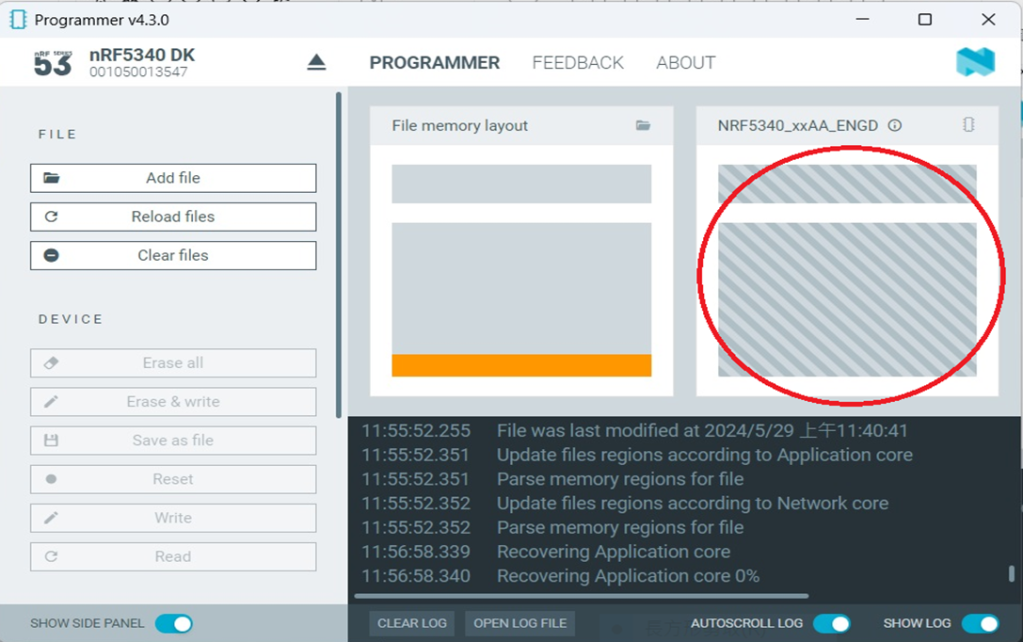
The hex file will be written into the part of the memory layout (where orange part is highlighted).
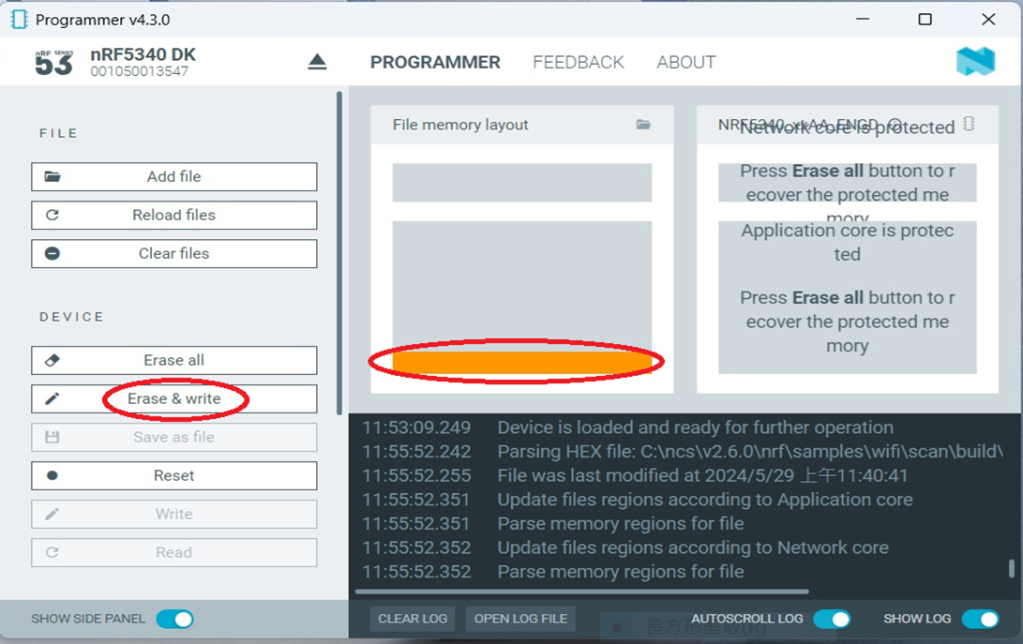

Slashes will be displayed in the circled part during the flash process.

Step3.

Once the flash process is completed, connect Raytac’s AN7002Q-DB-5340 development board to PuTTY.
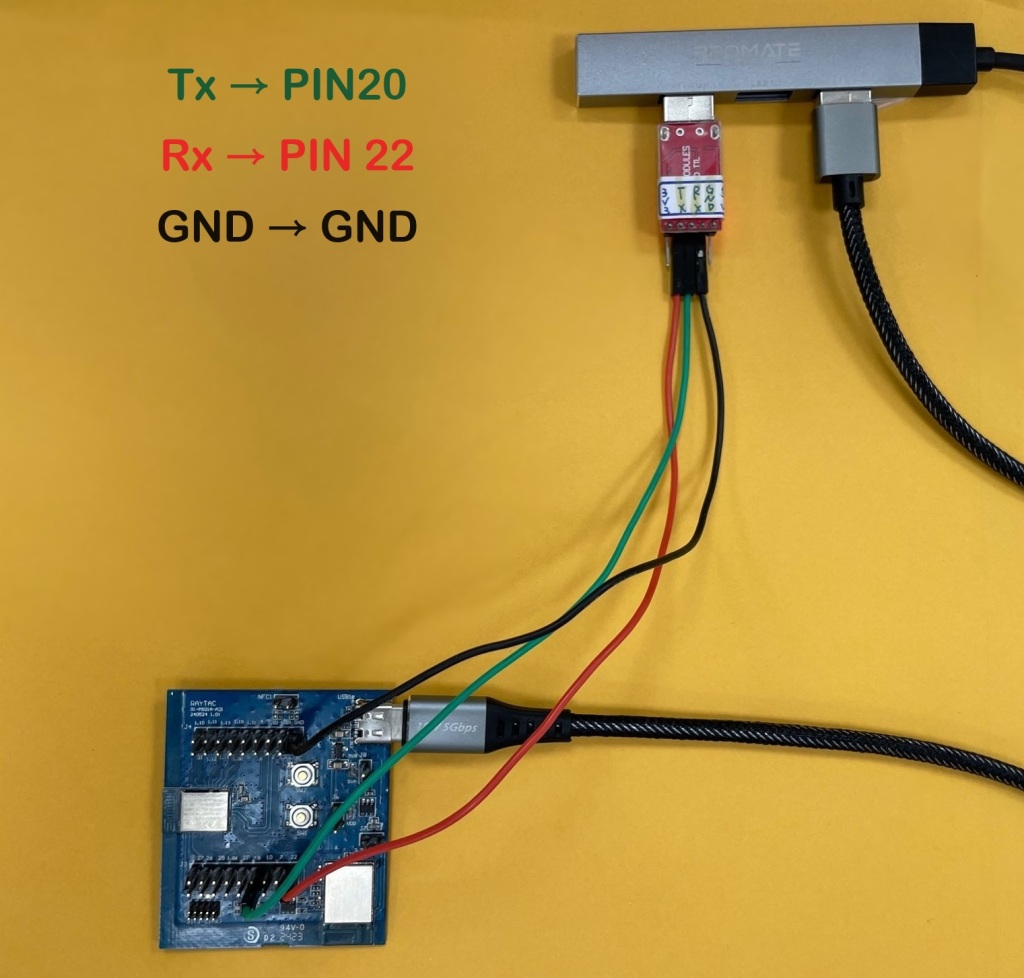
Tx to p0.20

Rx to p0.22

GND to GND
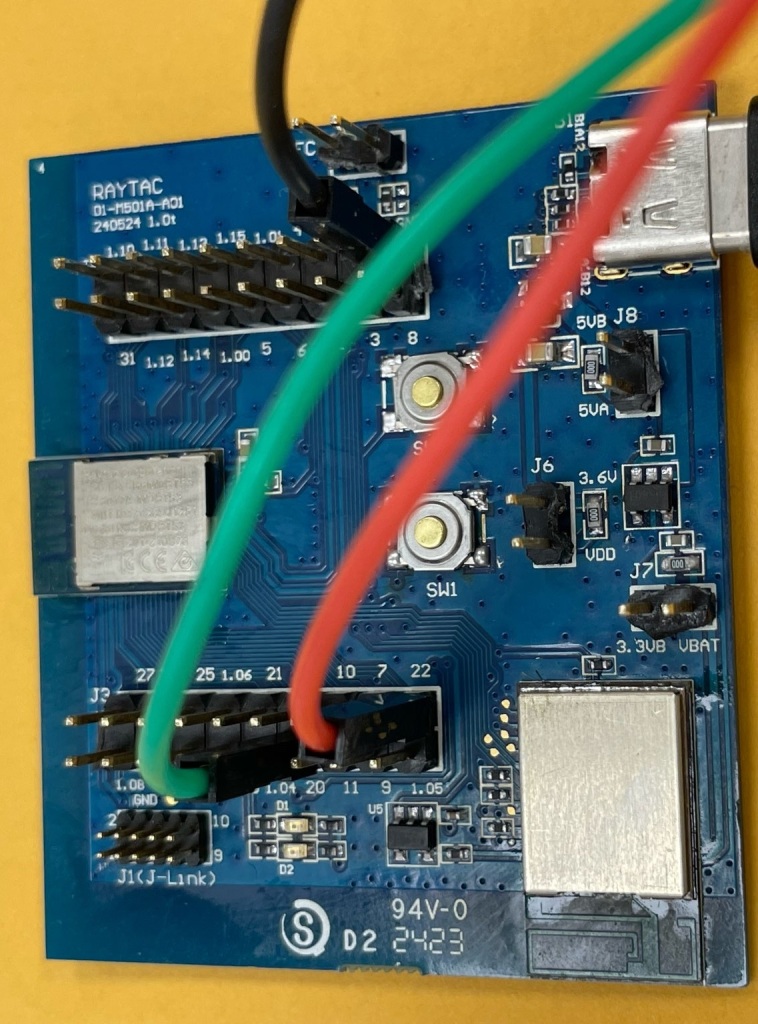
This is a closer look into the pins that will be connected.


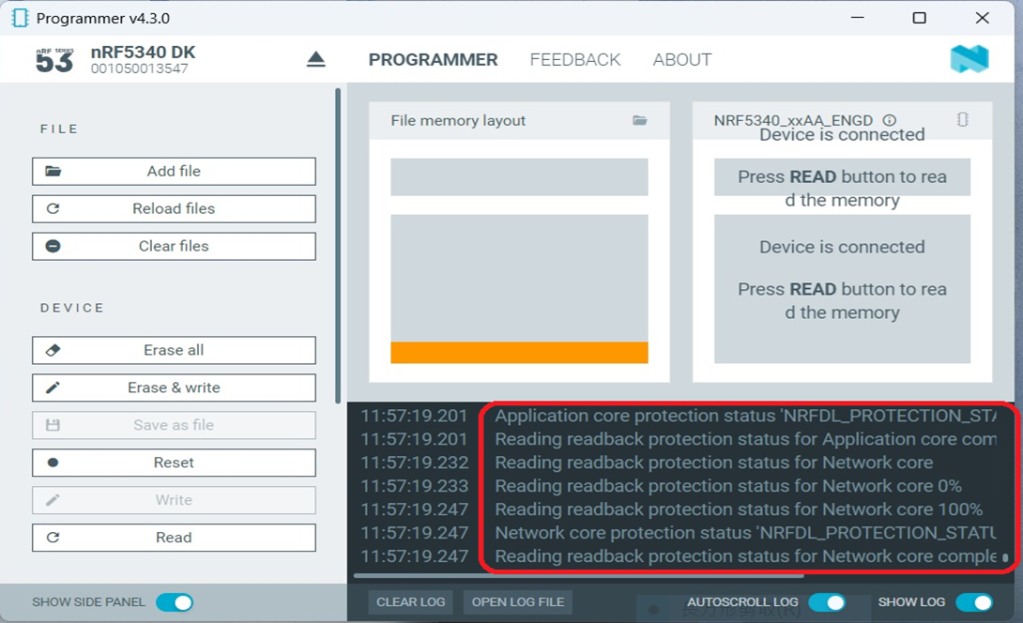
The flash process is completed when the LOG is displayed as circled below.

Check if hardware connection is successful using PuTTY.
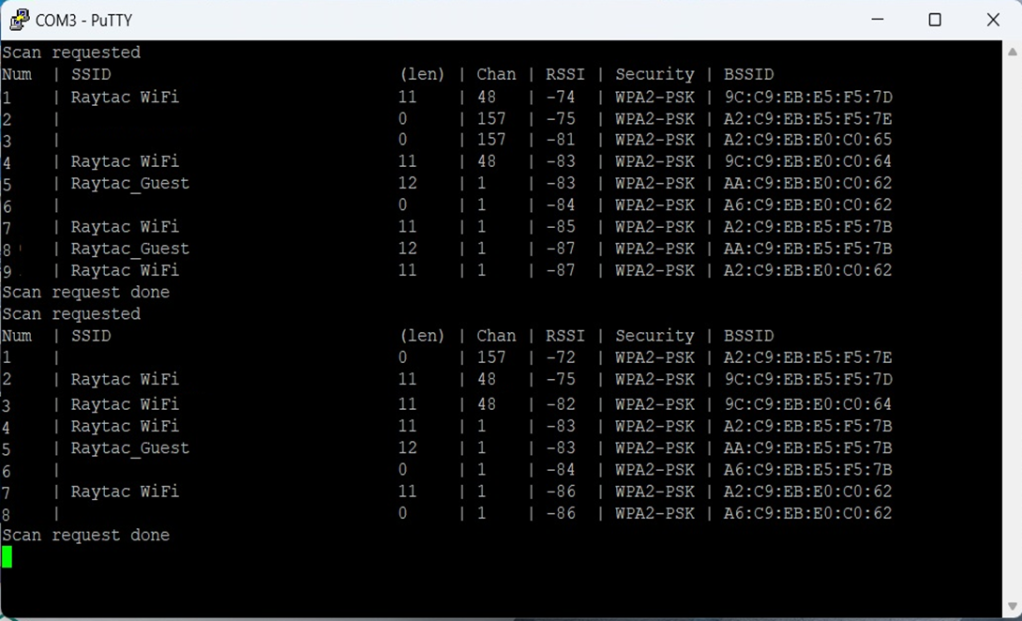

*2024-Aug-12 update:*
Before running Scan code / Station code / Shell code:
You must ensure that the MAC address has already been programmed into the module.
Click on this link to learn more about how to load the MAC address.


Useful references:


Edited by Sales Manager: Ms. Vicky Huang
Technical guidance provided by R&D Manager: Mr. MW Lee
Hardware environment provided by Hardware Engineer: Mr. Kyle Wang


Raytac Corporation 勁達國際電子股份有限公司 
Bluetooth & WiFi module maker based on Nordic nRF54, nRF53, nRF52, nRF7002 solution
BT5.4 &BT5.3 & BT5.2 & BT5.1 Qualified, FCC/IC/CE/Telec/KC/RCM/SRRC/NCC Pre-Certified.
Bluetooth Solution: nRF54, nRF5340, nRF52840, nRF52833, nRF52832, nRF52820, nRF52811, nRF52810, nRF52805, nRF51822
WiFi Solution: nRF7002
http://www.raytac.com
email: sales@raytac.com
Tel: +886-2-3234-0208
Secure DFU OTA for nRF52840 solution modules: Guide to create hex/zip file for implementation – #3(Combining/merging built files)

Following up – Part A: Bootloader (Click for article link) and Part B: Application (Click for article link)

We will be focusing on:

in this article.

IC: nRF52840
DK: PCA10056 (for nRF52840)
SDK: 17.1.0
Softdevice: s140_nrf52_7.2.0_softdevice.hex
IDE: Keil C
PC: Win 10


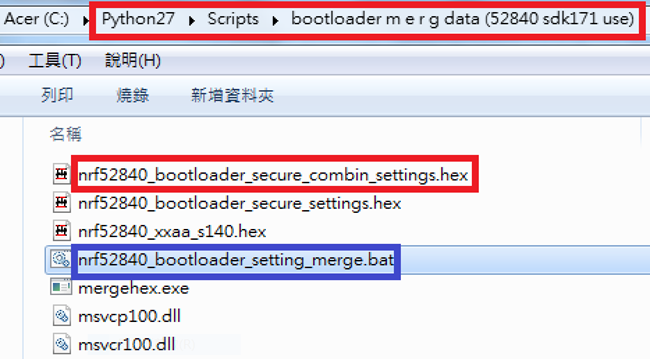
Step 1. Execute the combine batch file in bootloader (nrf52840_bootloader_setting_merge.bat) and generate file of nrf52840_bootloader_secure_combin_settings.hex :

@echo off
title = [ J-Link Tool ] %CD%
set nrfDir=C:\Program Files (x86)\Nordic Semiconductor\nrf5x\bin
set BS= nrf52840_bootloader_secure_settings.hex
set BL= nrf52840_xxaa_s140.hex
set BSBLCombind= nrf52840_bootloader_secure_combin_settings.hex
set path=%nrfDir%;%path%
pause
echo ———–merge image file——————-
mergehex.exe -m %BS% %BL% -o %BSBLCombind%
pause


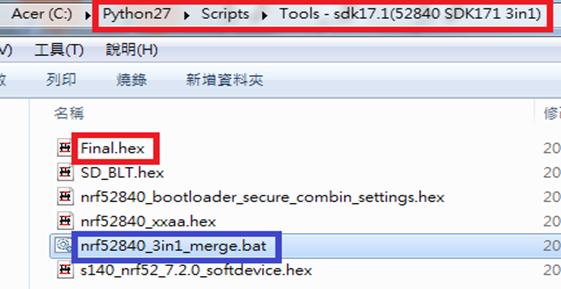
Step 2. Create a Final.hex file by 3-in-1 batch file(nrf52840_3in1_merge.bat)
※Note : This hex file is created for the production line to pre-load firmware into modules prior to shipment.

@echo off
title = [ J-Link Tool ] %CD%
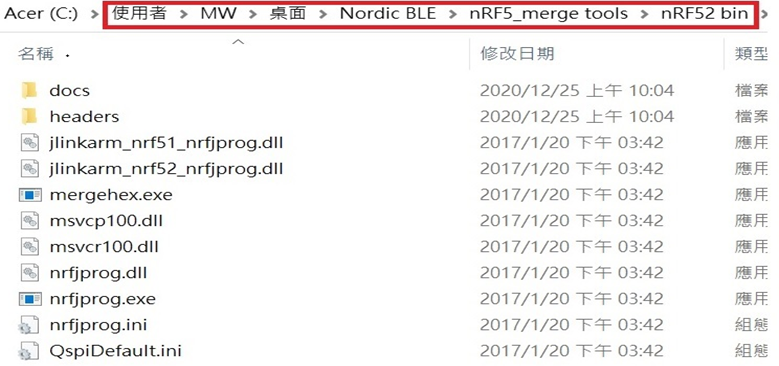
set nrfDir=C:\Users\user\Desktop\Nordic BLE\nRF5_merge tools\nRF52 bin
set SD= s140_nrf52_7.2.0_softdevice.hex
set BLT= nrf52840_bootloader_secure_combin_settings.hex
set APP= nrf52840_xxaa.hex
set SD_BLT=SD_BLT.hex
set Finalfile=Final.hex
set path=%nrfDir%;%path%
pause
echo ———–merge image file——————-
mergehex.exe -m %SD% %BLT% -o %SD_BLT%
pause
mergehex.exe -m %SD_BLT% %APP% -o %Finalfile%
pause


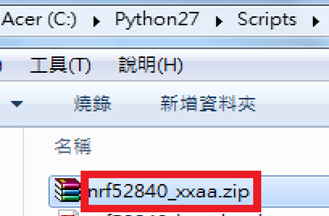
Step 3. Create a DFU(OTA).zip file of nrf52840_xxaa.zip
※Note : This zip file is created for end device DFU(OTA) implementation.

nrfutil pkg generate –hw-version 52 –sd-req 0x100 –application-version 0xFF –application
nrf52840_xxaa.hex –key-file private.pem nrf52840_xxaa.zip

The DFU OTA zip file will be derived.

※Note :
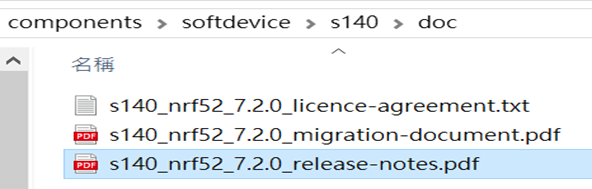
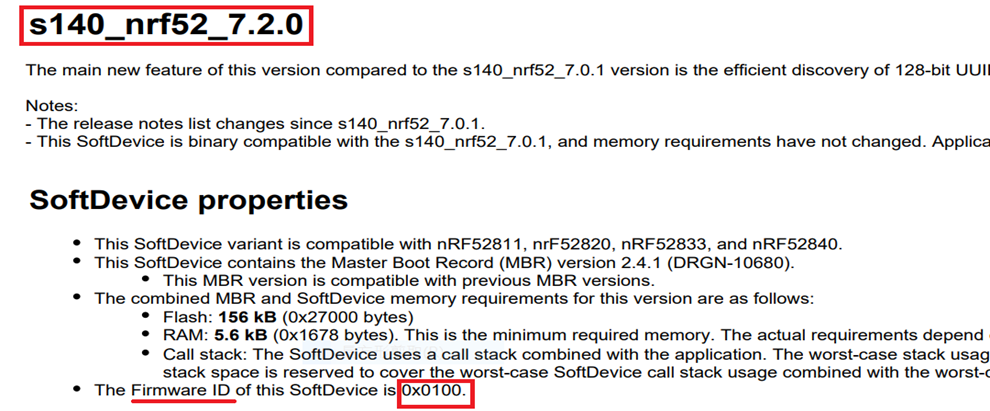
The “0x100" appeared in the above DOS code(in red font) is the FWID(Firmware ID) for s140_nrf52_7.2.0_softdevice.hex;
FWID can be found from the soft device documents on the Nordic website.


Step 4: Run DFU OTA (On mobile in this example)


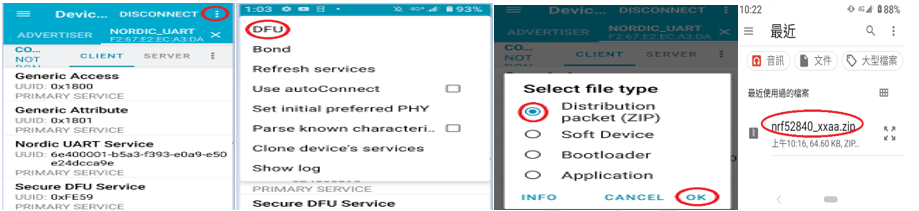
4A. Install the nRF Connect APP on mobile, with DFU OTA file: nrf52840_xxaa.zip. (Download link)


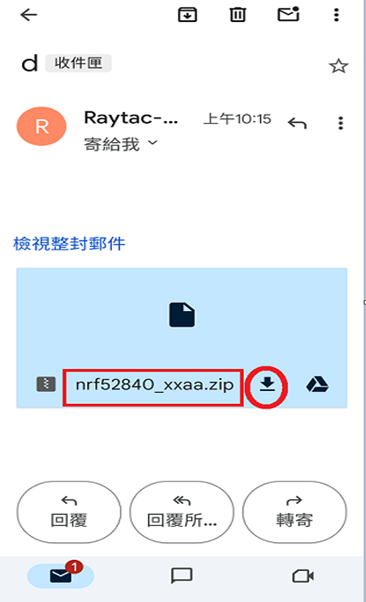
4B. Send nrf52840_xxaa.zip via email to mobile device after combination is done on PC, then download it.


4C. Open nRF Connect APP and run connection;


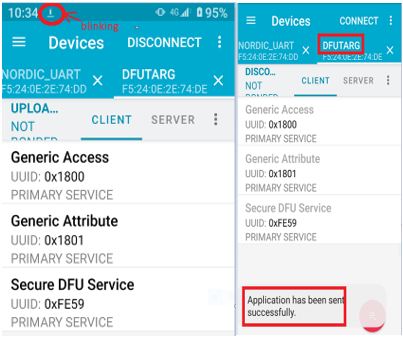
4D. Execute DFU and select “Distribution packet(ZIP)", thus starting the DFU OTA process.


4E. Start DFU OTA → exit the APP after DFU OTA is completed → restart the mobile device.


Secure DFU OTA for nRF52840 solution modules: Guide to create hex/zip file for implementation
Detailed links of articles:
Part A: Bootloader (Click for article link)
Part B: Application
(Click for article link)
Part C: Combining and merging built files
(Click for article link)


Technical guidelines provided by R&D Manager: Mr. MW Lee
Edited by Sales Manager: Mr. Tony Yin

Raytac Corporation 勁達國際電子股份有限公司 
Bluetooth & WiFi module maker based on Nordic nRF54, nRF53, nRF52, nRF7002 solution
BT5.4 &BT5.3 & BT5.2 & BT5.1 Qualified, FCC/IC/CE/Telec/KC/RCM/SRRC/NCC Pre-Certified.
Bluetooth Solution: nRF54, nRF5340, nRF52840, nRF52833, nRF52832, nRF52820, nRF52811, nRF52810, nRF52805, nRF51822
WiFi Solution: nRF7002
http://www.raytac.com
email: service@raytac.com
Tel: +886-2-3234-0208
Secure DFU OTA for nRF52840 solution modules: Guide to create hex/zip file for implementation – #2(Application)

Following up-Part A: Bootloader (Click for article link)

We will be focusing on:

in this article.

IC: nRF52840
DK: PCA10056 (for nRF52840)
SDK: 17.1.0
Softdevice: s140_nrf52_7.2.0_softdevice.hex
IDE: Keil C
PC: Win 10


Path: nRF5_SDK_17.1.0_ddde560\examples\ble_peripheral\ble_app_uart\pca10056\s140\arm5_no_packs

Before building Application code , some amendments need to be made regarding DFU-related settings and code inside Application:

Step 1.


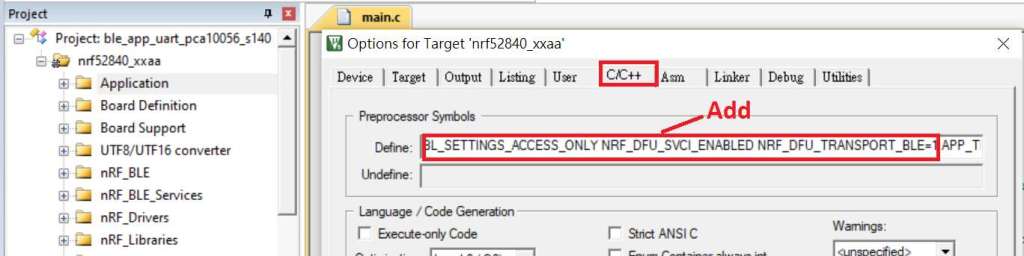
1A. Add code in definition in C/C++ :
BL_SETTINGS_ACCESS_ONLY NRF_DFU_SVCI_ENABLED NRF_DFU_TRANSPORT_BLE=1
(Total 3 steps definitions need to be set up)


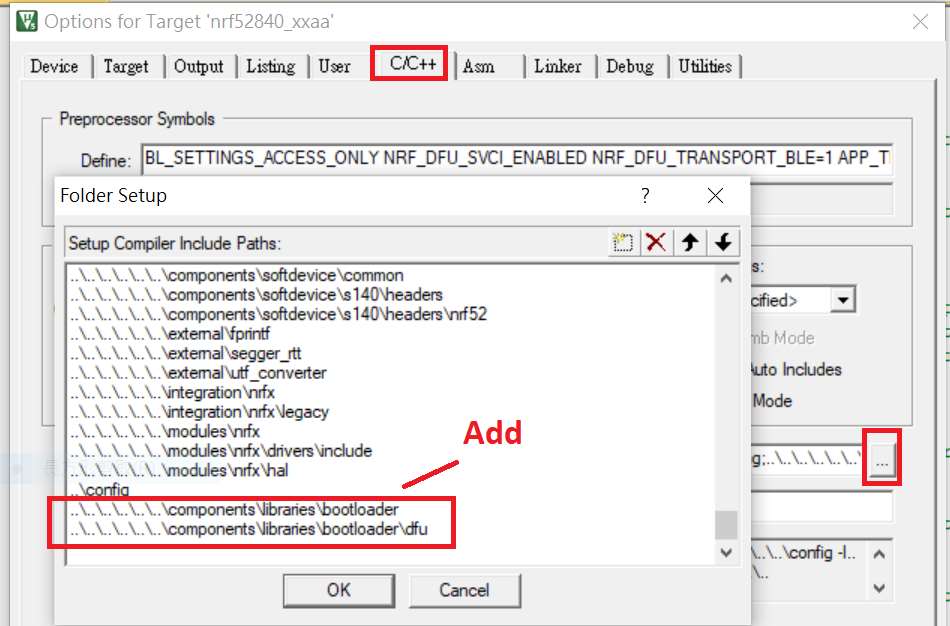
1B. Add “include path” in C/C++


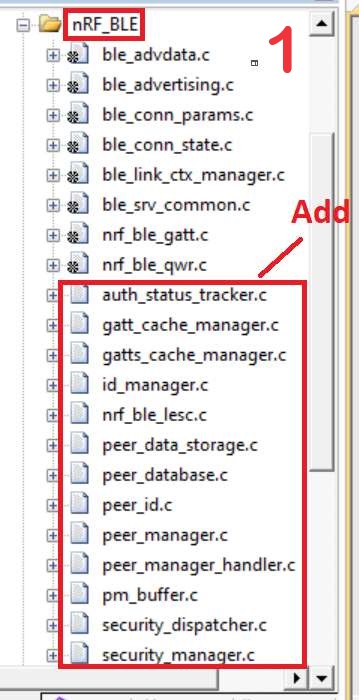
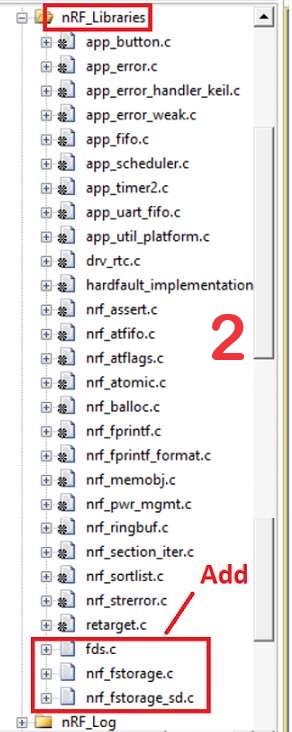
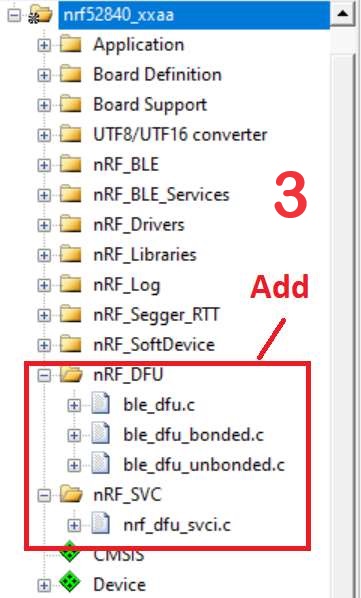
1C. Add the .c files inside red frame in (Screenshots 1 & 2)
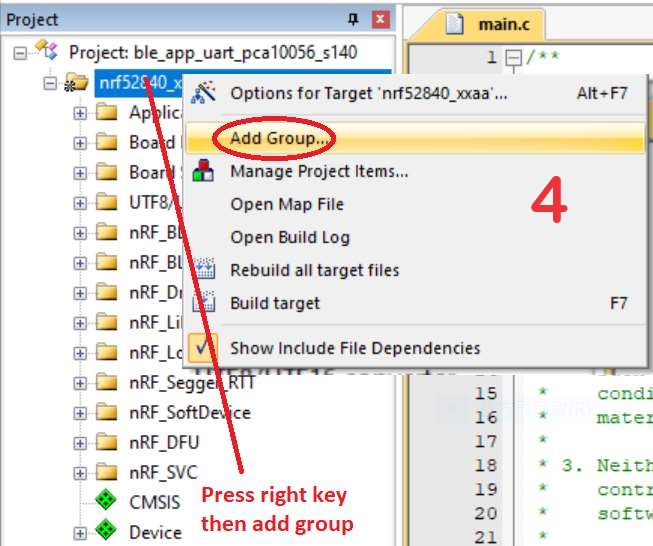
and the 2 groups of (nRF_DFU & nRF_SVC)(Screenshot 3) under Project(Screenshot 4)


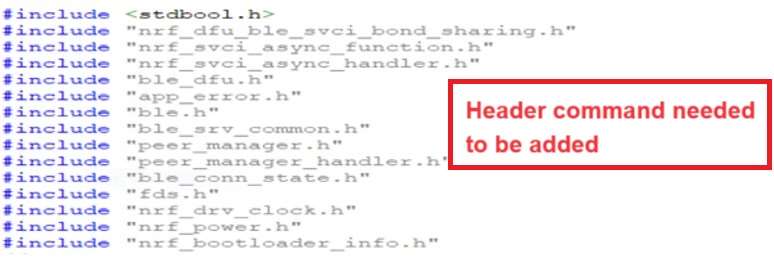
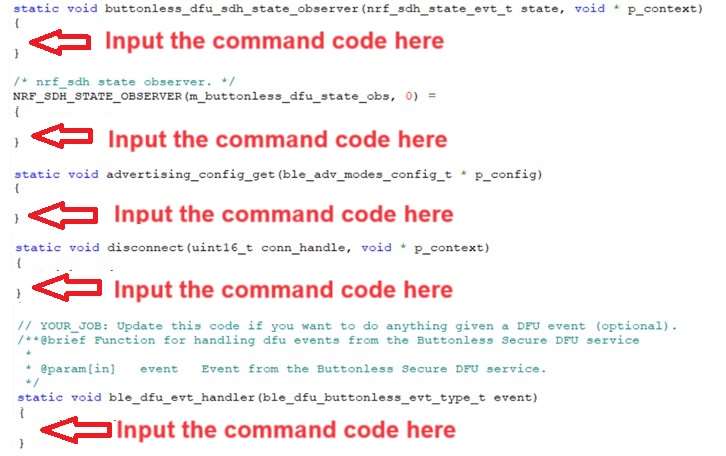
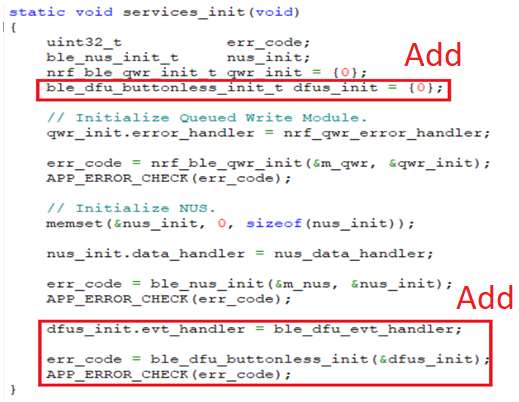
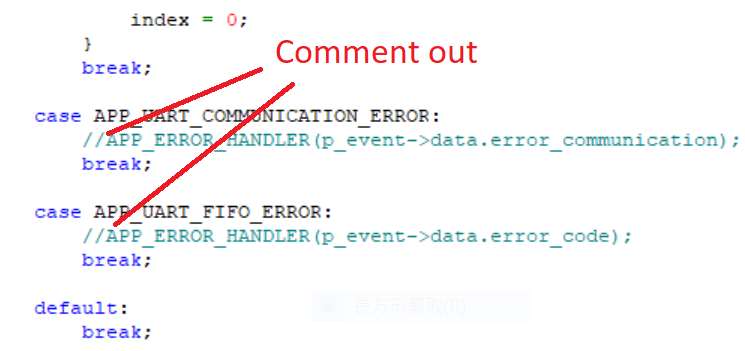
1D. Add code into main.c file in Application (..\examples\ble_peripheral\ble_app_uart\main.c)
(Please refer to: main.c file at: ..\examples\ble_peripheral\ ble_app_buttonless_dfu)


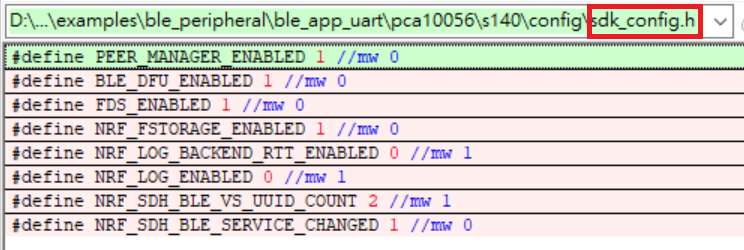
1E. The code of file: sdk_config.h (..\examples\ble_peripheral\ble_app_uart\pca10056\s140\config\
sdk_config.h) inside Application needs to be modified.


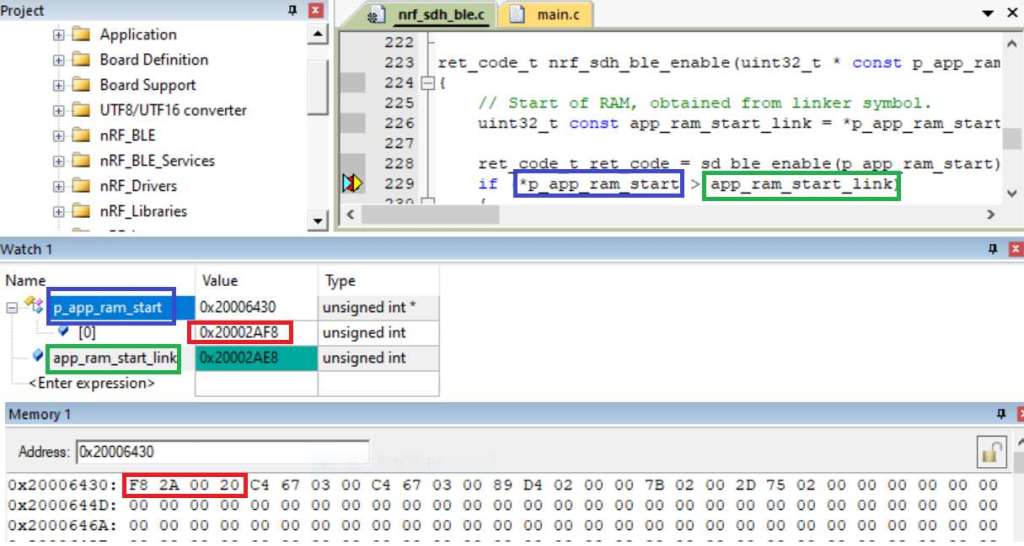
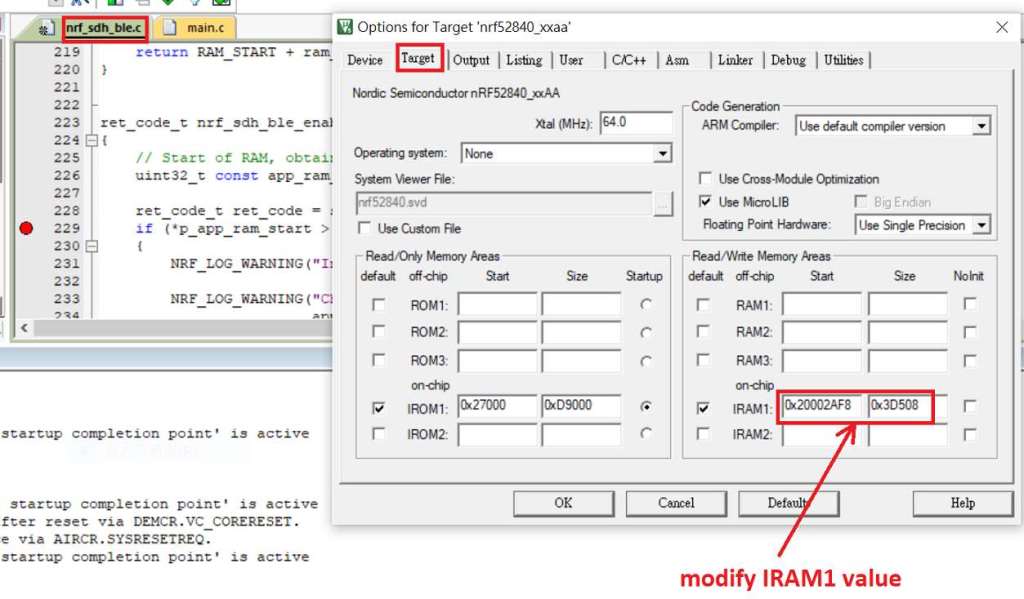
1F. Adjust the IRAM1 value in Target after implementing DFU service:
Check on the IRAM1 Value of *p_app_ram_start to be modified from default: 0x20002AE8 0x3D518 to 0x20002AF8 0x3D508, as shown in the red frame in the bottom right corner.
In this case, the program should run successfully.


1G: Create a file of: nrf52840_xxaa.hex after building application code files.


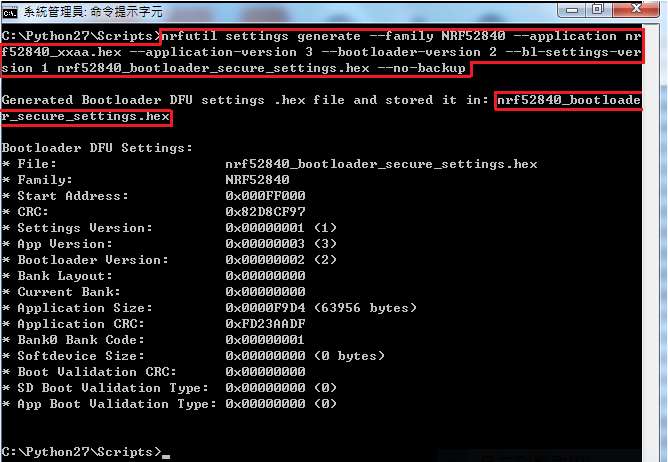
Step 2. Create a bootloader setting file of nrf52840_bootloader_secure_settings.hex : (via DOS)

nrfutil settings generate –family NRF52840 –application nrf52840_xxaa.hex –application-version 3 — bootloader-version 2 –bl-settings-version 1 nrf52840_bootloader_secure_settings.hex –no-backup


※Stay tuned for #3 – Part C: Combining and merging built files in the next article,

scheduled release in next week(05/06/2024).


Technical guidelines provided by R&D Manager: Mr. MW Lee
Edited by Sales Manager: Mr. Tony Yin

Raytac Corporation 勁達國際電子股份有限公司 
Bluetooth & WiFi module maker based on Nordic nRF54, nRF53, nRF52, nRF7002 solution
BT5.4 &BT5.3 & BT5.2 & BT5.1 Qualified, FCC/IC/CE/Telec/KC/RCM/SRRC/NCC Pre-Certified.
Bluetooth Solution: nRF54, nRF5340, nRF52840, nRF52833, nRF52832, nRF52820, nRF52811, nRF52810, nRF52805, nRF51822
WiFi Solution: nRF7002
http://www.raytac.com
email: service@raytac.com
Tel: +886-2-3234-0208
Secure DFU OTA for nRF52840 solution modules: Guide to create hex/zip file for implementation – #1(Bootloader)

Below are the following steps to implement Secure DFU OTA by using nRF52840 chip set, SDK17.1.0.
It consists of 3 parts:

Part A: Bootloader

Part B: Application (Click for article link)

Part C: Combining and merging built files (Click for article link)

In this article, we will be focusing on Part A: Bootloader.

Path: nRF5_SDK_17.1.0_ddde560\examples\dfu\secure_bootloader\pca10056_s140_ble\arm5_no_packs


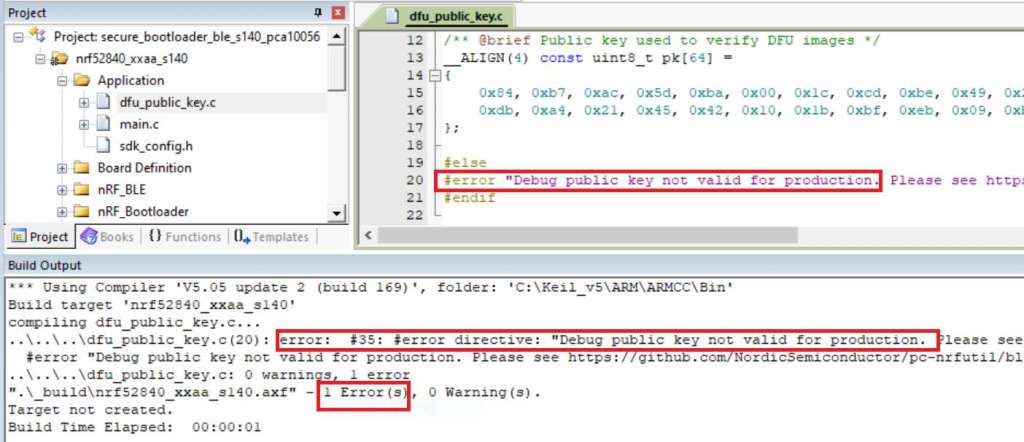
Step 1. An error may occur while building bootloader without a public key:
(Shown in red frames in below screenshot)


Step 2. How to generate the public key file in Bootloader?
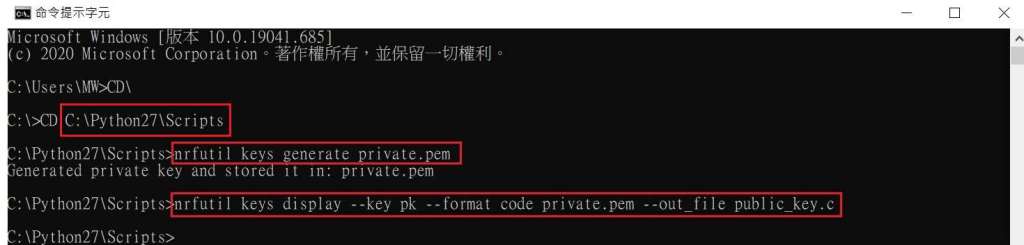
A. Visit DOS at path: ..\Python27\Scripts
B. Then execute:

nrfutil keys generate private.pem
nrfutil keys display --key pk --format code private.pem --out_file public_key.c


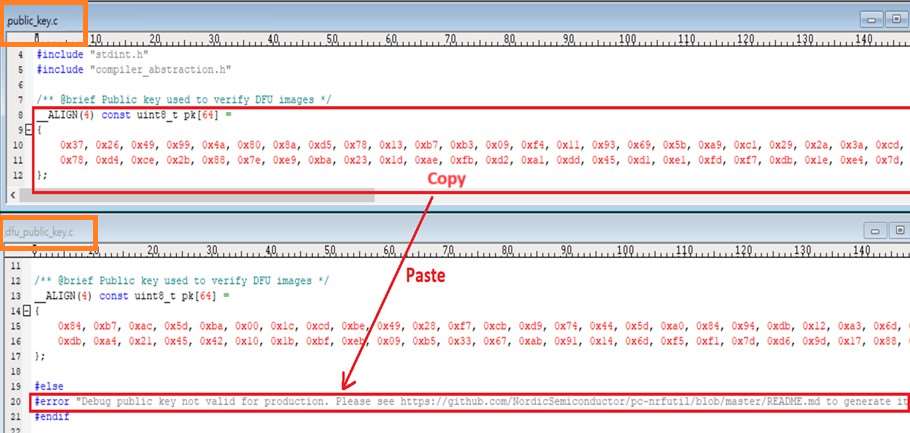
Step 3. Copy the pk[64] code from (public_key.c) into (dfu_public_key.c)
(Shown in red frames in below screenshot)

※Note: Make sure to save the 3 generated files:
private.pem
public_key.c
dfu_public_key.c


Step 4. Generate the bootloader file: nrf52840_xxaa_s140.hex after re-compiling the code files.


※Stay tuned for #2 – Part B: Application in the next article, scheduled release in next week(29/05/2024).


Technical guidelines provided by R&D Manager: Mr. MW Lee
Edited by Sales Manager: Mr. Tony Yin


Raytac Corporation 勁達國際電子股份有限公司 
Bluetooth & WiFi module maker based on Nordic nRF54, nRF53, nRF52, nRF7002 solution
BT5.4 &BT5.3 & BT5.2 & BT5.1 Qualified, FCC/IC/CE/Telec/KC/RCM/SRRC/NCC Pre-Certified.
Bluetooth Solution: nRF54, nRF5340, nRF52840, nRF52833, nRF52832, nRF52820, nRF52811, nRF52810, nRF52805, nRF51822
WiFi Solution: nRF7002
http://www.raytac.com
email: service@raytac.com
Tel: +886-2-3234-0208
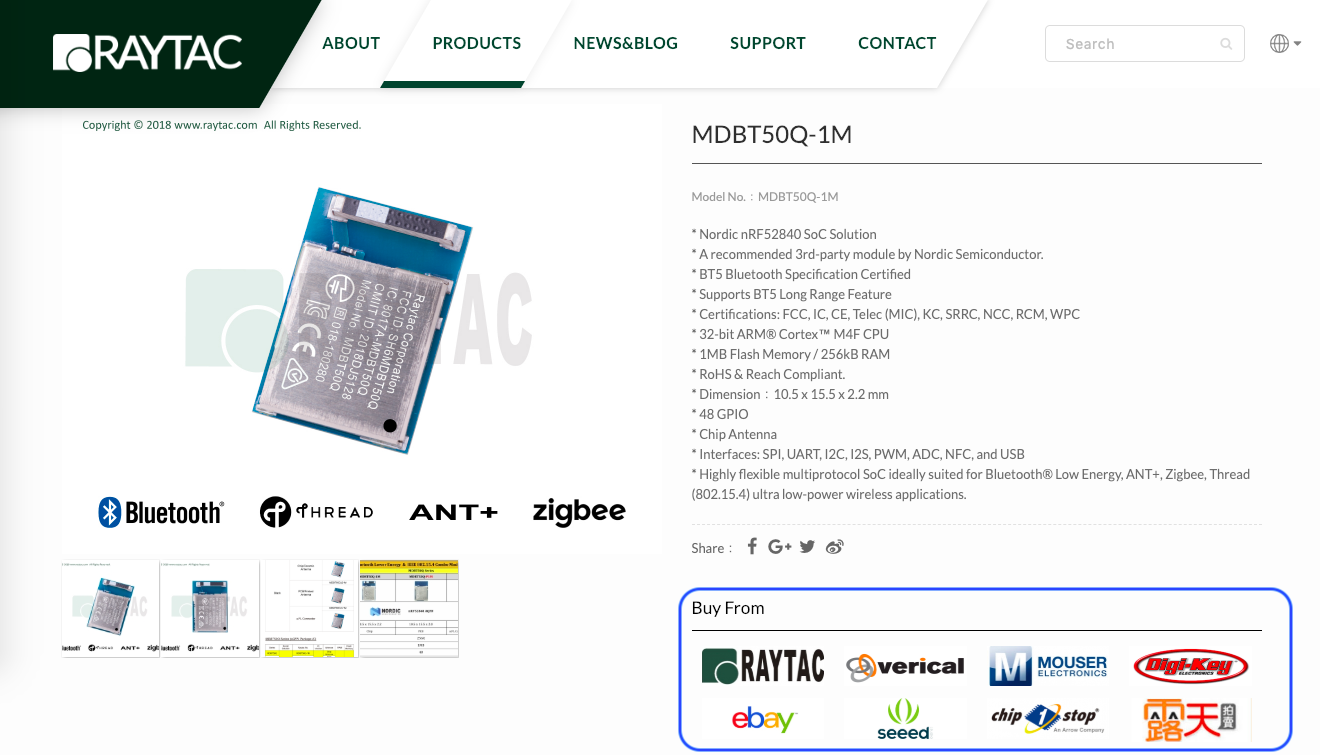
Where To Buy Raytac Bluetooth Module Sample?

To enhance the accessibility to Raytac BLE module sample for evaluation and development, Raytac has put effort to corporate with several channels.

Differ channels may carry various items, we encourage developers firstly visiting Raytac official site. The easy link options listed in each product may help customers to select the friendly channel to approach.

螢幕快照 2019-01-21 09.58.27

Raytac Product Change Notice (PCN) Announcement for Nordic nRF52810 Solution

Dear Customers,
Raytac would like to announce Product Change Notice (PCN) for Module line: MDBT42Q-192K & MDBT42Q-P192K, which are built based on Nordic nRF52810 Solution.

PCN No.: PCN-17112201

Description of Change:

MDBT42Q-192K and MDBT42Q-P192K Modules of Nordic nRF52810 solution change PCB color from Blue to Green and remove the black dotting on metal shielding case.

Raytac’s nRF51 Module (MDBT40/MDBT40-P) Bluetooth QDID information

Raytac Corporation

A BT4.1 & BT4.2 module maker based on Nordic nRF51 & nRF52 solution 

(nRF51822 & nRF51422 & nRF52832 & nRF51802)

Tel: +886.2.3234.0208

Bluetooth products must purchase DID and submit the testing evidence issued by BQE to completed the SIG registration and activate the DID

Only products’s DID been activated then allowed to use Bluetooth logo.

Developer’s who built the products based on Raytac module is allow to relable Raytac’s DID to easy the process.

Simply purchase their own DID from SIG, and relabel Raytac’s DID then can completethe Bluetooth activation process.

Raytac’s MDBT40/MDBT40-P QDID/DID is applied by subsidiary of Ginstar Corporation.

The QDID is 60912 / D023258

We welcome all Raytac’s customers to relabel the QDID as long as product built by MDBT40/MDBT40-P. As such, the Bluetooth process becomes simple and cost effective.

藍牙 4.0 模組經銷夥伴~立寰科技

勁達國際電子(Raytac Corporation)
www.raytac.com
藍牙4.0/藍牙4.1/藍牙4.2模組(藍牙模塊) 製造供應商 (Nordic nRF51 /nRF52方案)
Nordic nRF51822 / nRF51422/nRF52832/NRF51802
Tel: 02-3234-0208    email: sales@raytac.com
http://raytacbt4.blogspot.tw/2015/12/40.html

‪#‎Raytac‬ is glad to announce acquiring ‪#‎ConcordTechnology‬ in Great China Zone distributor network.
為能提供大中華區客戶更便捷的服務與流通性 ‪#‎勁達國際電子有限公司‬ 歡迎 ‪#‎立寰科技股份有限公司‬ 加入大中華區 ‪#‎BT4‬.0 ‪#‎藍牙模組‬ 的經銷夥伴
立寰科技股份有限公司
PM: Mr. Morris Shyu
morris@concord-at.com
Mobile: 0963-359-360