Secure DFU OTA for nRF52832 solution modules: Guide to create hex/zip file for implementation – Part 1(Bootloader & Application)

Below are the guidelines to implement Secure DFU OTA by using Raytac’s nRF52832 modules, SDK16.0.0.
It consists of 2 parts:

Part 1: Bootloader & Application


Part 2: Combining and merging built files (Article link)

In this article, we will be focusing on Part 1: Bootloader & Application.


Path: ..\nRF5_SDK_16.0.0_98a08e2\examples\dfu\secure_bootloader\pca10040_s132_ble\arm5_no_packs
Specifically for nRF52832, programmers need to embed ECC(Elliptic Curve Cryptography) into the bootloader.


Step 1. ’micro_ecc_lib_nrf52.lib’ library can be found in the path below, but we need to boot it up first.


Step 2. Unzip ’micro-ecc-master.zip’ to the below path(create a new “micro-ecc” file first).


Step 3. Run ’gcc-arm-none-eabi-7-2018-q2-update-win32.exe’.


Step 4. Make sure the Environment variables in Win10 are set as below. (Follow the steps 1 to 6)


Step 5. Open DOS → run the “make” command under armgcc path → generate’micro_ecc_lib_nrf52.lib’


Step 6. Add ’micro_ecc_lib_nrf52.lib’ into folder: nRF_micro-ecc


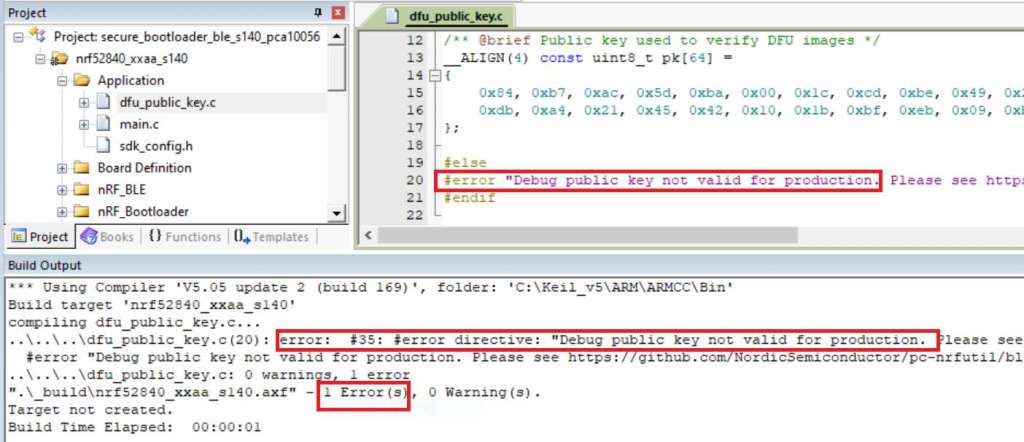
Step 7. An error may occur while building bootloader without a public key:
(Shown in red frames in below screenshot)


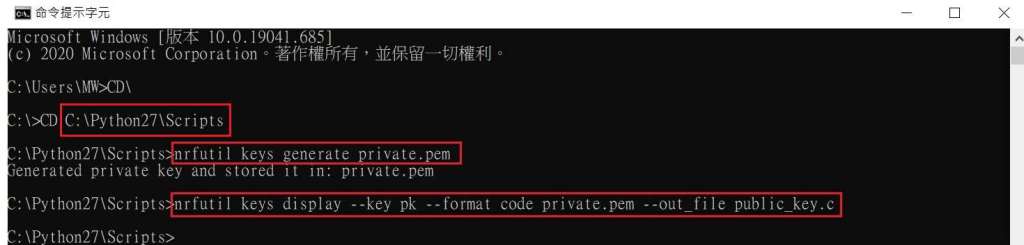
Step 8. How to generate the public key file in Bootloader?
A. Visit DOS at path: ..\Python27\Scripts
B. Then execute:

nrfutil keys generate private.pem
nrfutil keys display --key pk --format code private.pem --out_file public_key.c


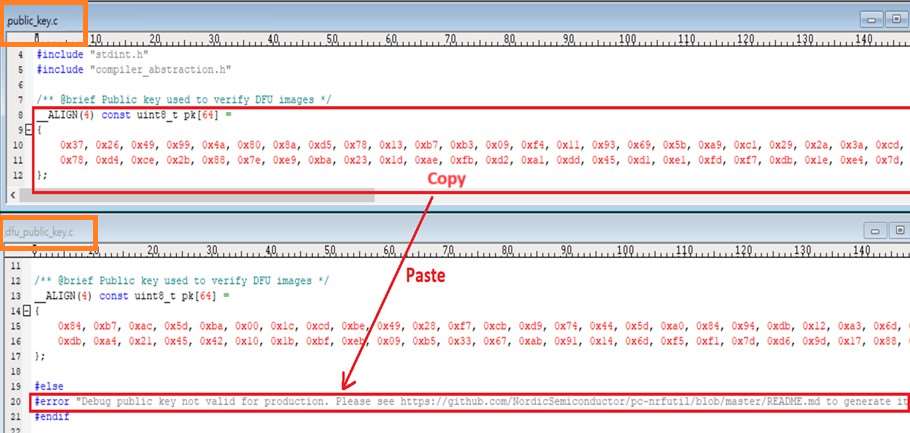
Step 9. Copy the pk[64] code from (public_key.c) into (dfu_public_key.c)
(Shown in red frames in below screenshot)

※Note: Make sure to save the 3 generated files:
private.pem
public_key.c
dfu_public_key.c


Step 10. Generate the bootloader file: nrf52832_xxaa_s132.hex after re-compiling the code files.


Application


Path:
..\nRF5_SDK_16.0.0_98a08e2\examples\ble_peripheral\ble_app_uart\pca10040\s132\arm5_no_packs
Before building Application code , some amendments need to be made regarding DFU-related settings and code inside Application:


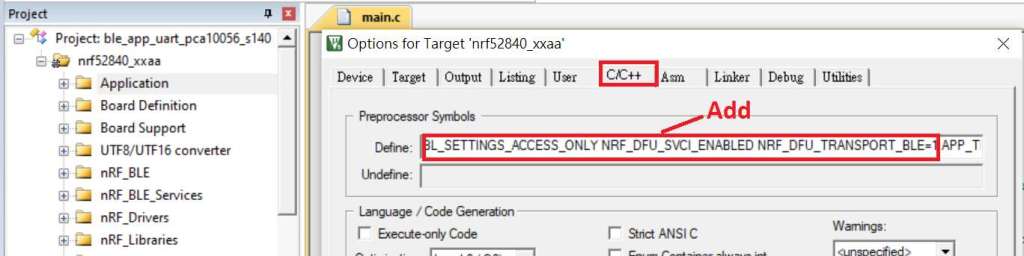
Step 1. Add code in definition in C/C++ :
BL_SETTINGS_ACCESS_ONLY NRF_DFU_SVCI_ENABLED NRF_DFU_TRANSPORT_BLE=1
(Total 3 steps definitions need to be set up)


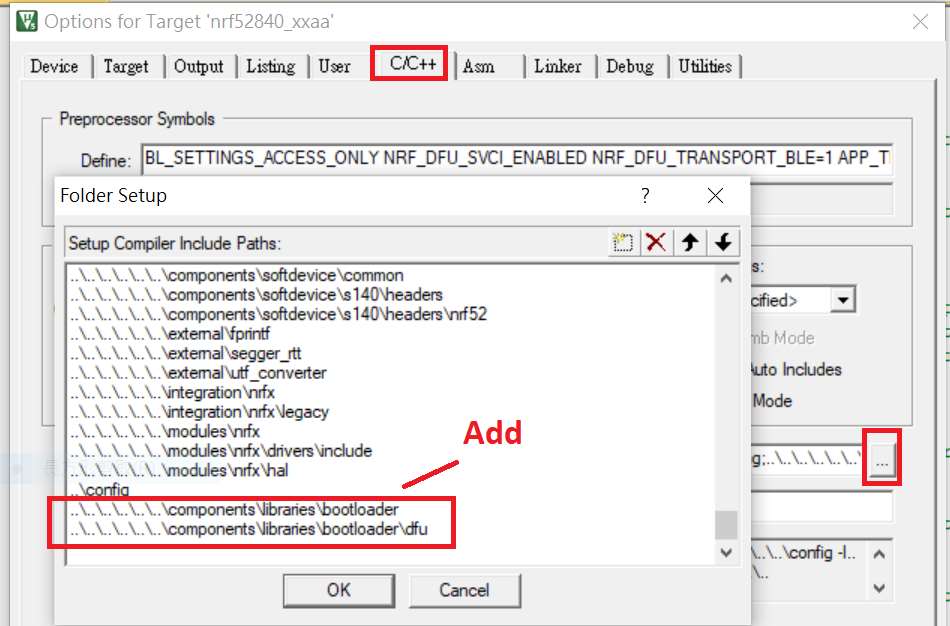
Step 2. Add the 3 paths shown below in C/C++ to make DFU work.


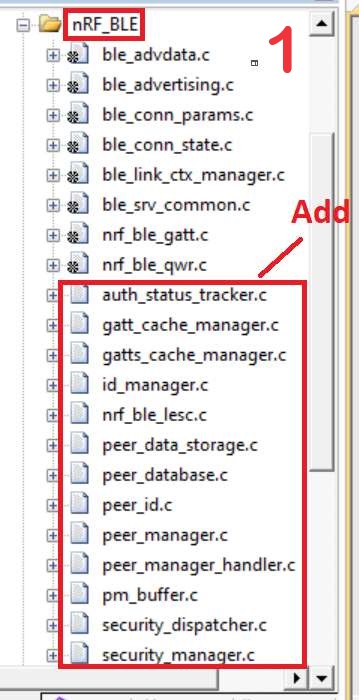
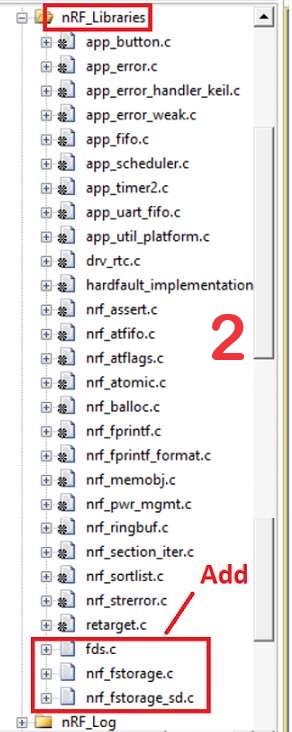
Step 3. Add the .c files inside red frame in (Screenshots 1 & 2)
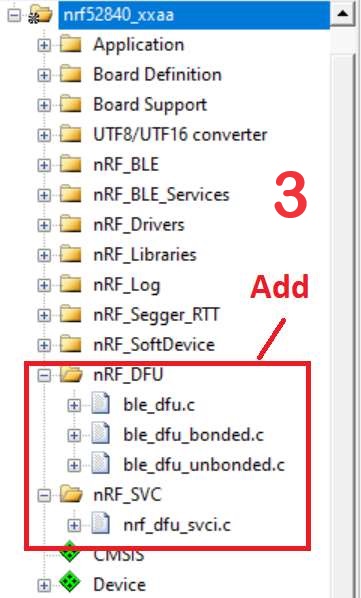
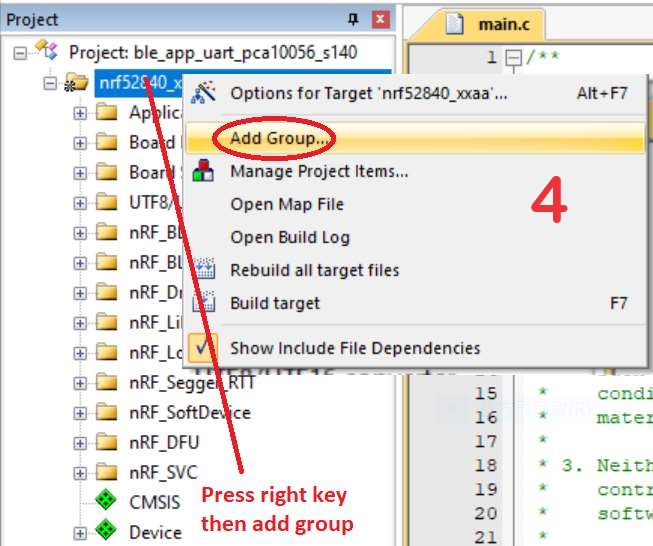
and add the 2 groups of (nRF_DFU & nRF_SVC)(Screenshot 4) under Project(Screenshot 3)


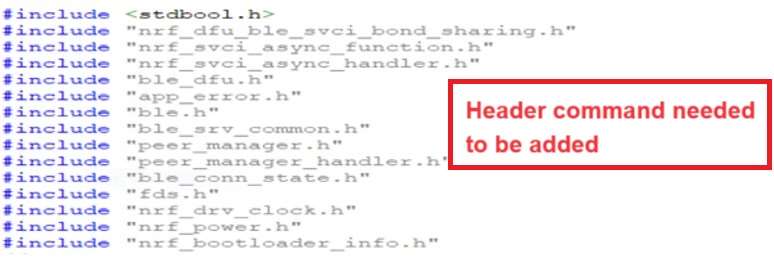
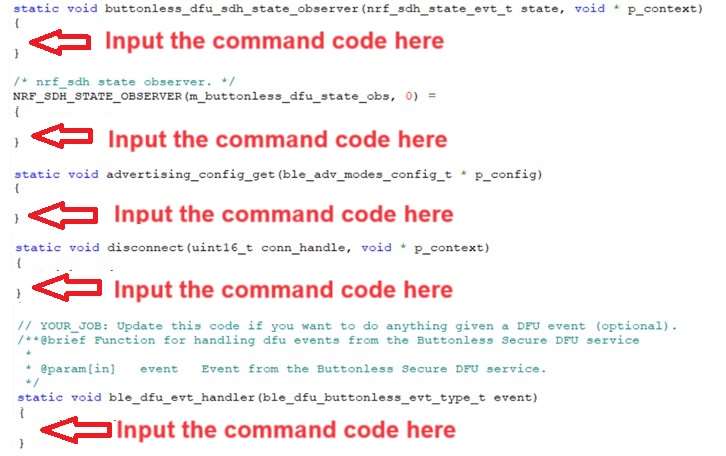
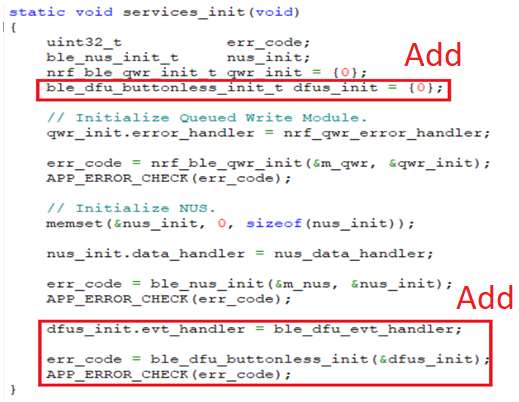
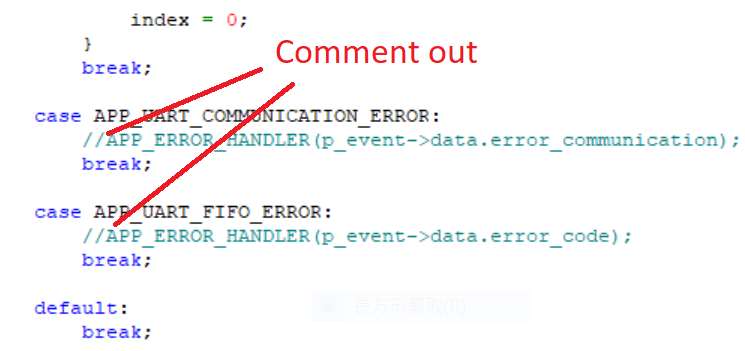
Step 4. Add code into main.c file in Application (..\examples\ble_peripheral\ble_app_uart\main.c)
(Please refer to: main.c file at: ..\examples\ble_peripheral\ ble_app_buttonless_dfu)


Step 5.
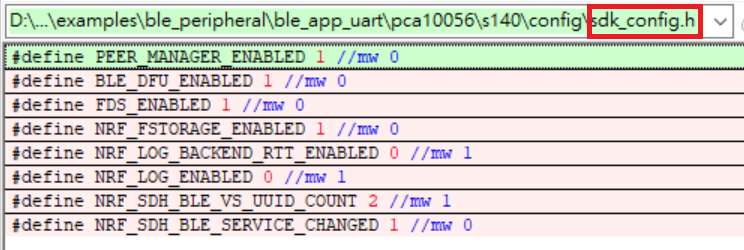
The code of file: sdk_config.h (..\examples\ble_peripheral\ble_app_uart\pca10040\s132\config\sdk_config.h)

inside Application needs to be modified.


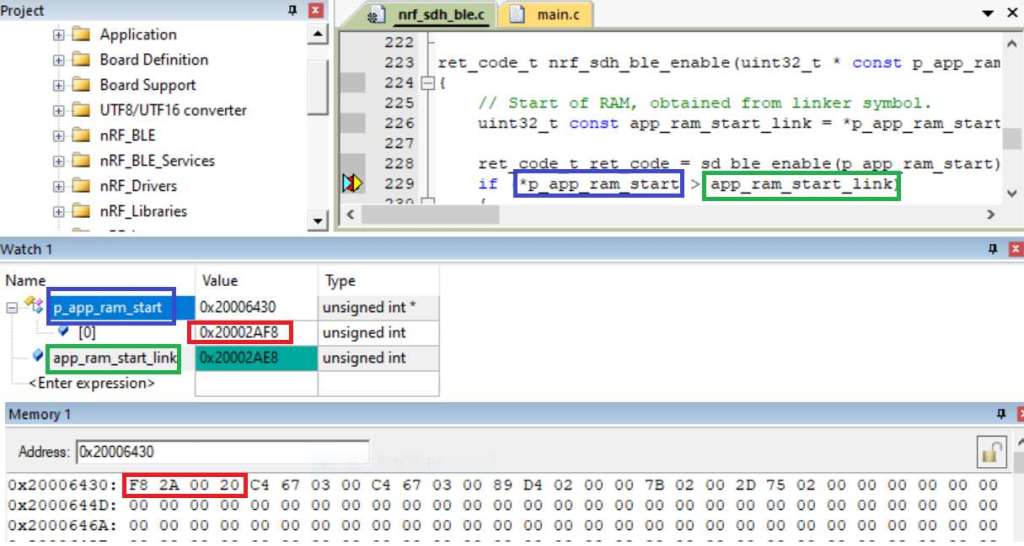
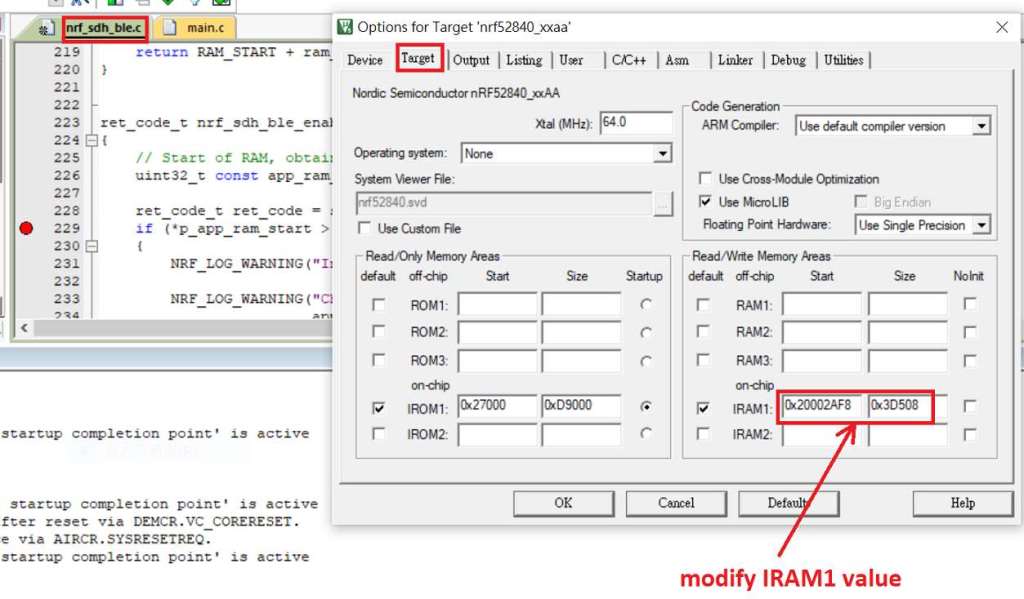
Step 6. Adjust the IRAM1 value in Target after implementing DFU service:
Make sure the IRAM1 Value of *p_app_ram_start is modified from default: 0x20002AD8 0xD528 to
0x20002AE8 0xD518, as shown in the red frame in the bottom right corner.
In this case, the program should run/advertise successfully.


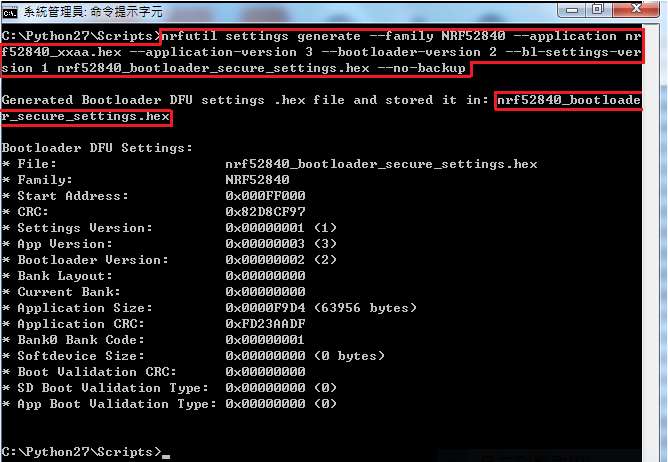
Step 7. Create a file of: nrf52832_xxaa.hex after building application code files.


Step 8. Create a bootloader setting file of nrf52832_bootloader_secure_settings.hex via DOS.
nrfutil settings generate –family NRF52 –application nrf52832_xxaa.hex –application-version 3 —
bootloader-version 2 –bl-settings-version 1 nrf52832_bootloader_secure_settings.hex –no-backup

※Stay tuned for Part 2: Combining and merging built files in the next article, scheduled release in next week(04-Sep-2024).


Technical guidelines provided by R&D Manager: Mr. MW Lee
Edited by Sales Manager: Ms. Mandy Chao


Raytac Corporation 勁達國際電子股份有限公司 
Raytac Corporation: A Bluetooth, Wi-Fi, and LoRa Module Maker based on
Nordic nRF54; nRF53: nRF52; nRF51; nRF7002
Semtech Specification: SX1262

Bluetooth Specification: BT5.4 ; BT5.3; BT5.2.
Wi-Fi Specification: Wi-Fi 6
LoRa Specification: LoRaWAN

All products are FCC/IC/CE/Telec/KC/RCM/SRRC/NCC Pre-Certified.
http://www.raytac.com
email: sales@raytac.com
Tel: +886-2-3234-0208

FAQ: How to write MAC address into the OTP memory of Raytac’s nRF7002 Wi-Fi module/AN7002Q-DB-5340 DevKit

Recently we have received the FAQ: how to write MAC address into the OTP memory of Raytac’s AN7002Q-P Nordic Wi-Fi module? In this article, we’ll get this question explained to give customers a more smooth experience using the AN7002Q-nRF5340 Demo Board(AN7002Q-DB-5340).

Is there an existing Wi-Fi MAC address in the AN7002Q part on the DevKit?

Currently, the AN7002Q module on Raytac’s AN7002Q-DB-5340 board has no Wi-Fi MAC address.


When running Wi-Fi Scan code/Station code/Shell code…etc. on NCS v2.6.0 (and later versions), the AN7002Q module must have a programed Wi-Fi MAC address to function properly.

Therefore, it’s necessary to follow the below process:
1. Program the original Wi-Fi radio test code (..\nrf\samples\wifi\radio_test) into the MDBT53 section,
2. Then write the Wi-Fi MAC address in to the AN7002Q section(nRF7002 IC) via command.

After this, program the original Wi-Fi Scan code/Station code /Shell code … into the 5340, and it will function properly.

**Raytac will assign 2 Wi-Fi MAC addresses(for both 2.4GHz & 5GHz) to every AN7002Q module.
*If customers don’t have Wi-Fi MAC addresses for DevKit development yet, please reach out to
service@raytac.com


==================================================================================

Case study 1. SCAN code example


Scenario:
Following error occurred when building the SCAN example code, flash it onto the AN7002Q-DB-5340 board, and run the test.

Solution:

When running Wi-Fi scan code on NCS v.2.6.0 or later version, the OTP memory in the AN7002Q module must have a Wi-Fi MAC address programmed in for the Wi-Fi scan functionality to work properly.

(Note: OTP is a One-Time programmable memory, which means the value can only be written once.
The customer must aware of this before performing the OTP operation.)

1. Program the original Wi-Fi radio test code (..\nrf\samples\wifi\radio_test) into the MDBT53 section,
then manually input and execute the following OTP read command.

wifi_radio_ficr_prog otp_read_params

If you see both MAC0 and MAC1 display a value of 0xFF, as shown in above, it means that you haven’t written the Wi-Fi MAC address into the AN7002Q’s OTP.

2. Manually issue the OTP write command to write the Wi-Fi MAC address into the OTP.

https://docs.nordicsemi.com/bundle/ncs-latest/page/nrf/samples/wifi/radio_test/ficr.html

wifi_radio_ficr_prog otp_write_params 0x120 0xDDCCBBAA 0xFFEE

wifi_radio_ficr_prog otp_write_params 0x128 0xDDCCBBAA 0xFFEE


After you complete the above, use the OTP read command in below to check if the Wi-Fi MAC address value was written.
The MAC0 and MAC1 should display the value you’ve input from the OTP write command.

wifi_radio_ficr_prog otp_read_params

3. Program the original Wi-Fi SCAN code back into the MDBT53, the Wi-Fi scan functionality should work properly.

==================================================================================

Case study 2. Shell code example

SDK Wi-Fi example test – Running Shell Code on AN7002Q-DB-5340:

Scenario:
An error occurs while running Shell code on AN7002Q-DB-5340.

Solution:
The AN7002Q-DB-5340 is paired with nRF5340 DK for development,
but neither of the 2 boards has an external MX25R64 (Serial NOR Flash) component.
So far, only the nRF7002DK board is equipped with the MX25R64.

Therefore, while running the original Wi-Fi shell code, the program will enable SPI NOR.

When using AN7002Q-DB-5340, you should add CONFIG_SPI_NOR=n in the prj.conf file to disable SPI NOR, to turn off any configurations related to it.


Edited by Sales Manager: Ms. Mandy Chao
Technical guidance provided by R&D Manager: Mr. MW Lee
Keyword: nRF7002 MAC address


Raytac Corporation 勁達國際電子股份有限公司 
Bluetooth & WiFi module maker based on Nordic nRF54, nRF53, nRF52, nRF7002 solution
BT5.4 &BT5.3 & BT5.2 & BT5.1 Qualified, FCC/IC/CE/Telec/KC/RCM/SRRC/NCC Pre-Certified.
Bluetooth Solution: nRF54, nRF5340, nRF52840, nRF52833, nRF52832, nRF52820, nRF52811, nRF52810, nRF52805, nRF51822
WiFi Solution: nRF7002
http://www.raytac.com
email: sales@raytac.com
Tel: +886-2-3234-0208


Transition tips for program from MDBT50Q-RX (USB-A) to MDBT50Q-CX (USB-C)  with current NRF52840 project

Intro:

This is a guidance provided for those who is going to transit (or replicate) their project from Raytac MDBT50Q-RX (USB-A Dongle) to MDBT50Q-CX(USB-C Dongle).  In addition to the hardware spec change (Compact Size , LED, Button, Pin definition change) , the key firmware configuration should be made with changes to fit new USB-C Dongle MDBT50Q-CX.


RX-1                    CX-1

    MDBT50Q-RX                           MDBT50Q-CX


 Table of Contents:

1. Comparison chart: MDBT50Q-RX(USB-A) & MDBT50Q-CX(USB-C)

2. Firmware configuration

3. Create a merged hex file (2 in 1 or 4 in 1)

4. Firmware flashing process


1. Comparison chart: MDBT50Q-RX & MDBT50Q-CX

Comparison chart


2. Firmware configuration : MDBT50Q-RX → MDBT50Q-CX

Edit your current MDBT50Q-RX firmware with configuration change to align the PIN change to accommodate the hardware change.

Option 1. Using nRF5 SDK:

Make the definition set up of LED, BUTTON pin in the highlighted 4 sections.

Firmware configuration-nRF5


Option 2. Using NCS V2.6.X:

Use the board name: nrf52840dongle_nrf52840 and add the overlay file:

nrf52840dongle_nrf52840.overlay to the program (Devicetree Overlays),

then configure the below code definition into the overlay file:

/ {
   leds {
             compatible = “gpio-leds";
             led0_green: led_0 {
                      gpios = <&gpio0 6 GPIO_ACTIVE_LOW>;
                      label = “Green LED 0″;
             };
             led1_red: led_1 {
                     gpios = <&gpio0 8 GPIO_ACTIVE_LOW>;
                     label = “Red LED 1″;
             };
};

  buttons {
  compatible = “gpio-keys";
  button0: button_0 {
                  gpios = <&gpio1 6(GPIO_PULL_UP | GPIO_ACTIVE_LOW)>;
                  label = “Push button switch 0″;
                                   };
};
};

Firmware configuration-NCS


3. Create a merged hex file (2-in-1 or 4-in-1 hex file)


3A. Bootloader public key product

nrfutil keys generate public_key.pem → for zipping new firmware

nrfutil keys display –key pk –format code public_key.pem –out_file public_key.c

→ include public key to compile bootloader hex file

3A-1

3A-2


3B. Examples Demo

nRF5 SDK: nRF5_SDK_17.1.0_ddde560\examples\ble_peripheral\ble_app_uart\pca10056\s140

NCS V2.6.X: ncs\v2.6.0\nrf\samples\bluetooth\peripheral_uart


3C. How to generate bootloader setting file (if you need bootloader):

nrfutil.exe settings generate –family NRF52840 –application nrf52840_xxaa.hex –application-version 255 –bootloader-version 2 –bl-settings-version 1 bootloader_settings.hex


3D. Merge and create a 2-in-1 or 4-in-1 hex file

a). Merge 2-in-1 (no Bootloader file required):

mergehex.exe -m s140_nrf52_7.2.0_softdevice.hex nrf52840_xxaa.hex -o merge.hex

3D-a


b). Merge 4-in-1 (with Bootloader file & Bootloader settings file required):

mergehex.exe -m bootloader.hex bootloader_settings.hex  s140_nrf52_7.2.0_softdevice.hex nrf52840_xxaa.hex -o merge.hex

3D-b


4. Firmware flashing process

MDBT50Q-RX(USB-A):Manual wiring is required to have the firmware uploaded.

Please refer to the article: Firmware Coding & DFU onto MDBT50Q-RX

MDBT50Q-CX(USB-C):Built-in open bootloader included for simple DFU process..

Please refer to the article: User Manual of MDBT50Q-CX (nRF52840/nRF52833-based USB-C Dongle)


Edited by Sales Manager:
 Ms. Jocelyn Tsai
Technical guidance provided by Firmware Deputy Manager: Mr. Stanley Huang

Raytac Corporation 勁達國際電子股份有限公司
Bluetooth & WiFi & LoRa module maker based on Nordic nRF54, nRF53, nRF52, nRF7002 solution
BT5.4 &BT5.3 & BT5.2 & BT5.1 Qualified, FCC/IC/CE/Telec/KC/RCM/SRRC/NCC/WPC Pre-Certified.
Bluetooth Solution: nRF54, nRF5340, nRF52840, nRF52833, nRF52832, nRF52820, nRF52811, nRF52810, nRF52805, nRF51822
WiFi Solution: nRF7002
http://www.raytac.com
email: sales@raytac.com
Tel: +886-2-3234-0208

User Manual of MDBT50Q-CX (nRF52840/nRF52833-based USB-C Dongle)

MDBT50Q-CX is an advanced version of Raytac’s MDBT50Q-RX(USB-A Dongle).

MDBT50Q-CX has a more compact size, equips an up-to-date Type C USB Connector, and it has a built-in open bootloader for simple DFU process.

If you’ve been developing projects using MDBT50Q-RX in the past, you can find out in this manual how MDBT50Q-CX makes firmware compiling and loading much easier than before.

If you want to load firmware into MDBT50Q-CX, no wiring is needed. 

Simply plug the dongle into your device and USB DFU will be available.

MDBT50Q-CX (USB-C Dongle, nRF52840/nRF52833 solution): Product link

Size: 15.10 x32.85mm (0.59×1.29inches)


Table of Contents

A. Hardware intro

B. Software development environment setup

C. Firmware Implementation with NCS (nRF Connect SDK) or NRF5 SDK

D. Execute DFU (Device Firmware Update)


A. Hardware Intro

 <Pin Allocation>

2

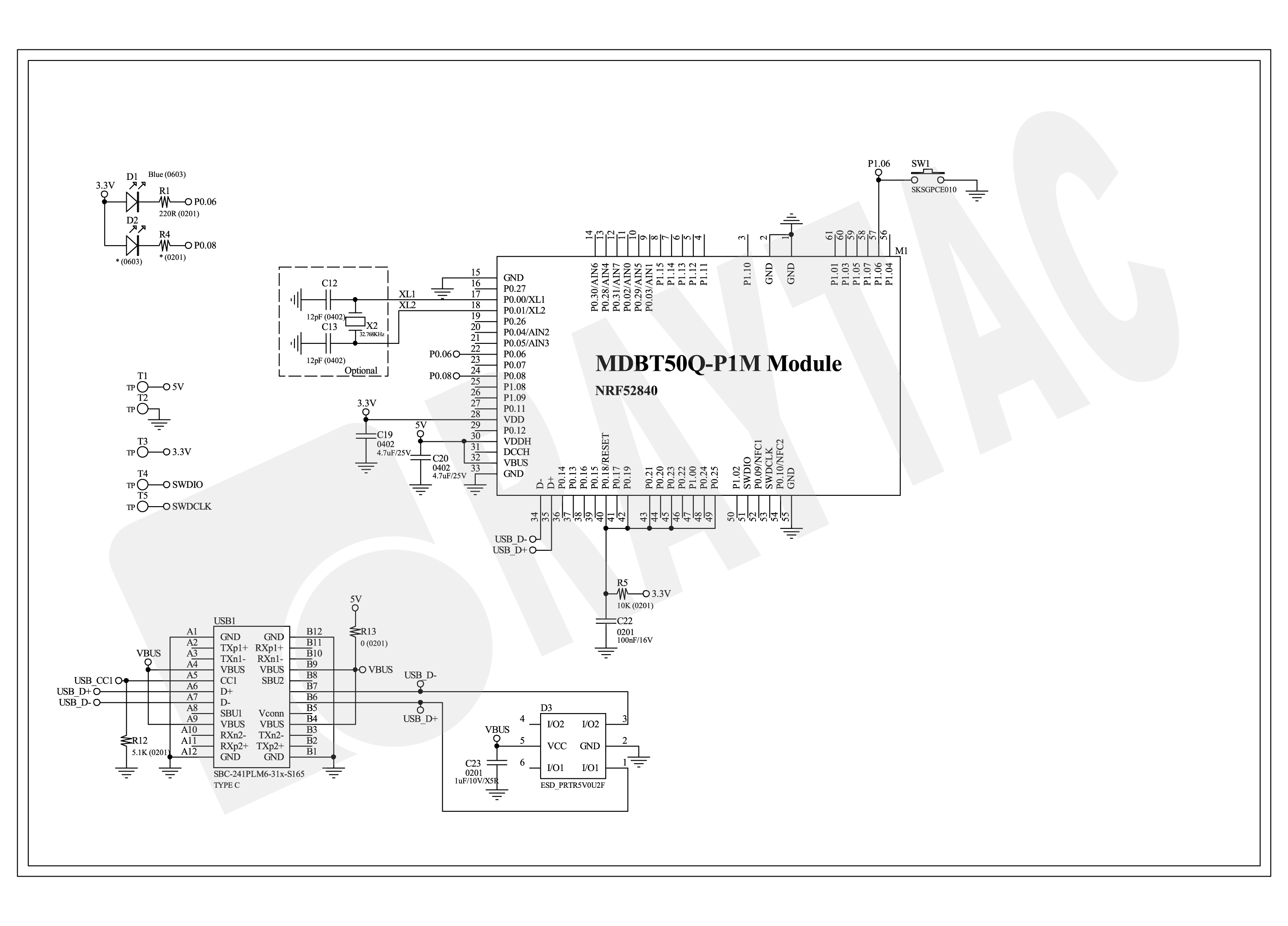
< Schematic> (Click on the image to redirect to product page for Higher resolution photo)

Schematic Spec_MDBT50Q-CX_-240806


B.  Software development environment setup

Option 1. Compile in NCS(nRF Connect SDK)

(1) Install nRF Connect for Desktop:

B1

(2) Install Toolchain Manager and Programmer

B2

(3) Install nRF Connect SDK (NCS) → V2.6.0 is recommended.

B3

Option2. Compile in nRF5 SDK

(1) Download open source nRF5 SDK (Recommend: download the latest version:  17.1.0)

B4

(2) Install Segger Embedded Studio v5.42a (Recommended version)

https://www.segger.com/downloads/embedded-studio/

B5

※Welcome to contact Raytac sales team for v5.42a file of Segger Embedded Studio.


C. Implement firmware in NCS (nRF Connect SDK) or NRF5 SDK

We will use the two example codes below for this demo:

C1. NCS (nRF Connect SDK):

Example code path: \v2.6.0\nrf\samples\bluetooth\peripheral_uart

C2. nRF5 SDK:

Example code path: \nRF5_SDK_17.1.0_ddde560\examples\peripheral\usbd_ble_uart


C1. NCS (nRF Connect SDK): (Using nRF Connect SDK V2.6.0)

Step C1-1. Add build configuration to Board name: nrf52840dongle_nrf52840

C1

Step C1-2. Disable DCDC & DCDCHV by adding the below code into  prj.conf  file

CONFIG_BOARD_ENABLE_DCDC=n

CONFIG_BOARD_ENABLE_DCDC_HV=n

C2

Step C1-3. Fix the VDD power to 3.0V or 3.3V in board.c  file

The default power is 3.0V if you use board name: nrf52840dongle_nrf52840.

In this case, you don’t need to alter the power.

C3

Step C1-4. Click the rebuild icon to reconfigure the program.

C4

Step C1-5. The program will be saved automatically in the path below:

C:\ncs\v2.6.0\nrf\samples\bluetooth\peripheral_uart\build\zephyr\zephyr.hex


C2. nRF5 SDK:

Step C2-1. Open the program under:

\nRF5_SDK_17.1.0_ddde560\examples\peripheral\usbd_ble_uart\pca10056\s140\ses\ usbd_ble_uart_pca10056_s140.emProject

Step C2-2.  Fix the VDD power supply to 3.0V or 3.3V.

C2-1

Step C2-3. Start editing the project by opening the solution in Editor.

C2-2

Change the board name from PCA10056(nRF52840-DK) to PCA10059(nRF52840 dongle).

Save and re-compile the program after the amendment.

C2-3

Click the program file name and save the modified project.

C2-4

Press “Yes” to re-load the new set up value into configuration.

C2-5

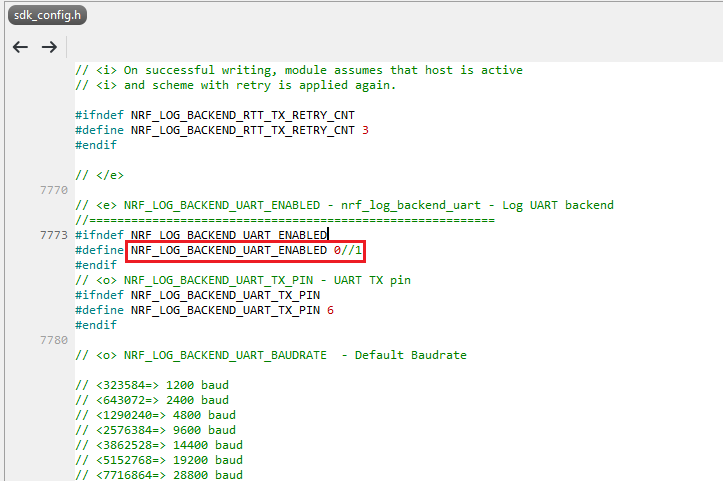
The default code in sdk_config.h is: NRF_LOG_BACKEND_UART_ENABLED 1 (in red frame);

Please change 1 to 0 to make the LED light work.

Stanley修改內容_20240806

Press “Rebuild Solution” to make sure all the parameters you’ve modified are reconfigured.

C2-6

Step C2-4. The program will be saved automatically under the path below:

V:\nRF5_SDK_17.1.0_ddde560\examples\ble_peripheral\ble_app_uart\pca10056\s140\ses\Output\Release\Exe\ble_app_uart_pca10056_s140.hex


D. Execute DFU (Device Firmware Update)

Reminder: 

No extra bootloader can be programmed into MDBT50Q-CX until you manually wire the pins on the PCB and erase the built-in bootloader.  You can simply operate DFU using MDBT50Q-CX’s bootloader.

Step D1. How to enable DFU?

(1) Press the button on MDBT50Q-CX

(2) Plug MDBT50Q-CX into your device while pressing the button

(3) Press and wait for approx.1 second until the LED light turns on. → DFU is activated.

(4) Release the button

※When Bootloader mode is enabled, the LED light on MDBT50Q-CX will twinkle continuously. 

D1

Step D2. Open the built-in DFU Bootloader

nRF Connect Desktop →  Programmer  → SELECT DEVICE  → Open DFU Bootloader

D2

You have successfully entered bootloader mode after you see the screen as below.

D3

Step D3. Add ready firmware file into the Programmer

(The program completed and saved during Step C1-5(NCS) or Step C2-4(nRF5 SDK))

※If you’re using nRF5 SDK, you need to add the soft device file into your program for loading firmware.

※Soft device path:

nRF5_SDK_17.1.0_ddde560\components\softdevice\s140\hex\s140_nrf52_7.2.0_softdevice.hex

D4

Step D4. Load the firmware and write it into the MDBT50Q-CX

D5

Step D5. Process FW DFU

D6

Step D6.  DFU Completed. The appointed firmware is successfully loaded into MDBT50Q-CX.

D7

※Any failure during the DFU process will leave you under bootloader mode.

Last-failure

If this happens, simply restart the firmware writing process from Step D4 to reload your firmware into MDBT50Q-CX.


Edited by Sales Manager: Ms. Jocelyn Tsai
Technical guidance provided by Firmware Deputy Manager: Mr. Stanley Huang

Raytac Corporation 勁達國際電子股份有限公司
Bluetooth & WiFi & LoRa module maker based on Nordic nRF54, nRF53, nRF52, nRF7002 solution
BT5.4 &BT5.3 & BT5.2 & BT5.1 Qualified, FCC/IC/CE/Telec/KC/RCM/SRRC/NCC/WPC Pre-Certified.
Bluetooth Solution: nRF54, nRF5340, nRF52840, nRF52833, nRF52832, nRF52820, nRF52811, nRF52810, nRF52805, nRF51822
WiFi Solution: nRF7002
http://www.raytac.com
email: sales@raytac.com
Tel: +886-2-3234-0208


How to Set Up the Development and Programming Environment for Raytac’s AN7002Q-nRF5340 Demo Board (AN7002Q-DB-5340)?

To help you quickly get started with Raytac’s AN7002 Nordic WiFi module and nRF5340 module, here’s a simple guide on how to set up the development and programming environment using AN7002Q-nRF5340 Demo Board(AN7002Q-DB-5340)and nRF5340 DK.

This article will cover the 4 sections below:
1. Hardware setup
2. Software Development Kit and Environment setup
3. Programming/Development
4. Flashing/Uploading firmware


1. Hardware Setup
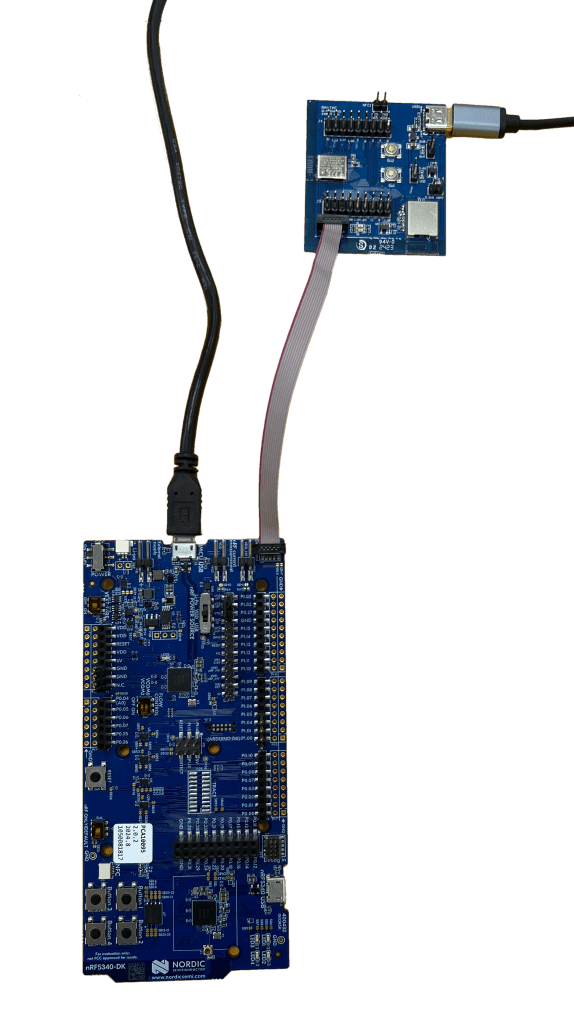
1 x Nordic nRF5340-DK: PCA10095(2.0.0)
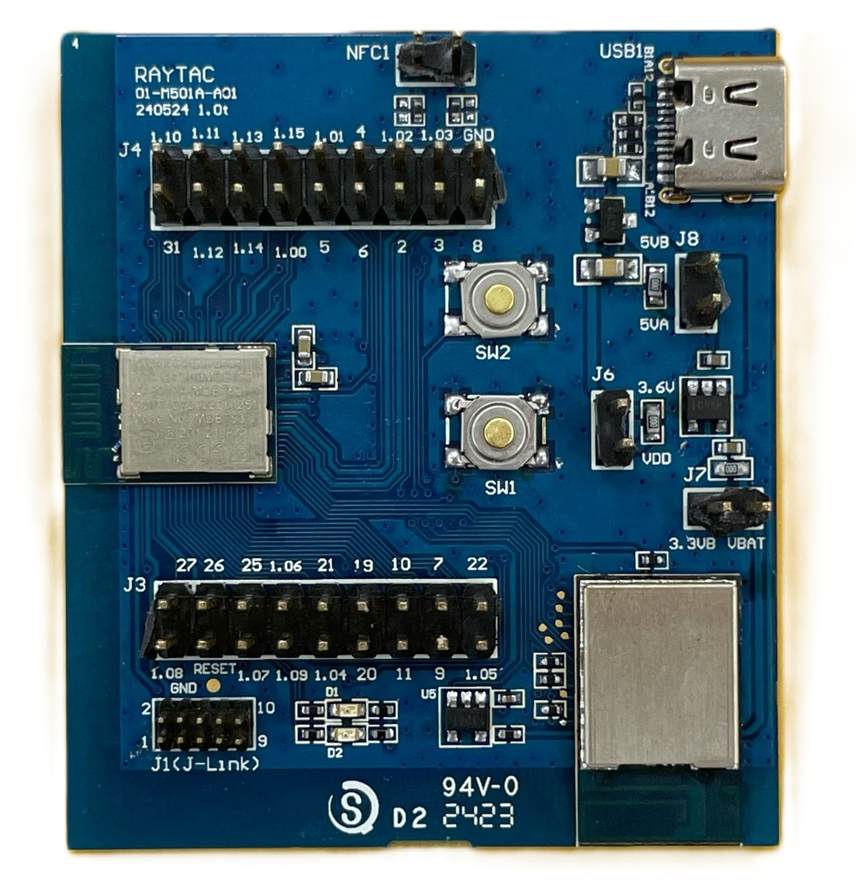
1 x Raytac AN7002Q-DB-5340
1 x IDC Cable
1 x USB-Micro USB Cable
1 x USB-Type C USB Cable

*Note: You need to use both the “Nordic nRF5340-DK” and “Raytac AN7002Q-DB-5340 demo board” together for programming and development. *

Steps to connect the hardware:

  • Connect J-Link on Nordic DK to AN7002Q-DB-5340 using IDC Cable
  • Power Nordic nRF5340-DK up using Micro USB Cable
  • Power Raytac AN7002Q-DB-5340 up using Type C USB Cable


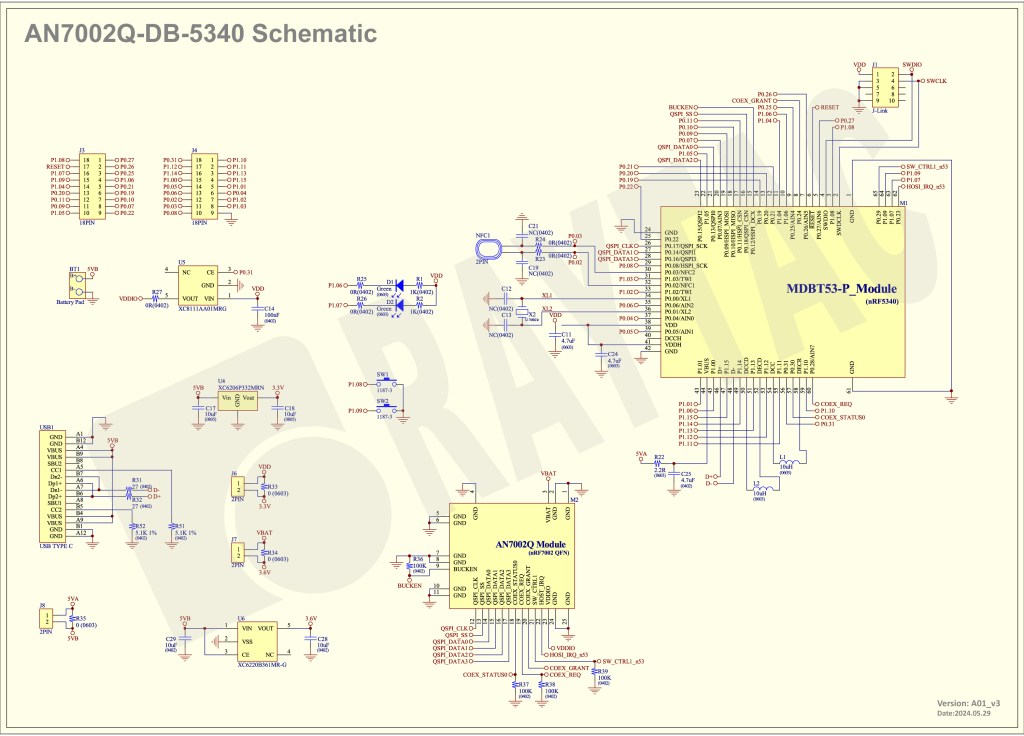
AN7002Q-DB-5340 Schematic Diagram:

(Click on the image to redirect to product page for Higher resolution photo)


2. Software Development Kit and Environment Setup

Download nRF Connect For Desktop: Download nRF Connect For Desktop (Please Click Me)

Download nRF Command Line Tools: Download nRF Command Line Tools (Please Click Me)

(1) Download and install the latest version of nRF Connect for Desktop (Windows 64-bit – 5.0.0 version)
nrfconnect-setup-5.0.0-x64.exe

(2) Download and install the latest version of nRF Command Line Tools (Windows X86 64 – 10.24.2 version)
nrf-command-line-tools-10.24.2-x64.exe

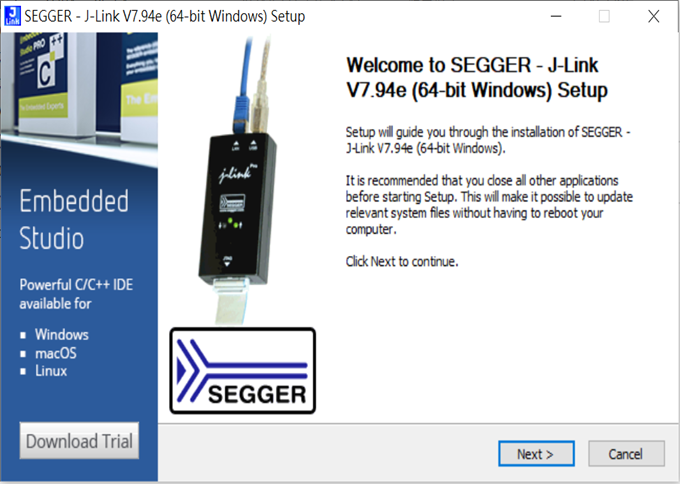
*Note: During set-up, the SEGGER J-LINK installation/update request might pop up on your screen. *
*(As shown in below screenshot). *

If you’re initiating Segger J-Link Driver, please check the guideline here(Click me)


After the installations are completed, you can see the following applications under the:

“Programs and Features" section in the Control Panel.


3. Programming/Development

nRF Connect SDK (NCS) supports development using the free VS (Visual Studio) Code IDE.
Here’s how to select and install the NCS SDK version (nRF Connect SDK vx.x.x):


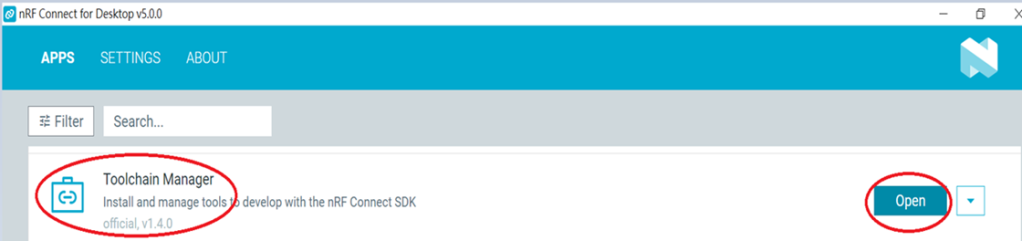
Step1.

Open “nRF Connect for Desktop” → Choose “Toolchain Manager” → then click” Open”


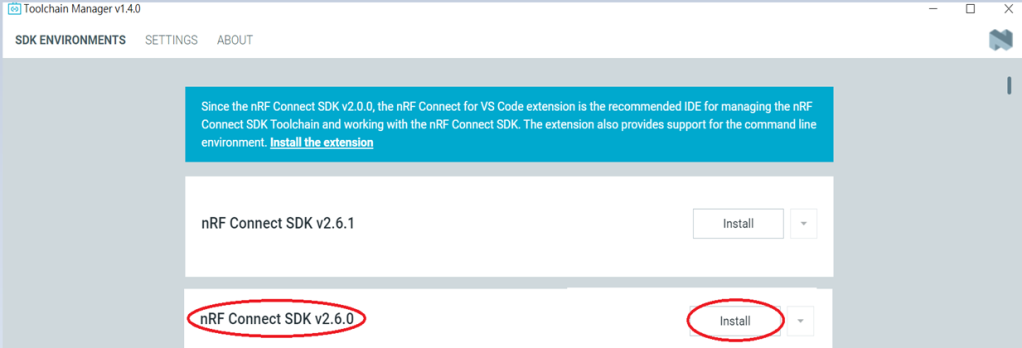
Step2.

You’ll see a list of nRF Connect SDK versions. It’s recommended to install NCS v2.6.0 or later.
Here, we use NCS v2.6.0 as an example.


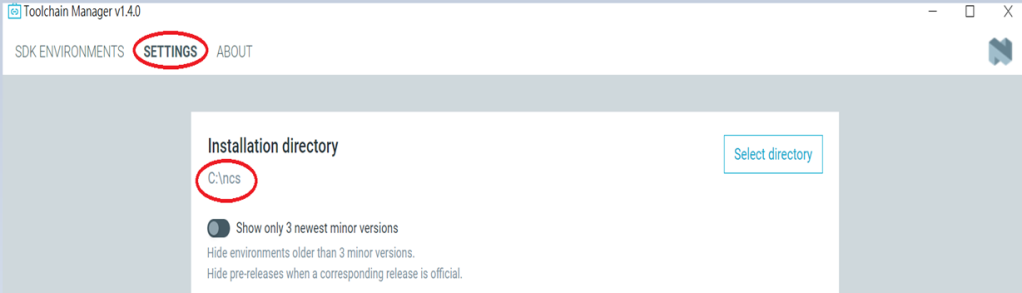
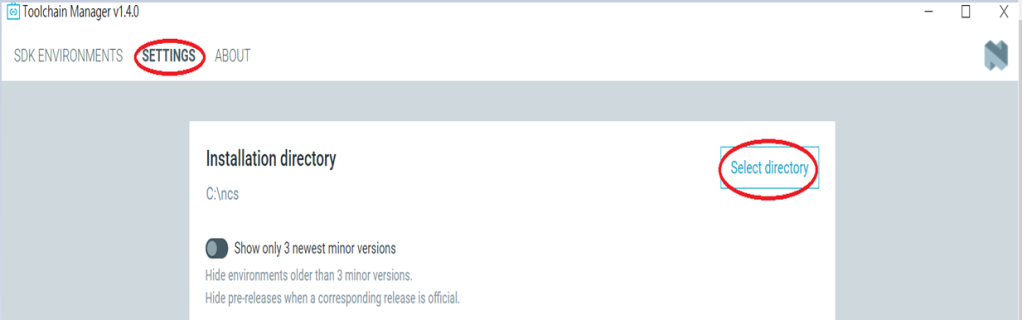
Step3.

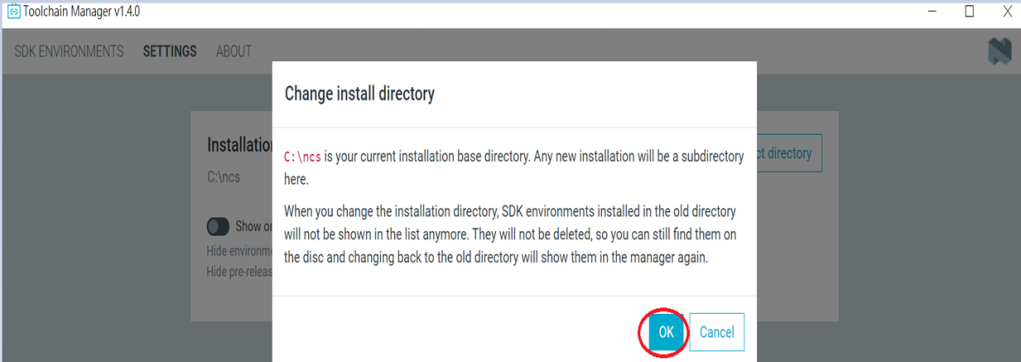
Before installing NCS v2.6.0, confirm the installation path (Default path → C:\ncs).


If you want to change the path, click “Select directory”, and press OK.


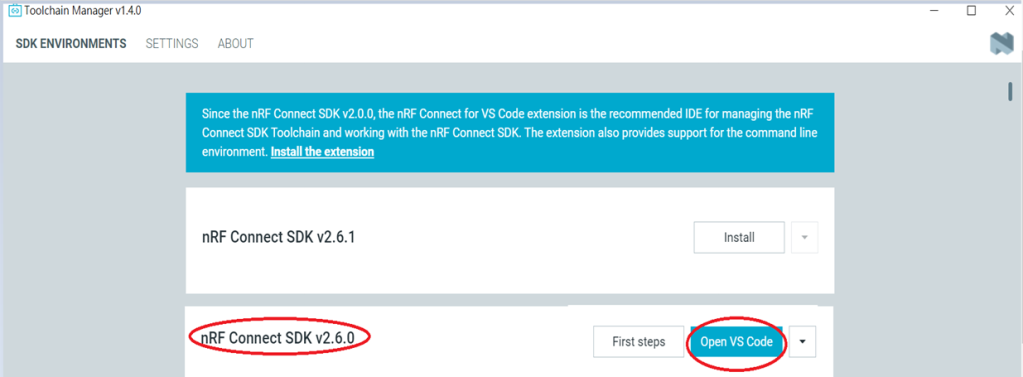
Step4.

After installing the nRFConnect SDK v2.6.0, click “Open VS Code”.


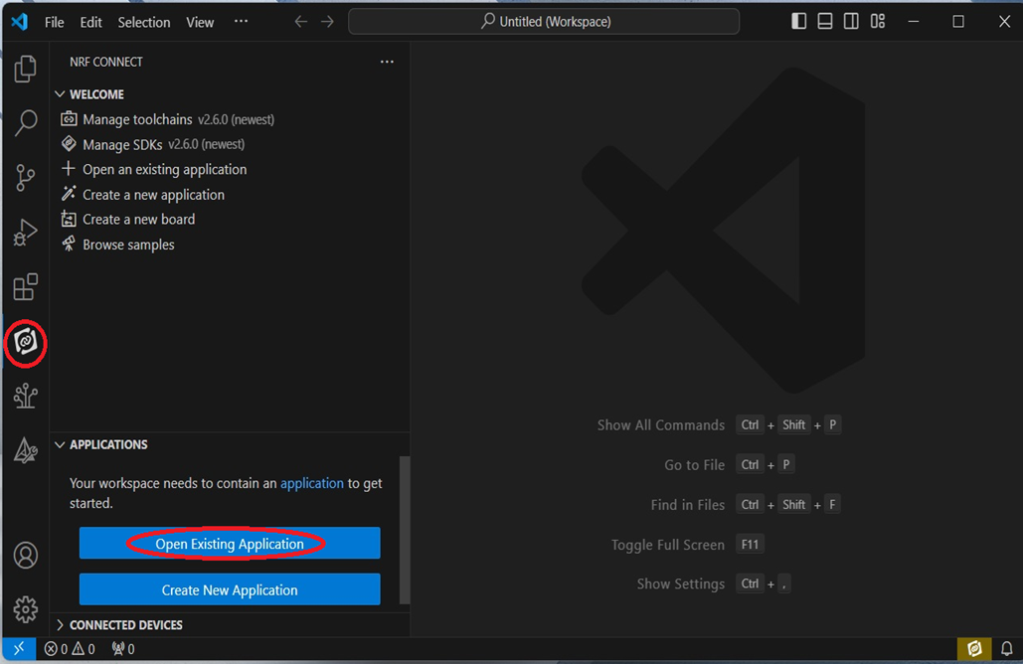
Step5.

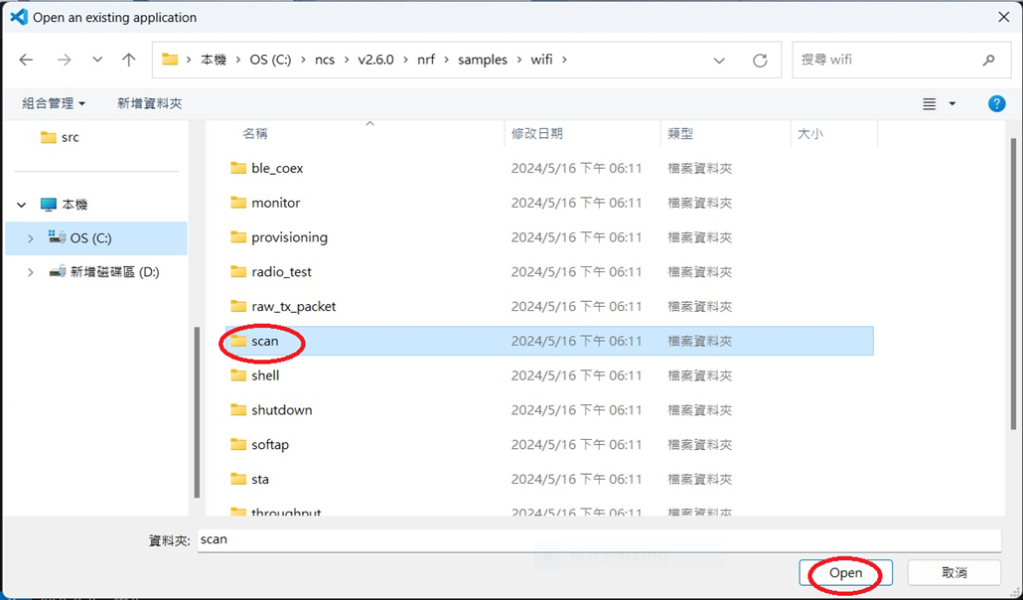
Open the Wi-Fi scan example


Step6.

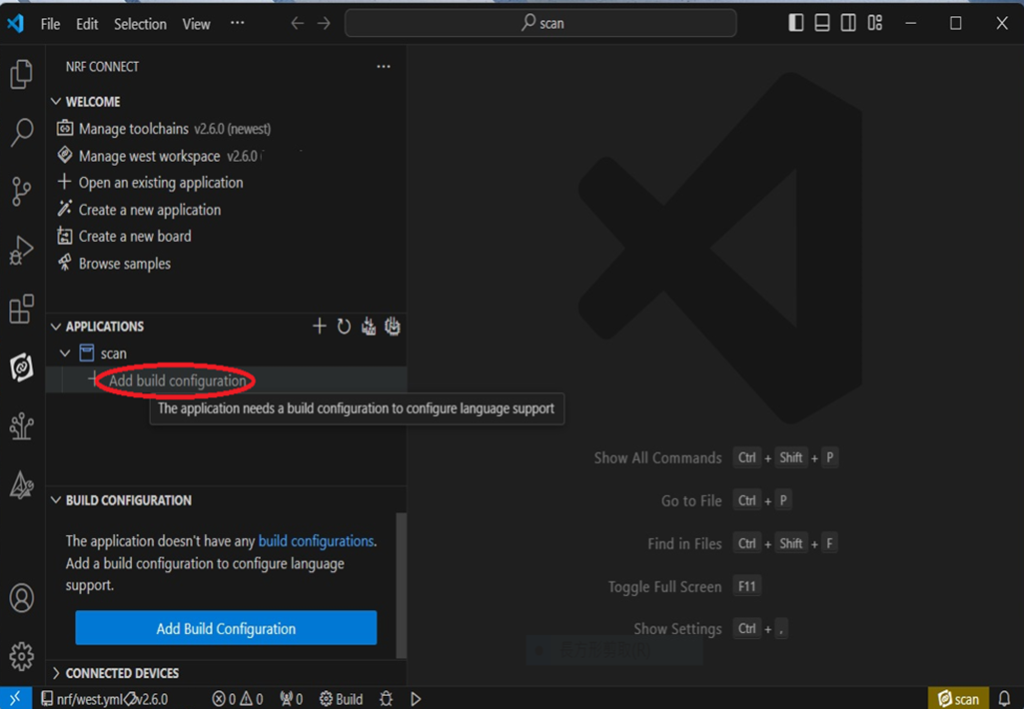
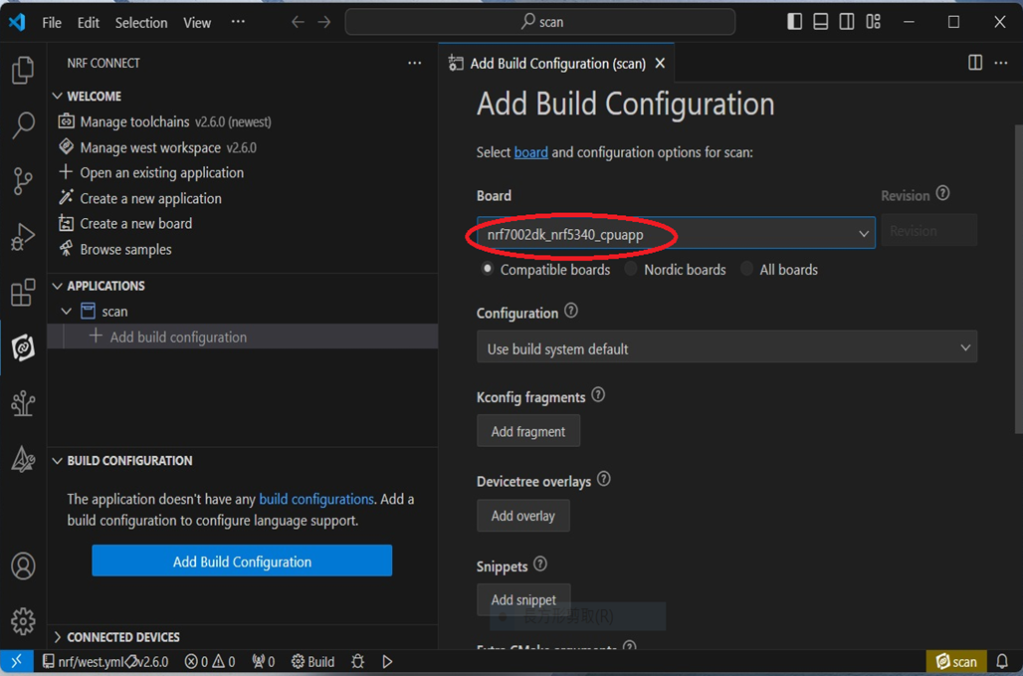
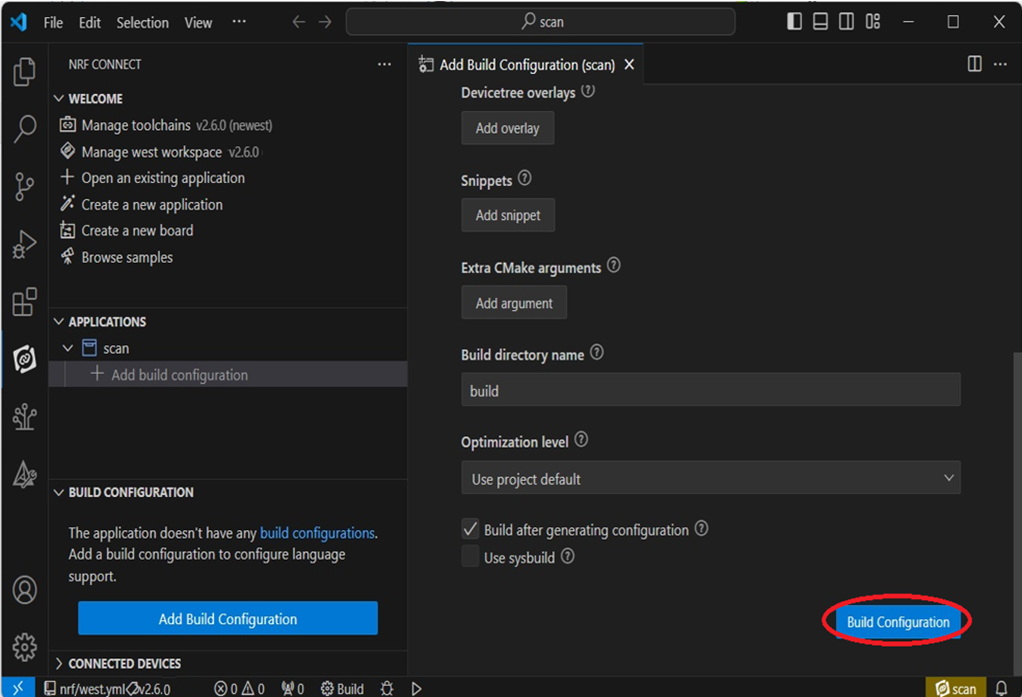
Add build configuration → select the board and compile.


Select board: nrf7002dk_nrf5340_cpuapp.


Step7.

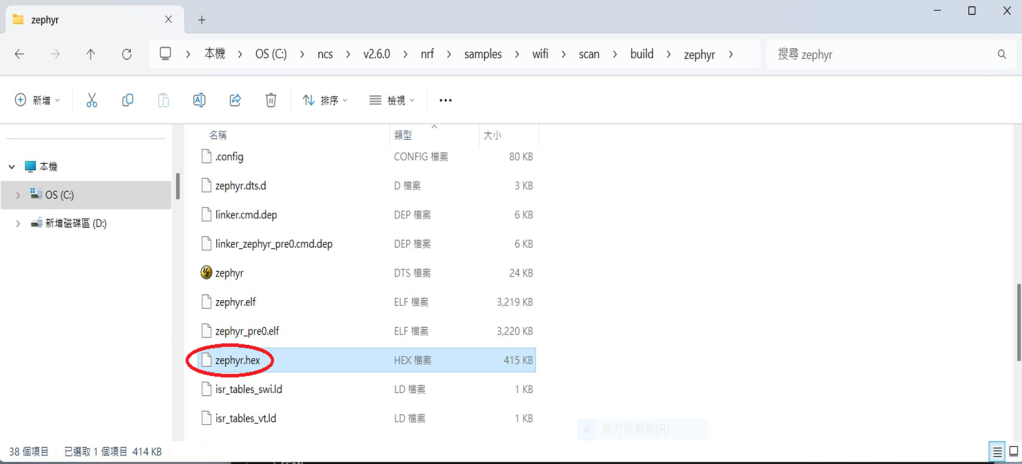
After compilation, a hex file will be generated.


Step8.

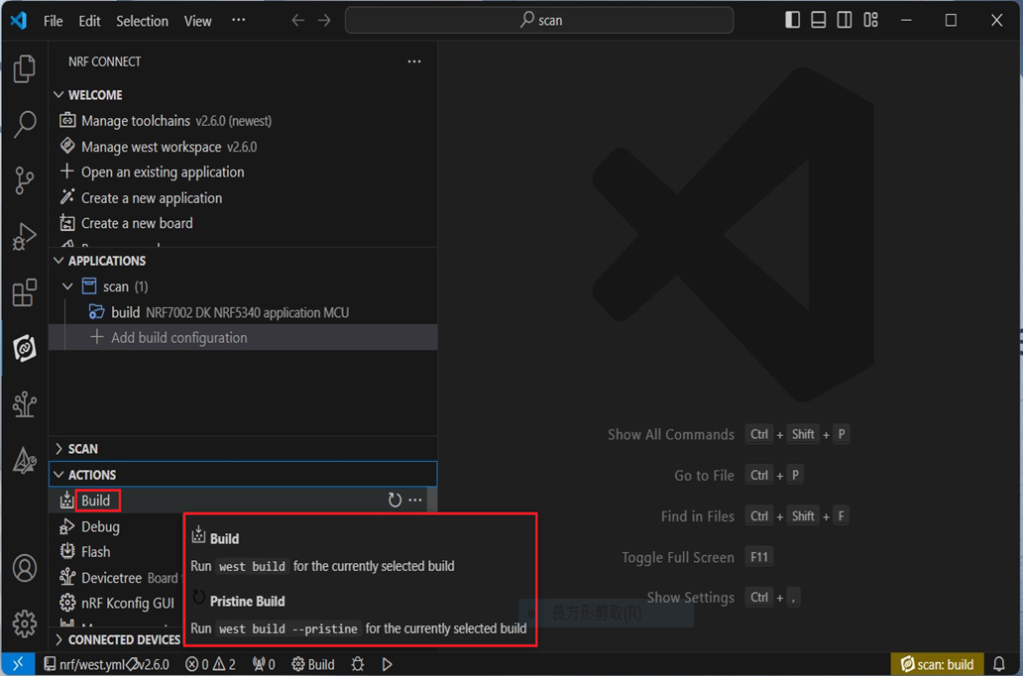
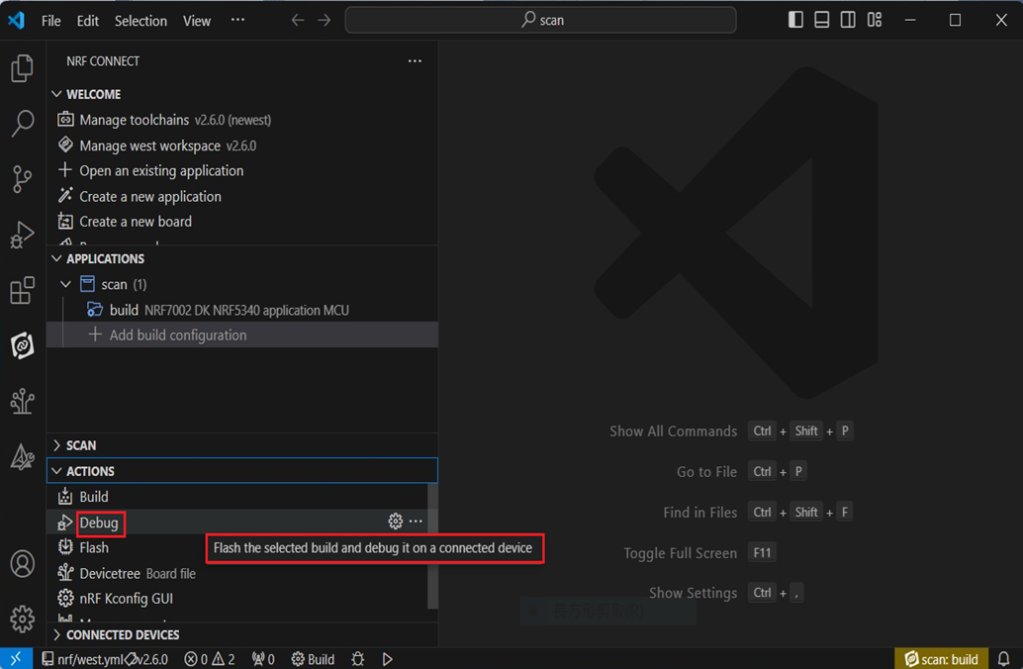
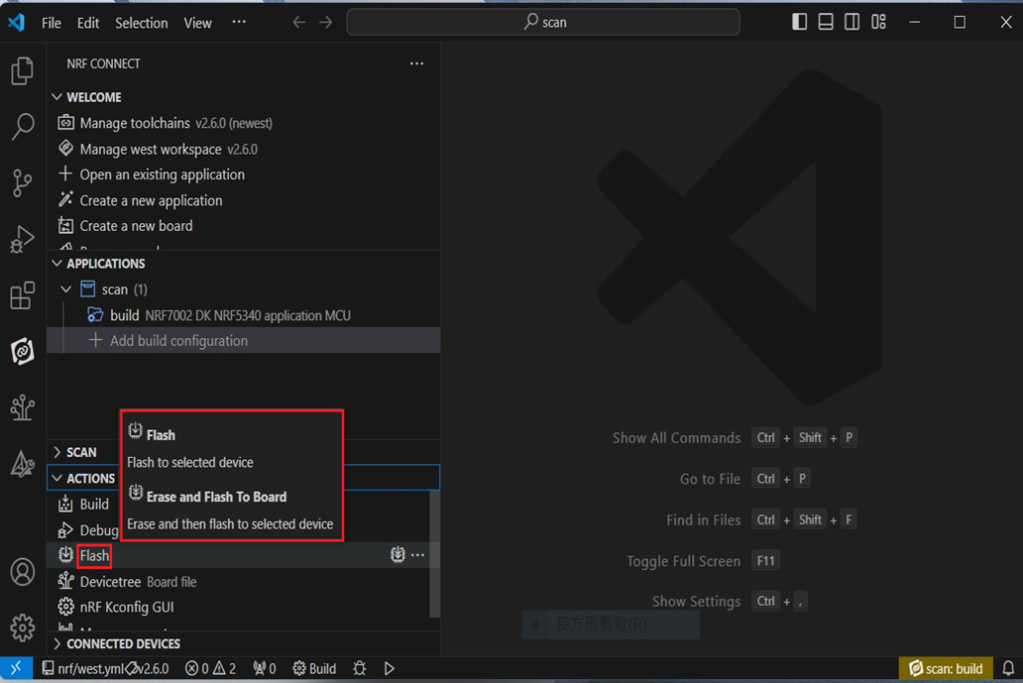
Under ACTIONS, you can choose to Build, Debug, or Flash.


Build:


Debug:


Flash:


4. Programming

nRF Connect SDK(NCS) supports programming. You can use the “Programmer” tool to flash .hex file.
Here’s how:


Step1.

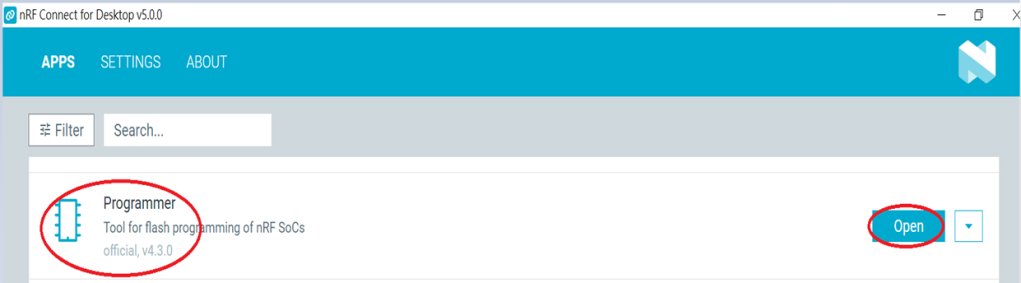
Open “nRF Connect for Desktop” → Select “Programmer” → then click” Open”.


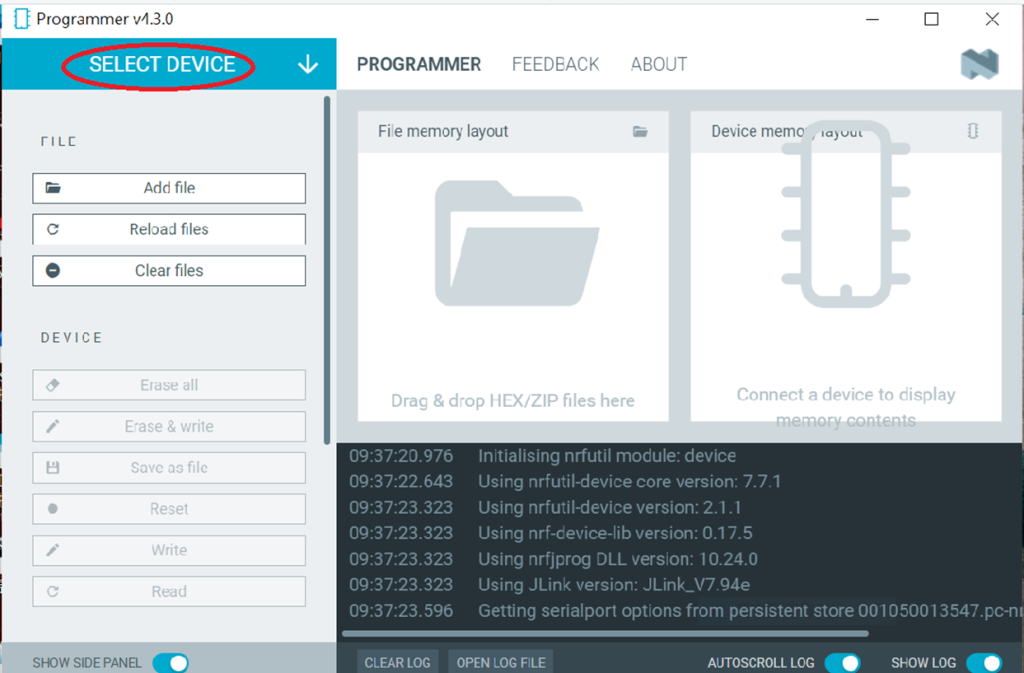
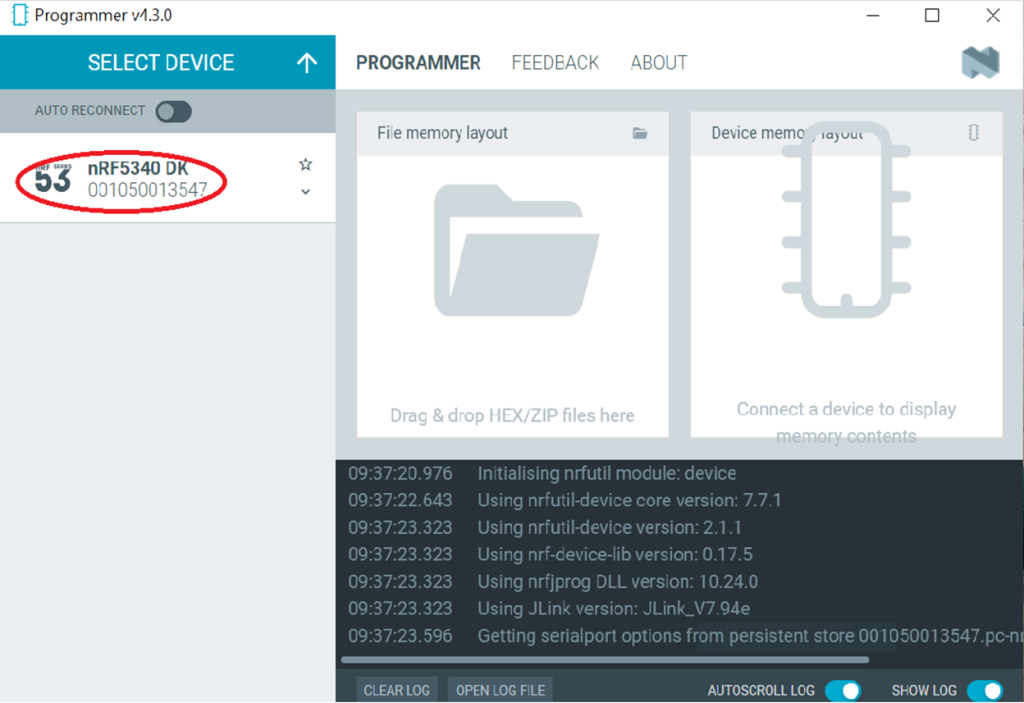
Click “Select Device”;


Since AN7002 Wi-Fi IC does not act as an MCU,
we can only flash the .hex file into the MDBT53(nRF5340) BLE IC.


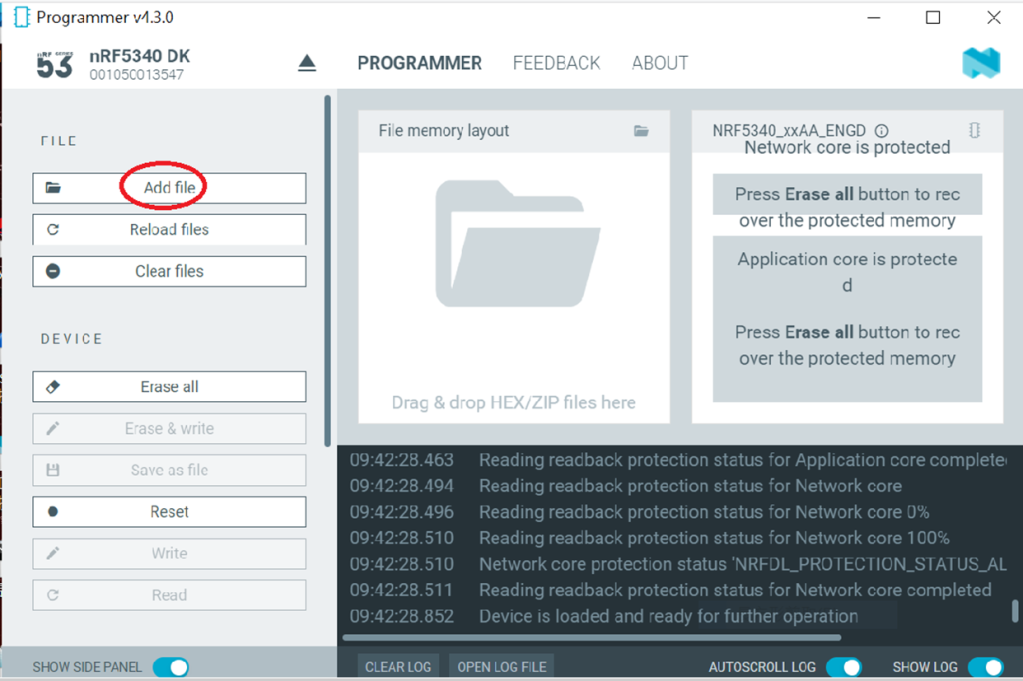
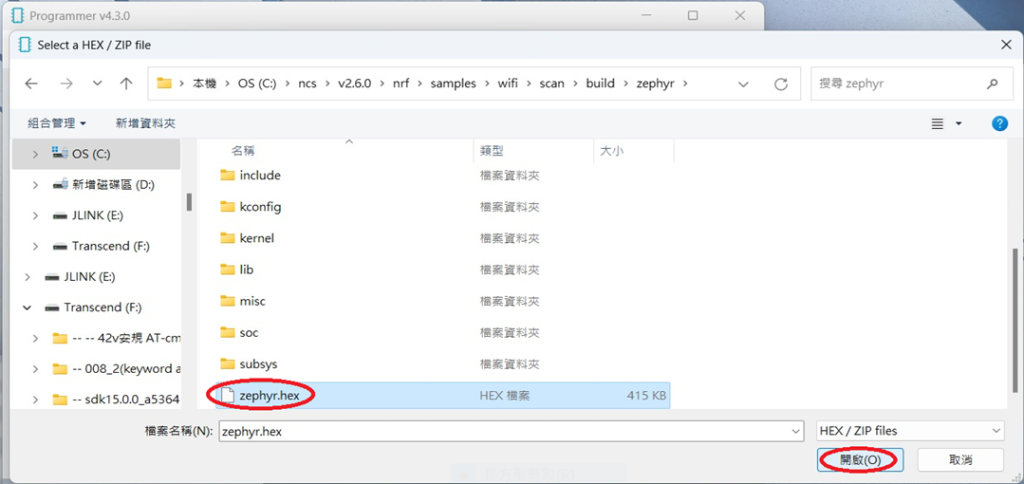
Click “Add file” to add the .hex file.


Step2.

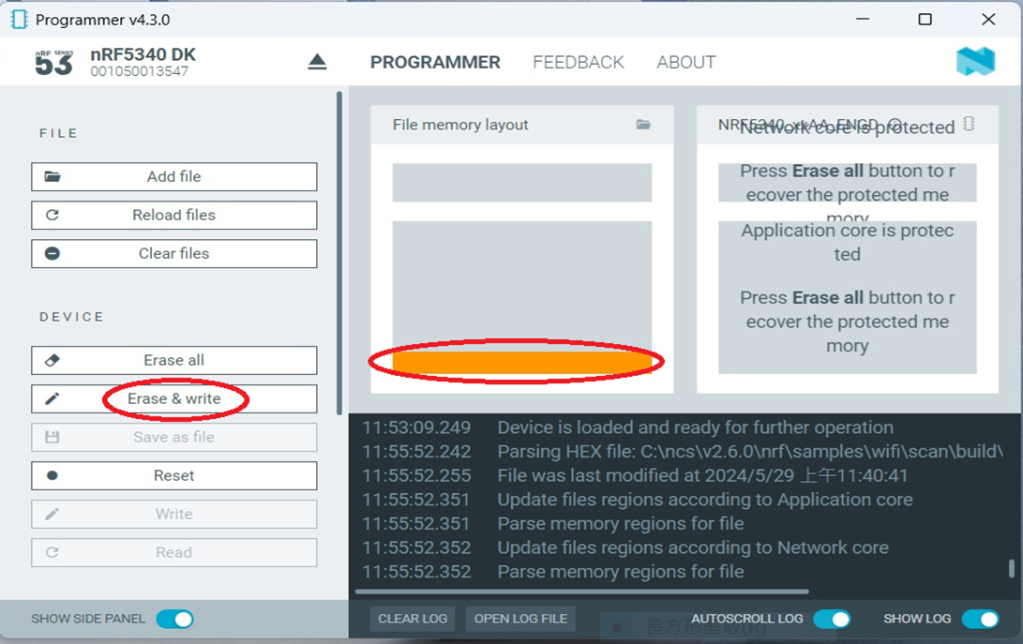
Select the .hex file you want to flash.


The hex file will be written into the part of the memory layout (where orange part is highlighted).


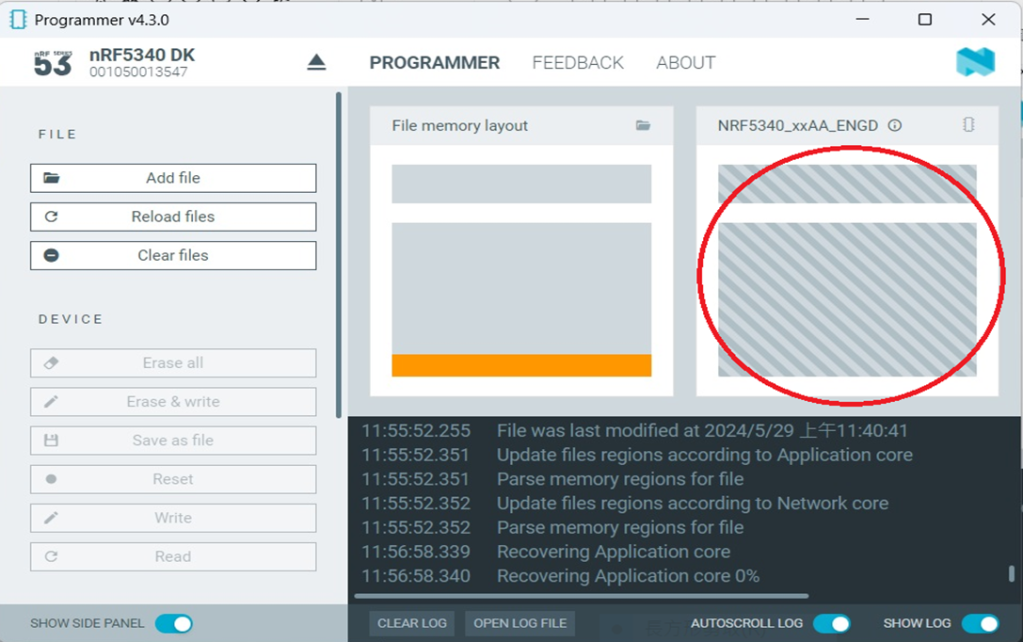
Slashes will be displayed in the circled part during the flash process.


Step3.

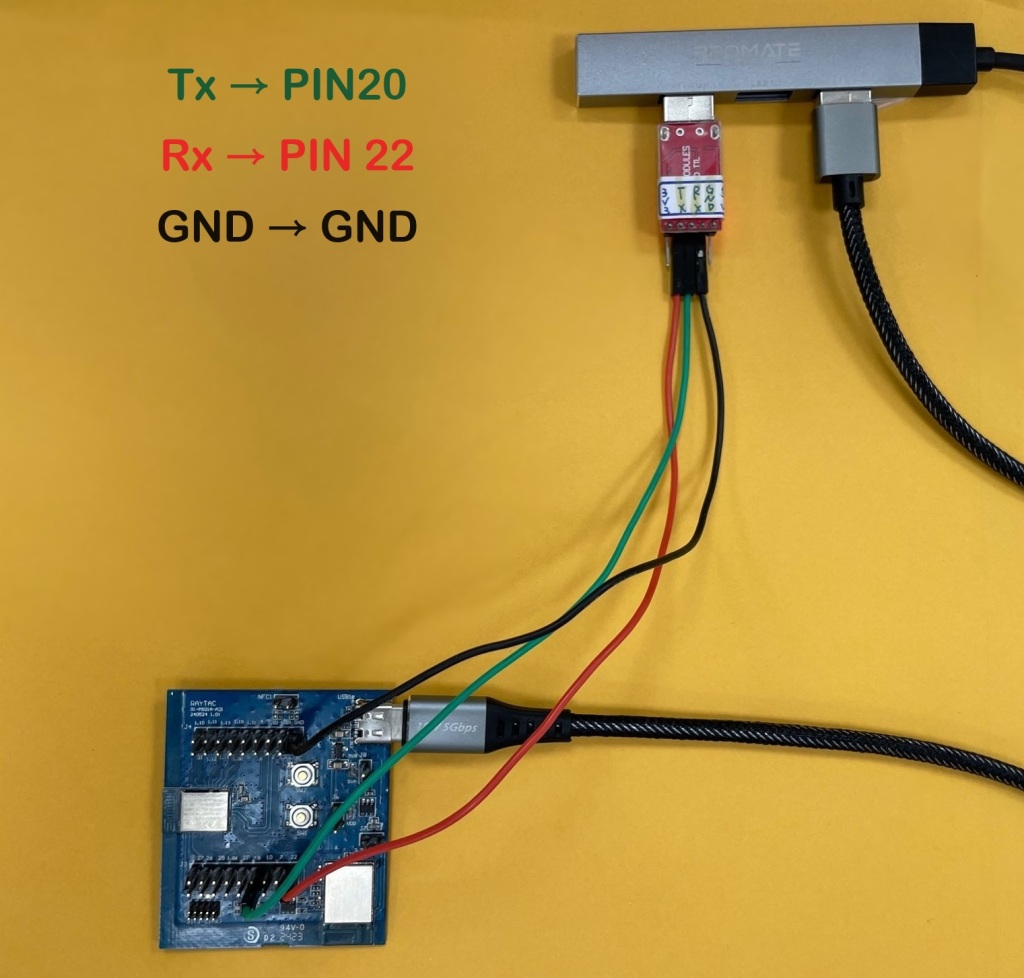
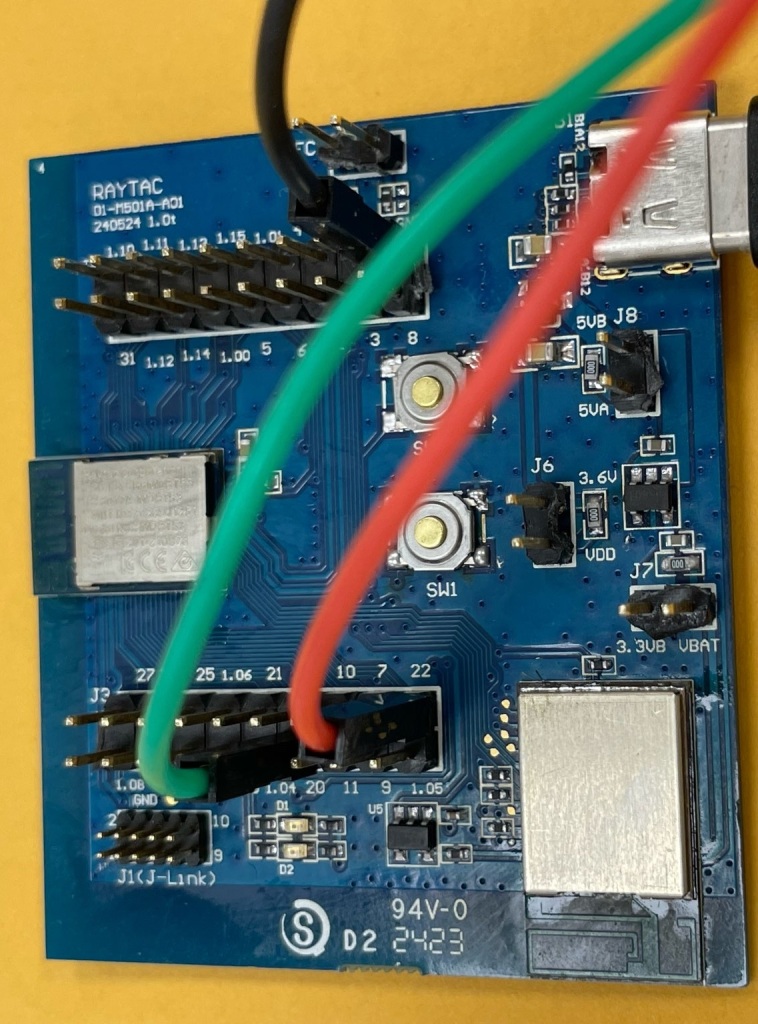
Once the flash process is completed, connect Raytac’s AN7002Q-DB-5340 development board to PuTTY.

Tx to p0.20

Rx to p0.22

GND to GND

This is a closer look into the pins that will be connected.


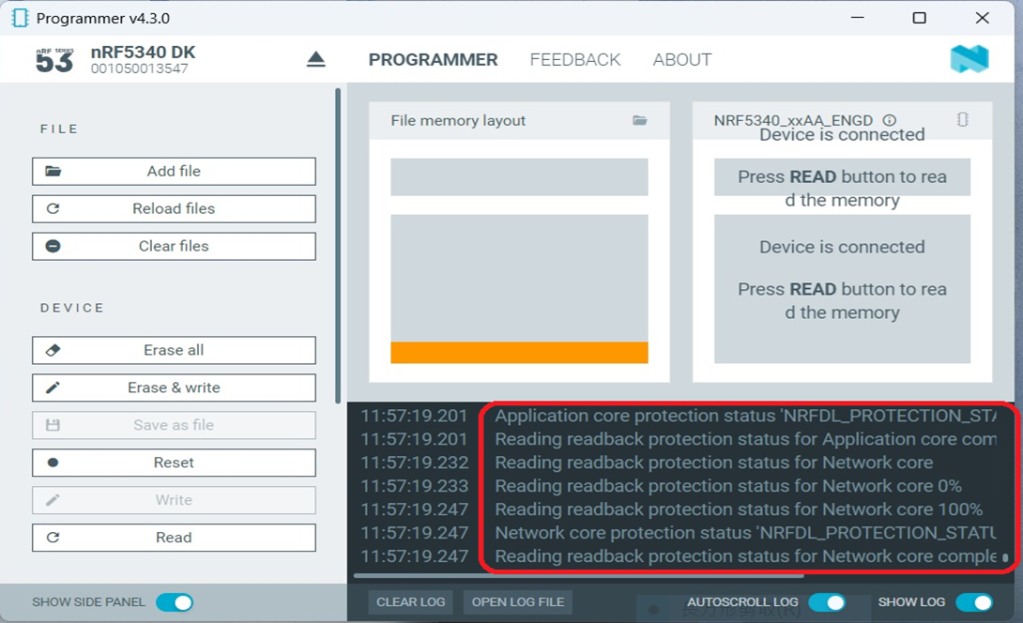
The flash process is completed when the LOG is displayed as circled below.


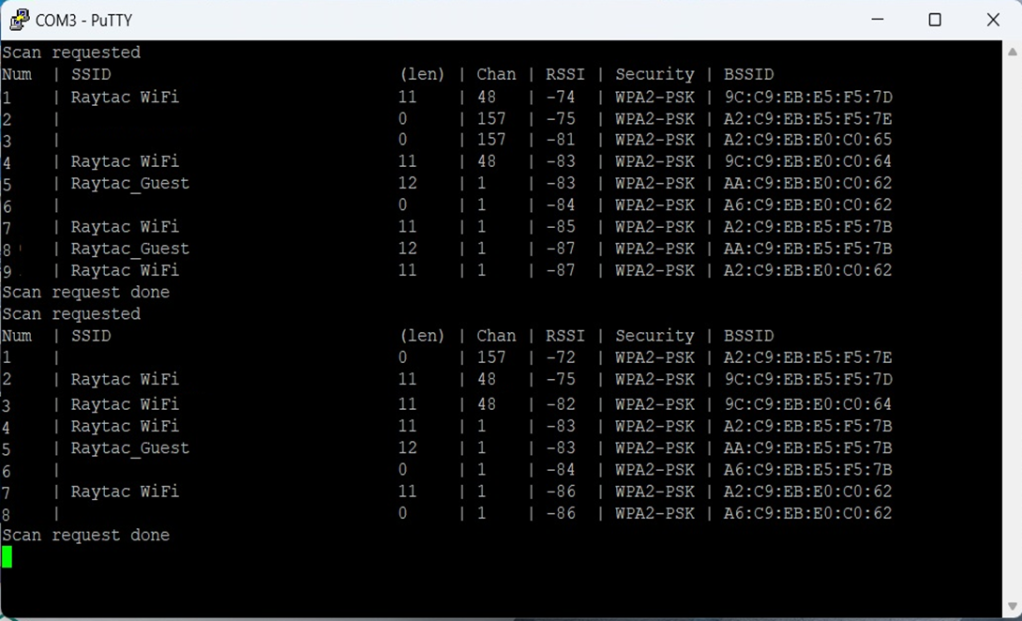
Check if hardware connection is successful using PuTTY.


*2024-Aug-12 update:*
Before running Scan code / Station code / Shell code:
You must ensure that the MAC address has already been programmed into the module.
Click on this link to learn more about how to load the MAC address.


Useful references:


Edited by Sales Manager: Ms. Vicky Huang
Technical guidance provided by R&D Manager: Mr. MW Lee
Hardware environment provided by Hardware Engineer: Mr. Kyle Wang


Raytac Corporation 勁達國際電子股份有限公司 
Bluetooth & WiFi module maker based on Nordic nRF54, nRF53, nRF52, nRF7002 solution
BT5.4 &BT5.3 & BT5.2 & BT5.1 Qualified, FCC/IC/CE/Telec/KC/RCM/SRRC/NCC Pre-Certified.
Bluetooth Solution: nRF54, nRF5340, nRF52840, nRF52833, nRF52832, nRF52820, nRF52811, nRF52810, nRF52805, nRF51822
WiFi Solution: nRF7002
http://www.raytac.com
email: sales@raytac.com
Tel: +886-2-3234-0208

Secure DFU OTA for nRF52840 solution modules: Guide to create hex/zip file for implementation – #3(Combining/merging built files)

Following up – Part A: Bootloader (Click for article link) and Part B: Application (Click for article link)

We will be focusing on:

in this article.

IC: nRF52840
DK: PCA10056 (for nRF52840)
SDK: 17.1.0
Softdevice: s140_nrf52_7.2.0_softdevice.hex
IDE: Keil C
PC: Win 10


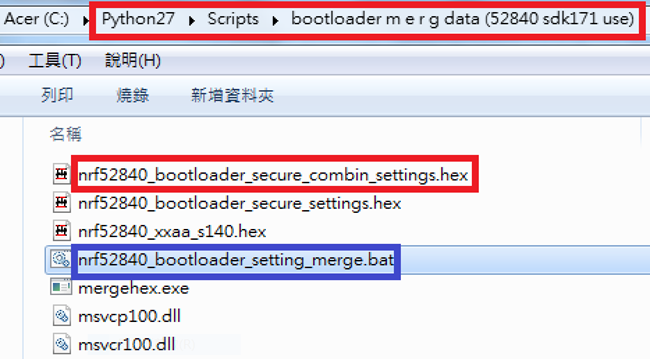
Step 1. Execute the combine batch file in bootloader (nrf52840_bootloader_setting_merge.bat) and generate file of nrf52840_bootloader_secure_combin_settings.hex :

@echo off
title = [ J-Link Tool ] %CD%
set nrfDir=C:\Program Files (x86)\Nordic Semiconductor\nrf5x\bin
set BS= nrf52840_bootloader_secure_settings.hex
set BL= nrf52840_xxaa_s140.hex
set BSBLCombind= nrf52840_bootloader_secure_combin_settings.hex
set path=%nrfDir%;%path%
pause
echo ———–merge image file——————-
mergehex.exe -m %BS% %BL% -o %BSBLCombind%
pause


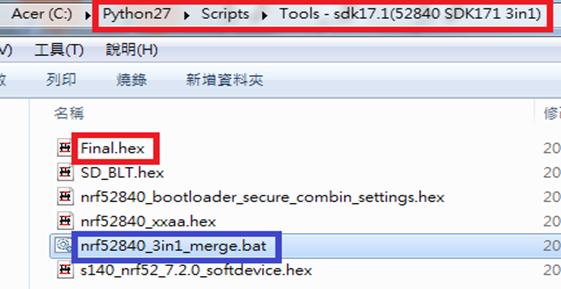
Step 2. Create a Final.hex file by 3-in-1 batch file(nrf52840_3in1_merge.bat)
※Note : This hex file is created for the production line to pre-load firmware into modules prior to shipment.

@echo off
title = [ J-Link Tool ] %CD%
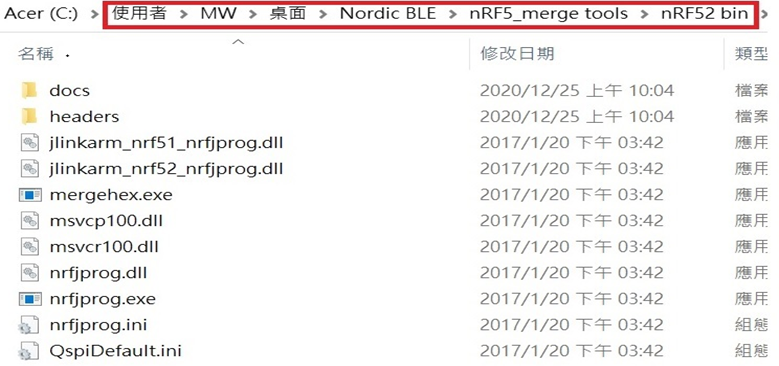
set nrfDir=C:\Users\user\Desktop\Nordic BLE\nRF5_merge tools\nRF52 bin
set SD= s140_nrf52_7.2.0_softdevice.hex
set BLT= nrf52840_bootloader_secure_combin_settings.hex
set APP= nrf52840_xxaa.hex
set SD_BLT=SD_BLT.hex
set Finalfile=Final.hex
set path=%nrfDir%;%path%
pause
echo ———–merge image file——————-
mergehex.exe -m %SD% %BLT% -o %SD_BLT%
pause
mergehex.exe -m %SD_BLT% %APP% -o %Finalfile%
pause


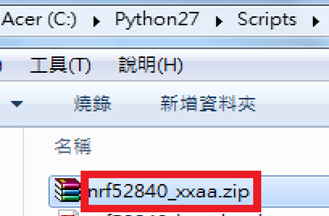
Step 3. Create a DFU(OTA).zip file of nrf52840_xxaa.zip
※Note : This zip file is created for end device DFU(OTA) implementation.

nrfutil pkg generate –hw-version 52 –sd-req 0x100 –application-version 0xFF –application
nrf52840_xxaa.hex –key-file private.pem nrf52840_xxaa.zip

The DFU OTA zip file will be derived.

※Note :
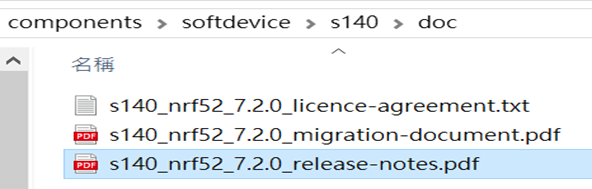
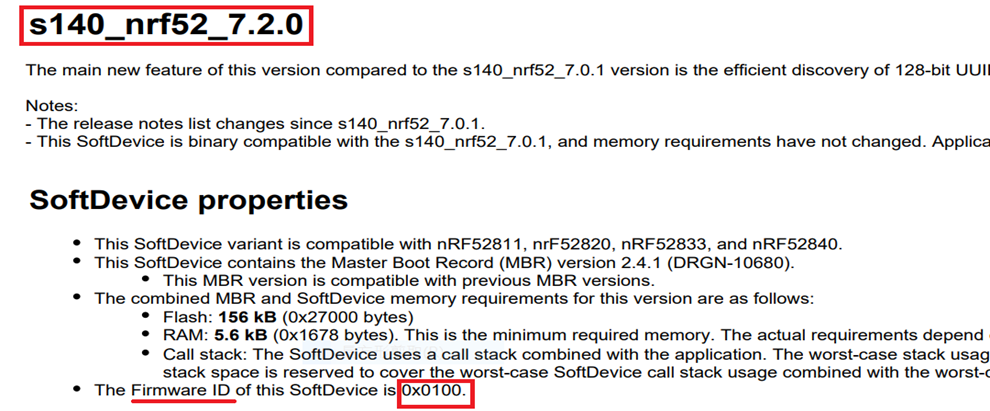
The “0x100" appeared in the above DOS code(in red font) is the FWID(Firmware ID) for s140_nrf52_7.2.0_softdevice.hex;
FWID can be found from the soft device documents on the Nordic website.


Step 4: Run DFU OTA (On mobile in this example)


4A. Install the nRF Connect APP on mobile, with DFU OTA file: nrf52840_xxaa.zip. (Download link)


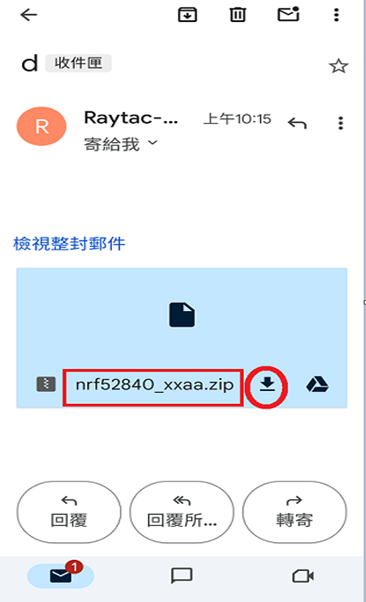
4B. Send nrf52840_xxaa.zip via email to mobile device after combination is done on PC, then download it.


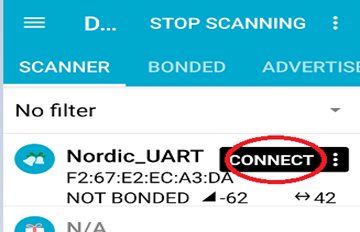
4C. Open nRF Connect APP and run connection;


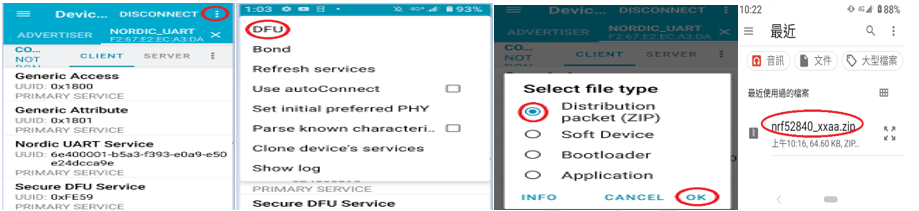
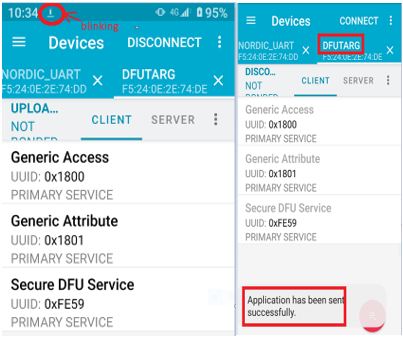
4D. Execute DFU and select “Distribution packet(ZIP)", thus starting the DFU OTA process.


4E. Start DFU OTA → exit the APP after DFU OTA is completed → restart the mobile device.


Secure DFU OTA for nRF52840 solution modules: Guide to create hex/zip file for implementation
Detailed links of articles:
Part A: Bootloader (Click for article link)
Part B: Application
(Click for article link)
Part C: Combining and merging built files
(Click for article link)


Technical guidelines provided by R&D Manager: Mr. MW Lee
Edited by Sales Manager: Mr. Tony Yin

Raytac Corporation 勁達國際電子股份有限公司 
Bluetooth & WiFi module maker based on Nordic nRF54, nRF53, nRF52, nRF7002 solution
BT5.4 &BT5.3 & BT5.2 & BT5.1 Qualified, FCC/IC/CE/Telec/KC/RCM/SRRC/NCC Pre-Certified.
Bluetooth Solution: nRF54, nRF5340, nRF52840, nRF52833, nRF52832, nRF52820, nRF52811, nRF52810, nRF52805, nRF51822
WiFi Solution: nRF7002
http://www.raytac.com
email: service@raytac.com
Tel: +886-2-3234-0208

Secure DFU OTA for nRF52840 solution modules: Guide to create hex/zip file for implementation – #2(Application)

Following up-Part A: Bootloader (Click for article link)

We will be focusing on:

in this article.

IC: nRF52840
DK: PCA10056 (for nRF52840)
SDK: 17.1.0
Softdevice: s140_nrf52_7.2.0_softdevice.hex
IDE: Keil C
PC: Win 10


Path: nRF5_SDK_17.1.0_ddde560\examples\ble_peripheral\ble_app_uart\pca10056\s140\arm5_no_packs

Before building Application code , some amendments need to be made regarding DFU-related settings and code inside Application:

Step 1.


1A. Add code in definition in C/C++ :
BL_SETTINGS_ACCESS_ONLY NRF_DFU_SVCI_ENABLED NRF_DFU_TRANSPORT_BLE=1
(Total 3 steps definitions need to be set up)


1B. Add “include path” in C/C++


1C. Add the .c files inside red frame in (Screenshots 1 & 2)
and the 2 groups of (nRF_DFU & nRF_SVC)(Screenshot 3) under Project(Screenshot 4)


1D. Add code into main.c file in Application (..\examples\ble_peripheral\ble_app_uart\main.c)
(Please refer to: main.c file at: ..\examples\ble_peripheral\ ble_app_buttonless_dfu)


1E. The code of file: sdk_config.h (..\examples\ble_peripheral\ble_app_uart\pca10056\s140\config\
sdk_config.h) inside Application needs to be modified.


1F. Adjust the IRAM1 value in Target after implementing DFU service:
Check on the IRAM1 Value of *p_app_ram_start to be modified from default: 0x20002AE8 0x3D518 to 0x20002AF8 0x3D508, as shown in the red frame in the bottom right corner.
In this case, the program should run successfully.


1G: Create a file of: nrf52840_xxaa.hex after building application code files.


Step 2. Create a bootloader setting file of nrf52840_bootloader_secure_settings.hex : (via DOS)

nrfutil settings generate –family NRF52840 –application nrf52840_xxaa.hex –application-version 3 — bootloader-version 2 –bl-settings-version 1 nrf52840_bootloader_secure_settings.hex –no-backup


※Stay tuned for #3 – Part C: Combining and merging built files in the next article,

scheduled release in next week(05/06/2024).


Technical guidelines provided by R&D Manager: Mr. MW Lee
Edited by Sales Manager: Mr. Tony Yin

Raytac Corporation 勁達國際電子股份有限公司 
Bluetooth & WiFi module maker based on Nordic nRF54, nRF53, nRF52, nRF7002 solution
BT5.4 &BT5.3 & BT5.2 & BT5.1 Qualified, FCC/IC/CE/Telec/KC/RCM/SRRC/NCC Pre-Certified.
Bluetooth Solution: nRF54, nRF5340, nRF52840, nRF52833, nRF52832, nRF52820, nRF52811, nRF52810, nRF52805, nRF51822
WiFi Solution: nRF7002
http://www.raytac.com
email: service@raytac.com
Tel: +886-2-3234-0208

Secure DFU OTA for nRF52840 solution modules: Guide to create hex/zip file for implementation – #1(Bootloader)

Below are the following steps to implement Secure DFU OTA by using nRF52840 chip set, SDK17.1.0.
It consists of 3 parts:

Part A: Bootloader

Part B: Application (Click for article link)

Part C: Combining and merging built files (Click for article link)

In this article, we will be focusing on Part A: Bootloader.

Path: nRF5_SDK_17.1.0_ddde560\examples\dfu\secure_bootloader\pca10056_s140_ble\arm5_no_packs


Step 1. An error may occur while building bootloader without a public key:
(Shown in red frames in below screenshot)


Step 2. How to generate the public key file in Bootloader?
A. Visit DOS at path: ..\Python27\Scripts
B. Then execute:

nrfutil keys generate private.pem
nrfutil keys display --key pk --format code private.pem --out_file public_key.c


Step 3. Copy the pk[64] code from (public_key.c) into (dfu_public_key.c)
(Shown in red frames in below screenshot)

※Note: Make sure to save the 3 generated files:
private.pem
public_key.c
dfu_public_key.c


Step 4. Generate the bootloader file: nrf52840_xxaa_s140.hex after re-compiling the code files.


※Stay tuned for #2 – Part B: Application in the next article, scheduled release in next week(29/05/2024).


Technical guidelines provided by R&D Manager: Mr. MW Lee
Edited by Sales Manager: Mr. Tony Yin


Raytac Corporation 勁達國際電子股份有限公司 
Bluetooth & WiFi module maker based on Nordic nRF54, nRF53, nRF52, nRF7002 solution
BT5.4 &BT5.3 & BT5.2 & BT5.1 Qualified, FCC/IC/CE/Telec/KC/RCM/SRRC/NCC Pre-Certified.
Bluetooth Solution: nRF54, nRF5340, nRF52840, nRF52833, nRF52832, nRF52820, nRF52811, nRF52810, nRF52805, nRF51822
WiFi Solution: nRF7002
http://www.raytac.com
email: service@raytac.com
Tel: +886-2-3234-0208

Raytac announces release of AN54H20 Series Module based on Nordic’s nRF54H20 chip solution

Raytac Corporation, a Nordic-recommended third-party module manufacturer based in Taiwan, today announces the upcoming release of the AN54H20 modules, which are built on the base of Nordic’s nRF54H20 SoC.

The AN54H20 module comes in a 9.8 x 13.8 x 1.8mm (0.37 by 0.53 by 0.07 inches) dimension factor and offers 3 versions of high-performance antennas, including ceramic chip antenna, PCB-mounted antenna, and uFL connector for external antenna. Output power is adjustable up to +10 dBm and data rate is adjustable up to 4Mbps to maximize RF performance.

Powered by multiple processors, AN54H20 modules provide the IoT field with access to a whole set of improved features, including 2MB flash memory/1MB RAM and bigger processing power for more complicated computations.  It also enhances protection against security threats, providing developers with protection while building technologically advanced IoT applications.

Hardware wise, AN54H20 inherits nRF54H20’s set of versatile, advanced, and low-power peripherals alongside DMA support, including high-speed USB, CAN-FD controller, 14-bit ADC, 2 x I3C and plenty more.  What’s more revolutionary is that AN54H20 brings power efficiency to a whole new level through accurately controlling currency consumptions under various modes, allowing smaller batteries to be implemented in the applications while increasing its life expectancy.

“We see the AN54H20 series as a potential market changer.  The compact size gives developers a seamless switch from the previous generation modules to AN54H20, and the remarkable power efficiency and characteristics AN54H20 brings will offer a magnificent effect to the inescapable hot trend of IoT and other various industries." – Lyon Liu, President of Raytac Corporation.

Product link: https://www.raytac.com/product/index.php?index_m1_id=81&index_m2_id=102

Features

 – Compact size: 9.8 mm x 13.8 mm x 1.8 mm (0.37″ x 0.53″ x 0.07″)

 – Ceramic chip, PCB, and u.FL connector variations available

 – 64 GPIOs

 – Dual Arm Cortex-M33 processors

 – Dual RISC-V co-processors

 – Flash memory: 2 MB and RAM: 1 MB

 – Max TX power: +10dBm

 – Max data rate: 4Mbps

 – Enhanced security features

 – Outstanding power efficiency

 – Advanced and expanded peripherals available 

– Highly flexible multiprotocol, ideal for Bluetooth Low Energy, LE Audio(Auracast), Bluetooth mesh, Thread, ANT+, Zigbee, and Matter applications

 – Pre-certified with multiple global regulations & Bluetooth qualification

 – RoHS-/REACH-compliant

Samples of AN54H20 will be available in Q3 2024, please subscribe to Raytac’s WordPress blog:

https://raytac.blog

For more upcoming information.

Welcome to send an inquiry to: service@raytac.com for further discussions.


Edited by Sales Manager: Mr. Tony Yin


Raytac Corporation 勁達國際電子股份有限公司 
Bluetooth & WiFi module maker based on Nordic nRF54, nRF53, nRF52, nRF7002 solution
BT5.4 &BT5.3 & BT5.2 & BT5.1 Qualified, FCC/IC/CE/Telec/KC/RCM/SRRC/NCC Pre-Certified.

Bluetooth Solution: nRF54, nRF5340, nRF52840, nRF52833, nRF52832, nRF52820, nRF52811, nRF52810, nRF52805, nRF51822

WiFi Solution: nRF7002
http://www.raytac.com
email: service@raytac.com
Tel: +886.2.3234.0208

Why Does Raytac AT-Command Module Not Require An End Code Mechanism?

Developers may be familiar with using ‘\n’ (hex 0x0A) or ‘\r’ (hex 0x0D) as end codes to determine the end of a data packet when writing programs. In the original Nordic SDK example code, ble_app_uart, is to consider the reception of 244 bytes or the presence of ‘\n’ (hex 0x0A) or ‘\r’ (hex 0x0D) as end code as the end of a data packet. The program then sends this received data via BLE to APP.

Developers encountering Raytac AT-Command module for the first time may find it very unfamiliar and be puzzled by the absence of 0x0A or 0x0D end code. You may raise questions about how to receive complete information without relying on these end code? Therefore, we’ll provide explanations for common use cases of AT-Command in both connected and disconnected scenarios:

In the connected condition –

Raytac’s AT-Command module operates in Pass-Through mode. For instance, when the APP sends 0x41 0x42 0x43 (3 bytes) through the module to the MCU, the MCU will receive only 0x41 0x42 0x43 (3 bytes). When APP sends these 3 bytes, there is no need to include the 0x0D end code or 0x0A end code at the end. The same approach applies when the direction of transmission is reversed (i.e., when the MCU sends to the module and then to the APP).

Here, it’s crucial to note that there is a specific consideration for the “Data Interval" (DI) setting between transmitting one data packet and the next. Failure to configure the DI appropriately may result in packet loss and lead to Bluetooth disconnection shortly after data transmission. The recommended DI values vary at different Baud rates, and you can refer to the AT-Command specification for suggested DI values.

As an example, consider Raytac AT-Command module in the scenario of “Mobile App -> Module (MDBT42V-AT) -> MCU," with a Baud rate of 9600, no flow control, and a data length of 244 bytes. In this case, the DI value for transmitting data must be at least 250ms to prevent packet loss.

In the unconnected condition –

Providing explanations to the Bluetooth module by sending AT commands from the MCU (or Console) is illustrated below. There is no need for 0D or 0A end codes at the end.

AT?NAME

AT+NAMESQ-BT

AT?NAME


Edited by Sales Manager: Ms. Vicky Huang

Raytac Corporation 勁達國際電子股份有限公司 
Bluetooth & WiFi module maker based on Nordic nRF54, nRF53, nRF52, nRF7002 solution
BT5.4 &BT5.3 & BT5.2 & BT5.1 Qualified, FCC/IC/CE/Telec/KC/RCM/SRRC/NCC Pre-Certified. Bluetooth Solution: nRF54, nRF5340, nRF52840, nRF52833, nRF52832, nRF52820, nRF52811, nRF52810, nRF52805, nRF51822 WiFi Solution: nRF7002
http://www.raytac.com
email:service@raytac.com
Tel: +886.2.3234.020