How To Use nRF52840/nRF52833 module DevKit(MDBT50Q series) – 2024 Update – Applied to nRF5 SDK

Preface:
Here provides an easy introduction of How to set up of nRF52840 & nRF52833 Module Demo board MDBT50Q-DB-40 (for nRF52840) & MDBT50Q-DB-33 (for nRF52833)


MDBT50Q-DB-40  is a Demo Board built by Raytac’s MDBT50Q-1MV2  with Red PCBA deployed nRF52840 SoC with Bluetooth 5 & Thread Combo, with 1MB Flash Memory and 256KB RAM and Chip Antenna.
 
MDBT50Q-DB-33 is a Demo Board built by Raytac’s MDBT50Q-512K with Green PCBA deployed nRF52833 SoC with Bluetooth 5 & Thread Combo, with 512KB Flash Memory and 128KB RAM and Chip Antenna.
 
Both demo boards are Bluetooth BT5.4 qualified and FCC, IC, CE, Telec, KC, SRRC, RCM, NCC, WPC pre-certified.

Table of contents:

1.1 Hardware Set Up

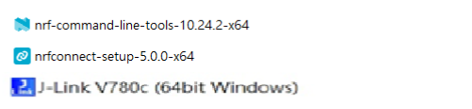
1.2 Software Kits resources & preparations

1.3 Flash the ready firmware into Raytac’s module

1.4 DFU to MDBT50Q-DB-XX through USB interface 


1.1 Hardware Set Up
 
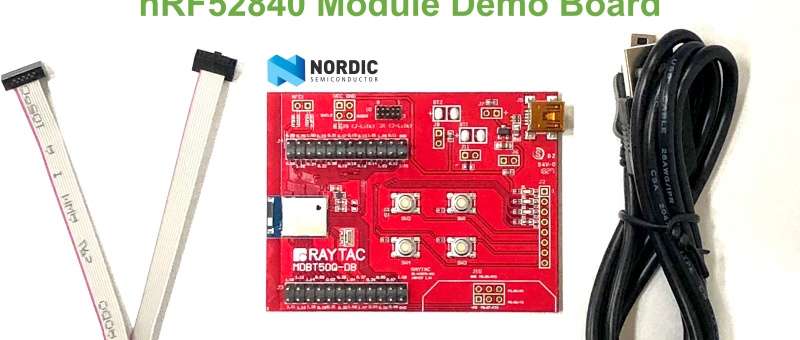
MDBT50Q-DB-XX package contains:
  • 1 x MDBT50Q-DB-40/MDBT50Q-DB-33
  • 1 x IDC Wire
  • 1 x Data/Power Mini USB Wire(for data transferring)

Where to buy MDBT50Q-DB-XX?

MDBT50Q-DB-40 (nRF52840 Solution)

MDBT50Q-DB-33 (nRF52833 Solution)
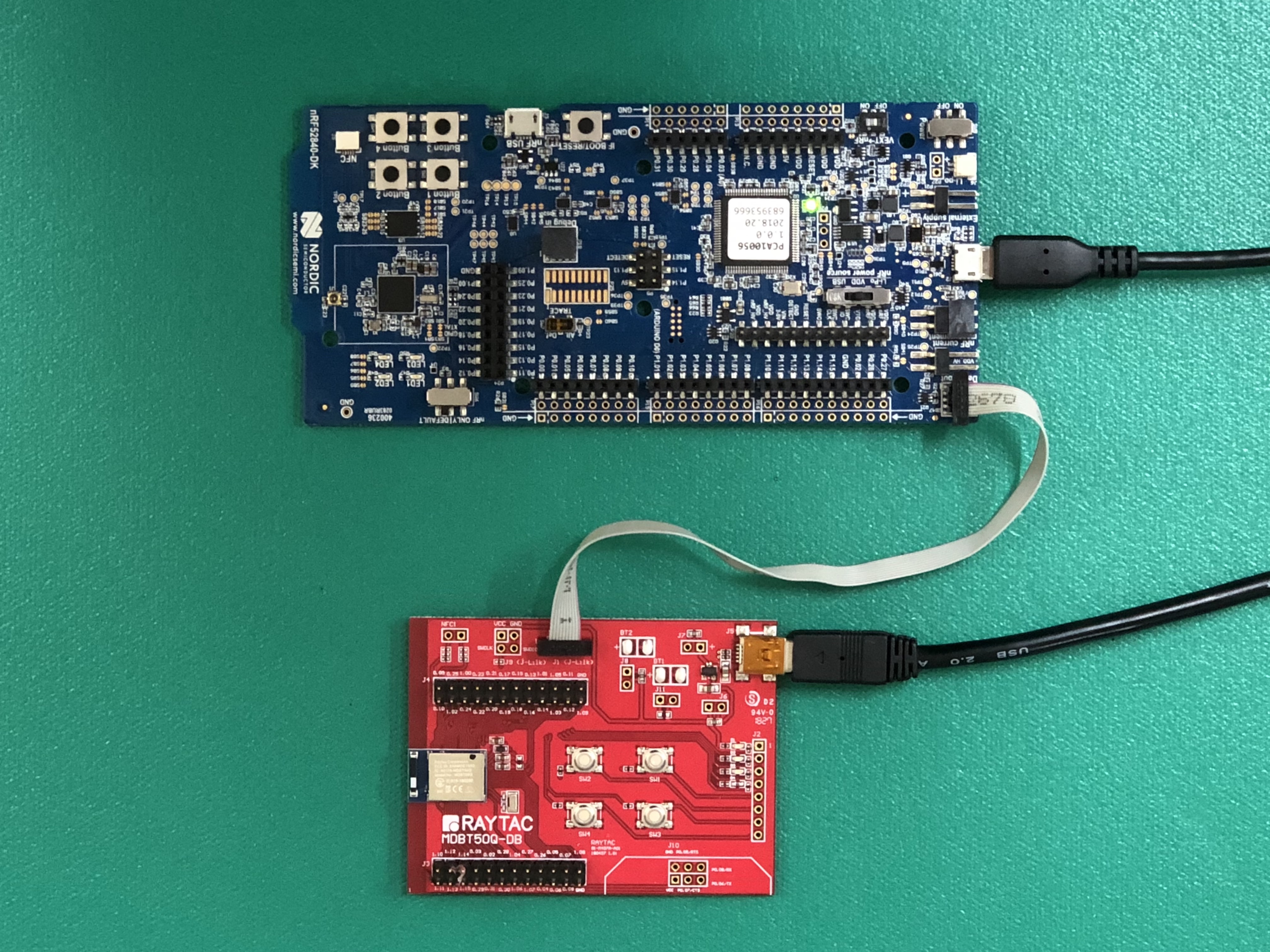
Connect Nordic NRF52-DK/NRF52840-DK Connect with MDBT50Q-DB-40 by IDC Wire

※Note: PCA10056 (NRF52840-DK) / PCA10040 (NRF52832-DK) / PCA10100(NRF52833-DK)

Power up MDBT50Q-DB-XX using Mini USB

IMG_0064.jpg
MDBT50Q-DB-40

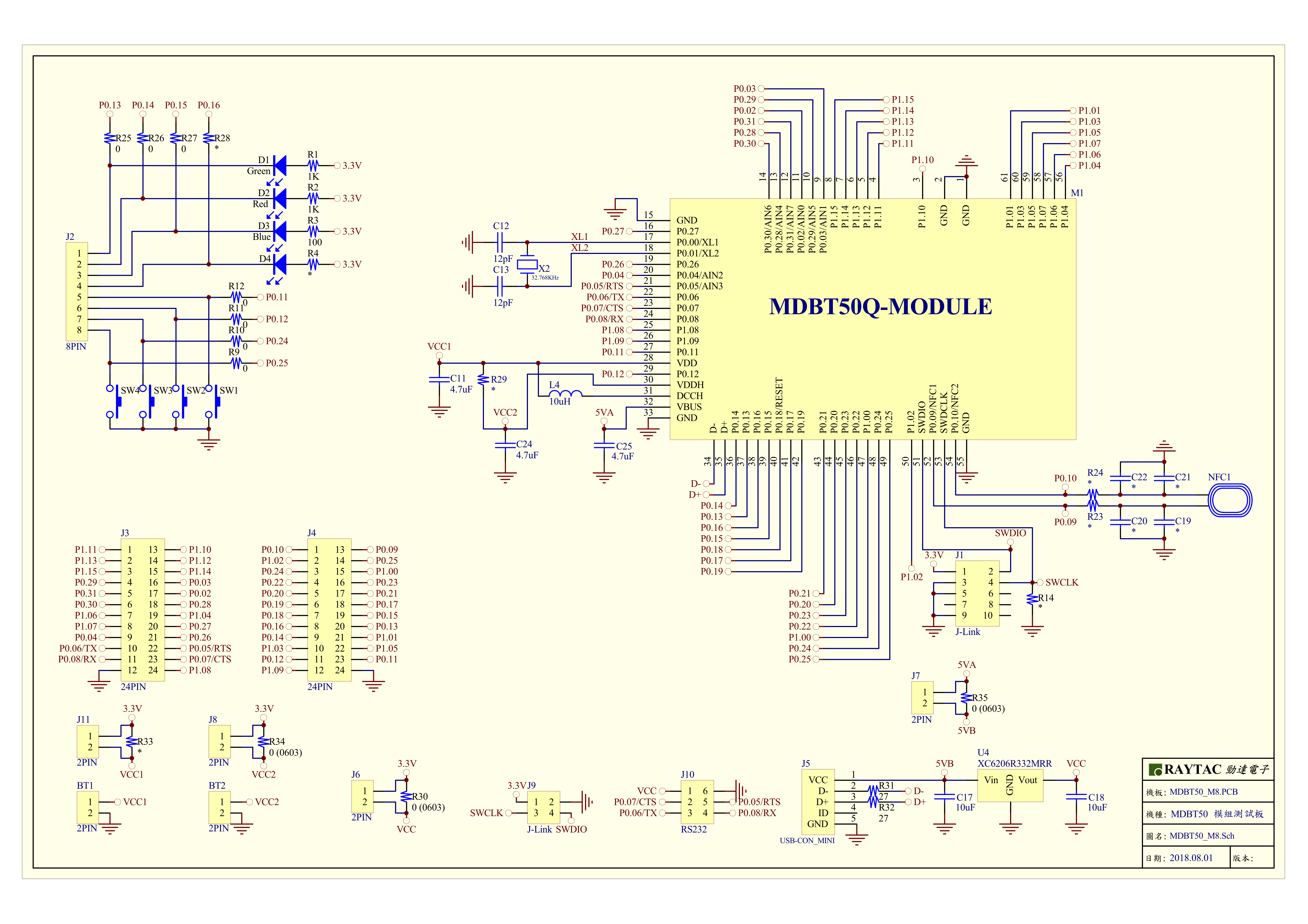
MDBT50Q-DB-40 Schematic:

MDBT50Q Demo Board Schematic-V2.jpg

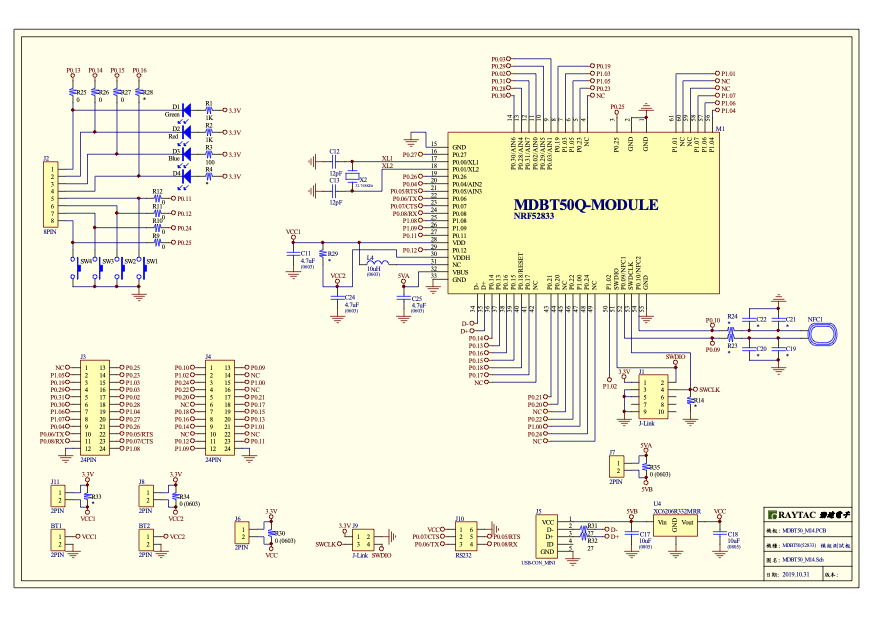
MDBT50Q-DB-33 Schematic:

MDBT50Q-DB-33 Schematic


1.2 Software kits resources & preparations

Resources:

Download nRF Connect For Desktop (Please Click Me)

Download nRF Command Line Tools (Please Click Me)

Download NRF5 SDK (The latest V17.1.0) (Please Click Me)

Download Visal Studio Code(Please Click Me)

Preparations:

Option 1.  NRF5 SDK (The latest version V17.1.0)

  1. 1.0_ddde560\components\softdevice\s140\hex\ s140_nrf52_7.2.0_softdevice.hex
  2. 1.0_ddde560\examples\ble_peripheral\ble_app_uart\pca10056\s140\arm5_no_packs\_build\ nrf52840_xxaa.hex

*Tips: If you go with nRF5 SDK option, please consider to add a bootloader hex file if you’re going to make DFU requests in the future.

Option 2.  NCS (Recommended version V2.6.0)
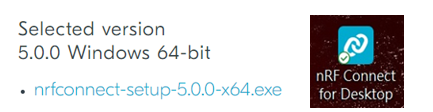
螢幕擷取畫面 2024-06-04 161138

2A.  Find “Toolchain Manager” in app nRFConnect for Desktop
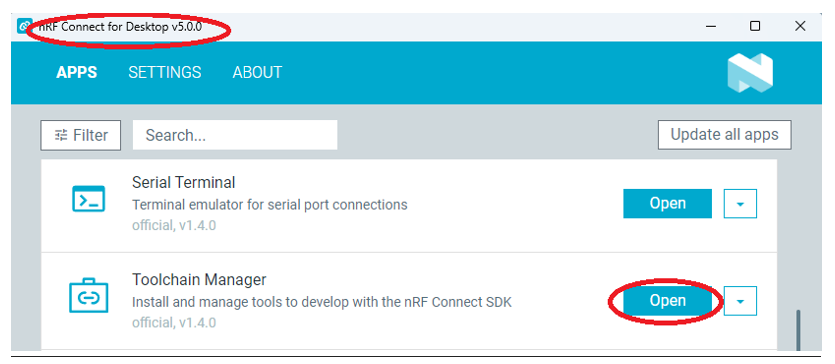
螢幕擷取畫面 2024-06-04 161251

2B.  Install nRFConnect SDK V2.6.0 to your working site.

螢幕擷取畫面 2024-06-04 161333

2C. Prepared with the latest version of nRF Command Line Tools
螢幕擷取畫面 2024-06-04 161627
 
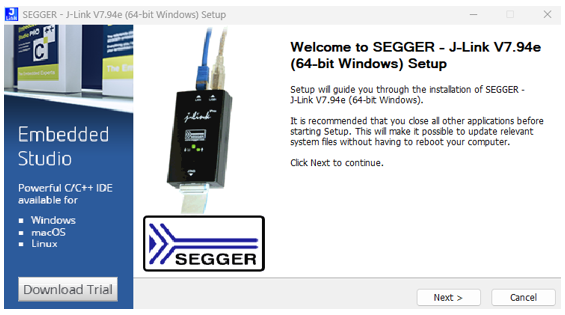
**Note: SEGGER J-LINK Upgrade message might pop up while you’re doing above download.
螢幕擷取畫面 2024-06-04 161724
 
2D. Locate all the necessary kits for programming in PC

螢幕擷取畫面 2024-06-04 161810


1.3 Flash the ready firmware into Raytac’s module

Intro:

With the ready built code of zephyr.hex (Made through NCS) or nrf52840_xxaa.hex & s140_nrf52_7.2.0_softdevice.hex (Made through nRF5-SDK) file for application, we would like to move onto  flashing code into the MDBT50Q BLE module(mounted on MDBT50Q-DB-XX demo board).

Step1.  

Execute nRF Connect >>  Programmer  > > Open

螢幕擷取畫面 2024-06-04 161858

Step2.

Click “SELECT DEVICE” >> Find icon “nRF52840 DK” which is detected by the programmer app
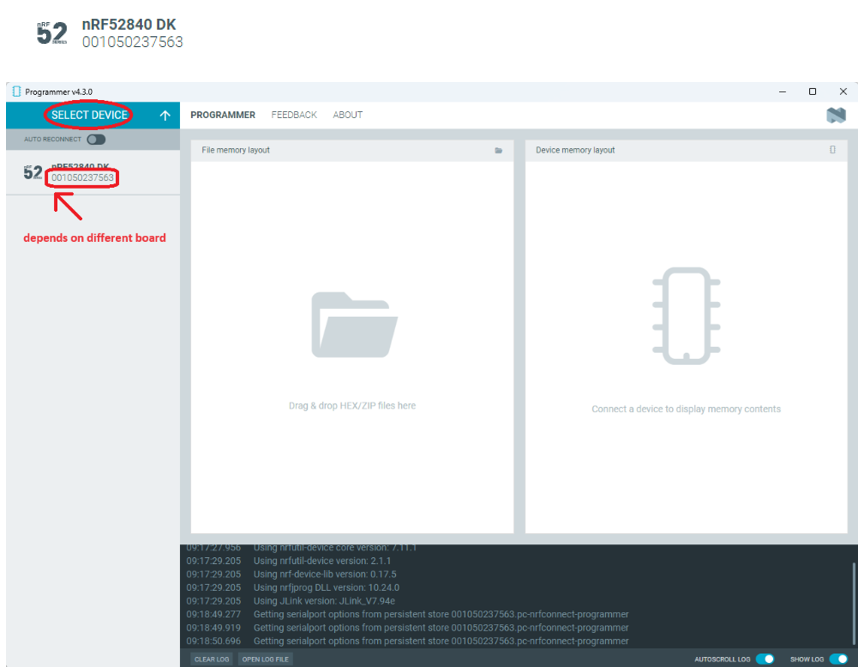
螢幕擷取畫面 2024-06-04 162005

Step3.

Click “nRF52840 DK”>> “Erase All” to remove flash memory inside MDBT50Q BLE Module
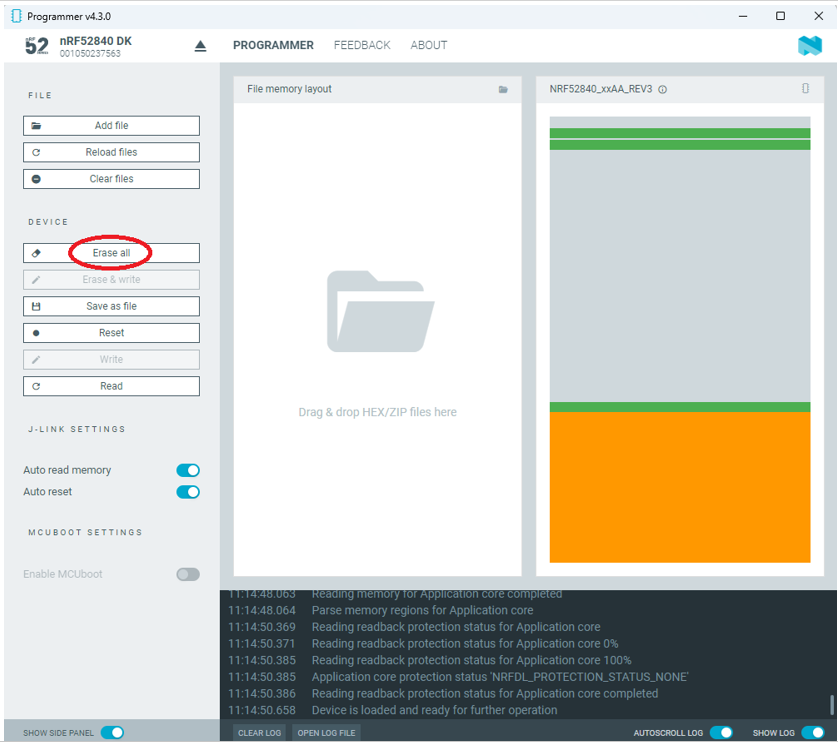
螢幕擷取畫面 2024-06-04 162106

Step4.

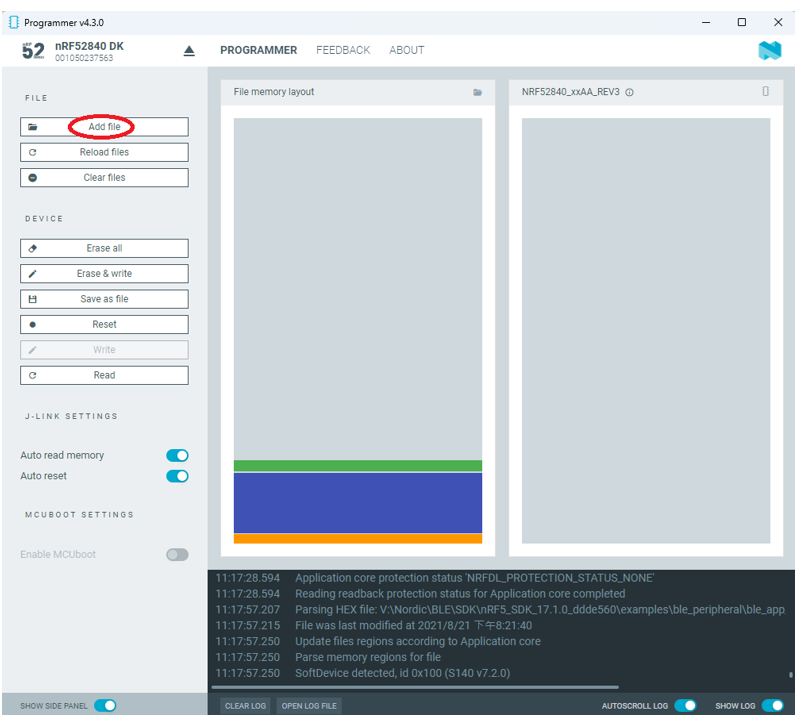
Click “Add File” to load application zephyr.hex into programmer
螢幕擷取畫面 2024-06-04 162202

!! Important Tips:!!


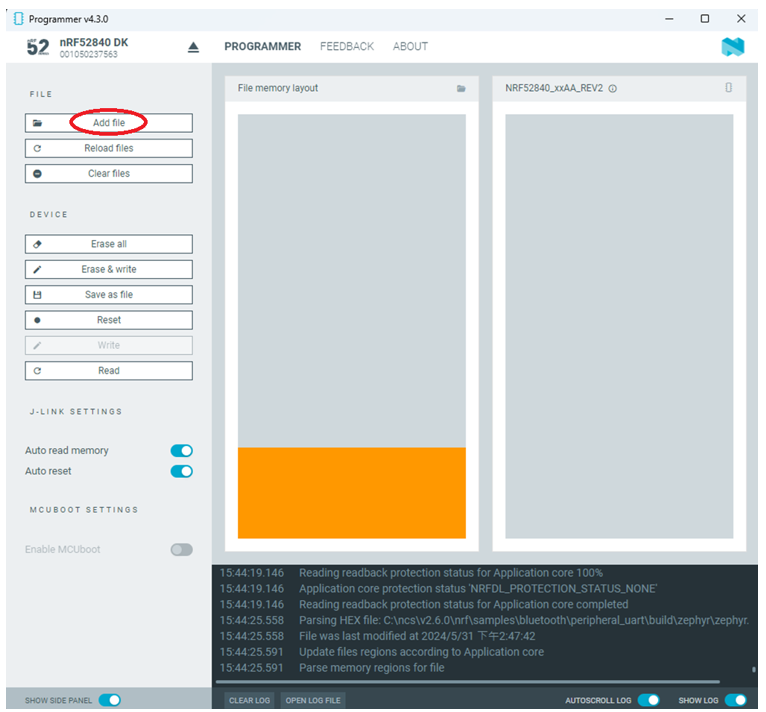
  • If you’re using nRF Connect SDK for code compiling as above, Program the hex file to MDBT50Q BLE module on the MDBT50Q-DB Demo board:
    – C:\ncs\v2.6.0\nrf\samples\bluetooth\peripheral_uart\build\zephyr\zephyr.hex
  • If you’re using NRF5 SDK for code compiling, do make the 4-in-1 hex file (merged ready) before programming it to MDBT50Q BLE module.  It includes the 4 hex files below:

(1) bootloader.hex

(2) bootloader_setting_file.hex

(3) s140_nrf52_7.2.0_softdevice.hex

(4) nrf52840_xxaa.hex
螢幕擷取畫面 2024-06-04 162300


1.4 DFU to MDBT50Q-DB-XX through USB interface

Intro : Before DFU implement , Please make sure the bootloader file has been installed in your MDBT50Q BLE module.

※Note: NRF52840 SoC supports USB interface to utilize Device Firmware Update (DFU).

How do I prepare the software??

  • Download nrfutil.exe file from Nordic website .
  • It is workable to do List, Program, Recover, Erase, and operations with nRFutil device command to Nordic device.
  • Open DOS mode to install device command type: nrfutil install device

(Jocelyn) How To Use NRF52840 NRF52833 module Dev Kit (MDBT50Q Series) 2024 version - Release file

How do I setup the hardware??

  1. Press Switch 4 and hold
  2. Power up Demo Board
  3. Blue LED Lights on
  4. Demo Board successfully enters into USB DFU Mode

螢幕擷取畫面 2024-06-04 162504

How do I prepare the firmware??

**USB DFU works only in DOS mode.

**USB DFU only works when USB Bootloader installed in current loaded firmware (inside BLE Module)

A single, merged 4-in-1 hex file is required, which includes:

Bootloader, Bootloader setting, Softdevice, and Application.

Firmware DFU requires a .zip file.

USB DFU Execution Steps:

Step 1. When Blue LED Lights on with MDBT50Q-DB (Ready to enter USB DFU Mode)

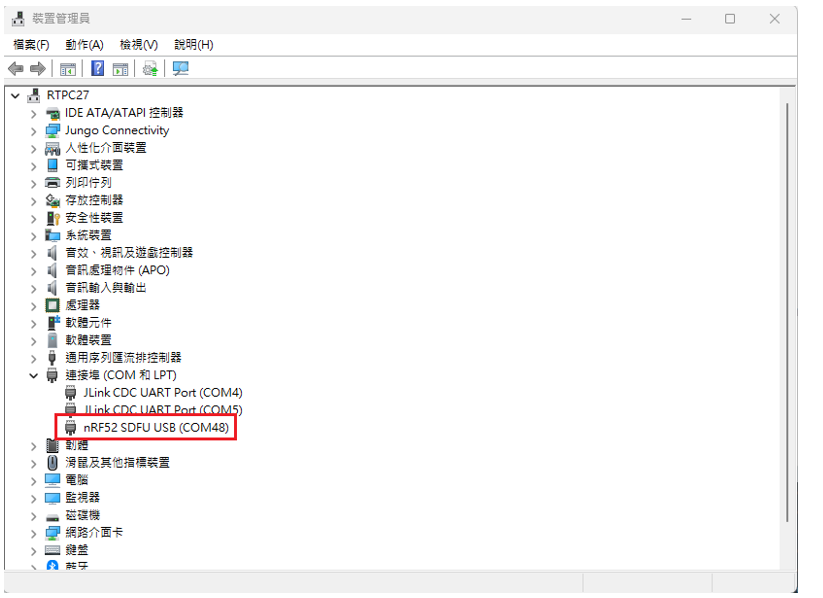
Step 2. Find out Com Port No. “nRF52 SDFU USB(COMxx)”
螢幕擷取畫面 2024-06-04 162542


Step 3. Execute USB DFU

Option 1. Using device program command:

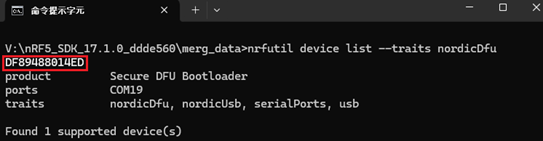
(1) List the devices with a DFU trigger interface by running:

nrfutil device list –traits nordicDfu
Option1-1

(2) Program new firmware to a device identified by its serial number by running:

nrfutil device program –firmware .zip nrf52840_xxaa.zip –serial-number XXXXXXXXXXXX

Option1-2

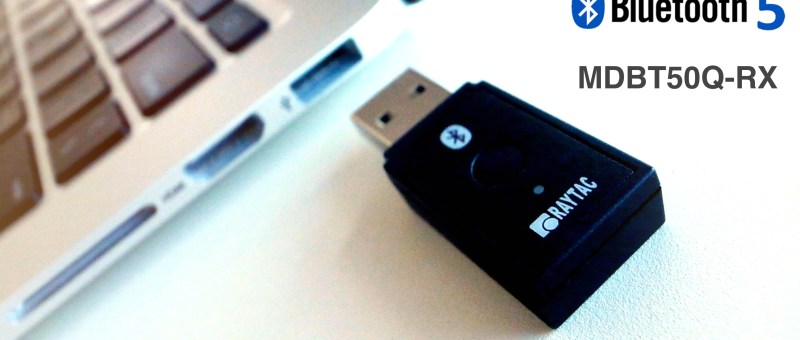
MDBT50Q-RX, a nRF52840 USB Dongle, delivers an easy implement for M2M IoT application

Raytac's MDBT50Q-RX, a Nordic nRF52840 USB Dongle

Raytac’s BT5 certified nRF52840 USB dongle, MDBT50Q-RX, eliminating the need for RF design expertise, and speeding time to market for complex M2M IoT applications. The Dongle built by Raytac’s MDBT50Q-P1M module with FCC/IC/CE/Telec/KC/SRRC/NCC/RCM/WPC certification.

Raytac's MDBT50Q-RX, a Nordic nRF52840 USB Dongle
Raytac’s MDBT50Q-RX, a Nordic nRF52840 USB Dongle

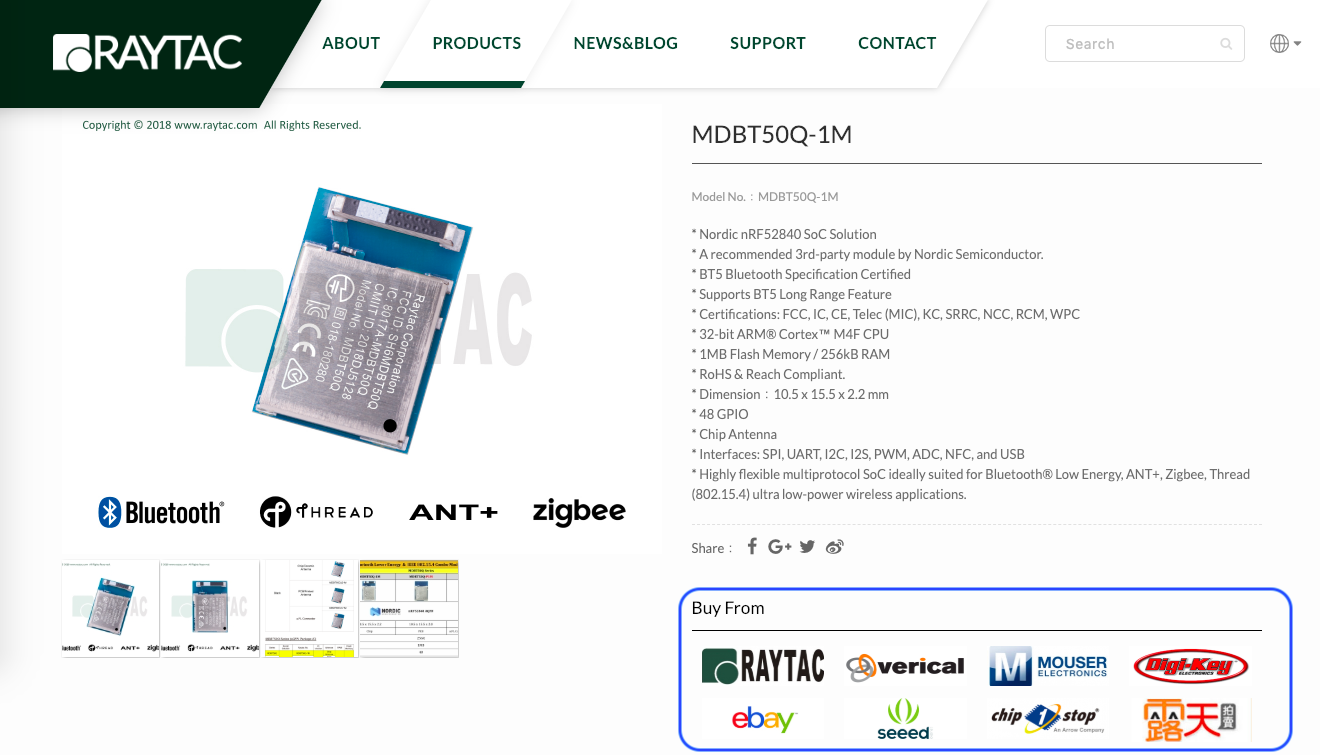
Where To Buy Raytac Bluetooth Module Sample?

To enhance the accessibility to Raytac BLE module sample for evaluation and development, Raytac has put effort to corporate with several channels.

Differ channels may carry various items, we encourage developers firstly visiting Raytac official site. The easy link options listed in each product may help customers to select the friendly channel to approach.

螢幕快照 2019-01-21 09.58.27

Bluetooth – Current and soon-to-perish versions

Bluetooth has been around for quite some time, but that doesn’t mean that no one is a beginner when it comes to developing Bluetooth-based products. In fact, due to their recent updates, Bluetooth is becoming increasingly popular as demand for power efficient gadgets and wireless technology is increasing. Smart watches is just one of the many examples out there.

For each and every single one of these devices, you’ll first have to register your new product with Bluetooth-functions built in on Bluetooth SIG’s website. You will eventually register (and pay for) your product based on what version of the Bluetooth protocol that you’re using in the product and do so by purchasing a so called Declaration ID (DID).

Yes, a little exaggeration in the title, but that’s essentially what it comes down to. Bluetooth SIG is doing some major updates and changes to the Bluetooth protocol which includes getting rid of the more outdated versions.

There are quite a few versions of the Bluetooth protocol out there, but nowadays you will basically be advised to choose from 2 versions:
v.4.2 or v.5.0
These two versions would be, as I mentioned in the title, the two current versions of Bluetooth.

Although it might seem very simple at first, there are a few things that you need to understand the content of the announcements to fully grasp what these updates and changes mean. That, my friends, is today’s topic of this post.

Archived specifications

Deprecated and Withdrawn Specifications

When a specification reaches the end of its useful life, the Bluetooth® SIG may choose either to deprecate the specification, ending maintenance and restricting its use, or to withdraw the specification from use.

Bluetooth SIG – https://www.bluetooth.com/specifications/archived-specifications

What has changed recently is nothing new, but it’s big. What I mean is that similar changes have been done in the past, but since the market is more dependent on the technology now than before, it matters far more for people when the Bluetooth SIG do the same changes nowadays. Those changes are as follows:

On 01/28/2019, the following policy changes will be enacted:
– Creating new designs that implement deprecated or withdrawn specifications will not be permitted
– New products cannot be added to designs that implement withdrawn specifications
– You cannot pay a $25,000 fee to qualify a new design that implements a deprecated specification
– Purchased but unused $25,000 Declaration IDs will no longer be valid and the cost of any unused $25,000 Declaration IDs will be credited to your account


Bluetooth SIG – bluetooth.com

This piece of information tells us that the process of withdrawing specifications comes down to two different steps, namely deprecation and withdrawal.
While deprecation literally means “to stop use", it is in this case the first step in the process of making a certain Bluetooth specification obsolete.
Then there’s a time gap between a certain specification gets deprecated until it’s withdrawn. During this gap, as mentioned above, no new designs can be paid for and/or registered and unused DID’s will be invalid. This is only to prevent new devices with deprecated Bluetooth specifications from being produced. To stop the “bloodline" of those specifications if you will. During this gap, however, you are still able to add new products that implement the same fundamental design (e.g. version updates) as you wish.

After this gap is over, when the specification in question is actually withdrawn, you will not be able to add any new products to any existing designs.

Got it? No? It’s alright. In fact, there’s a lot of information and it’s hard to put into context right away. Just to make things clear, let’s make an example:
Company R is currently developing a new device called RIC which implements Bluetooth 4.0 specifications. For now, everything’s alright and Company R can go right ahead with their developments.
When the Bluetooth core specification 4.0 becomes deprecated in Jan 28th, Company R can no longer come up with new product designs such as RIC-2 since that would count as a new design, but Company R can update their original device RIC as long as they don’t change the physical design.
Then, when the Bluetooth core specification 4.0 is finally withdrawn, Company R cannot update their product RIC anymore AND they cannot register new designs under Bluetooth core specification 4.0.

If you’re a developer who is very familiar with Bluetooth already, this information might already be, as certain people refer it as, “peanuts". If you’re new to the Bluetooth world, however, this is a lot to take in and you might want to read up more about it. We hope this explanation made things clearer for you though 🙂

You can find more info at:
Bluetooth SIG – https://www.bluetooth.com/specifications/archived-specifications

Don’t forget that Raytac Corporation’s modules are all pre-certified with FCC, TELEC, IC, CE, RCM, KC and SRRC. The best part is that more is yet to come!
Take a look at our modules on our website: http://www.raytac.com