Hi readers, did you know that Raytac offers a special service exclusively for our customers? 😉 We offer support services: HEX file verification and flashing firmware into modules per customer’s requests. Compared to the series nRF52 and nRF53’s 2 in 1 or 3 in 1 merged hex files, nRF54L15 requires something slightly different. Following are the tips and suggestions.
Find System Build (sysbuild) ➝ Choose Build System Default
Click Generate and Build
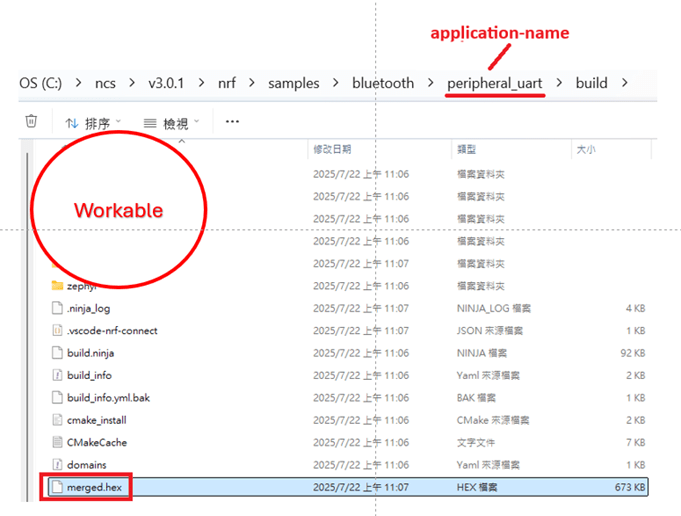
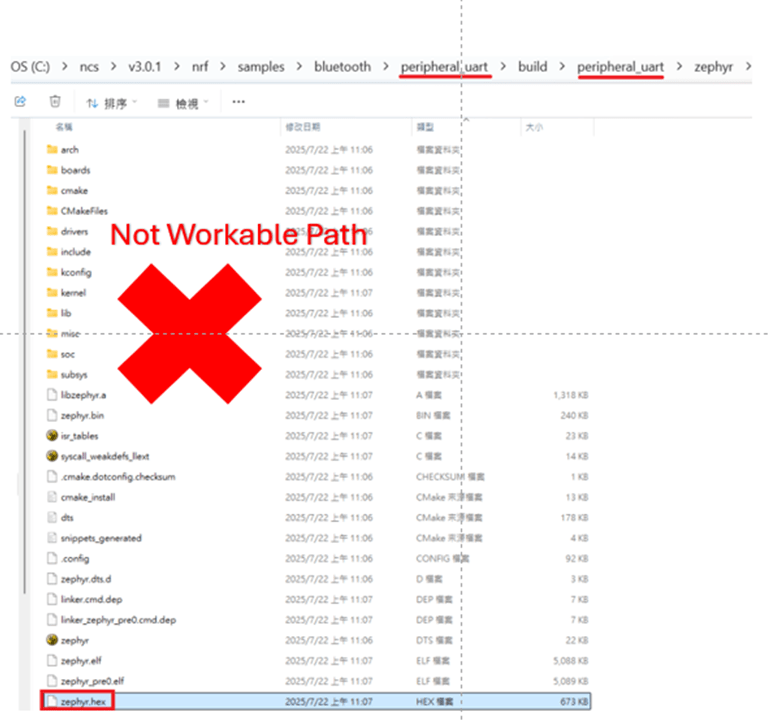
Starting from NCS v2.8.0 (including later versions), the .hex file can be generated in two different paths. 1. ..\nrf\samples\bluetooth\application-name\build\merged.hex 2. ..\nrf\samples\bluetooth\application-name\build\application-name\zephyr\zephyr.hex
Using the AN54LQ/AN54LV series as an example: When you provide the programming file (.hex) for production, please ensure that the file is taken from the following path: 1. ..\nrf\samples\bluetooth\application-name\build\merged.hex And we also do not recommend renaming the merged HEX file due to Nordic suggestions.
Not recommended path: 2. ..\nrf\samples\bluetooth\application-name\build\application-name\zephyr\zephyr.hex The zephyr.hex file is not recommended to be used for flashing or verification in the production process.
Thank you all for your patience in reading! Best wishes for your projects – your success is Raytac’s success! 😊
AN54LQ-X05 Series (nRF54L05, red PCB): Product page
Just like traffic lights that direct every journey safely and efficiently, Raytac’s nRF54L series modules guide your wireless development—keeping you on the right path with cutting-edge performance and exceptional power savings.
🚦 Each light signals a different member of the nRF54L15 / nRF54L10 / nRF54L05 module family—showcasing a clear path for your Bluetooth Low Energy (LE) applications, no matter which industry you’re from and where you’re headed.
These modules are now available for your design-in, offering: ✅ Powerful performance ✅ Ultra-low power consumption ✅ Compact footprints ✅ Full Global certifications: FCC/IC/CE/UKCA/Telec/KC/NCC/SRRC/RCM/WPC ✅ BT 6.0 certified ✅ Full Nordic nRF54 Series compatibility ✅ Pin-to-pin compatible amongst AN54LQ series
Whether you’re building for consumer IoT, industrial sensors, healthcare, or wearables—Raytac’s modules deliver the reliability you need and the efficiency you expect.
Raytac would like to officially announce a Product Change Notice (PCN) for our Bluetooth Low Energy modules based on Nordic Semiconductor’s nRF54L series SoCs, including the nRF54L15, nRF54L10, and nRF54L05. This update specifically concerns the Part Number (PN) changes for improved clarity and product identification across our lineup.
Affected Models Please refer to the table/list below for the full details of the updated part numbers. (Click on the image to zoom in)
Reminder This PCN involves part number naming only. There are no changes to product function, performance, quality, form factor, or safety compliance. All existing certifications and technical documentations remain valid.
We kindly invite our customers, distributors, and partners to update your records accordingly. For any questions or support regarding this update, feel free to reach out via: service@raytac.com
Raytac Corporation 勁達國際電子股份有限公司 / Raytac Corporation (USA) A Bluetooth, Wi-Fi, and LoRa Module Maker/ODM & OEM Manufacturer based on Nordic nRF54; nRF53: nRF52; nRF51; nRF7002 Semtech Specification: SX1262
Zephyr RTOS hosted in Linux system has become a leading IoT ecosystem and it has been widely adopted as an open-source , real-time operation system for embedded devices, making it easier for developers to integrate the project smoothly.
Nordic Semiconductor , a main contributor to Zephyr, from the Bluetooth LE controller and USB stack to test tools, DFU frameworks.. and more, is making great effort and strategic decisions to adopt the Zephyr open-source into its nRFConnect(NCS) SDK program.
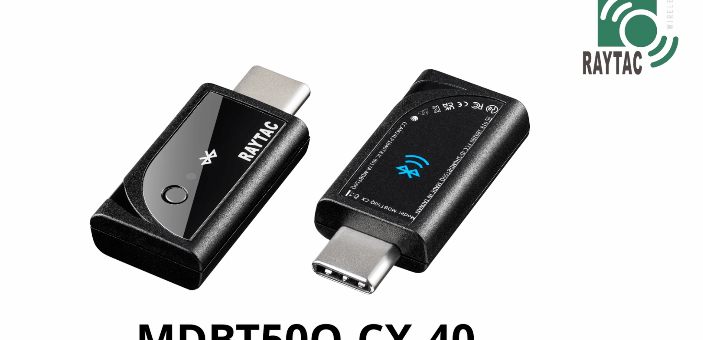
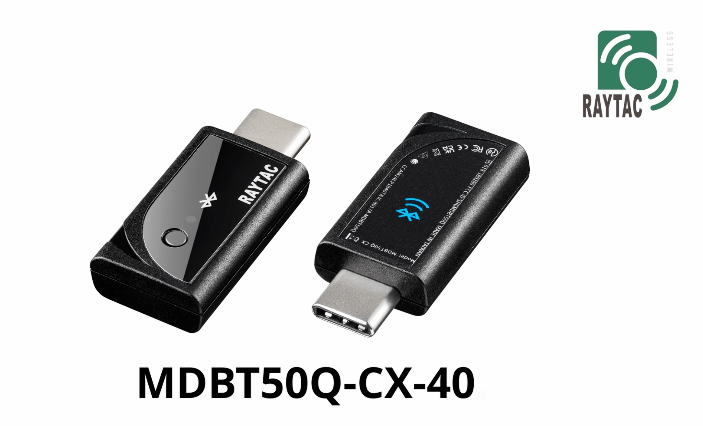
Raytac Corporation , a hardware-based manufacturer and a comprehensive solution developer with Nordic SoC development for multi-protocol complied wireless modules, now expands support for Zephyr RTOS ecosystem with its nRF52840 USB-C dongle – MDBT50Q-CX-40.
Reminder: The current Nordic released NCS SDK may NOT upgrade with Zephyr package at the same pace ; It is recommended to get the latest NCS SDK version to access the complete Zephyr support package.
If you’re interested in how Zephyr becomes powerful for a developer to start a project design easier and how the Nordic nRFConnect SDK community brings you to the world of Zephyr RTOS system, never hesitate to save the spot in the upcoming webinar on July 2nd, 2025. How Zephyr became the leading open-source RTOS for IoT(Click on the link to know more)
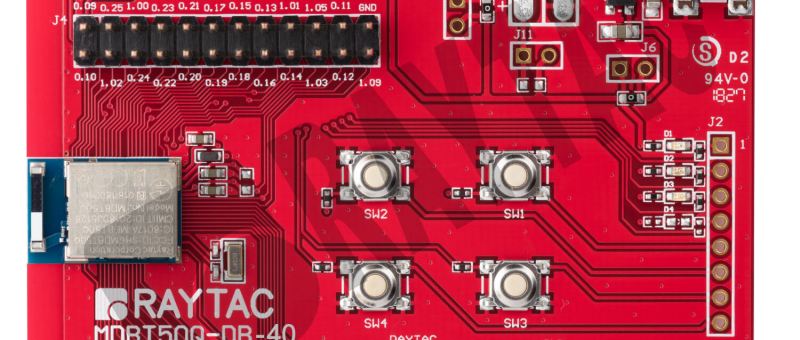
This guide teaches you how to use MCUboot for DFU (Device Firmware Update), Combined with nRF Connect SDK (NCS) V2.9.1 to upgrade firmware on Raytac’s MDBT50Q series modules.
Table of contents:
Hardware Set Up
Software Kits resource download & install
Compile and load the program a. Open VS Code b. Project setup c. Setup the situation for DFU over UART or DFU over USB d. Start compiling your project e. Load your compiled program into the MDBT50Q-DB-40 demo board
Install nRF Connect for Desktop ➔ install Programmer and Toolchain Manager.
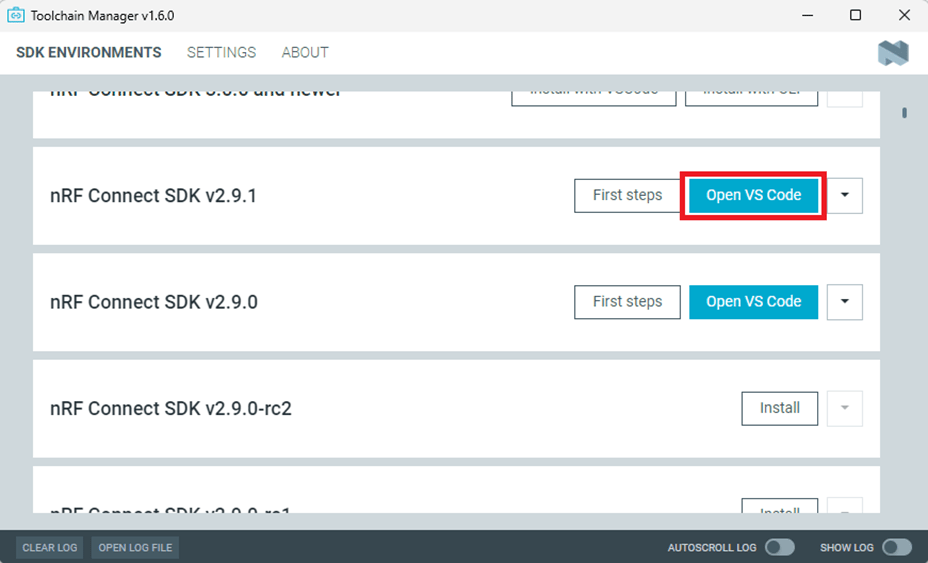
Open Toolchain Manager and install SDK V2.9.1.
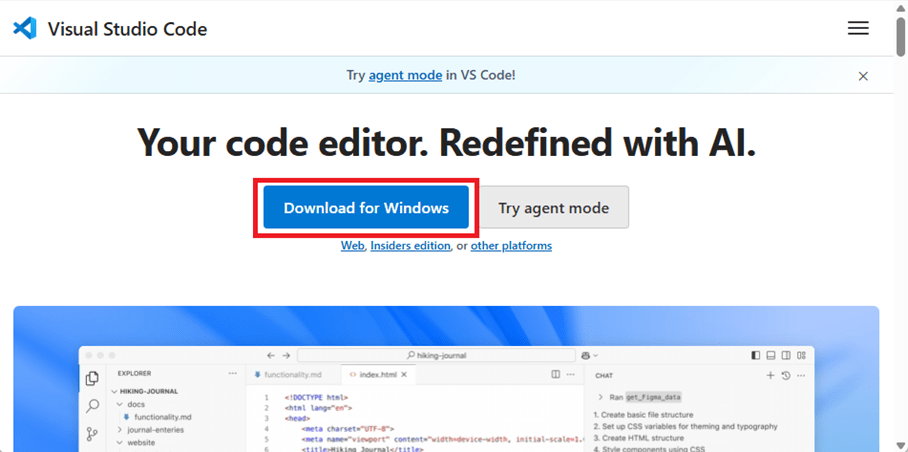
Install Visual Studio Code
3. Compile and load the program a. Open VS Code(Visual Studio Code)
Note: If it’s your first time using the software: after installing all the extensions, you should see the same on your screen.
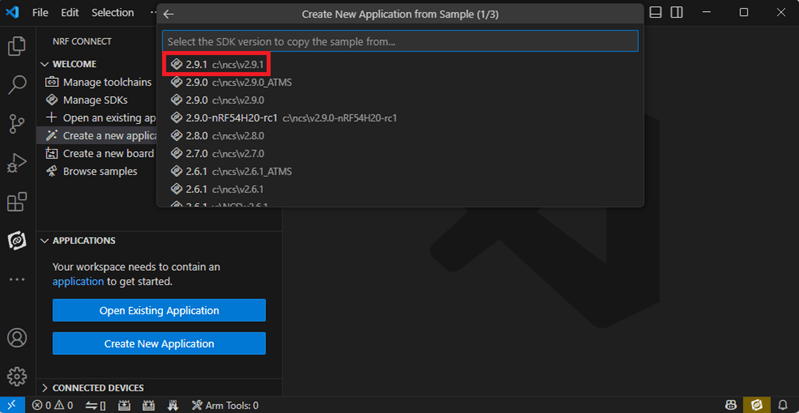
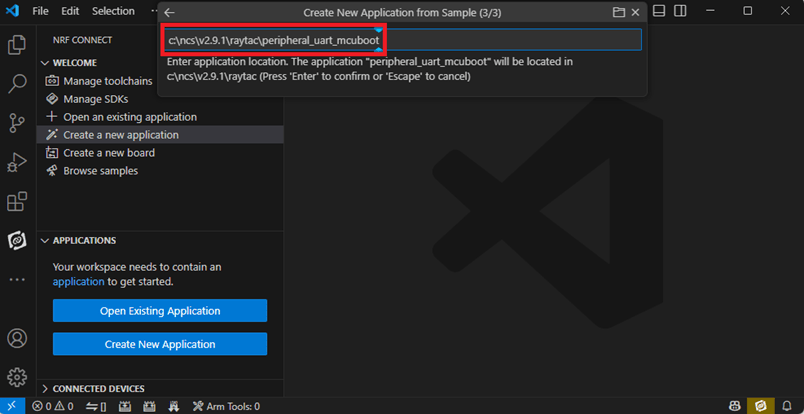
b. Project setup b.1 Create an example code(In this article: peripheral_uart) Please refer to the following steps: Create a new application ➔ Copy a sample ➔ NCS V2.9.1
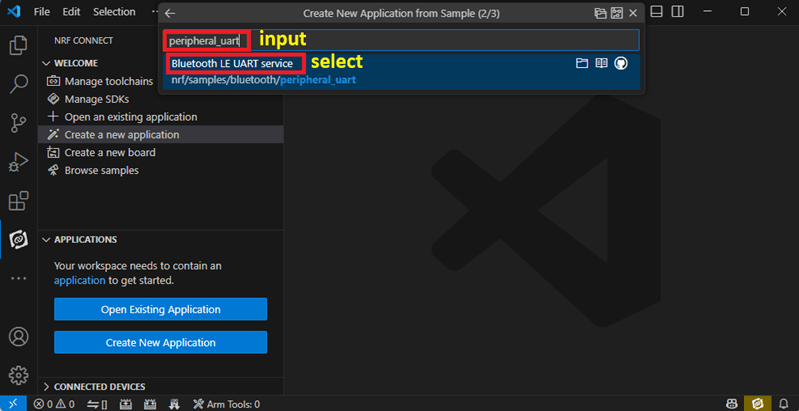
b.2 Name the Project: peripheral_uart Input peripheral_uart and the corresponding example program will appear in the options section below.
Note: We named the project peripheral_uart_mcuboot to distinguish it. This project will create a directory named peripheral_uart_mcuboot.
c.Build an environment for DFU over UART or DFU over USB – Create a new application ➔ Open
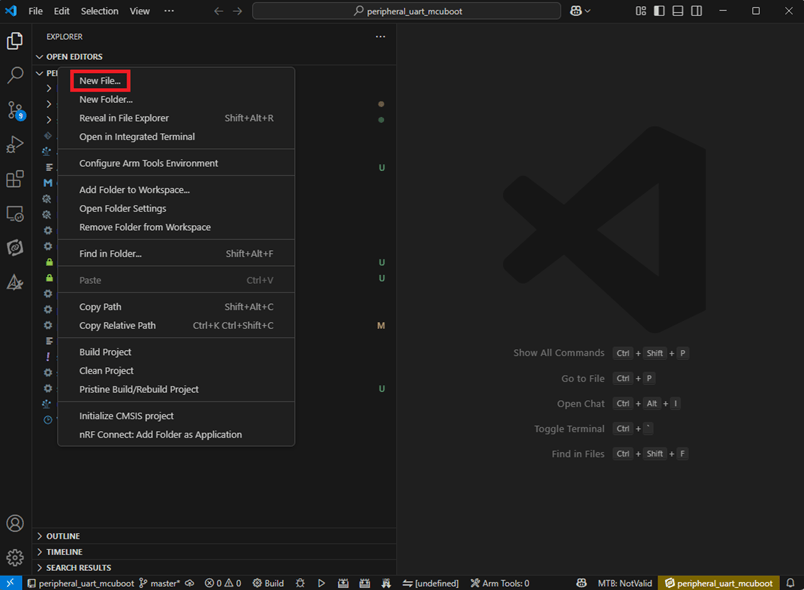
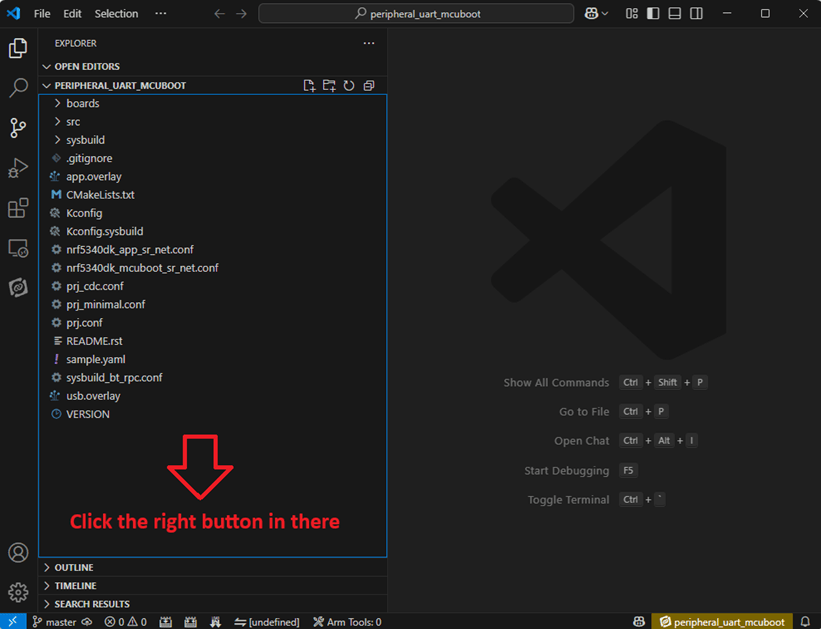
Right click on the project name you just created (peripheral_uart_mcuboot), a pop-up menu will appear. Select the first option “Show in Explorer" from the pop-up menu to display all project files.
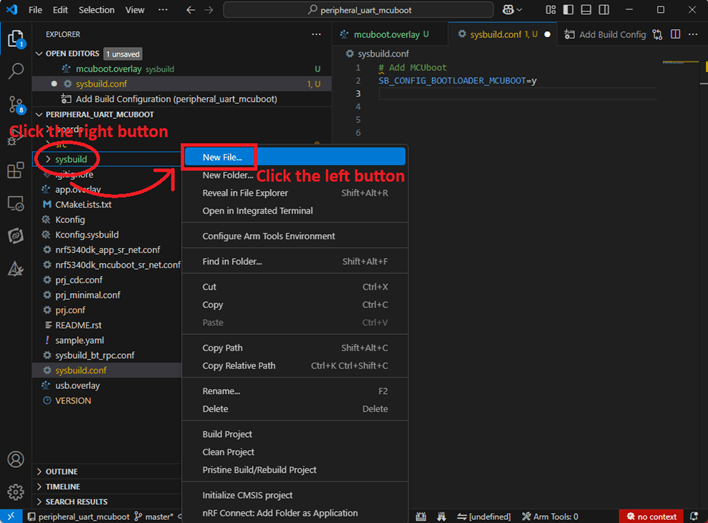
Then select New File to create a sysbuild.conf file.
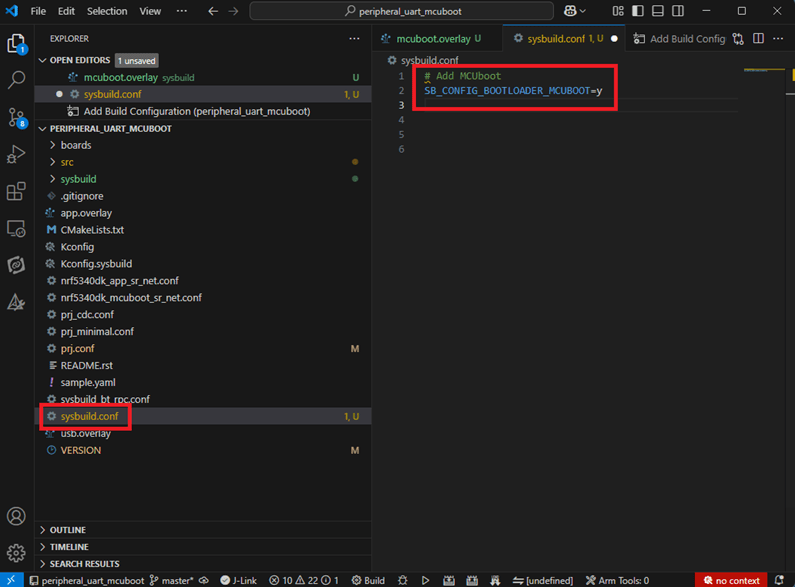
select sysbuild.conf, left-click on it, and a blank box will show.
Input the file name and write: SB_CONFIG_BOOTLOADER_MCUBOOT=y
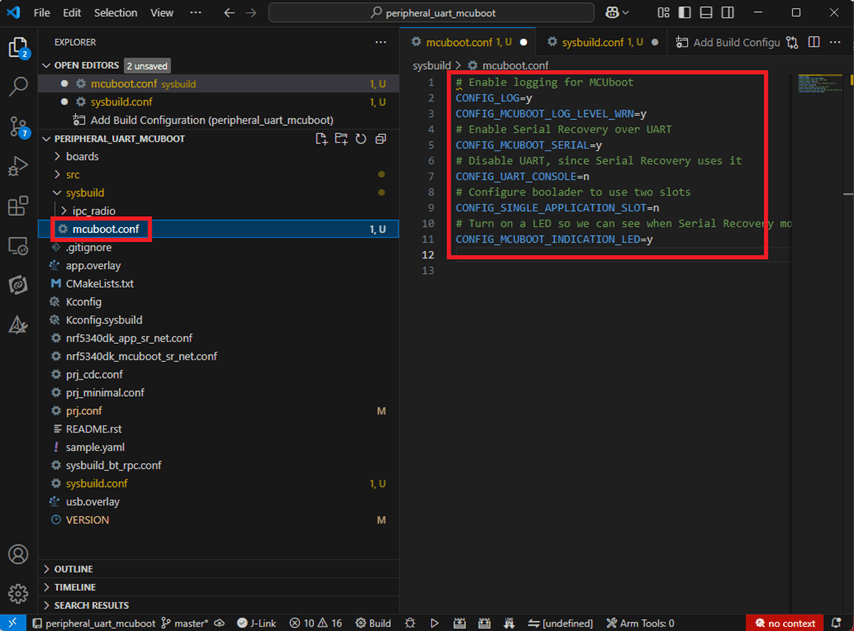
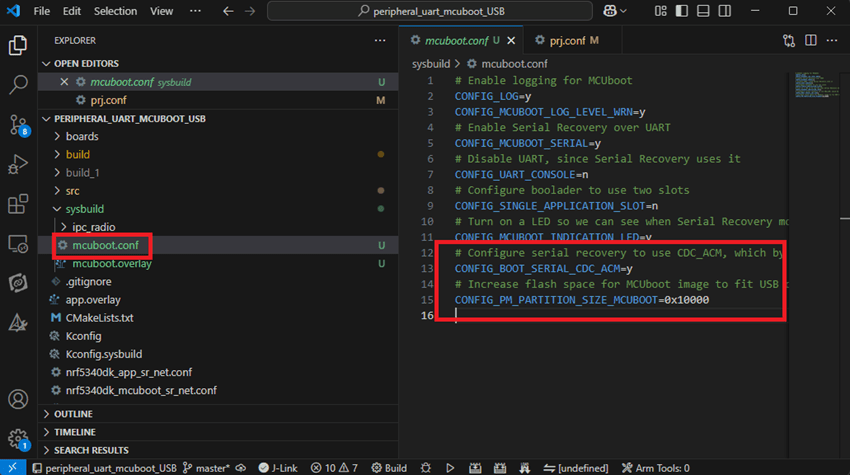
Parameters and instructions Add a new file mcuboot.conf, in the sysbuild folder, and input the following parameters into the file. (Add relevant parameters according to UART or USB) (Note: Please be informed if you want to use DFU over UART in the end, you should use UART when you first create the environment. Similarly, if you want to use DFU over USB, you should create the USB environment at the beginning.)
For DFU over UART # Enable logging for MCUboot CONFIG_LOG=y CONFIG_MCUBOOT_LOG_LEVEL_WRN=y # Enable Serial Recovery over UART CONFIG_MCUBOOT_SERIAL=y # Disable UART, since Serial Recovery uses it CONFIG_UART_CONSOLE=n # Configure the bootloader to use two slots CONFIG_SINGLE_APPLICATION_SLOT=n # Turn on a LED so we can see when Serial Recovery mode is active CONFIG_MCUBOOT_INDICATION_LED=y
For DFU over USB # Enable logging for MCUboot CONFIG_LOG=y CONFIG_MCUBOOT_LOG_LEVEL_WRN=y # Enable Serial Recovery over UART CONFIG_MCUBOOT_SERIAL=y # Disable UART, since Serial Recovery uses it CONFIG_UART_CONSOLE=n # Configure bootloader to use two slots CONFIG_SINGLE_APPLICATION_SLOT=n # Turn on a LED so we can see when Serial Recovery mode is active CONFIG_MCUBOOT_INDICATION_LED=y # Configure serial recovery to use CDC_ACM, which by default uses the USB CONFIG_BOOT_SERIAL_CDC_ACM=y # Increase flash space for the MCUboot image to fit USB drivers CONFIG_PM_PARTITION_SIZE_MCUBOOT=0x10000
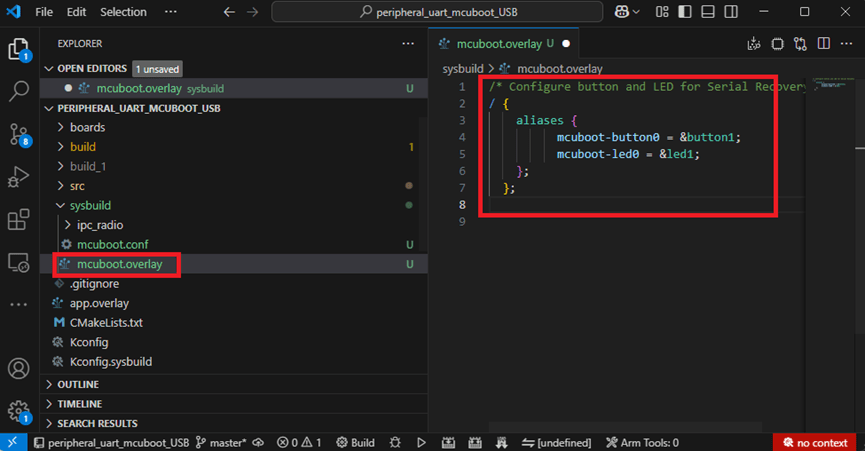
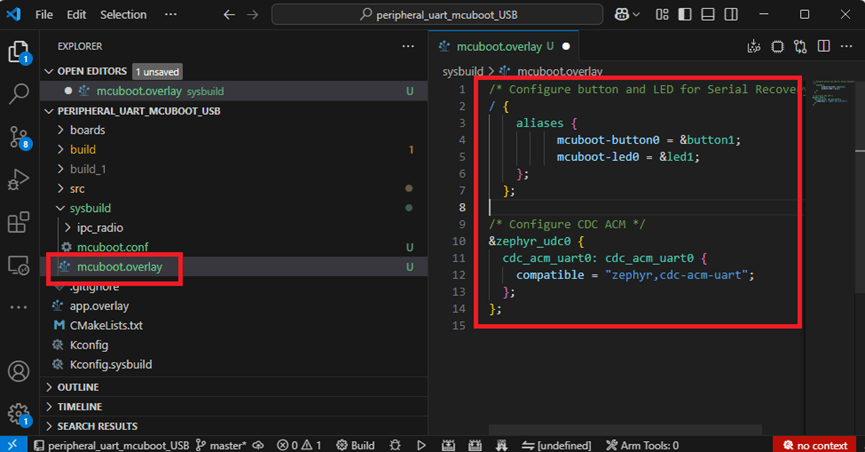
Create a new file: mcuboot.overlay and add the following parameters.
For DFU over UART /* Configure button and LED for Serial Recovery */ / { aliases { mcuboot-button0 = &button0; mcuboot-led0 = &led0; }; };
For DFU over USB /* Configure button and LED for Serial Recovery */ / { aliases { mcuboot-button0 = &button0; mcuboot-led0 = &led0; }; }; /* Configure CDC ACM */ &zephyr_udc0 { cdc_acm_uart0: cdc_acm_uart0 { compatible = “zephyr,cdc-acm-uart"; }; };
Note: if you use DFU over USB, please enable the USB subsystem in prj.conf.
After all the setup is completed, you can start compiling your project.
d. Start compiling your project Add Build Configuration ➔ Select target board ➔ In this example, choose raytac_mdbt50q_db_40/nrf52840.
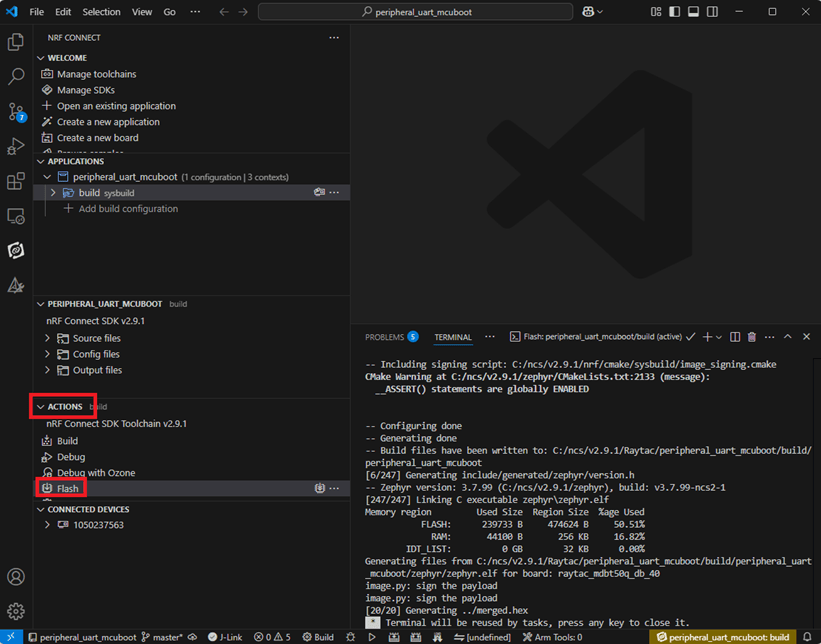
Start compiling by clicking “Generate and Build" at the bottom-right corner.
e. Load your compiled program into the MDBT50Q-DB-40 demo board After compiling without error, select the flash function to load your program into the MDBT50Q-DB-40 demo board.
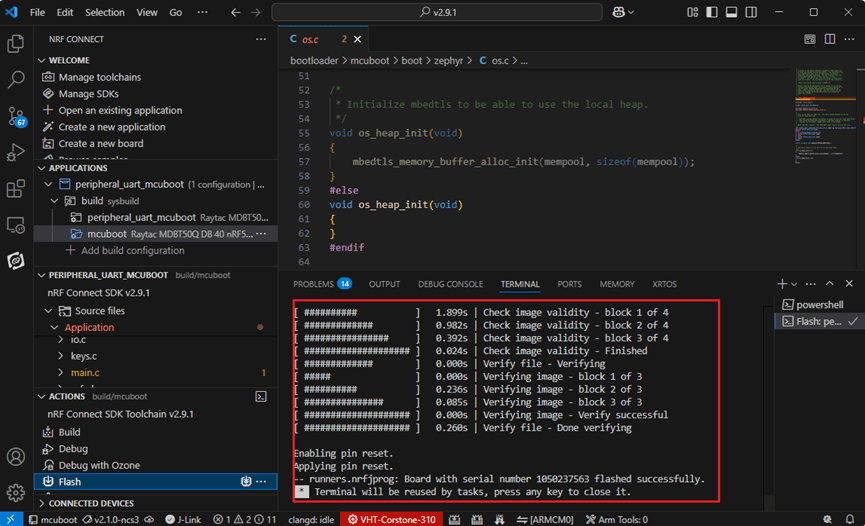
If the below is shown, it means that you have successfully loaded your program into the demo board.
4. DFU to MDBT50Q-DB-40 through UART / USB DFU over UART Hold the SW2 button then plug the power into the USB connector. The system will enter the bootloader mode. You can then DFU the new firmware via the UART.
DFU over USB If you update your firmware through USB, please also hold the SW2 button and connect the USB cable.
Steps: Select the tab Config to set the correct COM port.
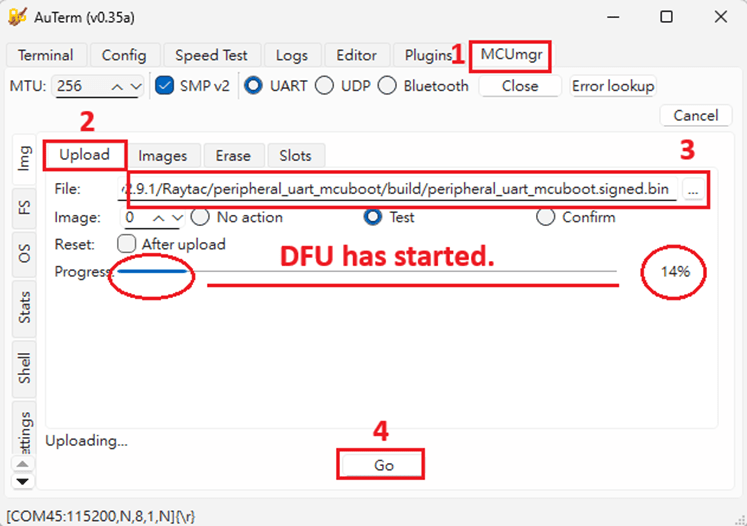
Follow the sequences in the below screenshot.
You can use the file peripheral_uart_mcuboot.signed.bin for testing. It is located in peripheral_uart_mcuboot/build. Then follow the sequences in the below screenshot. DFU will be completed when the progress reaches 100%.
6. DFU using your custom keys When you compile the code, you will see the below warning. Reason: It’s required to have your own private key to ensure your product’s security. Following are the steps to enable security features.
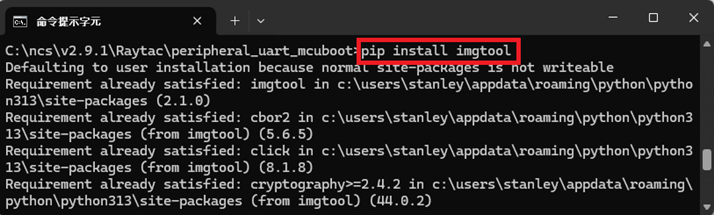
Step 1. Create the key First, install the imgtool program using pip.
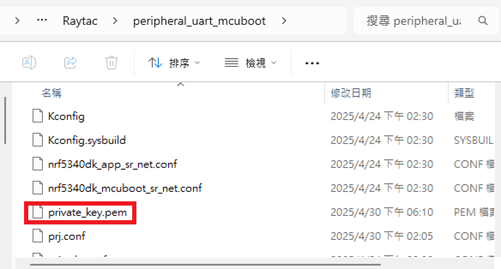
Then use the following command to generate your private key in your project folder. After the private key is generated, you can access it in your directory.
Step 2. Configure the project to use this key in sysbuild.conf
# Add MCUboot SB_CONFIG_BOOTLOADER_MCUBOOT=y #Add private key for MCUboot SB_CONFIG_BOOT_SIGNATURE_KEY_FILE="\${APP_DIR}/private_key.pem" # Configure key type SB_CONFIG_BOOT_SIGNATURE_TYPE_ECDSA_P256=y
Step 3. Build and flash the project again. Your firmware will have security features.
Edited by Account Manager: Mr. Welson Kuo
Raytac Corporation 勁達國際電子股份有限公司 / Raytac Corporation (USA) A Bluetooth, Wi-Fi, and LoRa Module Maker/ODM & OEM Manufacturer based on Nordic nRF54; nRF53: nRF52; nRF51; nRF7002 Semtech Specification: SX1262
Based on Nordic Semiconductor’s latest nRF54L15 SoC, this board offers a cutting-edge platform for developing Bluetooth® Low Energy and other 802.15.4 protocol-related applications. The features include:
– Module Demo Board built by AN54LQ-15 module – Built-in debug interface for streamlined development and testing – Compatibility with Zephyr’s device tree and board configuration system – Antenna variants: Ceramic Chip / PCB Trace / u.FL Connector – Nordic nRF54L15 Solution – A recommended 3rd-party module by Nordic Semiconductor. – Intended for BT specification BT6, including Channel Sounding features – Pre-certified with FCC, IC, CE, Telec (MIC), KC, SRRC, NCC, RCM, WPC – Intended for EU new Cyber Security Standard: EN 18031 – RoHS & Reach Compliant. – 128 MHz ARM® Cortex™-M33 processor with TrustZone® technology – 128 MHz RISC-V co-processor with TrustZone® technology – 1.5MB Flash Memory / 256KB RAM – 31 GPIO – Interfaces: QSPI(Software), SPI, UART, I2C, I2S, PDM, PWM, ADC, and NFC – Highly flexible multiprotocol, ideally suited for Bluetooth® Low Energy, ANT+, Zigbee, Thread (802.15.4), and Matter ultra low-power wireless applications.
By being integrated into the Zephyr ecosystem, developers gain direct access to well-maintained upstream code, continuous integration support, and community-driven updates. Whether you’re building IoT sensors, connected medical devices, or industrial automation systems, using the AN54LQ-DB-15 with Zephyr ensures a modern, scalable, and open-source-ready development experience.
Start building faster—with less setup and more confidence—thanks to this powerful combination of Raytac hardware and the Zephyr real-time operating system!
Our other Demo boards that are also listed on Zephyr: MDBT50Q-DB-33 (nRF52833 module Demo Board) MDBT50Q-DB-40 (nRF52840 module Demo Board) MDBT53-DB-40 (nRF5340 module Demo Board) MDBT53V-DB-40 (nRF5340 module Demo Board)
Edited by Business Development Manager: Mr. Tony Yin
Raytac Corporation 勁達國際電子股份有限公司 / Raytac Corporation (USA) A Bluetooth, Wi-Fi, and LoRa Module Maker/ODM & OEM Manufacturer based on Nordic nRF54; nRF53: nRF52; nRF51; nRF7002 Semtech Specification: SX1262
[2025.02.19] Raytac Corporation is proud to announce that our application for Wi-Fi Alliance (WFA) certification on the AN7002Q series(based on Nordic’s nRF7002 IC) has been successfully approved. This achievement reinforces our commitment to providing high-quality, reliable, and standard-compliant wireless solutions. By leveraging this certification, our modules ensure seamless interoperability, enhanced security, and superior performance for a wide range of IoT applications.
Advantages of Using Raytac Modules with WFA Certification:
Reliable and Secure Connectivity – Ensures seamless communication with other Wi-Fi-certified devices while meeting industry-leading security standards for stable and secure data transmission. Faster Time-to-Market – Pre-certified modules simplify compliance processes, reducing development time. Global Market Access – Certification helps meet regulatory requirements in multiple regions, expanding business opportunities. Significant Cost-Saving – Compared to the chip-on-board approach, using Raytac’s Wi-Fi module allows direct access to the Derivative programs(please click here for more descriptions), leveraging Raytac’s CID to minimize certification costs and save time-to-market.
To learn more about Wi-Fi certifications and Wi-Fi + BLE applications, feel free to contact us anytime at sales@raytac.com.
Edited by Account Manager: Ms. Mandy Chao
Raytac Corporation 勁達國際電子股份有限公司 A Bluetooth, Wi-Fi, and LoRa Module Maker based on Nordic nRF54; nRF53: nRF52; nRF51; nRF7002 Semtech Specification: SX1262
We are thrilled to announce that Raytac Corporation will be participating in Embedded World 2025 from March 11 to March 13, 2025, at the Nuremberg Exhibition Centre in Germany.
IoT and Wireless technologies such as Bluetooth Low Energy (BLE), Wi-Fi, and LoRa…etc. continue to reshape industries worldwide, that’s why Raytac is at the forefront, providing cutting-edge solutions that accelerate product development. Together with our partner, Nordic Semiconductor, we offer a comprehensive range of modules designed to meet the increasing demands of today’s connected world.
This year, we have exciting innovations to showcase:
Unveiling our new service: Customized OEM/ODM designing for customers.
These are just a few of the groundbreaking solutions we’ll be unveiling. You won’t want to miss the chance to experience these with us!
What to Expect at Our Booth:
Live demonstrations showing how Raytac’s modules can be implemented in multiple industries.
Discover how our modules can reduce development time and costs, making your projects more efficient.
One-on-one consultations with our experts to help you find the right solutions for your needs.
Stop by and visit us at: HALL 3 Booth 3-111 M2M Area
We would love to connect with you and discuss how Raytac can support your next project. Whether you’re an engineer, developer, or business decision-maker, we have something for everyone at Embedded World 2025.
Uncertainties in Bluetooth Application Development Bluetooth’s growing popularity comes with challenges during development. Common issues include hardware instability, software incompatibilities, and environmental interference. Accurate issue identification and resolution are keys to successful development.
Common Uncertainties Unstable Connections: Disruptions from wireless signals or physical obstacles. Pairing Failures: Devices unable to establish connections. Data Errors: Packet loss or corruption during transmission. Compatibility Problems: Protocol version mismatches affecting interoperability.
Efficient Bluetooth Issue Analysis Challenges like transmission speed limitations, data loss, connection failures, or protocol violations can arise. As Bluetooth signals travel wirelessly, precise analysis requires specialized tools. Nordic offers firmware integrated with Wireshark, flashable onto the Raytac MDBT50Q-CX-40 Dongle, enabling engineers to capture and analyze Bluetooth broadcast signals via USB. This setup streamlines issue identification and resolution. Below’s how to configure the Dongle for Wireshark reception.
Step 3: Press and hold the button on MDBT50Q-CX-40 and plug it into a PC USB port. Bootloader mode will be activated after the LED light is turned on. Then flash the firmware using nRF Programmer.
Step 4: Open the nRF Programmer and follow the below steps: Select the Device:
The device will appear as the name shown in below:
Add Firmware File:
Load sniffer_nrf52840dongle_nrf52840_4.1.1.hex into the Programmer:
Press “Write" to flash the firmware. After flashing, press “Select Device" again. If the Device name appears as nRF Sniffer for Bluetooth, the flashing is successful.
Set Up Wireshark Software Environment Step 1: Download & install nRF-Util: https://www.nordicsemi.com/Products/Development-tools/nRF-Util Step 2: Open MS-DOS and use the command nrfutil list to check if the ble-sniffer item is available. If not, install it using nrfutil install ble-sniffer.
Step 3: Download and Install Wireshark: https://www.wireshark.org/download.html. Step 4: Open Wireshark and navigate to: Help → About Wireshark → Folders. Step 5: Locate the string under Personal Extcap Path for the extcap directory, which will be an empty folder.
Step 6: Copy the files from nrf_sniffer_for_bluetooth_le_4.1.1\extcap (downloaded earlier) into Wireshark\extcap directory.
Step 7: After reopening, you should see an interface with a configurable icon next to the dongle.
Step 8: Edit → Configuration Profiles → Import → From Directory → Navigate to the directory nrf_sniffer_for_bluetooth_le_4.1.1\Profile_nRF_Sniffer_Bluetooth_LE and click “Select Folder".
Step 9: The profile will be imported. Click OK to confirm.
After all the above is done, the setup shall be completed.
Capturing and analyzing Bluetooth packets After launching the program, you can see the following devices and Dongle settings. Double-click to start the packet capture process:
If you want to capture packets with PHY=125K, you can use the following settings:
Packet Analysis Method In Wireshark, select the device from the “Device" menu to capture and analyze broadcast packets.
User Cases – What sniffer can offer 1. Disconnection when transmitting over 20 bytes between Tablet and Raytac’s AT-Command Module: Through sniffer analysis, it was discovered that Raytac’s module requested a packet length of 251 bytes, but the tablet’s TX setting was limited to 27 bytes.
2. Broadcast Device Name containing invisible characters: The device could connect using a mobile app but failed to connect using Central’s code. From the sniffer interface shown below, the device name length is 11, but the Length field shows 13. The actual data length (Type length + Device Name) = 1 + 11 = 12, indicating an issue with the program’s broadcast name length.
3. Incorrect parameter settings causing issues with throughput or packet reception: Improper settings can lead to reduced throughput, incorrect data reception, or disconnections. The diagram below shows a correct setup with high-volume data transmission. The Protocol Length is 251, and the data transmission intervals are consistent, achieving optimal throughput.
Summary Mastering hardware and software setups and effectively using packet analysis tools can boost development efficiency and enable high-performance Bluetooth applications.
B. Comparison among nRF54L15/ nRF5340/ nRF52840/ nRF52832 SoC modules
If you are familiar with Nordic nRF52, nRF53 module series, you will have better idea to tell the difference heading to NRF54L series by referring to the chart as below. (Click on the picture to zoom in)
C. Get started with nRF54L15 development (NCS 2.8.0)
Preparation of Hardware: 1. 1x Nordic NRF54L15 DK (PCA10156-0.9.1) (Note: If you have PDK (PCA10156-0.8.1) on hand, it can be done in trial phase) 2. 1x Raytac AN54LQ-DB-15 3. 1x IDC Ribbon wire 4. 2x USB-C connector wires (for powering the kit up)
Note: Using Nordic nRF54L15DK / nRF54L15PDK as debugging tool and Raytac Demo board-AN54LQ-DB-15 as simulated carrier board(main board) to proceed the program of nRF54L15 for code compiling and development.
Tips: Please align the red edge of Ribbon at side of 1 in connector J1.
Step 1 —- Connected NRF54L15 DK and AN54LQ-DB-15 by IDC Ribbon wire Step 2 —- Powering on both NRF54L15 DK and AN54LQ-DB-15 by USB-C connector
<< Schematic of AN54LQ-DB-15(Updated on 21-Jan-2025) >>(Click on the picture to zoom in)
Preparation 1. Prepared with the latest version of nRF Connect for Desktop and Select version Windows 64-bit – 5.1.0 2. Prepared with the latest version of nRF Command Line Tools and Select version Windows x86 64-10.24.2 **Note: SEGGER J-LINK Upgrade message might pop up while you’re doing above download.
3. Locate all the necessary kits for programming in PC (Check Software/Application list)
Get started with building your program
Intro: The development tool of nRF Connect SDK(NCS) equipped with free VS (Visual Studio) Code IDE for firmware compile and programming. Note: it is highly recommended to apply NCS 2.8.0 for advanced features of nRF54L15.
Step 1 —- Activate your “nRF Connect for Desktop” >> “Toolchain Manager” >> “Open” >> “Install”
Step 2 —- You will find multiple options of NCS V x.x.x in the tool, we’re using NCS v2.8.0 as example to run sample code of nRF54L15.
Step 3 —- Make sure the NCS v2.8.0 is installed at same directory with compiling system. (the root of Open VS Code) (This is using C:\ncs as example.)
In case to organize the files, do “Select directory’” and “Confirm”.
Step 4 —- After nRF Connect SDK v2.8.0 Download ready , go “Open VS Code”.
Step 5 —- Go “Open Existing Application” , and activate example code: Bluetooth > peripheral_uart
Step 6 —- Moving to program build & compiling by selecting dev kit: nrf54l15dk/nrf54l15/cpuapp
Step 7 —- You will get a .hex file after the above programming compiling process.
Step 8 —- Functions are available for during the code compiling process under “ACTIONS” in VS Code IDE << Build >>
<< Debug >>
<< Flash >>
Firmware Programming It is feasible to do the firmware programming using nRFConnect SDK (NCS) tool. Developer may use “Programmer” to do the firmware flashing with the candidate .hex file.
Step 1 —- Execute nRF Connect for Desktop >> Programmer >> Open
“Select Device”
Select ”nRF54L15 DK”
“Add File”
Step 2 —- Select the candidate .hex file
Select “Erase & Write”
It indicates the programming process is on the way↓
The firmware programming process is done after seeing “Completed” in system Log field.
Step 3 —- Use the mobile App to make sure the Bluetooth broadcasting is functioning after the firmware flashing process is successfully done to the module.
D. Channel Sounding Preview
What is Channel Sounding? —- Advance the “Find My” feature into next level accuracy Have you ever concerned about the distance accuracy when you’re using RSSI to get the distance between devices and to evaluate the transmission distance with legacy Bluetooth module? Nordic NRF54 solution has taken us into next level with Channel Sounding feature that achieves the “centimeter-level” distance accuracy. Early implement achieves 10-20cm in the record.
Credit: Bluetooth Alliance
How does Bluetooth Channel Sounding work? Bluetooth Channel Sounding implemented with Phased-Based Ranging (PBR) & Round-trip time (RTT)(the concept idea of TOF time of flight) algorithm to achieve a higher precision of measuring distance between 2 devices.
Phased-Based Ranging (PBR): Signal has been sent between initiator and reflector with multiple frequency to increase measuring accuracy.
Credit: Bluetooth Alliance
Round-trip time (RTT): It’s the concept of utilizing TOA (Time of arrival). Using TOD(Time of departure) & TOA to measure the timing during the packet transmission between devices.
Credit: Bluetooth Alliance
Potential applications: Personal item finding Secure access control Smart lock system Digital Key Asset Tracking





























 Raytac Corporation