Raytac with Nordic nRF54L15: Modules designed to Outlast & Outdo!

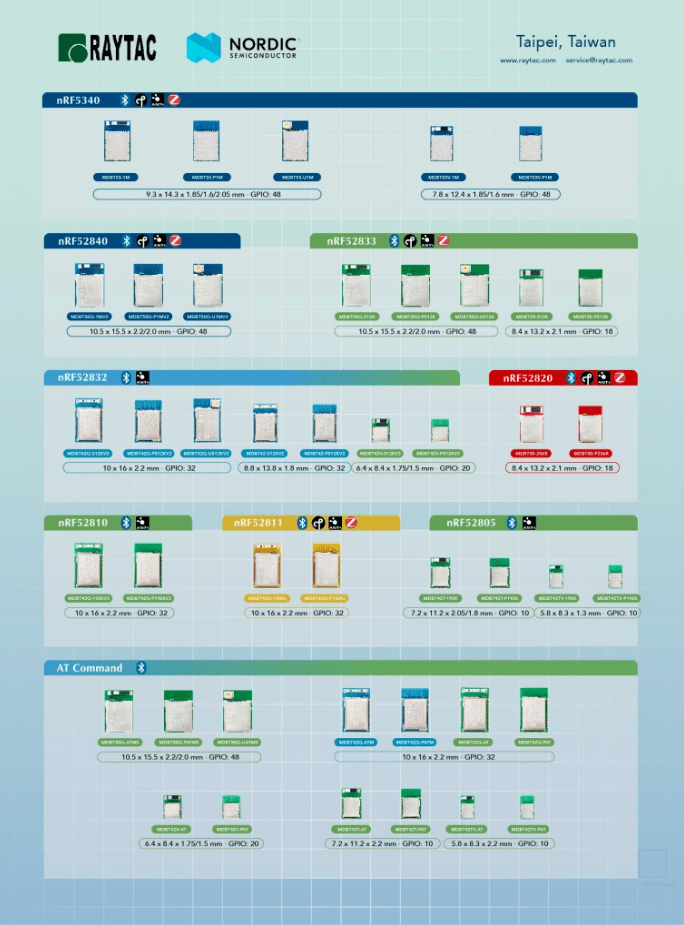
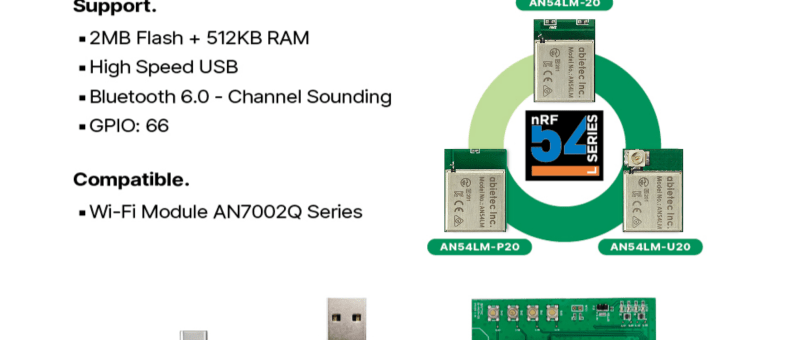
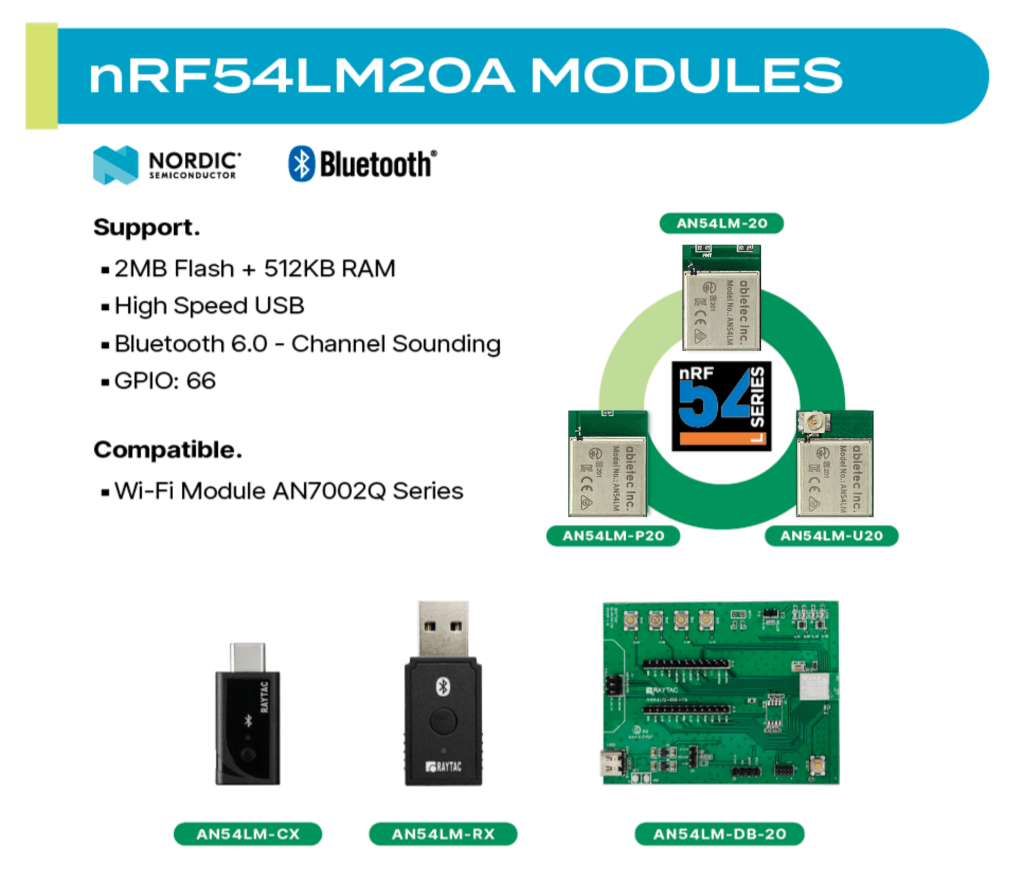
Raytac’s AN54LQ & AN54LV modules, powered by Nordic Semiconductor’s nRF54L family SoCs, come in multiple form factors and antenna options, ensuring your seamless integration into compact, RF-sensitive, or performance-driven designs.

Whether you need a:
☑ Chip antenna;
☑ PCB antenna;
☑ u.FL connector;
☑ Antenna Pin,

Or you want Small, Smaller, or Smallest, we always have a solution that fits best!
*All products are pre-certified with FCC, IC, CE, UKCA, Telec, KC, SRRC, NCC, RCM, WPC.


All our modules are available now on our website: https://www.raytac.com/product/:
nRF54L15 modules – AN54LQ Family

ModelAntenna TypeProduct Website
AN54LQ-15Ceramic Chiphttps://www.raytac.com/product/ins.php?index_id=158
AN54LQ-P15PCB Tracehttps://www.raytac.com/product/ins.php?index_id=159
AN54LQ-U15u.FL Connectorhttps://www.raytac.com/product/ins.php?index_id=160


nRF54L15 modules – AN54LV Family


ModelAntenna TypeProduct Website
AN54LV-15Ceramic Chiphttps://www.raytac.com/product/ins.php?index_id=169
AN54LV-P15PCB Tracehttps://www.raytac.com/product/ins.php?index_id=171
AN54LV-U15u.FL Connectorhttps://www.raytac.com/product/ins.php?index_id=176
AN54LV-K15Antenna Pinhttps://www.raytac.com/product/ins.php?index_id=177


nRF54L10 modules – AN54LQ Family

ModelAntenna TypeProduct Website
AN54LQ-10Ceramic Chiphttps://www.raytac.com/product/ins.php?index_id=165
AN54LQ-P10PCB Tracehttps://www.raytac.com/product/ins.php?index_id=163
AN54LQ-U10u.FL Connectorhttps://www.raytac.com/product/ins.php?index_id=164


nRF54L05 modules – AN54LQ Family

ModelAntenna TypeProduct Website
AN54LQ-05Ceramic Chiphttps://www.raytac.com/product/ins.php?index_id=166
AN54LQ-P05PCB Tracehttps://www.raytac.com/product/ins.php?index_id=167
AN54LQ-U05u.FL Connectorhttps://www.raytac.com/product/ins.php?index_id=168


For more information, please contact: sales@raytac.com


Raytac Corporation 勁達國際電子股份有限公司 / Raytac Corporation (USA) / abietec Inc.
A Bluetooth, Wi-Fi, and LoRa Module Maker/ODM & OEM Manufacturer based on
Nordic nRF54; nRF53: nRF52; nRF51; nRF7002
Semtech Specification: SX1262


Bluetooth Specification: BT6 ; BT5.4 ; BT5.3 ; BT5.2.
Wi-Fi Specification: Wi-Fi 6
LoRa Specification: LoRaWAN


All products are FCC/IC/CE/Telec/KC/RCM/SRRC/NCC/WPC/RoHS/Reach Pre-Certified.
http://www.raytac.com
https://www.raytac.com/contact/
email: sales@raytac.com
Tel: +886-2-3234-0208(TW)/+1-626-217-3139(USA)

Raytac Corporation – U.S. Headquarters Relocation Notice

New U.S. Headquarter Address:
17800 Castleton Street, Suite 238, City of Industry, CA 91748, USA
Phone: 626.328.3827
Our new location strengthens our operational capabilities in the United States, enabling faster logistics, enhanced customer support, and expanded service coverage. We look forward to continuing to serve our partners and customers from our new facility.


Raytac Corporation 勁達國際電子股份有限公司 / Raytac Corporation (USA) / abietec Inc.
A Bluetooth, Wi-Fi, and LoRa Module Maker/ODM & OEM Manufacturer based on
Nordic nRF54; nRF53: nRF52; nRF51; nRF7002
Semtech Specification: SX1262

Bluetooth Specification: BT6 ; BT5.4 ; BT5.3 ; BT5.2.
Wi-Fi Specification: Wi-Fi 6
LoRa Specification: LoRaWAN

All products are FCC/IC/CE/Telec/KC/RCM/SRRC/NCC/WPC/RoHS/Reach Pre-Certified.
http://www.raytac.com
https://www.raytac.com/contact/
email: sales@raytac.com
Tel: +886-2-3234-0208(TW)/+1-626-328-3827(USA)
Transition tips for program from MDBT50Q-RX (USB-A) to MDBT50Q-CX (USB-C)  with current NRF52840 project

Intro:

This is a guidance provided for those who is going to transit (or replicate) their project from Raytac MDBT50Q-RX (USB-A Dongle) to MDBT50Q-CX(USB-C Dongle).  In addition to the hardware spec change (Compact Size , LED, Button, Pin definition change) , the key firmware configuration should be made with changes to fit new USB-C Dongle MDBT50Q-CX.


RX-1                    CX-1

    MDBT50Q-RX                           MDBT50Q-CX


 Table of Contents:

1. Comparison chart: MDBT50Q-RX(USB-A) & MDBT50Q-CX(USB-C)

2. Firmware configuration

3. Create a merged hex file (2 in 1 or 4 in 1)

4. Firmware flashing process


1. Comparison chart: MDBT50Q-RX & MDBT50Q-CX

Comparison chart


2. Firmware configuration : MDBT50Q-RX → MDBT50Q-CX

Edit your current MDBT50Q-RX firmware with configuration change to align the PIN change to accommodate the hardware change.

Option 1. Using nRF5 SDK:

Make the definition set up of LED, BUTTON pin in the highlighted 4 sections.

Firmware configuration-nRF5


Option 2. Using NCS V2.6.X:

Use the board name: nrf52840dongle_nrf52840 and add the overlay file:

nrf52840dongle_nrf52840.overlay to the program (Devicetree Overlays),

then configure the below code definition into the overlay file:

/ {
   leds {
             compatible = “gpio-leds";
             led0_green: led_0 {
                      gpios = <&gpio0 6 GPIO_ACTIVE_LOW>;
                      label = “Green LED 0″;
             };
             led1_red: led_1 {
                     gpios = <&gpio0 8 GPIO_ACTIVE_LOW>;
                     label = “Red LED 1″;
             };
};

  buttons {
  compatible = “gpio-keys";
  button0: button_0 {
                  gpios = <&gpio1 6(GPIO_PULL_UP | GPIO_ACTIVE_LOW)>;
                  label = “Push button switch 0″;
                                   };
};
};

Firmware configuration-NCS


3. Create a merged hex file (2-in-1 or 4-in-1 hex file)


3A. Bootloader public key product

nrfutil keys generate public_key.pem → for zipping new firmware

nrfutil keys display –key pk –format code public_key.pem –out_file public_key.c

→ include public key to compile bootloader hex file

3A-1

3A-2


3B. Examples Demo

nRF5 SDK: nRF5_SDK_17.1.0_ddde560\examples\ble_peripheral\ble_app_uart\pca10056\s140

NCS V2.6.X: ncs\v2.6.0\nrf\samples\bluetooth\peripheral_uart


3C. How to generate bootloader setting file (if you need bootloader):

nrfutil.exe settings generate –family NRF52840 –application nrf52840_xxaa.hex –application-version 255 –bootloader-version 2 –bl-settings-version 1 bootloader_settings.hex


3D. Merge and create a 2-in-1 or 4-in-1 hex file

a). Merge 2-in-1 (no Bootloader file required):

mergehex.exe -m s140_nrf52_7.2.0_softdevice.hex nrf52840_xxaa.hex -o merge.hex

3D-a


b). Merge 4-in-1 (with Bootloader file & Bootloader settings file required):

mergehex.exe -m bootloader.hex bootloader_settings.hex  s140_nrf52_7.2.0_softdevice.hex nrf52840_xxaa.hex -o merge.hex

3D-b


4. Firmware flashing process

MDBT50Q-RX(USB-A):Manual wiring is required to have the firmware uploaded.

Please refer to the article: Firmware Coding & DFU onto MDBT50Q-RX

MDBT50Q-CX(USB-C):Built-in open bootloader included for simple DFU process..

Please refer to the article: User Manual of MDBT50Q-CX (nRF52840/nRF52833-based USB-C Dongle)


Edited by Sales Manager:
 Ms. Jocelyn Tsai
Technical guidance provided by Firmware Deputy Manager: Mr. Stanley Huang

Raytac Corporation 勁達國際電子股份有限公司
Bluetooth & WiFi & LoRa module maker based on Nordic nRF54, nRF53, nRF52, nRF7002 solution
BT5.4 &BT5.3 & BT5.2 & BT5.1 Qualified, FCC/IC/CE/Telec/KC/RCM/SRRC/NCC/WPC Pre-Certified.
Bluetooth Solution: nRF54, nRF5340, nRF52840, nRF52833, nRF52832, nRF52820, nRF52811, nRF52810, nRF52805, nRF51822
WiFi Solution: nRF7002
http://www.raytac.com
email: sales@raytac.com
Tel: +886-2-3234-0208

User Manual of MDBT50Q-CX (nRF52840/nRF52833-based USB-C Dongle)

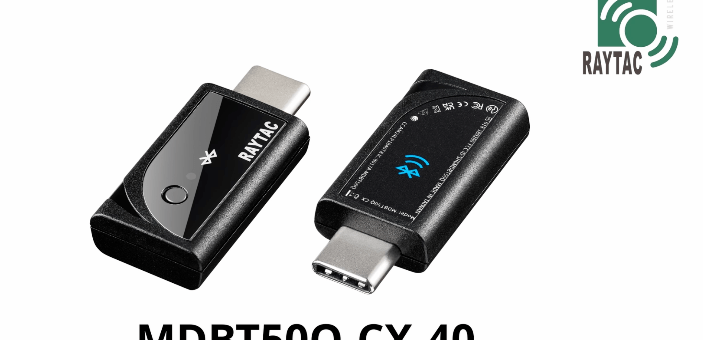
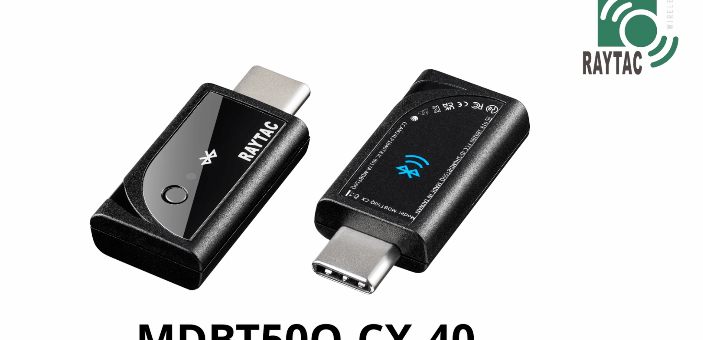
MDBT50Q-CX is an advanced version of Raytac’s MDBT50Q-RX(USB-A Dongle).

MDBT50Q-CX has a more compact size, equips an up-to-date Type C USB Connector, and it has a built-in open bootloader for simple DFU process.

If you’ve been developing projects using MDBT50Q-RX in the past, you can find out in this manual how MDBT50Q-CX makes firmware compiling and loading much easier than before.

If you want to load firmware into MDBT50Q-CX, no wiring is needed. 

Simply plug the dongle into your device and USB DFU will be available.

MDBT50Q-CX (USB-C Dongle, nRF52840/nRF52833 solution): Product link

Size: 15.10 x32.85mm (0.59×1.29inches)


Table of Contents

A. Hardware intro

B. Software development environment setup

C. Firmware Implementation with NCS (nRF Connect SDK) or NRF5 SDK

D. Execute DFU (Device Firmware Update)


A. Hardware Intro

 <Pin Allocation>

2

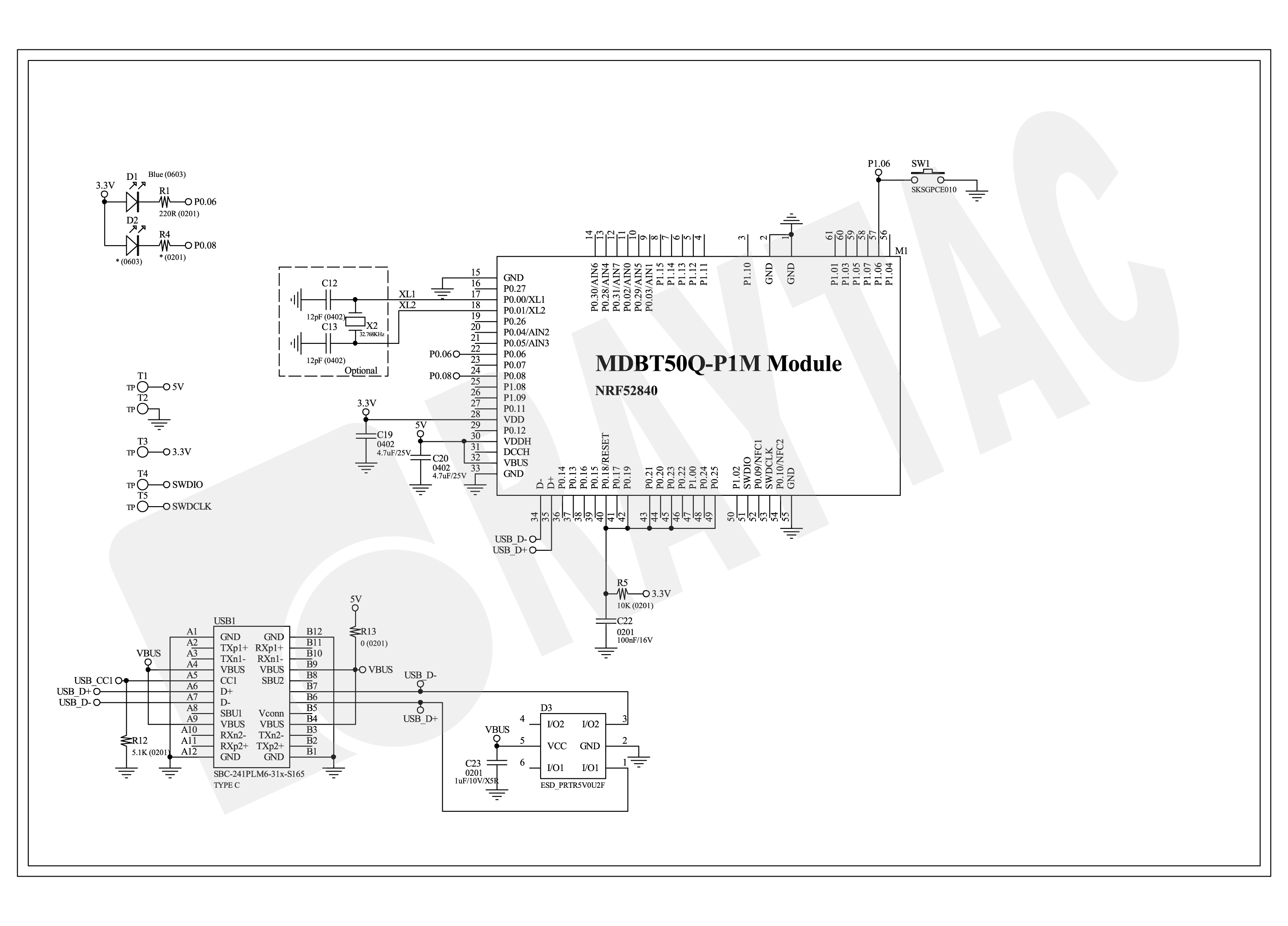
< Schematic> (Click on the image to redirect to product page for Higher resolution photo)

Schematic Spec_MDBT50Q-CX_-240806


B.  Software development environment setup

Option 1. Compile in NCS(nRF Connect SDK)

(1) Install nRF Connect for Desktop:

B1

(2) Install Toolchain Manager and Programmer

B2

(3) Install nRF Connect SDK (NCS) → V2.6.0 is recommended.

B3

Option2. Compile in nRF5 SDK

(1) Download open source nRF5 SDK (Recommend: download the latest version:  17.1.0)

B4

(2) Install Segger Embedded Studio v5.42a (Recommended version)

https://www.segger.com/downloads/embedded-studio/

B5

※Welcome to contact Raytac sales team for v5.42a file of Segger Embedded Studio.


C. Implement firmware in NCS (nRF Connect SDK) or NRF5 SDK

We will use the two example codes below for this demo:

C1. NCS (nRF Connect SDK):

Example code path: \v2.6.0\nrf\samples\bluetooth\peripheral_uart

C2. nRF5 SDK:

Example code path: \nRF5_SDK_17.1.0_ddde560\examples\peripheral\usbd_ble_uart


C1. NCS (nRF Connect SDK): (Using nRF Connect SDK V2.6.0)

Step C1-1. Add build configuration to Board name: nrf52840dongle_nrf52840

C1

Step C1-2. Disable DCDC & DCDCHV by adding the below code into  prj.conf  file

CONFIG_BOARD_ENABLE_DCDC=n

CONFIG_BOARD_ENABLE_DCDC_HV=n

C2

Step C1-3. Fix the VDD power to 3.0V or 3.3V in board.c  file

The default power is 3.0V if you use board name: nrf52840dongle_nrf52840.

In this case, you don’t need to alter the power.

C3

Step C1-4. Click the rebuild icon to reconfigure the program.

C4

Step C1-5. The program will be saved automatically in the path below:

C:\ncs\v2.6.0\nrf\samples\bluetooth\peripheral_uart\build\zephyr\zephyr.hex


C2. nRF5 SDK:

Step C2-1. Open the program under:

\nRF5_SDK_17.1.0_ddde560\examples\peripheral\usbd_ble_uart\pca10056\s140\ses\ usbd_ble_uart_pca10056_s140.emProject

Step C2-2.  Fix the VDD power supply to 3.0V or 3.3V.

C2-1

Step C2-3. Start editing the project by opening the solution in Editor.

C2-2

Change the board name from PCA10056(nRF52840-DK) to PCA10059(nRF52840 dongle).

Save and re-compile the program after the amendment.

C2-3

Click the program file name and save the modified project.

C2-4

Press “Yes” to re-load the new set up value into configuration.

C2-5

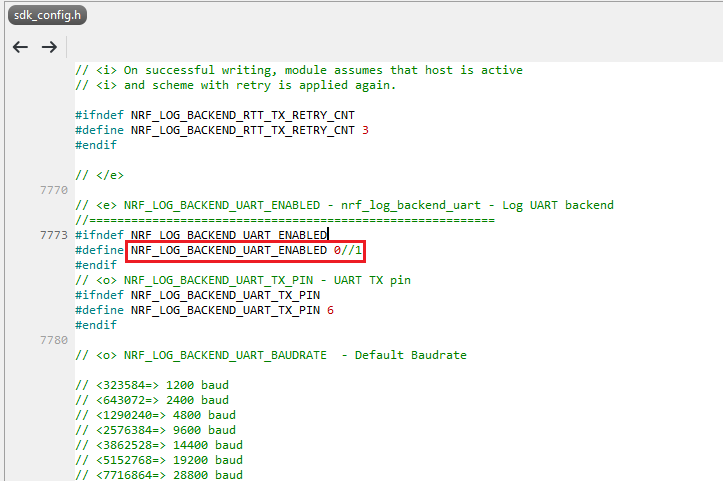
The default code in sdk_config.h is: NRF_LOG_BACKEND_UART_ENABLED 1 (in red frame);

Please change 1 to 0 to make the LED light work.

Stanley修改內容_20240806

Press “Rebuild Solution” to make sure all the parameters you’ve modified are reconfigured.

C2-6

Step C2-4. The program will be saved automatically under the path below:

V:\nRF5_SDK_17.1.0_ddde560\examples\ble_peripheral\ble_app_uart\pca10056\s140\ses\Output\Release\Exe\ble_app_uart_pca10056_s140.hex


D. Execute DFU (Device Firmware Update)

Reminder: 

No extra bootloader can be programmed into MDBT50Q-CX until you manually wire the pins on the PCB and erase the built-in bootloader.  You can simply operate DFU using MDBT50Q-CX’s bootloader.

Step D1. How to enable DFU?

(1) Press the button on MDBT50Q-CX

(2) Plug MDBT50Q-CX into your device while pressing the button

(3) Press and wait for approx.1 second until the LED light turns on. → DFU is activated.

(4) Release the button

※When Bootloader mode is enabled, the LED light on MDBT50Q-CX will twinkle continuously. 

D1

Step D2. Open the built-in DFU Bootloader

nRF Connect Desktop →  Programmer  → SELECT DEVICE  → Open DFU Bootloader

D2

You have successfully entered bootloader mode after you see the screen as below.

D3

Step D3. Add ready firmware file into the Programmer

(The program completed and saved during Step C1-5(NCS) or Step C2-4(nRF5 SDK))

※If you’re using nRF5 SDK, you need to add the soft device file into your program for loading firmware.

※Soft device path:

nRF5_SDK_17.1.0_ddde560\components\softdevice\s140\hex\s140_nrf52_7.2.0_softdevice.hex

D4

Step D4. Load the firmware and write it into the MDBT50Q-CX

D5

Step D5. Process FW DFU

D6

Step D6.  DFU Completed. The appointed firmware is successfully loaded into MDBT50Q-CX.

D7

※Any failure during the DFU process will leave you under bootloader mode.

Last-failure

If this happens, simply restart the firmware writing process from Step D4 to reload your firmware into MDBT50Q-CX.


Edited by Sales Manager: Ms. Jocelyn Tsai
Technical guidance provided by Firmware Deputy Manager: Mr. Stanley Huang

Raytac Corporation 勁達國際電子股份有限公司
Bluetooth & WiFi & LoRa module maker based on Nordic nRF54, nRF53, nRF52, nRF7002 solution
BT5.4 &BT5.3 & BT5.2 & BT5.1 Qualified, FCC/IC/CE/Telec/KC/RCM/SRRC/NCC/WPC Pre-Certified.
Bluetooth Solution: nRF54, nRF5340, nRF52840, nRF52833, nRF52832, nRF52820, nRF52811, nRF52810, nRF52805, nRF51822
WiFi Solution: nRF7002
http://www.raytac.com
email: sales@raytac.com
Tel: +886-2-3234-0208


Navigating RF Certification: A Guide to DTM and Radio Testing

RF Test – DTM & Radio Test

When launching new products, there is a requirement for RF testing, and two methods are commonly used:

DTM (Direct Test Mode) and Radio Test.


Nordic’s SDK provides two RF testing programs: DTM (Direct Test Mode) and Radio Test. While both methods can test RF indicators, they have some distinctions. DTM follows the Bluetooth specification’s Direct Test Mode data format (referenced in Bluetooth Core Specification Version 5.2, Vol. 6, Part F.), primarily for Bluetooth certification tests.

On the other hand, Radio Test focuses on the chip’s radio indicators, making it more suitable for FCC and ETSI certifications.

Let’s delve into detailed explanations for DTM and Radio Test programs.


DTM(Direct Test Mode)

The Bluetooth Association offers a feature for testing RF characteristics. Nordic has incorporated DTM firmware into the SDK according to SIG standard documents. Customers only need to modify the Baud Rate and UART TX/RX pins to conduct RF tests.

1. Download and install nRF Connect for desktop software and nRF5 SDK from the Nordic website.

nRF Connect for desktop download:

https://www.nordicsemi.com/Software-and-tools/Development-Tools/nRF-Connect-for-desktop/Download


nRF5 SDK download:

https://www.nordicsemi.com/Software-and-tools/Software/nRF5-SDK/Download#infotabs


2. Install the Direct Test Mode program in the nRF Connect for desktop software.


3. Extract the SDK package, open the DTM example code from

nRF5_SDK_vxx\examples\dtm\direct_test_mode\ board number\blank, modify TX and RX pins based on the target board’s definitions, then compile.

Download the program to the target board connected to the PC.
(Select the appropriate sample code based on the IC/module for testing, referring to the board number below.)

IC P/Nboard number
NRF52832pca10040
NRF52810pca10040e
NRF52840pca10056
NRF52811pca10056e
NRF52833pca10100
NRF52820pca10100e

RF testing is performed using UART TX/RX commands.
The SDK program defaults to certain positions, but users can modify these two pin positions according to their product design without changing the Baud Rate setting.

UART PinnRF51nRF52
TXDP0.09P0.06
RXDP0.11P0.08


4. Use nRFConnect DTM for testing by adjusting UART TX/RX pins.

Please refer to Video tutorial from link below:
https://github.com/NordicSemiconductor/pc-nrfconnect-dtm/blob/master/resources/screenshot.gif


Radio Test

Nordic provides a tool for simpler RF testing, allowing the configuration of radio-related data such as TX power, frequency, TX carrier, and TX modulation carrier through a Command List. It doesn’t include testing for RX sensitivity; if needed, users must either write a program for this test or use DTM for testing.

1. Open from nRF5_SDK_vxx\examples\peripheral\radio_test\board number\blank
(Based on the IC/module for testing, referring to the board number below.)

IC P/Nboard number
NRF52832pca10040
NRF52810pca10040e
NRF52840pca10056
NRF52811pca10056e
NRF52833pca10100
NRF52820pca10100e


2. This test also utilizes a Command-based approach to send instructions for different parameter tests. Compared to DTM, Radio Test is more flexible, offering a wider range of RF parameters to test.
The connection method between the target board and PC, serial port modifications, and the approach with DTM are identical.


3. Use the command-Line interface (CLI) through the serial port to control and test the output power, bitrate, and channel settings of the radio parameters during testing.

Additionally, configure the CLI to enable the 32 MHz high-frequency crystal oscillator.

The application allows setting scanning mode with intervals ranging from 1 millisecond to 99 milliseconds (per 1 millisecond) for each channel.


4. Refer to the Nordic CLI commands documentation for the command testing method.

https://infocenter.nordicsemi.com/index.jsp?topic=%2Fcom.nordic.infocenter.sdk5.v15.2.0%2Fnrf_radio_test_example.html&cp=4_0_0_4_5_29_0&anchor=nrf_radio_test_example_commands

5.Testing

Lastly, we can utilize Spectrum to test PCBA RF characteristics.


Edited by Sales Manager: Ms. Vicky Huang
Raytac Corporation 勁達國際電子股份有限公司
Bluetooth & WiFi module maker based on Nordic nRF54, nRF53, nRF52, nRF7002 solution                     

BT5.4 &BT5.3 & BT5.2 & BT5.1 Qualified, FCC/IC/CE/Telec/KC/RCM/SRRC/NCC Pre-Certified.         
Bluetooth Solution:  nRF54, nRF5340, nRF52840, nRF52833, nRF52832, nRF52820, nRF52811, nRF52810, nRF52805, nRF51822    WiFi Solution: nRF7002 
https://www.raytac.com email: mailto:sales@raytac.com Tel: +886.2.3234.0208           

Tips for Nordic’s nRF52840 DK to successfully detect Raytac’s MDBT50Q-DB-40 Demo Board

WHY Nordic’s DK cannot DETECT Raytac’s modules?

Some tips to fix this problem

Nordic’S board no : PCA10056 (nRF52840)

Raytac’s board no : MDBT50Q-DB-40 (nRF52840)


1. Update the version of nRF Command Line Tools from below link
https://www.nordicsemi.com/Products/Development-tools/nRF-Command-Line-Tools/Download?lang=en#infotabs

2. Update the version of jlink driver from below link.
https://www.segger.com/downloads/jlink/JLink_Windows_V780c_x86_64.exe


3. Update the version of nRF Connect for desktop.
nRF connect for desktop V4.1.2
Programmer V3.0.9


4. Add jumper wire for GND shown as the below red arrow to avoid the different power reference between these 2 boards.


5. Make sure that IDE cable connects correctly. Red edge of IDE cable should connect to PIN 1 of both boards.

6. Supply power to VDD of Raytac’s demo board before flashing.


Edited by Sales Manager: Ms. Gracie Chuang

Raytac Corporation 勁達國際電子股份有限公司

Bluetooth & WiFi module maker based on Nordic nRF54, nRF53, nRF52, nRF7002 solution
BT5.4 &BT5.3 & BT5.2 & BT5.1 Qualified, FCC/IC/CE/Telec/KC/RCM/SRRC/NCC Pre-Certified.
Bluetooth Solution: nRF54, nRF5340, nRF52840, nRF52833, nRF52832, nRF52820, nRF52811, nRF52810, nRF52805, nRF51822 WiFi Solution: nRF7002
https://www.raytac.com
email:service@raytac.com
Tel: +886.2.3234.0208

Understanding Wireless Certification and Compliance:A Guide to Module and Non-Module Approval Processes

Certification and compliance:

By obtaining wireless (Bluetooth) certification, manufacturers can demonstrate that their products comply with the required technical reliability. In another words, these certifications are like products’ passes, allow them legally entering the market and be able to import or export specific countries. Modular approval and Non-modular approval are two different approaches to the certification and regulatory processes for wireless communication devices.

Modular approval is a process in which a wireless device is certified as a modular component, such as a Bluetooth module, that can be integrated into multiple host devices without additional testing for each host device. Once certified, the module can be used in various host devices without undergo the same level of testing.

Non-modular approval is also known as end-product approval, is the traditional certification process for wireless devices, where the entire device needs to be tested and certified for compliance with wireless (Bluetooth) standards and regulations.

Countries follow and under modular approval such as FCC (USA), IC (Canada), Telec (Japan), KC (South Korea), NCC(Taiwan), SRRC(China)…etc.Meanwhile, countries are under non-modular approval, we have CE (Europe), RCM (Australia and New Zealand)…etc.

The elaboration and the easy steps on how the process we go through as you choose Raytac, detail for each as following:

Modular Approval:

FCC  (USA)
FCC ID Search | Federal Communications Commission
1. Part 15C –> Simply use our module FCC ID on product label
2. Part 15B (EMC) –> request lab to test on EMC, SDoc*
*Definition: SDoc(Supplier’s Declaration of conformity)
One way to show that a product, process or service to comply with a standard or technical regulation, in which a supplier provides written assurance of conformity to the specified requirements.

IC (Canada)
IndustryCanda Wireless ID Database (industrycanada.co)
1.Similar to FCC –> Simply use our module IC ID on product label.
2.–> request lab to test finished good on EMC (IC ES003).
Recommend combining test with FCC Part 15B

Telec (MIC)(Japan)
MIC ICT Policy (soumu.go.jp)
1.–> Simply use our module Telec ID on product label
2.Different from the USA and Canada –> EMC is optional in Japan, upon on end customer’s request.

KC  (South Korea)
South Korea – Labeling/Marking Requirements (trade.gov)
1. Wireless test can be continued to use module report, new test is not required.
2. EMC KN301489(same rule as CE EN301489)
–> to be tested based on final goods under EMC test policy. Same rules as FCC and IC.
Recommend combining test with FCC Part 15B.
3. If product obtain additional cable IO port, test on KN3235 is required.
4. To be KC certified, the new test is required, certification no. cannot be continued to use from other policy. And the test must be done locally.

NCC (Taiwan)
NATIONAL COMMUNICATIONS COMMISSION (ncc.gov.tw)
1. Products is compliant with platform policy –> lab submit photo and add product under Raytac NCC no.
2. Products is not compliant with platform policy –> product must be tested as final goods at the lab to be certified.
*Definition: platform policy: product itself has it’s own function before Bluetooth was installed. For example, a Bluetooth installed pen has a new function; it vibrates when the switch is on. In this scenario, pen originally has it’s own function, and now the addition function; vibration has been added to this device. We say this product is compliant with platform policy.

SRRC (China)
State Radio Regulation of China (srrc.org.cn)
1. –>Simply use our module SRRC ID on product label.
2. Products doesn’t under the category of home electronics / office supplies, SRRC test must be implemented.

Non-Modular Approval:

CE  (Europe)
CE Marking (trade.gov)
1. Wireless test: EN300328
–> Conducted test could continue to use Raytac ‘s CE report.
–> Radiated test is required to be tested based on final goods under wireless regulation.
2. EN301489 (EMC) –> Same rules as FCC and IC. Recommend combining test with FCC Part 15B
3. Safety test: EN60950 (EN62368)–> safety test is required to be tested based on final goods under regulation.

RCM (Australia and New Zealand)
The Regulatory Compliance Mark (RCM) (General) – EESS
1. Products is CE certified –>lab can copy CE report to apply RCM
2. Products is not CE certified –> go through the same test as CE regulations.

Overall, it’s important to note that the certification process and requirements may vary across different regions. Manufacturers should consult the relevant certification authorities to determine the specific requirements for their wireless devices.
Raytac already took a step ahead gone through complex procedures of obtaining certifications, and we also have strong IT team to support for best solutions.Choosing Raytac would allow you to work more efficient and it will be your key in success for all the projects.

Edited by Sales Manager: Mandy Chao

Raytac Corporation 勁達國際電子有限公司
A Bluetooth & WiFi module maker based on Nordic nRF54, nRF53, nRF52, nRF7002 solution 
www.raytac.com email: service@raytac.com Tel: +886.2.3234.0208           


How To USE Nordic Connect SDK (NCS) Flashing Built Code into nRF5340 Module

Edited by Jocelyn Tsai / Account Manager

Intro:  With the ready built code of zephyr.hex file for net core and application core individually, we would like to proceed code flashing into the MDBT53/53V Nordic nRF5340 BLE module.

  • Ready Built Code Programming Steps

Step1. 

Execute nRF Connect >>  Programmer  > > Open

Step2.

Click “SELECT DEVICE” >> Find icon of “nRF5340 DK” which is detected by the programmer app

Step3.

Click icon of “nRF5340 DK” >> “Erase All” to remove the flash memory from MDBT53/53V BLE Module

Step4.

Click “Add File” to load the net core zephyr.hex and application core zephyr.hex both into programmer

Step5.

Do “Erase & Write ” to execute the flashing process for both zephyr.hex into memory of MDBT53/53V Module.

Step6.

To validate the wireless broadcast of default name “Nordic_UART_Service” from MDBT53/53V Module, please check on the “nRF Connect for mobile” APP and do “Scan device” through your mobile.   

Once the device name is detected in your mobile , the wireless connection is successfully done.

There are some more useful resources in the below links:
Hardware set up works
“How To Get started with Nordic nRF5340 Project by Raytac MDBT53/MDBT53V Development Kit Demo Board"
Firmware development:
“How To Get Started With nRF5340 Module Program Coding and Compiling" (Click Me)

Edited by Account Manager: Jocelyn Tsai

Raytac Corporation 勁達國際電子有限公司
A BT5.2 & BT5.1 & BT5 module maker based on Nordic nRF53 & nRF52 solution 
(nRF5340 & nRF52840 & nRF52833 & nRF52832 & nRF52820 & nRF52811 & nRF52810 & nRF52805)
www.raytac.com email: service@raytac.com Tel: +886.2.3234.0208

How To Get started with Nordic nRF5340 Project by Raytac MDBT53/MDBT53V Development Kit Demo Board

Edited by Jocelyn Tsai / Account Manager

Here provides the easy introduction to the article of Hardware & Firmware Set up with step-by-step guidelines for nRF5340 Module demo board MDBT53-DB-40/MDBT53V-DB-40.

  1. Hardware Set Up
  2. Software Kits Resource & Preparation
  3. To recognize your nRFConnect SDK version case by case

1. Hardware Set Up

  • 1 x Nordic nRF5340-DK Board: PCA10095(2.0.0)
  • 1 x MDBT53-DB-40 or 1x MDBT53V-DB-40
  • 1 x IDC Wire 
  • 1 x Power Micro USB
  • 1 x Power Mini USB

**Reminder: Both “Nordic nRF5340-DK” and “Raytac MDBT53/53V Demo BD” should be included into the working network for program development.

Where to buy MDBT53-DB-40 , MDBT53V-DB-40
MDBT53-DB-40 (nRF5340 Solution)
MDBT53V-DB-40 (nRF5340 Solution)

  • Using Nordic DK as J-Link ( nRF5340 DK ONLY) Connects with MDBT53/53V DB by IDC wire.
  • Powered up MDBT53/53V DB by Mini USB wire.
  • Powered up the nRF5340-DK by Micro USB wire.


2.Software Kits Resource & Preparation

Download nRF Connect For Desktop (Please Click Me)

Download nRF Command Line Tools (Please Click Me)

Preparation

a. Prepared with the latest version of nRF Connect for Desktop

Selected version 3.12.0 Windows 32-bit and 64-bit

nrfconnect-setup-3.12.0-ia32.exe

b. Prepared with the latest version of nRF Command Line Tools

Selected version 10.18.1 Windows X86 64

nrf-Command-Line-Tools-10.18.1-x64.exe

**Note: SEGGER J-LINK Upgrade message might pop up while you’re doing above download.

 If you’re initiating Segger Embedded Studio (SES) application, please check the guideline here

c. Locate all the necessary kits for programming in PC (Check Software/Application list)


3. To recognize your nRFConnect SDK version case by case

Intro: The preparation of nRF Connect SDK Vx.x.x(NCS SDK version, ) and Nordic Example code will help you get through the program code building and trace debug in VS Code IDE or Segger Embedded Studio IDE. Here’s the brief way to recognize your nRFConnect SDK version which suits your project development.

Step1.

  Activated your “nRF Connect for Desktop”  >> “Toolchain Manager” >> “Open” >> “Install”

(**Note: The development nRF Connect SDK(NCS) provides with free VS Code IDE and Segger Embedded Studio IDE as compiling system)

Step2.

To recognize your project is with or without Audio inquiry and download the “nRF Connect SDK(NCS)” by the following classification.

A.) Project with Non-Audio case

Option1. Go with NCS V1.9.1 (Included) and previous version.

There’re either “Open VS Code” or “Open Segger Embedded Studio” IDE options could be selected for program coding.

Option2. Go with NCS V2.0.0(included) and the later.

 There’s simply “Open VS Code” IDE that could be run for program coding.

B.) Project with “Audio” inquiry

You would only have option of NCS V2.0.0(included) and the later version working in “Open VS Code” IDE.

Step3.

 Please make sure the nRFConnect SDK is installed at same base directory with compiling system  (the root of Open VS Code)

(This is using D:\ncs-work base as example.)    

If the base is not directing to the same, do “Select directory’” to re-direct the route.

Step4.

nRFConnect SDK Vx.x.x Download ready

Find more information about nRF5340 Module firmware development resources in below link!

“How To USE Nordic Connect SDK (NCS) Flashing Built Code into nRF5340 Module" , Please click this link! 

“How To Get Started With nRF5340 Module Program Coding and Compiling" Please click this link


Raytac Corporation 勁達國際電子有限公司
A BT5.2 & BT5.1 & BT5 module maker based on Nordic nRF53 & nRF52 solution 
(nRF5340 & nRF52840 & nRF52833 & nRF52832 & nRF52820 & nRF52811 & nRF52810 & nRF52805)
www.raytac.com email: service@raytac.com Tel: +886.2.3234.0208

Find nRF5340 module here!

Where to find nRF5340 module quickly? The nRF5340 a dual core solution deployed with 2 Arm Cortex M33 processors. Not only provide faster and powerful for advanced applications, but also LE audio. Raytac knows your anxiety and already distributed the modules available in several channels aimed to provide a speedy and comfortable way to get it.

Buy From Amazon
By From Digi-Key

Raytac Corporation 勁達國際電子有限公司
A BT5.2 & BT5.1 & BT5 module maker based on Nordic nRF53 & nRF52 solution 
(nRF5340 & nRF52840 & nRF52833 & nRF52832 & nRF52820 & nRF52811 & nRF52810 & nRF52805)
www.raytac.com email: service@raytac.com Tel: +886.2.3234.0208