How To Get started with Nordic nRF5340 Project by Raytac MDBT53/MDBT53V Development Kit Demo Board

Edited by Jocelyn Tsai / Account Manager

Here provides the easy introduction to the article of Hardware & Firmware Set up with step-by-step guidelines for nRF5340 Module demo board MDBT53-DB-40/MDBT53V-DB-40.
  1. Hardware Set Up
  2. Software Kits Resource & Preparation
  3. To recognize your nRFConnect SDK version case by case

1. Hardware Set Up

  • 1 x Nordic nRF5340-DK Board: PCA10095(2.0.0)
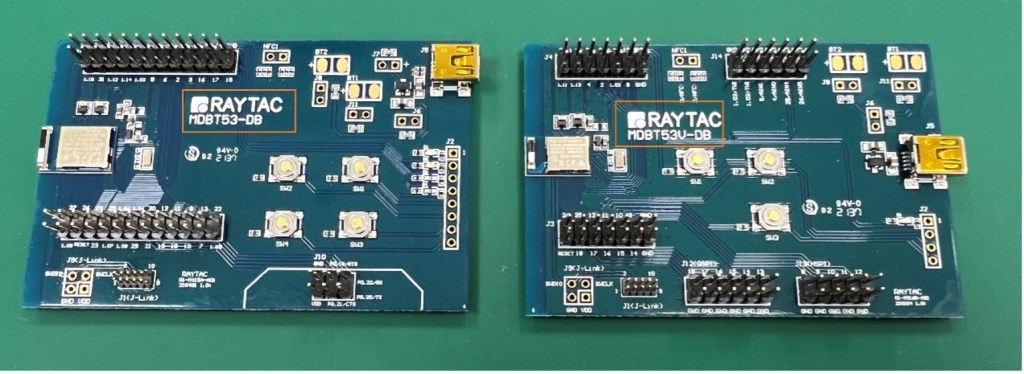
  • 1 x MDBT53-DB-40 or 1x MDBT53V-DB-40
  • 1 x IDC Wire 
  • 1 x Power Micro USB
  • 1 x Power Mini USB

**Reminder: Both “Nordic nRF5340-DK” and “Raytac MDBT53/53V Demo BD” should be included into the working network for program development.

Where to buy MDBT53-DB-40 , MDBT53V-DB-40
MDBT53-DB-40 (nRF5340 Solution)
MDBT53V-DB-40 (nRF5340 Solution)

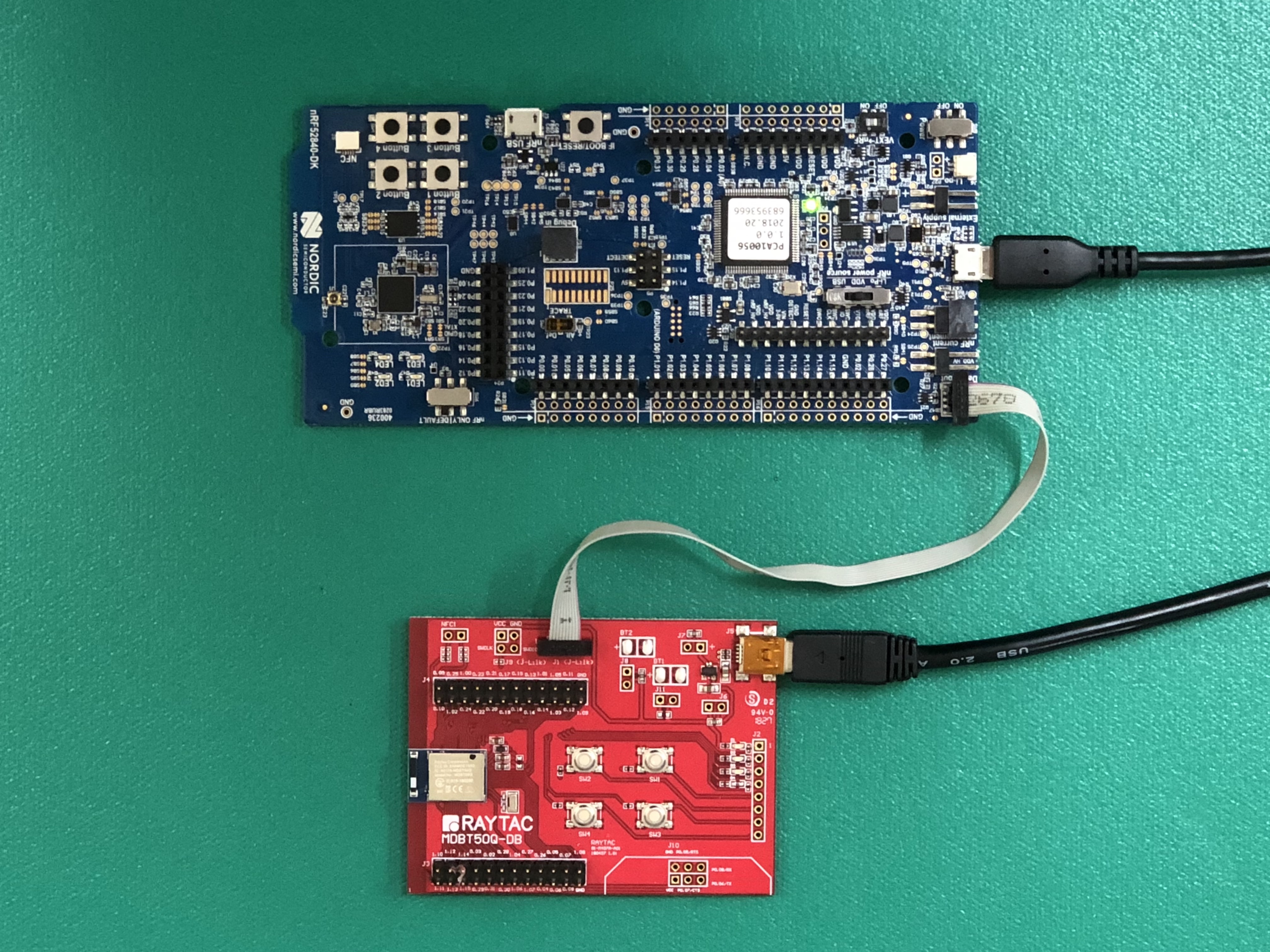
  • Using Nordic DK as J-Link ( nRF5340 DK ONLY) Connects with MDBT53/53V DB by IDC wire.
  • Powered up MDBT53/53V DB by Mini USB wire.
  • Powered up the nRF5340-DK by Micro USB wire.


2.Software Kits Resource & Preparation

Download nRF Connect For Desktop (Please Click Me)

Download nRF Command Line Tools (Please Click Me)

Preparation

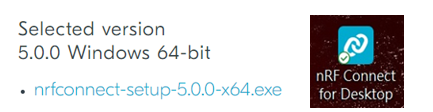
a. Prepared with the latest version of nRF Connect for Desktop
Selected version 3.12.0 Windows 32-bit and 64-bit

nrfconnect-setup-3.12.0-ia32.exe

b. Prepared with the latest version of nRF Command Line Tools

Selected version 10.18.1 Windows X86 64

nrf-Command-Line-Tools-10.18.1-x64.exe

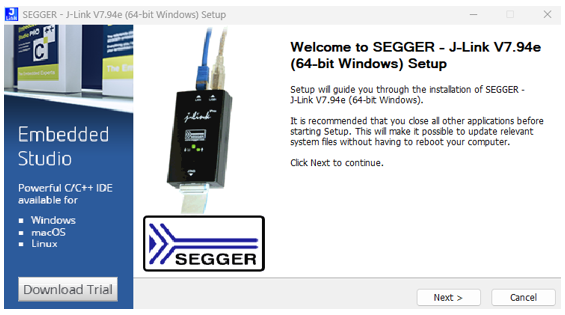
**Note: SEGGER J-LINK Upgrade message might pop up while you’re doing above download.

 If you’re initiating Segger Embedded Studio (SES) application, please check the guideline here

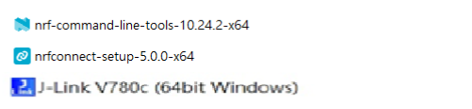
c. Locate all the necessary kits for programming in PC (Check Software/Application list)



3. To recognize your nRFConnect SDK version case by case

Intro: The preparation of nRF Connect SDK Vx.x.x(NCS SDK version, ) and Nordic Example code will help you get through the program code building and trace debug in VS Code IDE or Segger Embedded Studio IDE. Here’s the brief way to recognize your nRFConnect SDK version which suits your project development.

Step1.

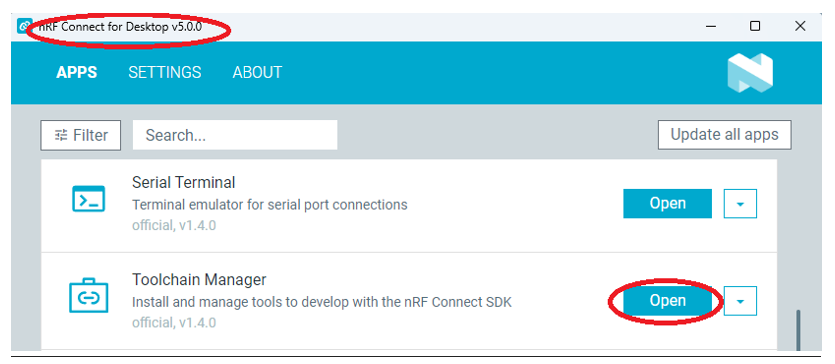
  Activated your “nRF Connect for Desktop”  >> “Toolchain Manager” >> “Open” >> “Install”

(**Note: The development nRF Connect SDK(NCS) provides with free VS Code IDE and Segger Embedded Studio IDE as compiling system)
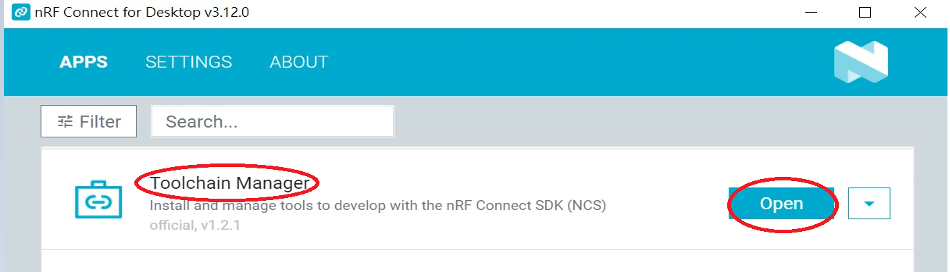
Step2.

To recognize your project is with or without Audio inquiry and download the “nRF Connect SDK(NCS)” by the following classification.

A.) Project with Non-Audio case

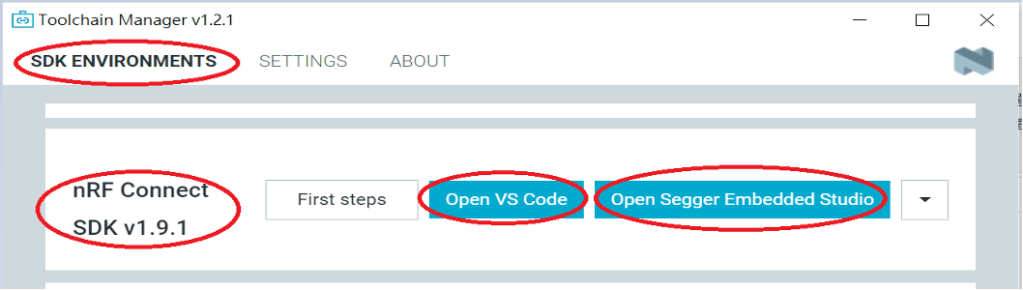
Option1. Go with NCS V1.9.1 (Included) and previous version.

There’re either “Open VS Code” or “Open Segger Embedded Studio” IDE options could be selected for program coding.
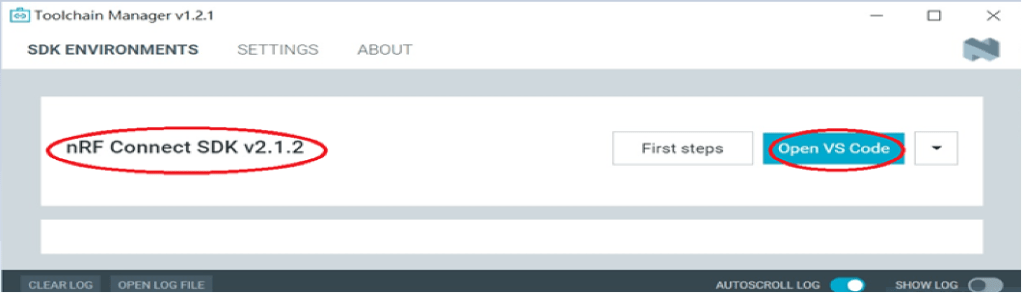
Option2. Go with NCS V2.0.0(included) and the later.

 There’s simply “Open VS Code” IDE that could be run for program coding.
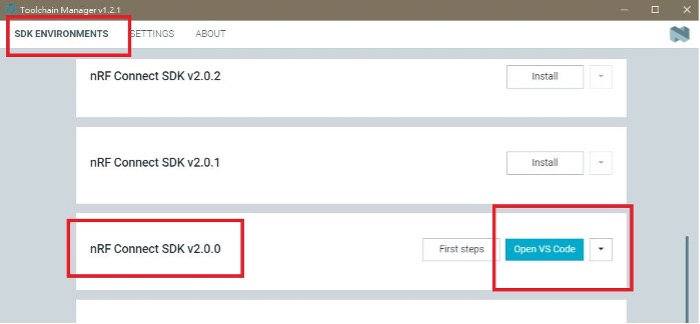
B.) Project with “Audio” inquiry

You would only have option of NCS V2.0.0(included) and the later version working in “Open VS Code” IDE.
Step3.

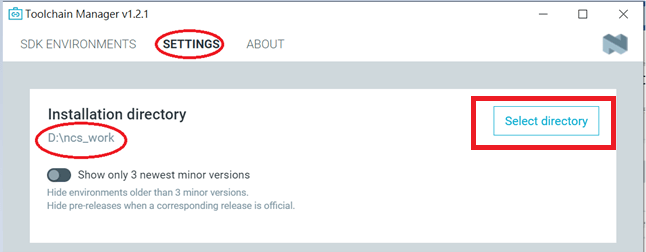
 Please make sure the nRFConnect SDK is installed at same base directory with compiling system  (the root of Open VS Code)

(This is using D:\ncs-work base as example.)    
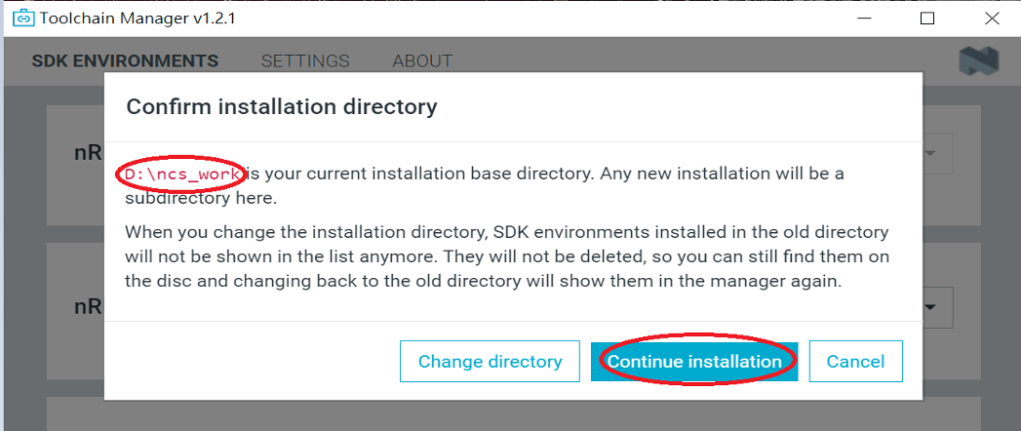
If the base is not directing to the same, do “Select directory’” to re-direct the route.
Step4.

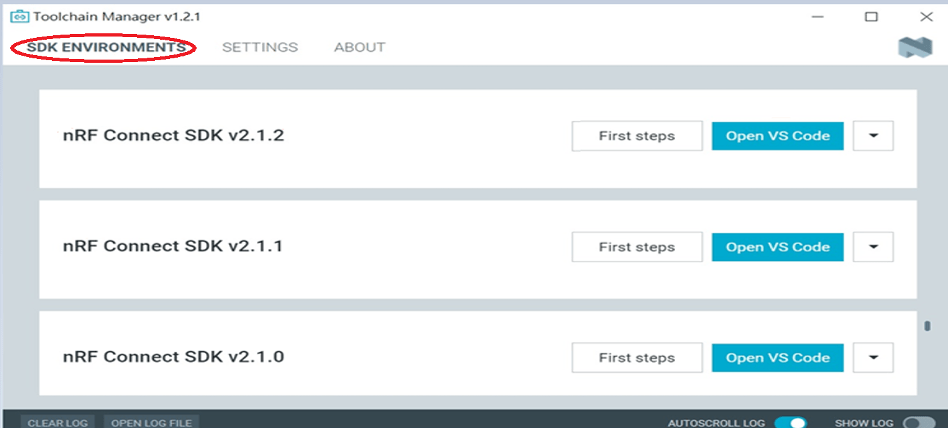
nRFConnect SDK Vx.x.x Download ready
Find more information about nRF5340 Module firmware development resources in below link!

“How To USE Nordic Connect SDK (NCS) Flashing Built Code into nRF5340 Module" , Please click this link! 

“How To Get Started With nRF5340 Module Program Coding and Compiling" Please click this link


Raytac Corporation 勁達國際電子有限公司
A BT5.2 & BT5.1 & BT5 module maker based on Nordic nRF53 & nRF52 solution 
(nRF5340 & nRF52840 & nRF52833 & nRF52832 & nRF52820 & nRF52811 & nRF52810 & nRF52805)
www.raytac.com email: service@raytac.com Tel: +886.2.3234.0208
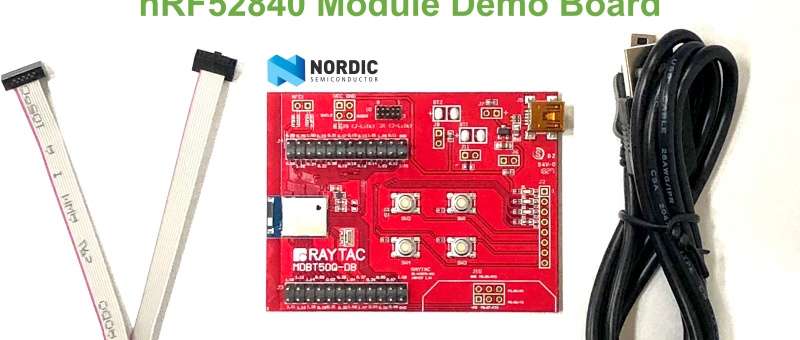
How To Use nRF52840/nRF52833 module DevKit(MDBT50Q series) – 2024 Update – Applied to nRF5 SDK

Preface:
Here provides an easy introduction of How to set up of nRF52840 & nRF52833 Module Demo board MDBT50Q-DB-40 (for nRF52840) & MDBT50Q-DB-33 (for nRF52833)


MDBT50Q-DB-40  is a Demo Board built by Raytac’s MDBT50Q-1MV2  with Red PCBA deployed nRF52840 SoC with Bluetooth 5 & Thread Combo, with 1MB Flash Memory and 256KB RAM and Chip Antenna.
 
MDBT50Q-DB-33 is a Demo Board built by Raytac’s MDBT50Q-512K with Green PCBA deployed nRF52833 SoC with Bluetooth 5 & Thread Combo, with 512KB Flash Memory and 128KB RAM and Chip Antenna.
 
Both demo boards are Bluetooth BT5.4 qualified and FCC, IC, CE, Telec, KC, SRRC, RCM, NCC, WPC pre-certified.

Table of contents:

1.1 Hardware Set Up

1.2 Software Kits resources & preparations

1.3 Flash the ready firmware into Raytac’s module

1.4 DFU to MDBT50Q-DB-XX through USB interface 


1.1 Hardware Set Up
 
MDBT50Q-DB-XX package contains:
  • 1 x MDBT50Q-DB-40/MDBT50Q-DB-33
  • 1 x IDC Wire
  • 1 x Data/Power Mini USB Wire(for data transferring)

Where to buy MDBT50Q-DB-XX?

MDBT50Q-DB-40 (nRF52840 Solution)

MDBT50Q-DB-33 (nRF52833 Solution)
Connect Nordic NRF52-DK/NRF52840-DK Connect with MDBT50Q-DB-40 by IDC Wire

※Note: PCA10056 (NRF52840-DK) / PCA10040 (NRF52832-DK) / PCA10100(NRF52833-DK)

Power up MDBT50Q-DB-XX using Mini USB

IMG_0064.jpg
MDBT50Q-DB-40

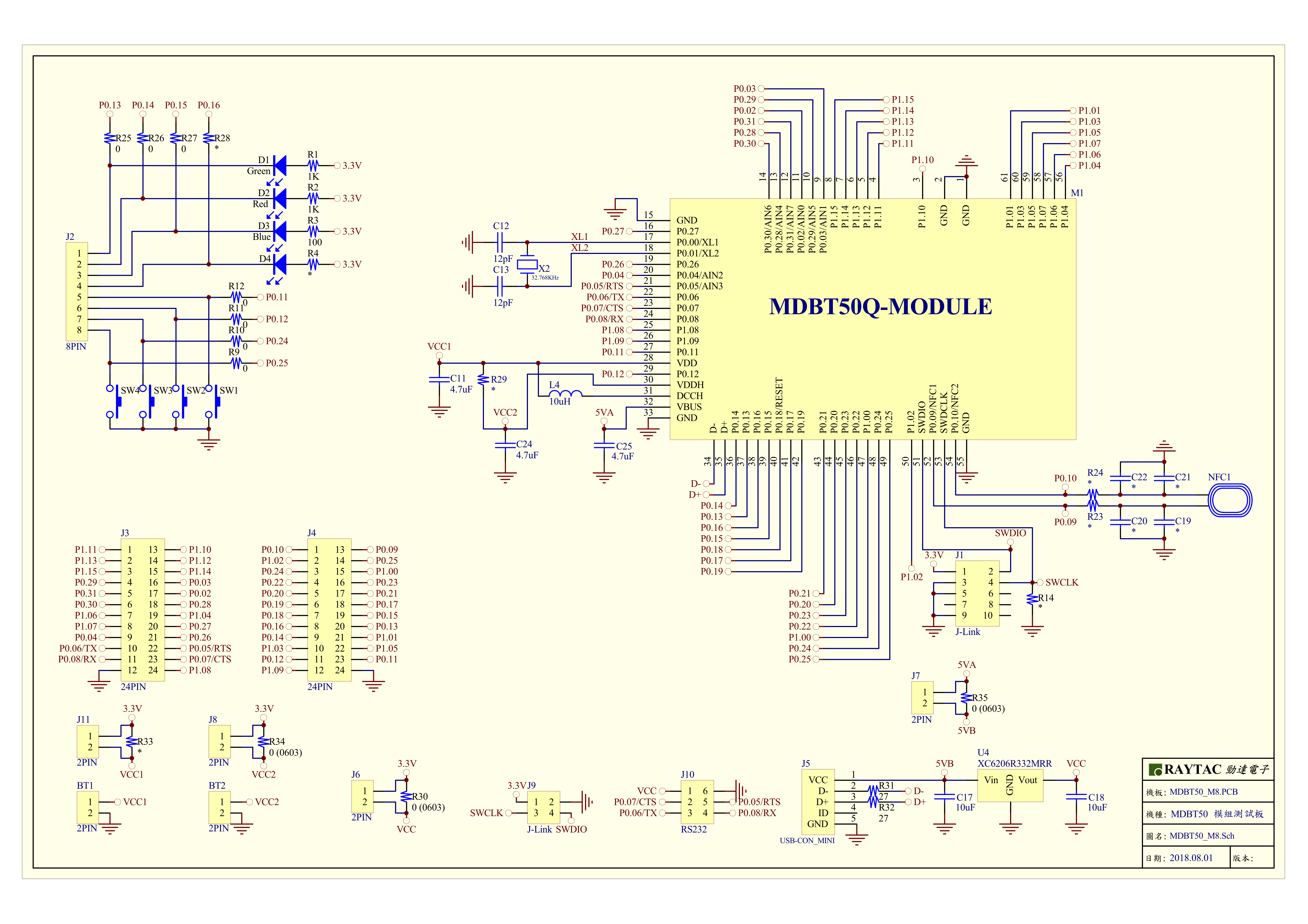
MDBT50Q-DB-40 Schematic:

MDBT50Q Demo Board Schematic-V2.jpg

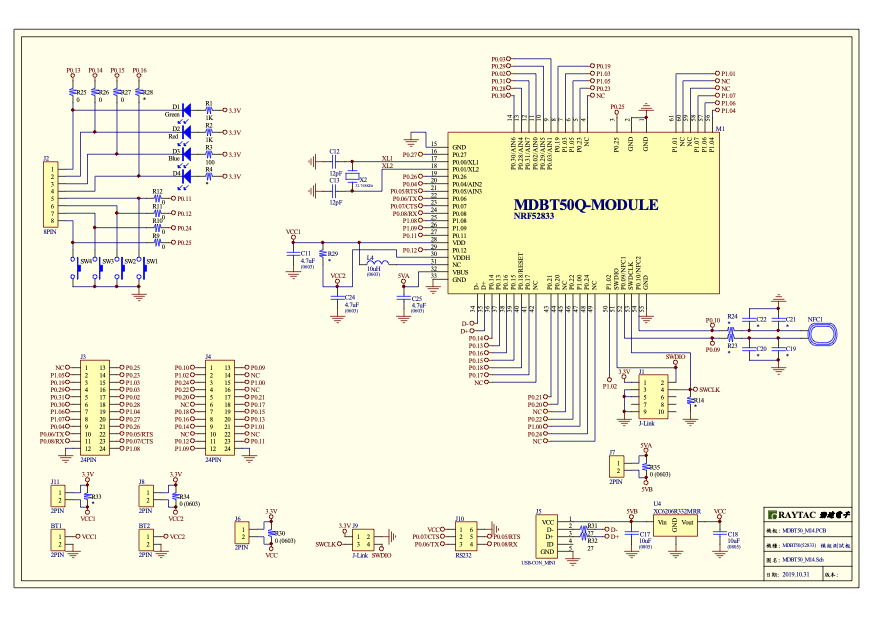
MDBT50Q-DB-33 Schematic:

MDBT50Q-DB-33 Schematic


1.2 Software kits resources & preparations

Resources:

Download nRF Connect For Desktop (Please Click Me)

Download nRF Command Line Tools (Please Click Me)

Download NRF5 SDK (The latest V17.1.0) (Please Click Me)

Download Visal Studio Code(Please Click Me)

Preparations:

Option 1.  NRF5 SDK (The latest version V17.1.0)

  1. 1.0_ddde560\components\softdevice\s140\hex\ s140_nrf52_7.2.0_softdevice.hex
  2. 1.0_ddde560\examples\ble_peripheral\ble_app_uart\pca10056\s140\arm5_no_packs\_build\ nrf52840_xxaa.hex

*Tips: If you go with nRF5 SDK option, please consider to add a bootloader hex file if you’re going to make DFU requests in the future.

Option 2.  NCS (Recommended version V2.6.0)

螢幕擷取畫面 2024-06-04 161138

2A.  Find “Toolchain Manager” in app nRFConnect for Desktop

螢幕擷取畫面 2024-06-04 161251

2B.  Install nRFConnect SDK V2.6.0 to your working site.

螢幕擷取畫面 2024-06-04 161333

2C. Prepared with the latest version of nRF Command Line Tools
螢幕擷取畫面 2024-06-04 161627
 
**Note: SEGGER J-LINK Upgrade message might pop up while you’re doing above download.
螢幕擷取畫面 2024-06-04 161724
 
2D. Locate all the necessary kits for programming in PC

螢幕擷取畫面 2024-06-04 161810


1.3 Flash the ready firmware into Raytac’s module

Intro:

With the ready built code of zephyr.hex (Made through NCS) or nrf52840_xxaa.hex & s140_nrf52_7.2.0_softdevice.hex (Made through nRF5-SDK) file for application, we would like to move onto  flashing code into the MDBT50Q BLE module(mounted on MDBT50Q-DB-XX demo board).

Step1.  

Execute nRF Connect >>  Programmer  > > Open

螢幕擷取畫面 2024-06-04 161858

Step2.

Click “SELECT DEVICE” >> Find icon “nRF52840 DK” which is detected by the programmer app

螢幕擷取畫面 2024-06-04 162005

Step3.

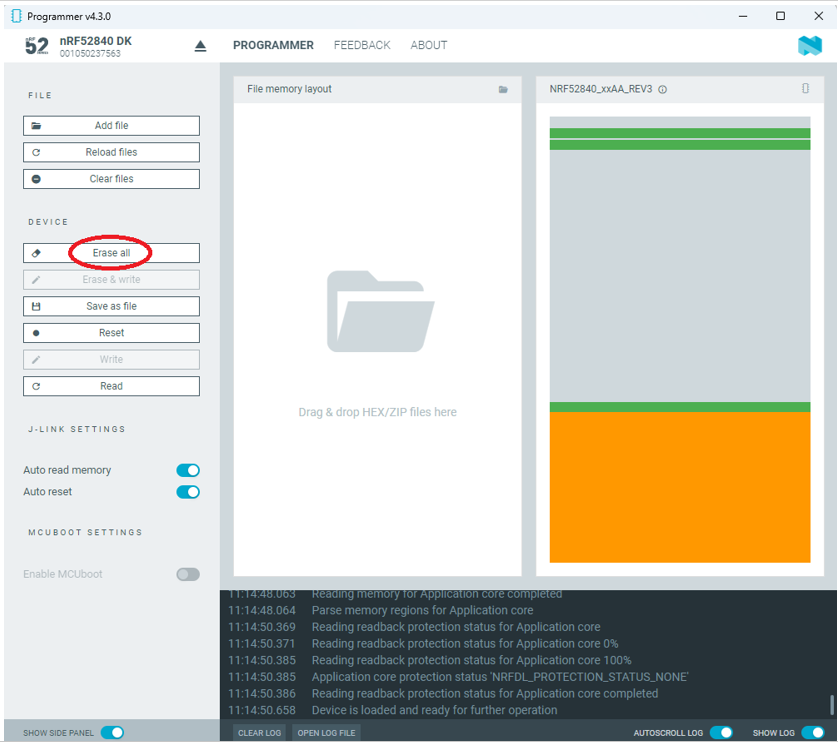
Click “nRF52840 DK”>> “Erase All” to remove flash memory inside MDBT50Q BLE Module

螢幕擷取畫面 2024-06-04 162106

Step4.

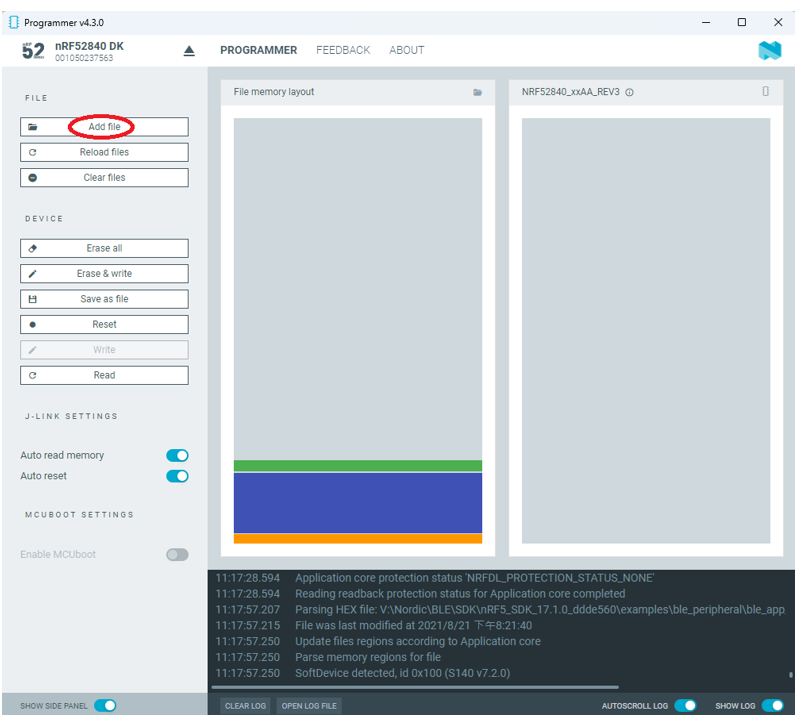
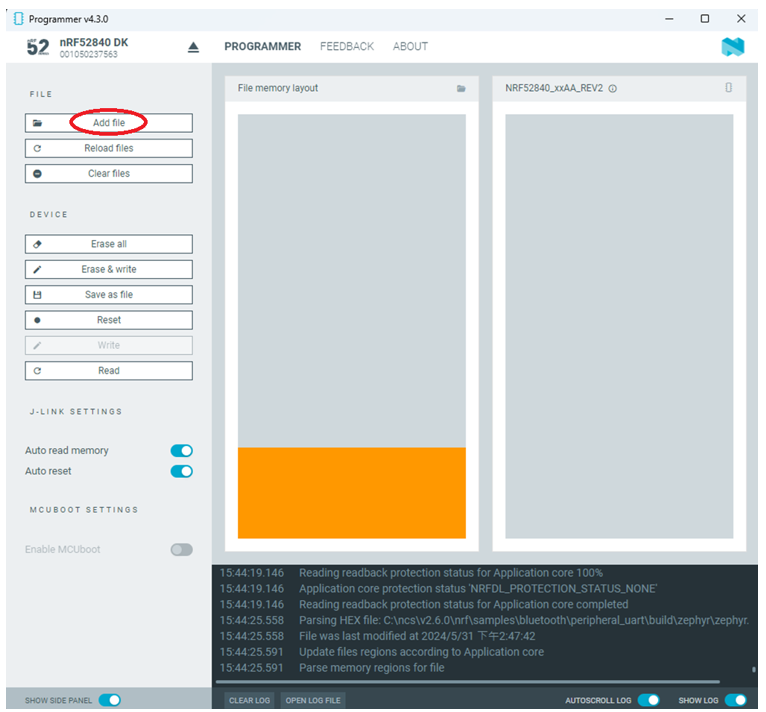
Click “Add File” to load application zephyr.hex into programmer

螢幕擷取畫面 2024-06-04 162202

!! Important Tips:!!


  • If you’re using nRF Connect SDK for code compiling as above, Program the hex file to MDBT50Q BLE module on the MDBT50Q-DB Demo board:
    – C:\ncs\v2.6.0\nrf\samples\bluetooth\peripheral_uart\build\zephyr\zephyr.hex
  • If you’re using NRF5 SDK for code compiling, do make the 4-in-1 hex file (merged ready) before programming it to MDBT50Q BLE module.  It includes the 4 hex files below:

(1) bootloader.hex

(2) bootloader_setting_file.hex

(3) s140_nrf52_7.2.0_softdevice.hex

(4) nrf52840_xxaa.hex

螢幕擷取畫面 2024-06-04 162300


1.4 DFU to MDBT50Q-DB-XX through USB interface

Intro : Before DFU implement , Please make sure the bootloader file has been installed in your MDBT50Q BLE module.

※Note: NRF52840 SoC supports USB interface to utilize Device Firmware Update (DFU).

How do I prepare the software??

  • Download nrfutil.exe file from Nordic website .
  • It is workable to do List, Program, Recover, Erase, and operations with nRFutil device command to Nordic device.
  • Open DOS mode to install device command type: nrfutil install device

(Jocelyn) How To Use NRF52840 NRF52833 module Dev Kit (MDBT50Q Series) 2024 version - Release file

How do I setup the hardware??

  1. Press Switch 4 and hold
  2. Power up Demo Board
  3. Blue LED Lights on
  4. Demo Board successfully enters into USB DFU Mode

螢幕擷取畫面 2024-06-04 162504

How do I prepare the firmware??

**USB DFU works only in DOS mode.

**USB DFU only works when USB Bootloader installed in current loaded firmware (inside BLE Module)

A single, merged 4-in-1 hex file is required, which includes:

Bootloader, Bootloader setting, Softdevice, and Application.

Firmware DFU requires a .zip file.

USB DFU Execution Steps:

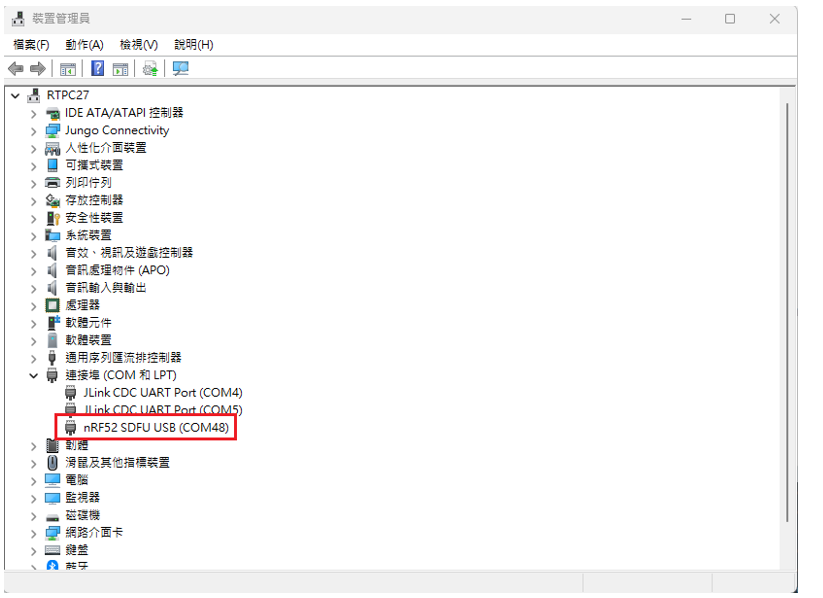
Step 1. When Blue LED Lights on with MDBT50Q-DB (Ready to enter USB DFU Mode)

Step 2. Find out Com Port No. “nRF52 SDFU USB(COMxx)”

螢幕擷取畫面 2024-06-04 162542


Step 3. Execute USB DFU

Option 1. Using device program command:

(1) List the devices with a DFU trigger interface by running:

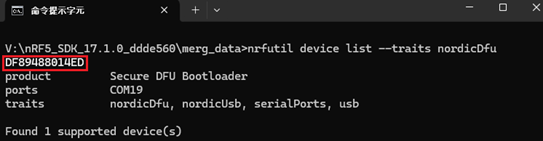
nrfutil device list –traits nordicDfu

Option1-1

(2) Program new firmware to a device identified by its serial number by running:

nrfutil device program –firmware .zip nrf52840_xxaa.zip –serial-number XXXXXXXXXXXX

Option1-2