New U.S. Headquarter Address: 17800 Castleton Street, Suite 238, City of Industry, CA 91748, USA Phone: 626.328.3827 Our new location strengthens our operational capabilities in the United States, enabling faster logistics, enhanced customer support, and expanded service coverage. We look forward to continuing to serve our partners and customers from our new facility.
Raytac Corporation 勁達國際電子股份有限公司 / Raytac Corporation (USA) / abietec Inc. A Bluetooth, Wi-Fi, and LoRa Module Maker/ODM & OEM Manufacturer based on Nordic nRF54; nRF53: nRF52; nRF51; nRF7002 Semtech Specification: SX1262
We are thrilled to announce that Raytac Corporation will be participating in Embedded World 2025 from March 11 to March 13, 2025, at the Nuremberg Exhibition Centre in Germany.
IoT and Wireless technologies such as Bluetooth Low Energy (BLE), Wi-Fi, and LoRa…etc. continue to reshape industries worldwide, that’s why Raytac is at the forefront, providing cutting-edge solutions that accelerate product development. Together with our partner, Nordic Semiconductor, we offer a comprehensive range of modules designed to meet the increasing demands of today’s connected world.
This year, we have exciting innovations to showcase:
Unveiling our new service: Customized OEM/ODM designing for customers.
These are just a few of the groundbreaking solutions we’ll be unveiling. You won’t want to miss the chance to experience these with us!
What to Expect at Our Booth:
Live demonstrations showing how Raytac’s modules can be implemented in multiple industries.
Discover how our modules can reduce development time and costs, making your projects more efficient.
One-on-one consultations with our experts to help you find the right solutions for your needs.
Stop by and visit us at: HALL 3 Booth 3-111 M2M Area
We would love to connect with you and discuss how Raytac can support your next project. Whether you’re an engineer, developer, or business decision-maker, we have something for everyone at Embedded World 2025.
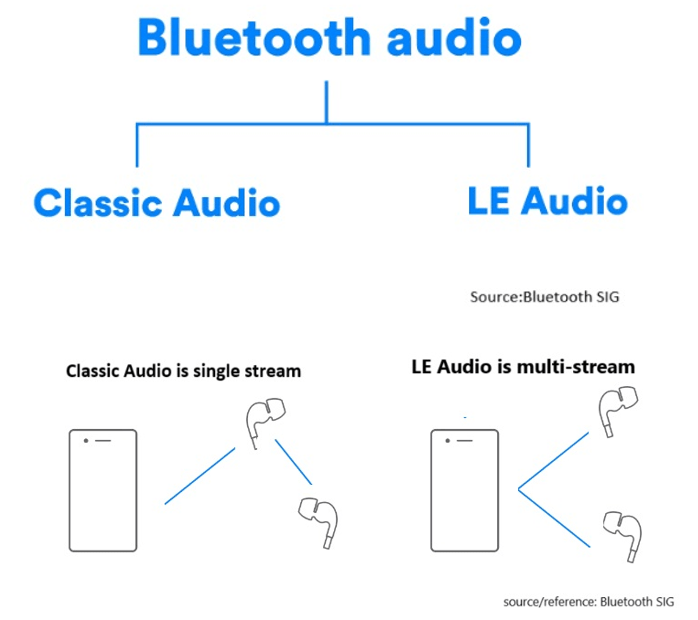
LE Audio, introduced with Bluetooth 5.2, brings significant advancements to audio technology by using the Low Complexity Communication Codec (LC3). Compared to older codecs like SBC, LC3 provides better audio quality while reducing power consumption, making it ideal for devices like wireless earphones and hearing aids. In this article, we’ll explore two key modes in LE Audio: Broadcast Isochronous Stream (BIS) and Connected Isochronous Stream (CIS). These modes cater to different use cases, offering flexible audio experiences.
What is Broadcast Isochronous Stream (BIS)?
BIS enables one-way audio broadcasting from a single source to multiple devices simultaneously without pairing. Several BIS streams can form a Broadcast Isochronous Group (BIG), allowing synchronized multi-stream transmission, ideal for environments where many users need access to the same audio content, such as events or museum tours. Any device that supports LE Audio can receive the broadcast, making it an accessible and versatile solution for shared audio experiences.
Here’s a chart including BIS and BIG:
Example Use Case: Concerts and Events Imagine attending a large outdoor concert where BIS technology is used to broadcast live music directly from the stage to the audience’s devices, such as smartphones and wireless earphones. BIS can broadcast live music from the stage directly to attendees’ devices, ensuring everyone hears the performance in real-time, regardless of location.
Example Use Case: Museum Tours In a museum setting, Broadcast Isochronous Stream (BIS) can be used to deliver audio guides directly to visitors’ smartphones or rented devices. Visitors can receive synchronized audio guides on their smartphones, enriching their experience and offering multi-language support.
What is Connected Isochronous Stream (CIS)? CIS focuses on direct, device-to-device connections. The audio stream is transmitted between paired devices with two-way communication, creating a connected and dedicated audio experience. It’s ideal for personalized experiences like hearing aids or wireless earphones. Multiple CIS streams can be synchronized using a Connected Isochronous Group (CIG) for simultaneous audio transmission while maintaining the benefits of a personalized connection.
Here’s a chart including CIS and CIG:
Example Use Case: Wireless Earphones Imagine a user connecting their wireless earphones to a smartphone via CIS. When two Bluetooth earphones are connected simultaneously, multiple CIS streams can be grouped into a Connected Isochronous Group (CIG) to achieve synchronized audio transmission across both devices and also enables high-fidelity audio streaming, ensuring clear and immersive sound. With CIS, each user can adjust volume or equalizer settings independently without impacting others, creating a truly personalized listening experience. CIS provides a significant upgrade over traditional Bluetooth audio by delivering richer sound quality with lower latency.
Example Use Case: Hearing Aids Connected Isochronous Stream (CIS) is especially beneficial for hearing aids, allowing individuals with hearing impairments to directly connect their devices to a TV, smartphone, or other audio sources. CIS enables real-time adjustments to improve speech clarity or reduce background noise, ensuring the audio is clear and effective. Users can have a closer and more immersive audio experience, which is crucial for enhancing social interactions and supporting daily activities.
How BIS and CIS are grouped into BIG and CIG
Summary
BIS vs. CIS: Which Fits Your Needs?
BIS is suitable for shared audio experiences, such as public events and guided tours, where multiple users need simultaneous access.
CIS is designed for personalized audio, offering low-latency and high-quality sound for individual users or synchronized multi-device setups.
LE Audio is set to change everyday audio experiences with richer, more versatile audio solutions. Whether it’s concerts, museums, or hearing aids, BIS and CIS provide innovative ways to enhance audio quality and efficiency.
Edited by Sales Manager: Ms. Mandy Chao
Raytac Corporation 勁達國際電子股份有限公司 A Bluetooth, Wi-Fi, and LoRa Module Maker based on Nordic nRF54; nRF53: nRF52; nRF51; nRF7002 Semtech Specification: SX1262
Step 1. Execute the combine batch file in bootloader (nrf52832_bootloader_setting_merge.bat) and generate file ofnrf52832_bootloader_secure_combin_settings.hex :
@echo off title = [ J-Link Tool ] %CD% set nrfDir=C:\Program Files (x86)\Nordic Semiconductor\nrf5x\bin set BS= nrf52832_bootloader_secure_settings.hex set BL= nrf52832_xxaa_s132.hex set BSBLCombind= nrf52832_bootloader_secure_combin_settings.hex set path=%nrfDir%;%path% pause echo ———–merge image file——————- mergehex.exe -m %BS% %BL% -o %BSBLCombind% pause
Step 2. Create a Final.hex file by 3-in-1 batch file(nrf52832_3in1_merge.bat) ※Note : This hex file is created for the production line to pre-load firmware into modules prior to shipment.
@echo off title = [ J-Link Tool ] %CD% set nrfDir=C:UsersuserDesktopNordic BLEnRF5_merge toolsnRF52 bin set SD= s140_nrf52_7.2.0_softdevice.hex set BLT= nrf52832_bootloader_secure_combin_settings.hex set APP= nrf52832_xxaa.hex set SD_BLT=SD_BLT.hex set Finalfile=Final.hex set path=%nrfDir%;%path% pause echo ———–merge image file——————- mergehex.exe -m %SD% %BLT% -o %SD_BLT% pause mergehex.exe -m %SD_BLT% %APP% -o %Finalfile% pause
Step 3. Create a DFU(OTA).zip file of nrf52832_xxaa.zip ※Note : This zip file is created for end device DFU(OTA) implementation.
※Note : The “0xCB" appeared in the above DOS code(in red font) is the FWID(Firmware ID) for s140_nrf52_7.2.0_softdevice.hex; FWID can be found from the soft device documents on the Nordic website.
Step 4: Run DFU OTA (On mobile in this example)
4A. Install the nRF Connect APP on mobile, with DFU OTA file: nrf52832_xxaa.zip.(Download link)
4B. Send nrf52832_xxaa.zip via email to mobile device after combination is done on PC, then download it.
4C. Open nRF Connect APP and run connection;
4D. Execute DFU and select “Distribution packet(ZIP)", thus starting the DFU OTA process.
4E. Start DFU OTA → exit the APP after DFU OTA is completed → restart the mobile device.
Secure DFU OTA for nRF52832 solution modules: Guide to create hex/zip file for implementation Detailed links of articles: Part 1: Bootloader & Application (Click for article link) Part 2: Combining & merging built files
Technical guidelines provided by R&D Manager: Mr. MW Lee Edited by Sales Manager: Ms. Mandy Chao
Raytac Corporation 勁達國際電子股份有限公司 Raytac Corporation: A Bluetooth, Wi-Fi, and LoRa Module Maker based on Nordic nRF54; nRF53: nRF52; nRF51; nRF7002 Semtech Specification: SX1262
Here are the guidelines for users to implement Secure DFU OTA(over-the-air) while using nRF52832 Solution modules. (Click on link for Raytac nRF52832 module series)
In this article, we will be focusing on Part 1: Bootloader & Application.
Bootloader
Path: ..\nRF5_SDK_16.0.0_98a08e2\examples\dfu\secure_bootloader\pca10040_s132_ble\arm5_no_packs Specifically for nRF52832, programmers need to embed ECC(Elliptic Curve Cryptography) into the bootloader.
Step 1. ’micro_ecc_lib_nrf52.lib’ library can be found in the path below, but we need to boot it up first.
Step 2. Unzip ’micro-ecc-master.zip’ to the below path(create a new “micro-ecc” file first).
Step 3. Run ’gcc-arm-none-eabi-7-2018-q2-update-win32.exe’.
Step 4. Make sure the Environment variables in Win10 are set as below.(Follow the steps 1 to 6)
Step 5. Open DOS → run the “make” command under armgcc path → generate’micro_ecc_lib_nrf52.lib’
Step 6. Add ’micro_ecc_lib_nrf52.lib’ into folder: nRF_micro-ecc
Step 7. An error may occur while building bootloader without a public key: (Shown in red frames in below screenshot)
Step 8. How to generate the public key file in Bootloader? A. Visit DOS at path: ..\Python27\Scripts B. Then execute:
Step 9. Copy the pk[64] code from (public_key.c) into (dfu_public_key.c) (Shown in red frames in below screenshot)
※Note: Make sure to save the 3 generated files: private.pem public_key.c dfu_public_key.c
Step 10. Generate the bootloader file:nrf52832_xxaa_s132.hex after re-compiling the code files.
Application
Path: ..\nRF5_SDK_16.0.0_98a08e2\examples\ble_peripheral\ble_app_uart\pca10040\s132\arm5_no_packs Before building Application code , some amendments need to be made regarding DFU-related settings and code inside Application:
Step 1.Add code in definition in C/C++ : BL_SETTINGS_ACCESS_ONLY NRF_DFU_SVCI_ENABLED NRF_DFU_TRANSPORT_BLE=1 (Total 3 steps definitions need to be set up)
Step 2. Add the 3 paths shown below in C/C++ to make DFU work.
Step 3. Add the .c files inside red frame in (Screenshots 1 & 2) and add the 2 groups of (nRF_DFU & nRF_SVC)(Screenshot 4) under Project(Screenshot 3)
Step 4.Add code into main.c file in Application (..\examples\ble_peripheral\ble_app_uart\main.c) (Please refer to: main.c file at: ..\examples\ble_peripheral\ ble_app_buttonless_dfu)
Step 5. The code of file: sdk_config.h (..\examples\ble_peripheral\ble_app_uart\pca10040\s132\config\sdk_config.h) inside Application needs to be modified.
Step 6. Adjust the IRAM1 value in Target after implementing DFU service: Make sure the IRAM1 Value of *p_app_ram_start is modified from default: 0x20002AD8 0xD528 to 0x20002AE8 0xD518, as shown in the red frame in the bottom right corner. In this case, the program should run/advertise successfully.
Step 7. Create a file of: nrf52832_xxaa.hex after building application code files.





 Raytac Corporation